> ## Documentation Index
> Fetch the complete documentation index at: https://thehyperstack.com/docs/llms.txt
> Use this file to discover all available pages before exploring further.

# google Sheet Integration

# Issue Certificates from Google Sheet via Zapier Integration

### Getting Started with Zapier

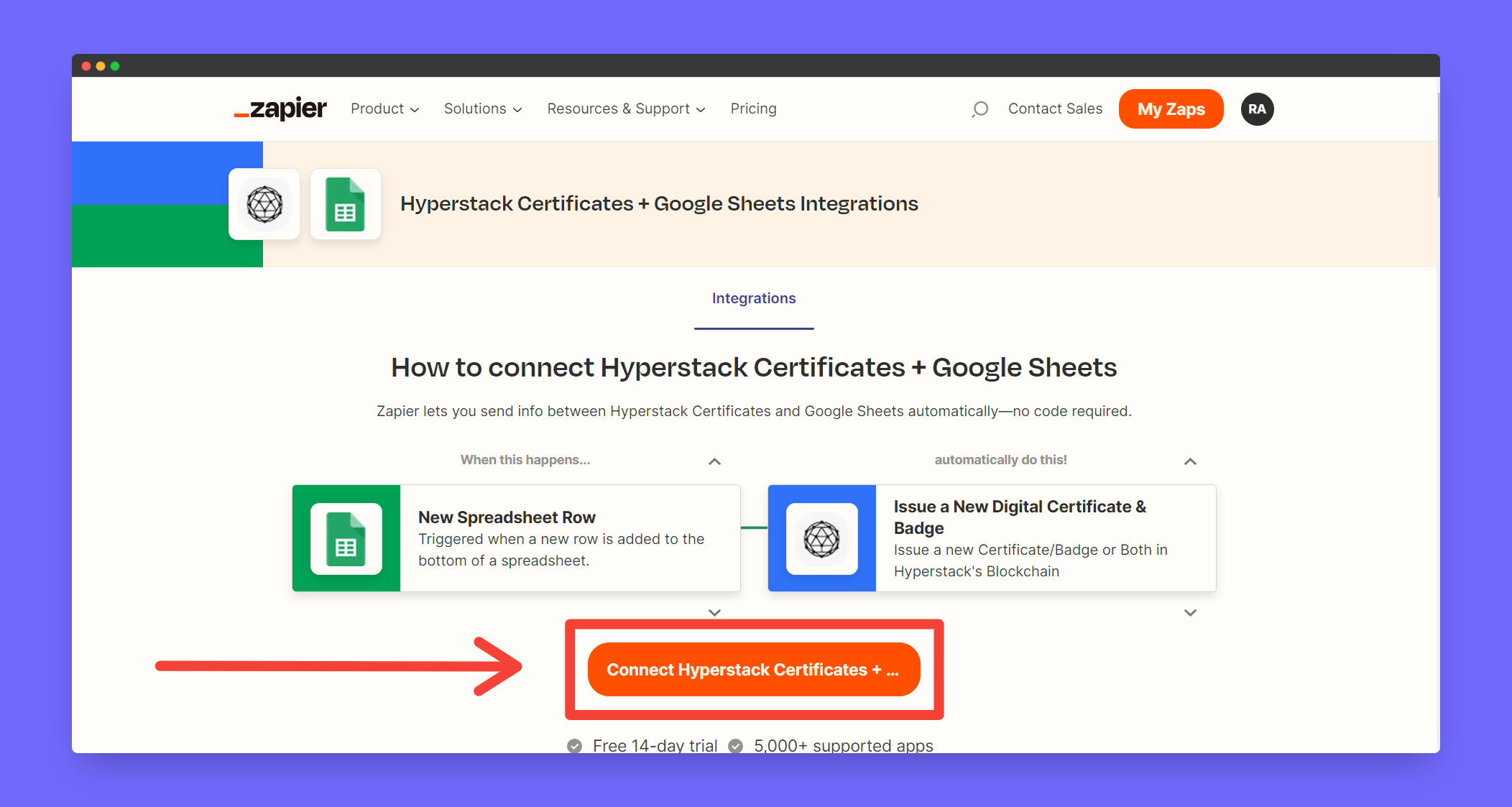
Sign up for a free [Zapier](https://zapier.com/apps/hyperstack-certificates/integrations) account, from there you can jump right in. To help you hit the ground running, we have made a pre-made template for [Google Sheet and Hyperstack integration.](https://zapier.com/apps/google-sheets/integrations/hyperstack-certificates)
<Frame>
  <img src="https://mintcdn.com/hyperstack/hEnRmZQQlgTIvjyK/images/googlesheet-zapier-1.png?fit=max&auto=format&n=hEnRmZQQlgTIvjyK&q=85&s=ffc67bae601ead6f4944fb971ee91fa1" alt="Screenshot of a deployment confirmation message that says All checks have passed." style={{ borderRadius: "0.5rem" }} width="2104" height="1123" data-path="images/googlesheet-zapier-1.png" />
</Frame>

### Setting up Trigger

<Steps>
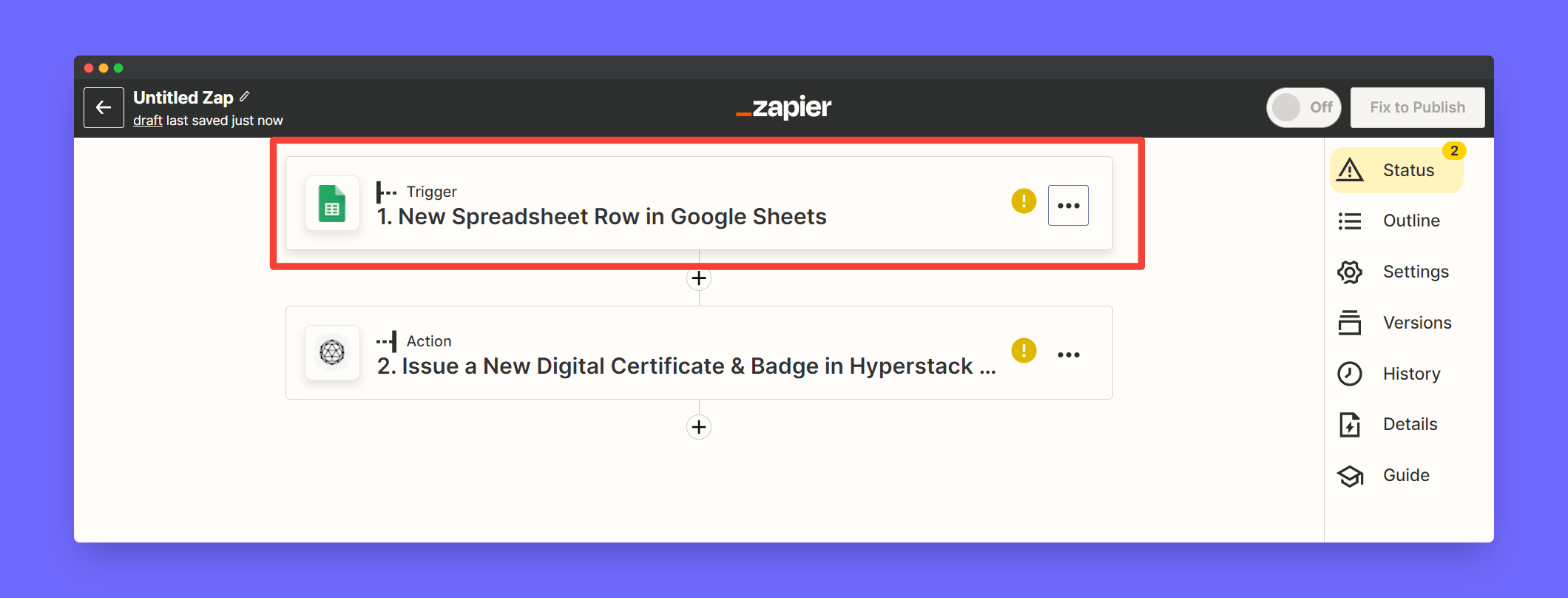
  <Step title="After clicking the above link you will see a prebuilt template like this. Click Trigger to continue setting up the trigger">
    <Frame>
      <img src="https://mintcdn.com/hyperstack/hEnRmZQQlgTIvjyK/images/googlesheet-zapier-2.png?fit=max&auto=format&n=hEnRmZQQlgTIvjyK&q=85&s=d7108d378d9888db2112e3d56e64b46e" alt="Screenshot of a deployment confirmation message that says All checks have passed." style={{ borderRadius: "0.5rem" }} width="2120" height="808" data-path="images/googlesheet-zapier-2.png" />
    </Frame>
  </Step>

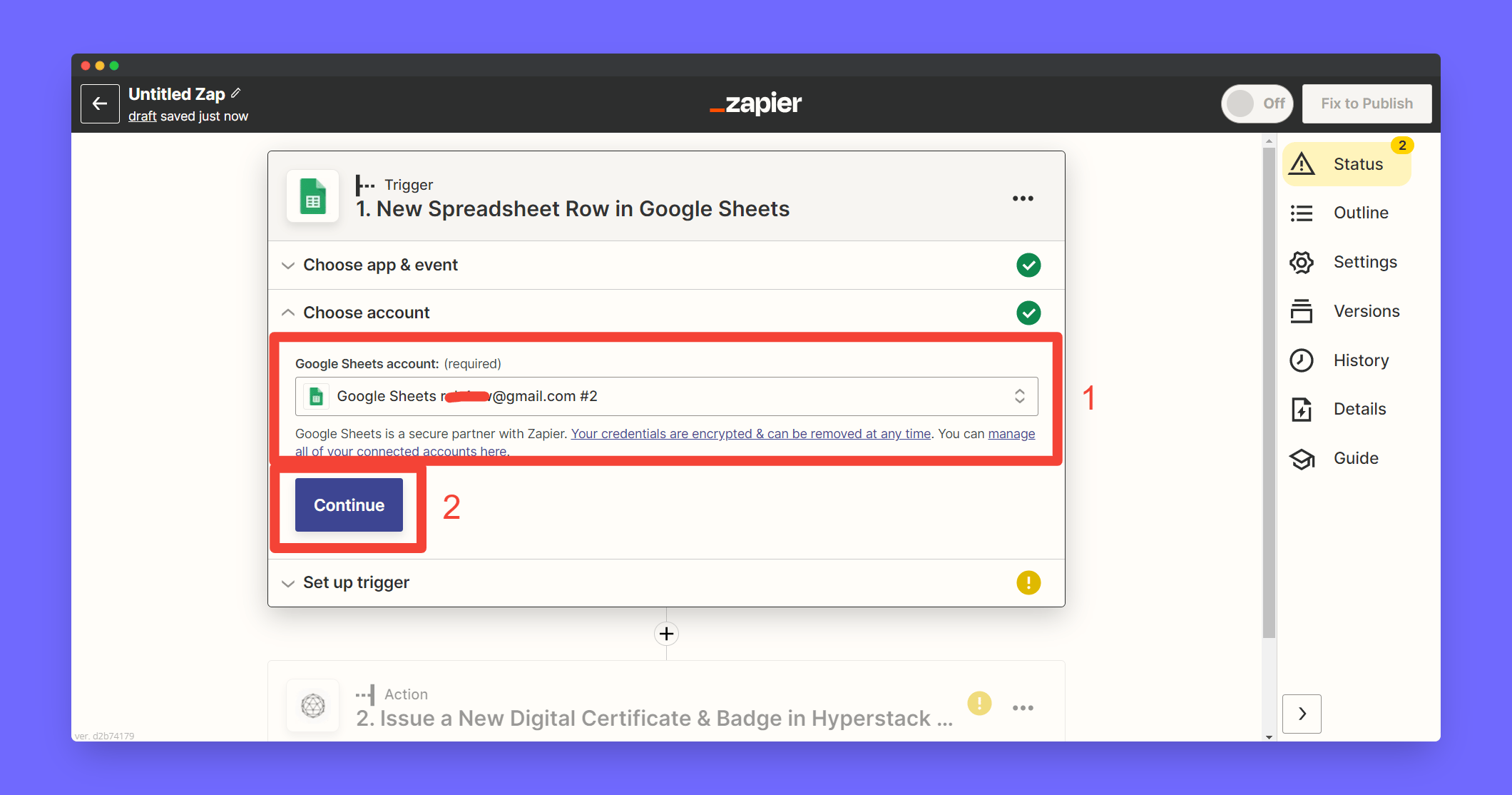
  <Step title="Click Choose Account to signin with your Google account">
    <Frame>
      <img src="https://mintcdn.com/hyperstack/hEnRmZQQlgTIvjyK/images/googlesheet-zapier-3.png?fit=max&auto=format&n=hEnRmZQQlgTIvjyK&q=85&s=013f2a666e00a8357c97f0af5660f767" alt="Screenshot of a deployment confirmation message that says All checks have passed." style={{ borderRadius: "0.5rem" }} width="2120" height="1114" data-path="images/googlesheet-zapier-3.png" />
    </Frame>
  </Step>

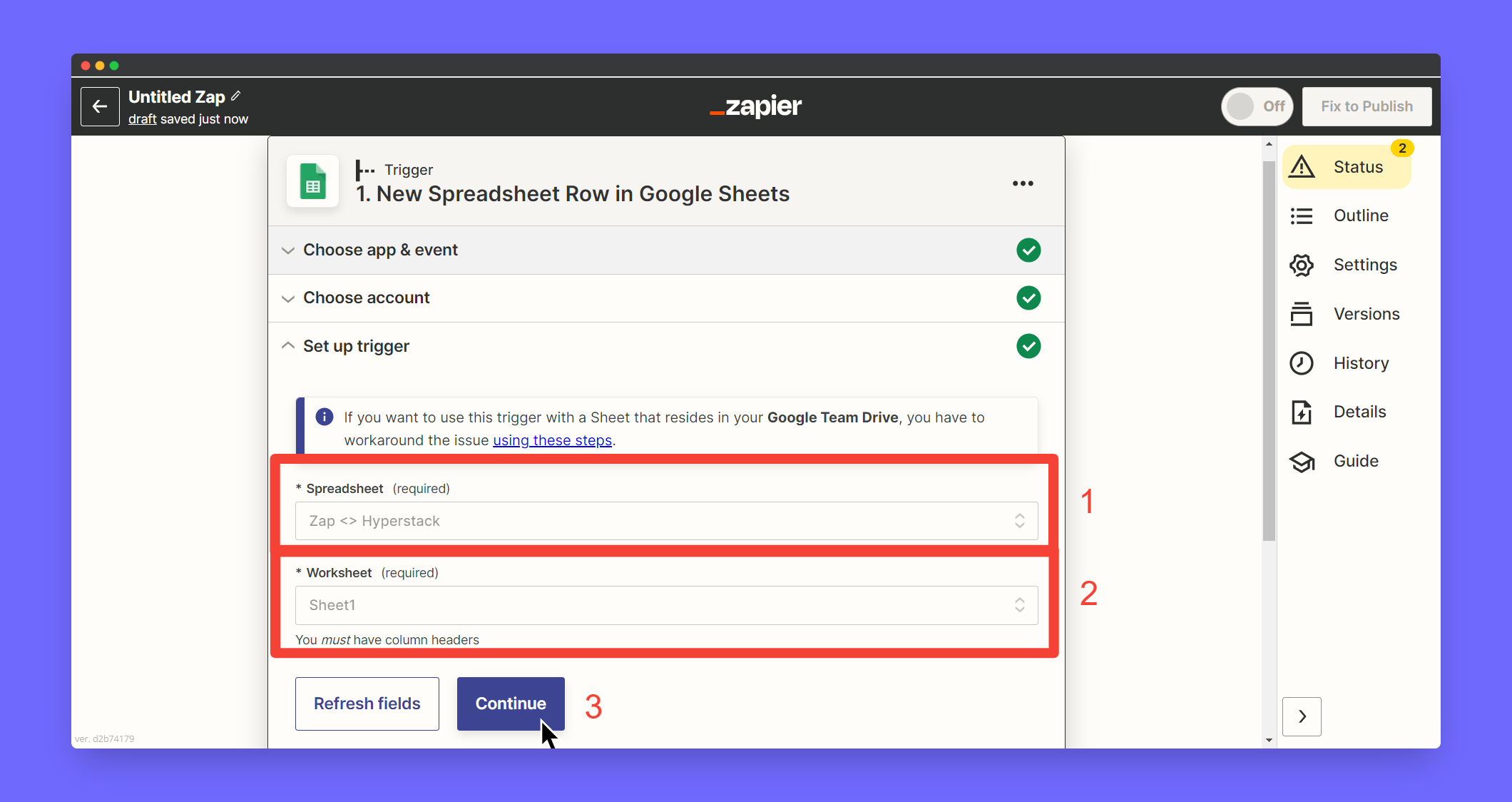
  <Step title="Create a Spreadsheet in your Google Sheets and Map the created spreadsheet in Trigger section">
    <Frame>
      <img src="https://mintcdn.com/hyperstack/hEnRmZQQlgTIvjyK/images/googlesheet-zapier-4.png?fit=max&auto=format&n=hEnRmZQQlgTIvjyK&q=85&s=708300f9c3ff53c3f7ebce31f4dd84b6" alt="Screenshot of a deployment confirmation message that says All checks have passed." style={{ borderRadius: "0.5rem" }} width="2120" height="1124" data-path="images/googlesheet-zapier-4.png" />
    </Frame>
  </Step>

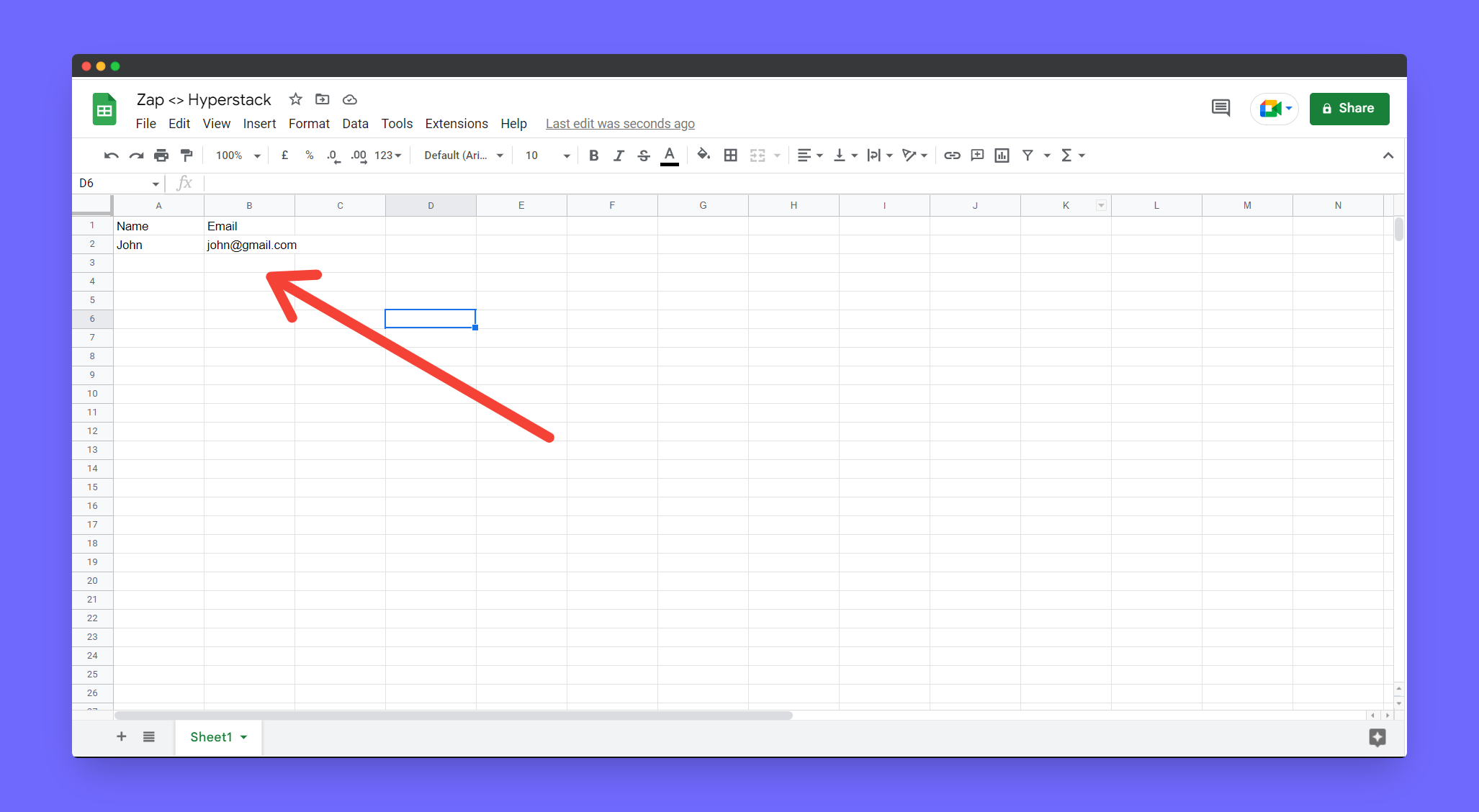
  <Step title="Test the trigger - Go to spreadsheet and add first row as heading and rest of the rows with values of the students eg: Name and Email address">
    <Frame>
      <img src="https://mintcdn.com/hyperstack/hEnRmZQQlgTIvjyK/images/googlesheet-zapier-6.png?fit=max&auto=format&n=hEnRmZQQlgTIvjyK&q=85&s=7a5cb5e4151234ff7fca9472d142d3fc" alt="Screenshot of a deployment confirmation message that says All checks have passed." style={{ borderRadius: "0.5rem" }} width="2054" height="1128" data-path="images/googlesheet-zapier-6.png" />
    </Frame>
  </Step>

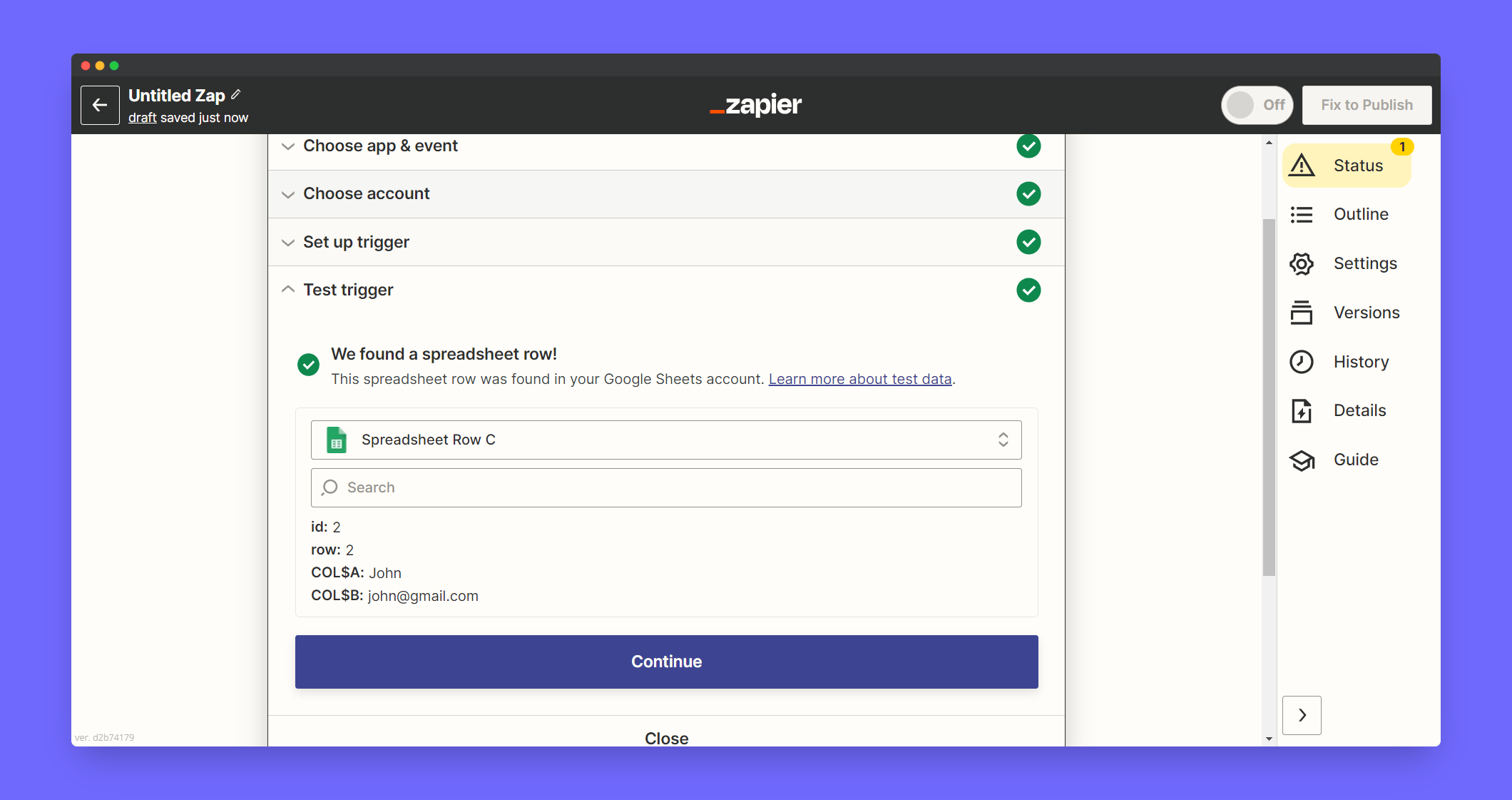
  <Step title="Check whether entered rows appear in Zapier test trigger section. After you receive a trigger from Google Sheets click Continue">
    <Frame>
      <img src="https://mintcdn.com/hyperstack/hEnRmZQQlgTIvjyK/images/googlesheet-zapier-5.png?fit=max&auto=format&n=hEnRmZQQlgTIvjyK&q=85&s=6634f4673199b0fd7511a39b29e8fe15" alt="Screenshot of a deployment confirmation message that says All checks have passed." style={{ borderRadius: "0.5rem" }} width="2120" height="1121" data-path="images/googlesheet-zapier-5.png" />
    </Frame>
  </Step>
</Steps>

### Setting up Action

<Steps>
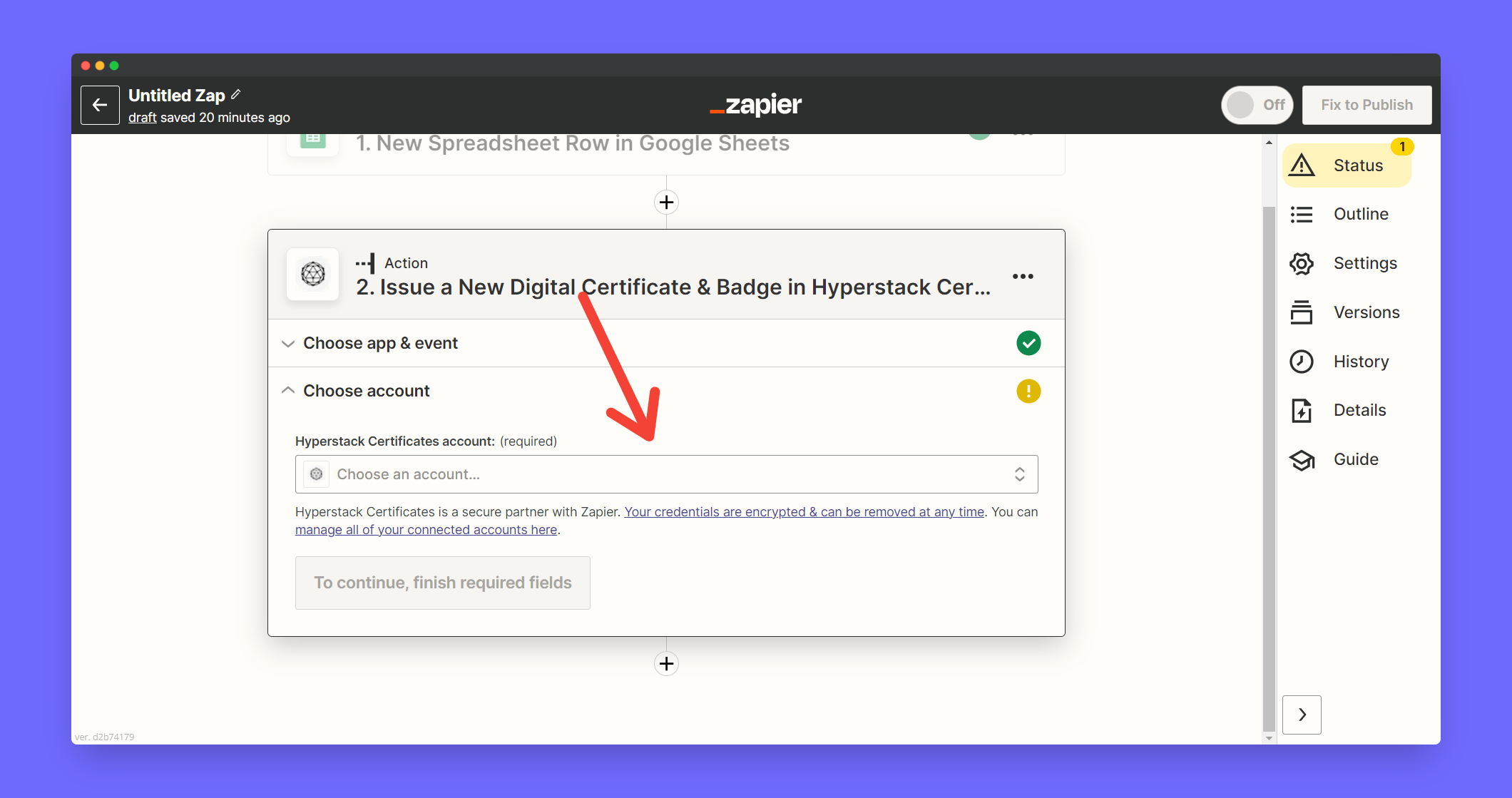
  <Step title="Associate the Hyperstack account to your zap. Click Choose Account">
    <Frame>
      <img src="https://mintcdn.com/hyperstack/hEnRmZQQlgTIvjyK/images/googlesheet-zapier-7.png?fit=max&auto=format&n=hEnRmZQQlgTIvjyK&q=85&s=75106b8d54432e28c959ae05f261d88a" alt="Screenshot of a deployment confirmation message that says All checks have passed." style={{ borderRadius: "0.5rem" }} width="2120" height="1119" data-path="images/googlesheet-zapier-7.png" />
    </Frame>
  </Step>

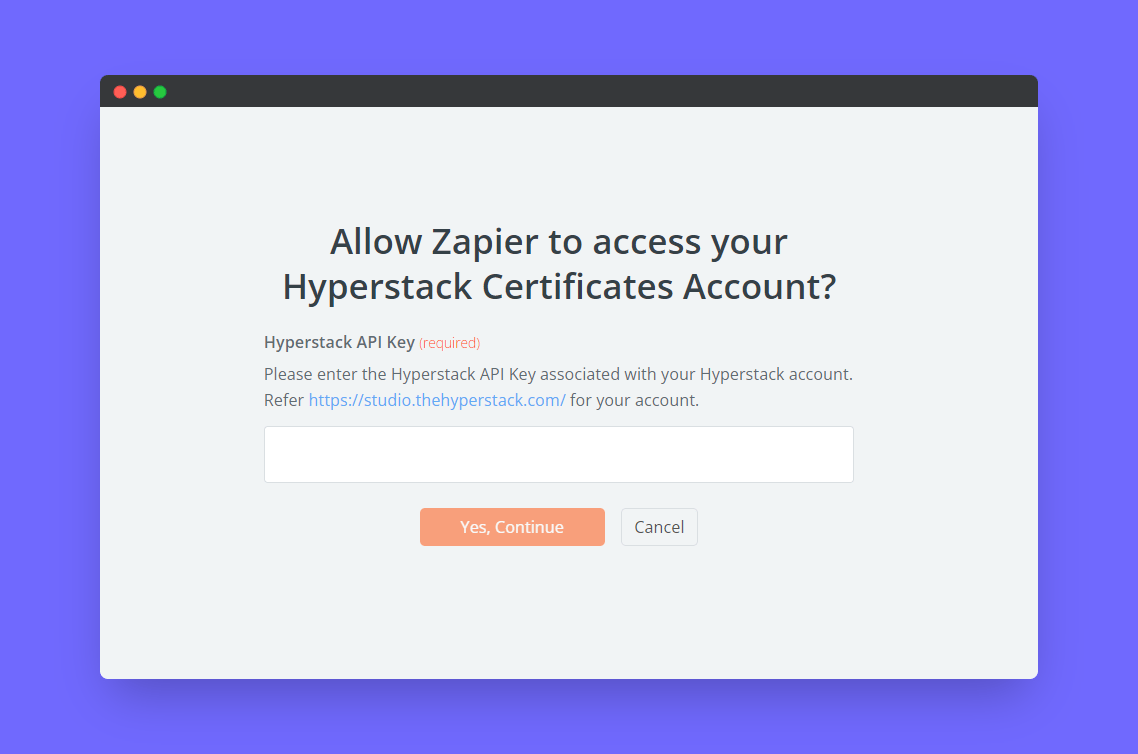
  <Step title="Enter your Hyperstack API key and click Continue">
    <Note>To obtain your API key: Go to Hyperstack Home > Settings > API Access.</Note>

    <Frame>
      <img src="https://mintcdn.com/hyperstack/hEnRmZQQlgTIvjyK/images/googlesheet-zapier-8.png?fit=max&auto=format&n=hEnRmZQQlgTIvjyK&q=85&s=841c3b09a7d3d8f2e603cc156478968e" alt="Screenshot of a deployment confirmation message that says All checks have passed." style={{ borderRadius: "0.5rem" }} width="1138" height="754" data-path="images/googlesheet-zapier-8.png" />
    </Frame>
  </Step>

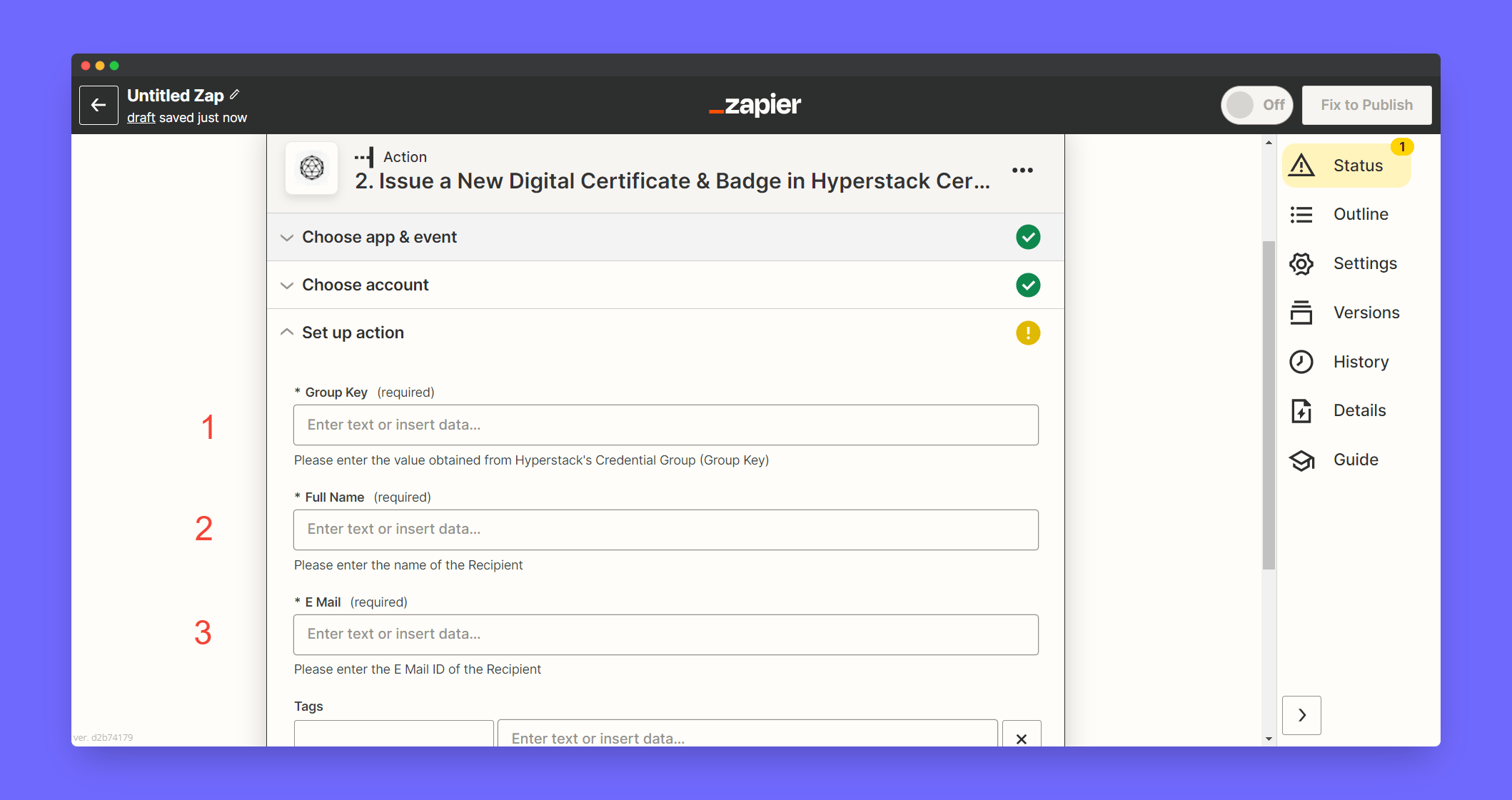
  <Step title="Add Group Key by manually entering the field">
    <Card title="Learn how to get your Group Key " icon="gear" href="/tutorials/credential-setup/creating-credential-group" />

    <Frame>
      <img src="https://mintcdn.com/hyperstack/hEnRmZQQlgTIvjyK/images/googlesheet-zapier-9.png?fit=max&auto=format&n=hEnRmZQQlgTIvjyK&q=85&s=fffaa3ad94da0a3b9cfdefa8dacad2e8" alt="Screenshot of a deployment confirmation message that says All checks have passed." style={{ borderRadius: "0.5rem" }} width="2118" height="1121" data-path="images/googlesheet-zapier-9.png" />
    </Frame>
  </Step>

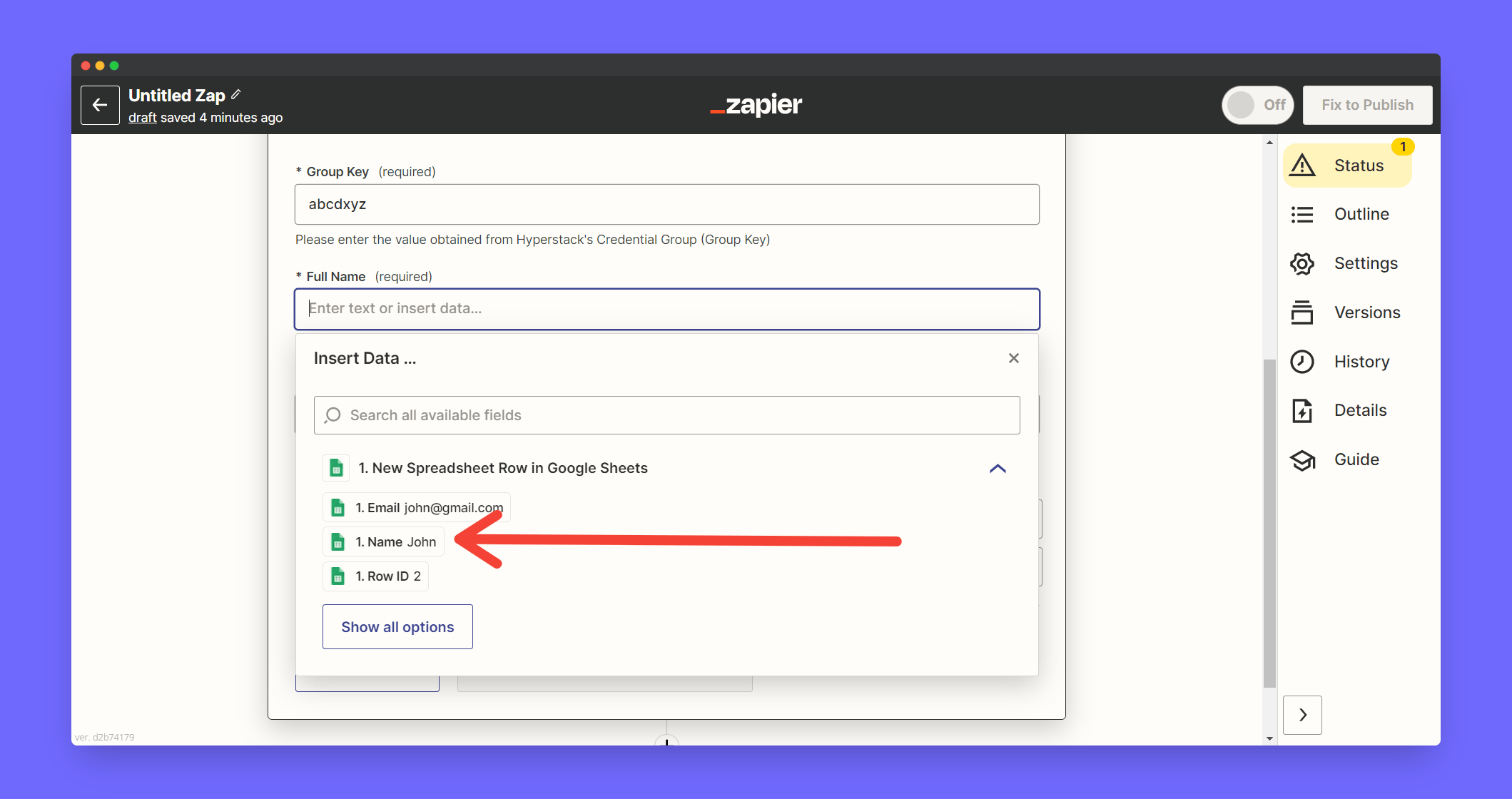
  <Step title="Map the Name Google Sheet Column in the Full Name field">
    <Frame>
      <img src="https://mintcdn.com/hyperstack/hEnRmZQQlgTIvjyK/images/googlesheet-zapier-10.png?fit=max&auto=format&n=hEnRmZQQlgTIvjyK&q=85&s=dd06f375d26fb2b5282bcf8dcffb437c" alt="Screenshot of a deployment confirmation message that says All checks have passed." style={{ borderRadius: "0.5rem" }} width="2119" height="1120" data-path="images/googlesheet-zapier-10.png" />
    </Frame>
  </Step>

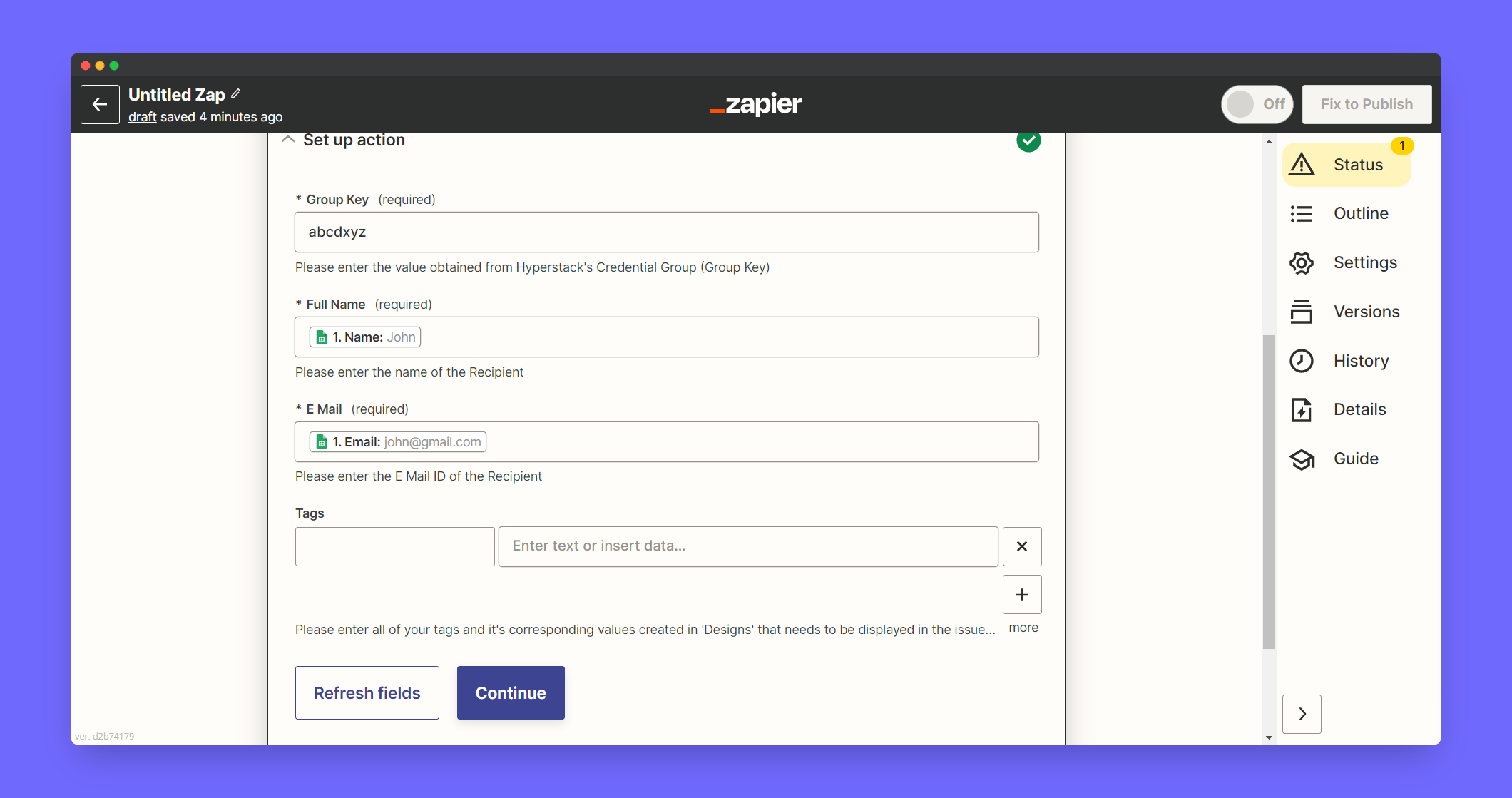
  <Step title="Click Continue">
    <Frame>
      <img src="https://mintcdn.com/hyperstack/hEnRmZQQlgTIvjyK/images/googlesheet-zapier-11.png?fit=max&auto=format&n=hEnRmZQQlgTIvjyK&q=85&s=36b73d9274253de62fd99aeb5120a1fe" alt="Screenshot of a deployment confirmation message that says All checks have passed." style={{ borderRadius: "0.5rem" }} width="2120" height="1119" data-path="images/googlesheet-zapier-11.png" />
    </Frame>
  </Step>

  <Step title="Now test a trigger and click Publish to live">
    <Note>This zap will automatically publish certificates to participants when ever a new row gets added. Approximately it will take 1 to 5 mins for each trigger.</Note>
  </Step>
</Steps>

If you have any additional questions, you can open a ticket with Zapier Support from [https://zapier.com/app/get-help](https://zapier.com/app/get-help)

Zapier Troubleshooting Open a ticket with Zapier Support from [https://zapier.com/app/get-help](https://zapier.com/app/get-help)