> ## Documentation Index
> Fetch the complete documentation index at: https://thehyperstack.com/docs/llms.txt
> Use this file to discover all available pages before exploring further.

# Webex Integration

With Webex integration you can easily issue certificates/badges to your participants in hassle free way. You don't need to worry about collecting participant's details manually. With this integration you can automatically import the participants list in your meeting or webinar and issue certificates in one click!

To integrate Webex into Hyperstack, follow the below steps
<Steps>
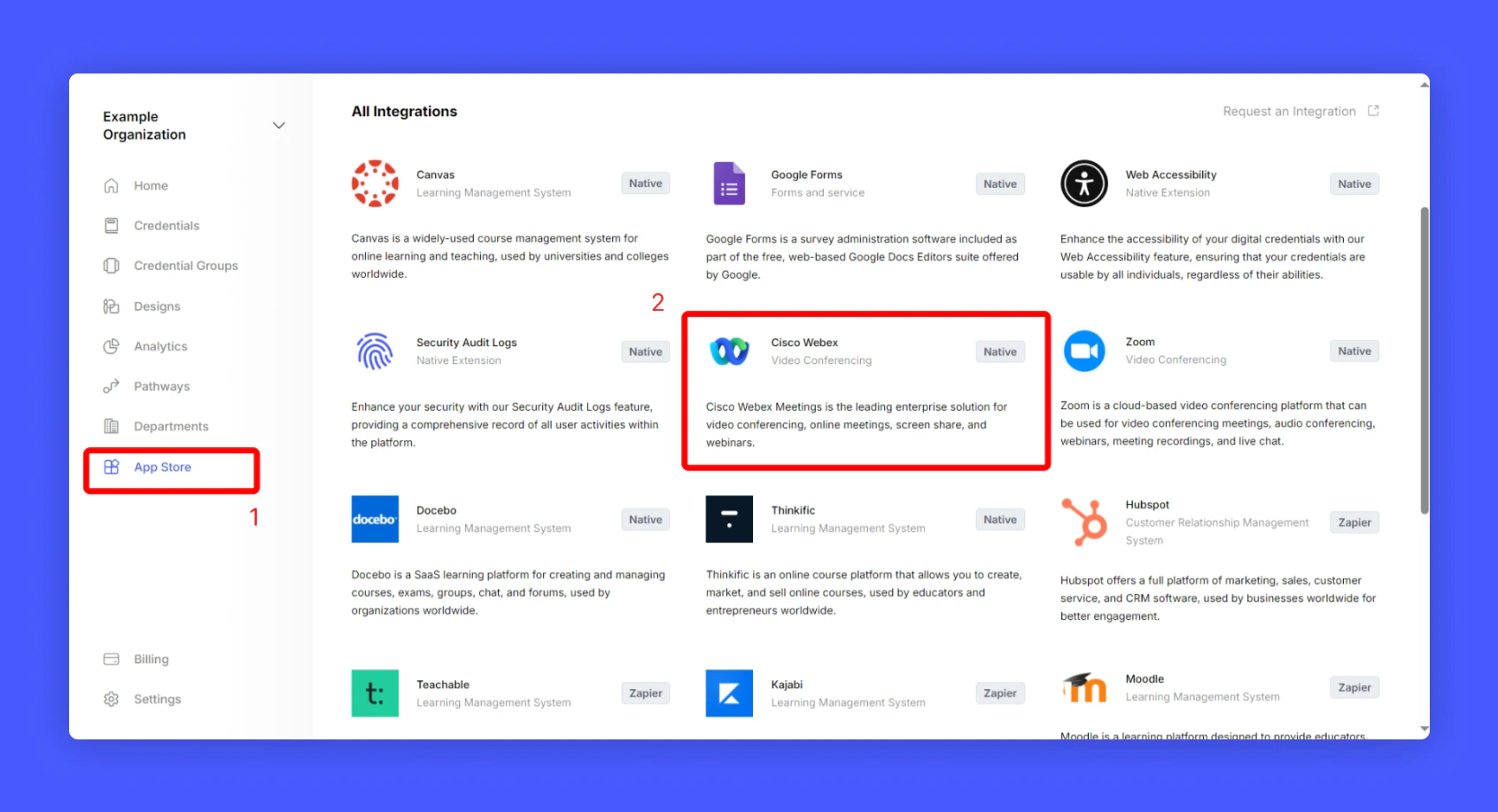
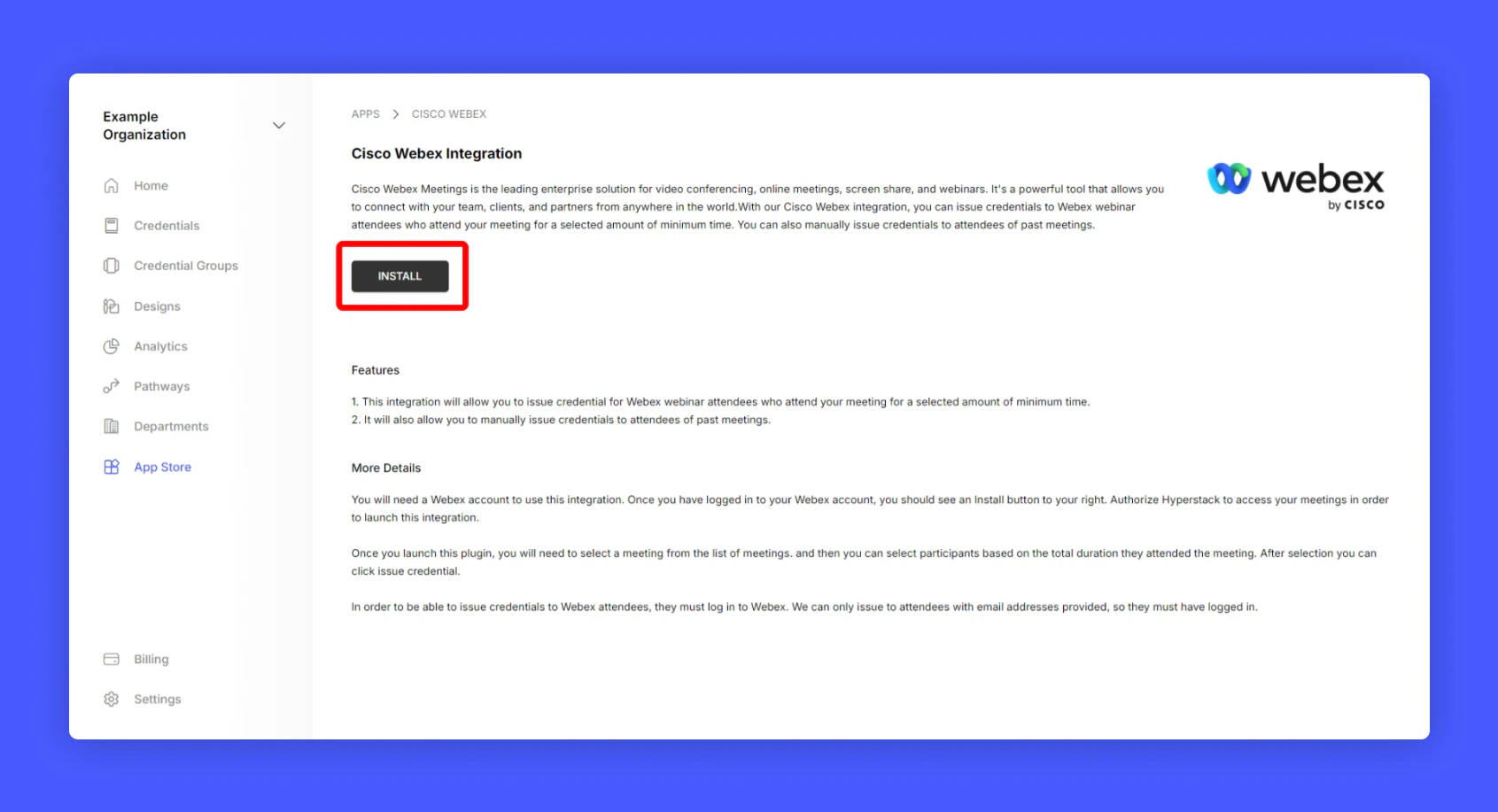
  <Step title="Login to your Hyperstack account, Click App Store and Webex Integration from your Issuer home page">
    <Frame>
      <img src="https://mintcdn.com/hyperstack/qY85LaGwLRblCCD2/images/webex-integration-2.png?fit=max&auto=format&n=qY85LaGwLRblCCD2&q=85&s=a9f217df23418af7d7e8656f38d40377" alt="Screenshot of a deployment confirmation message that says All checks have passed." style={{ borderRadius: "0.5rem" }} width="1691" height="917" data-path="images/webex-integration-2.png" />
    </Frame>
  </Step>

  <Step title="On Webex integration page click Install to integrate Webex into Hyperstack" />

  <Step title="You will be taken to Webex authorization page, Click Accept to install the Hyperstack app on your Webex app">
    <Frame>
      <img src="https://mintcdn.com/hyperstack/qY85LaGwLRblCCD2/images/webex-integration-3.png?fit=max&auto=format&n=qY85LaGwLRblCCD2&q=85&s=d689ae6cca86290dab10d4f43e554fcc" alt="Screenshot of a deployment confirmation message that says All checks have passed." style={{ borderRadius: "0.5rem" }} width="2120" height="1120" data-path="images/webex-integration-3.png" />
    </Frame>
  </Step>

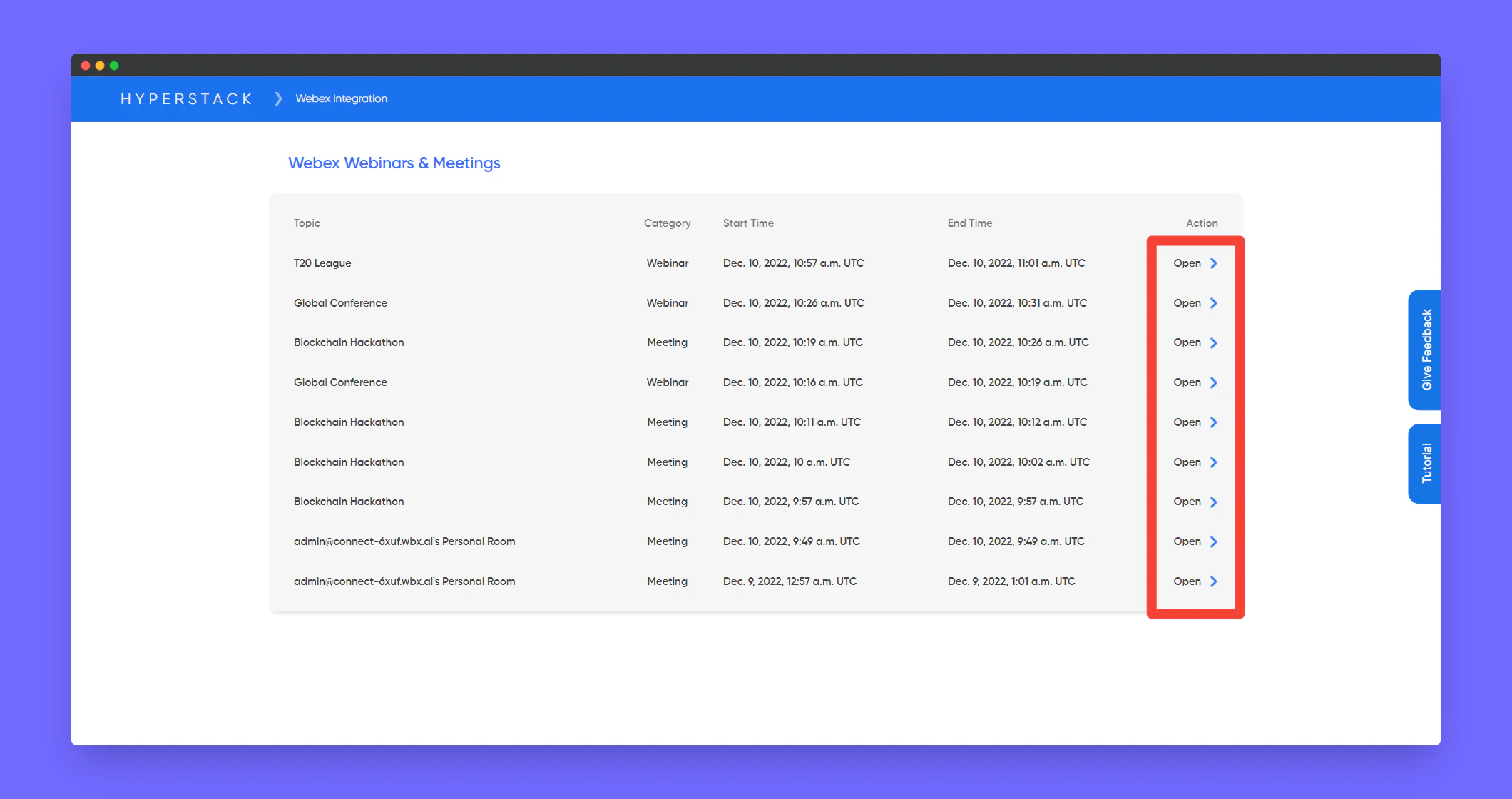
  <Step title="After successfully installing, refresh to see your meeting lists" />

  <Step title="Click Open in any one of your meetings">
    <Frame>
      <img src="https://mintcdn.com/hyperstack/qY85LaGwLRblCCD2/images/webex-integration-4.png?fit=max&auto=format&n=qY85LaGwLRblCCD2&q=85&s=d57bda702e2b9e777268e7f17e35375b" alt="Screenshot of a deployment confirmation message that says All checks have passed." style={{ borderRadius: "0.5rem" }} width="2120" height="1121" data-path="images/webex-integration-4.png" />
    </Frame>
  </Step>

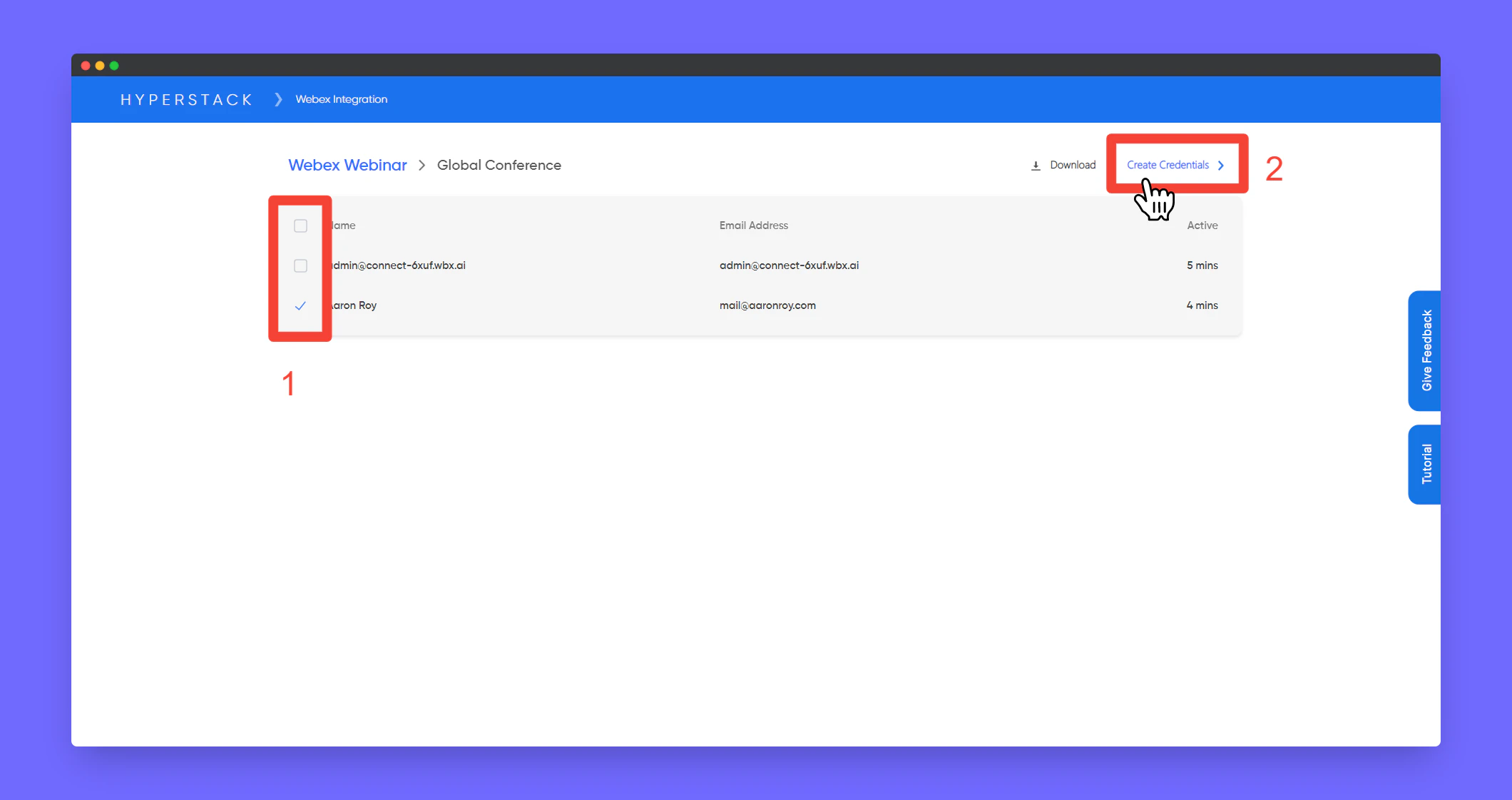
  <Step title="You will see list of all attendees who attended and their duration they spent on the meeting/webinar" />

  <Step title="Select the attendees and click Create Credentials to start issuing certificates to the selected attendees">
    <Frame>
      <img src="https://mintcdn.com/hyperstack/qY85LaGwLRblCCD2/images/webex-integration-1.png?fit=max&auto=format&n=qY85LaGwLRblCCD2&q=85&s=d67361b64a3269df1558801699d4ca70" alt="Screenshot of a deployment confirmation message that says All checks have passed." style={{ borderRadius: "0.5rem" }} width="1691" height="917" data-path="images/webex-integration-1.png" />
    </Frame>
  </Step>

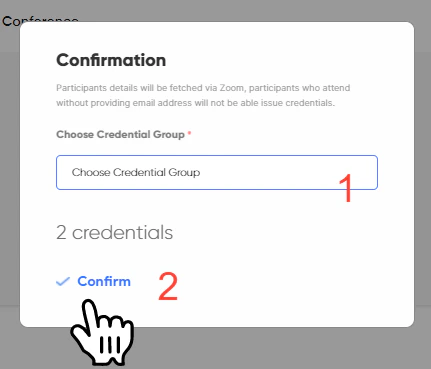
  <Step title="A confirmation popup will appear, Select the Credential Group you want to issue in and Click Confirm to publish the certificates">
    <Frame>
      <img src="https://mintcdn.com/hyperstack/qY85LaGwLRblCCD2/images/webex-integration-5.png?fit=max&auto=format&n=qY85LaGwLRblCCD2&q=85&s=dd47c03a45a0c4dfa3f9077a616bb37e" alt="Screenshot of a deployment confirmation message that says All checks have passed." style={{ borderRadius: "0.5rem" }} width="431" height="369" data-path="images/webex-integration-5.png" />
    </Frame>
  </Step>
</Steps>

Hurray! you have successfully issued the certificates to your Webex attendees!

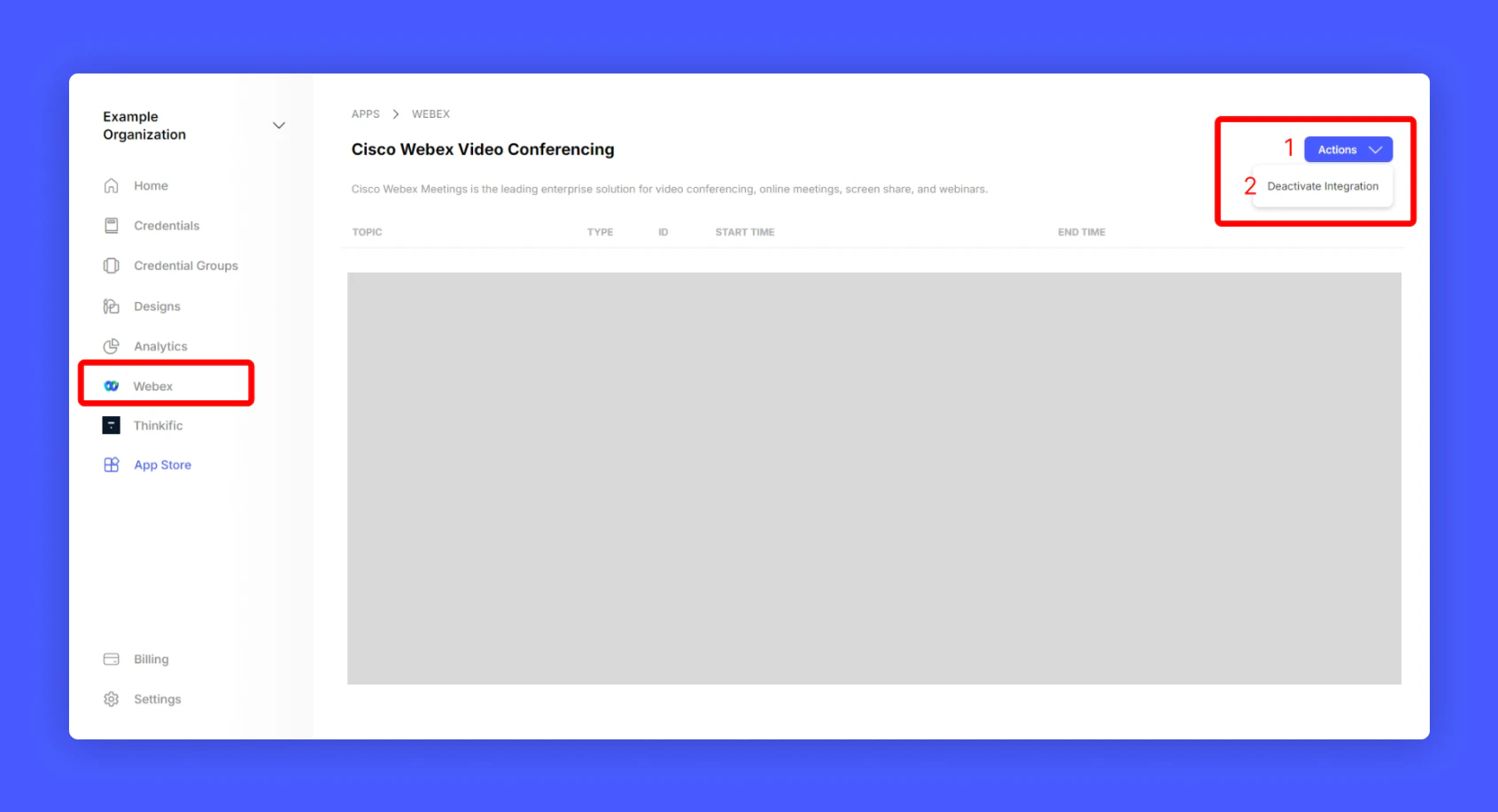
To uninstall Webex from Hyperstack. Simply go to the Webex Integration page in Hyperstack and Click "Uninstall Webex" to unlink webex.
<Frame>
  <img src="https://mintcdn.com/hyperstack/qY85LaGwLRblCCD2/images/webex-integration-6.png?fit=max&auto=format&n=qY85LaGwLRblCCD2&q=85&s=b854a6ac15a0f75be3d8775dab86baab" alt="Screenshot of a deployment confirmation message that says All checks have passed." style={{ borderRadius: "0.5rem" }} width="1691" height="917" data-path="images/webex-integration-6.png" />
</Frame>