> ## Documentation Index
> Fetch the complete documentation index at: https://thehyperstack.com/docs/llms.txt
> Use this file to discover all available pages before exploring further.

# Creating Credential Group

> Creating a credential group is an important step in issuing credentials, the credential group has the information that the certificate issuer wants to put forward to the viewers of the certificate about the course/program. You can also setup the certificate/badge template associated to the credential group and manage other setting for the course/program. how-to-archive-items Credential group makes it easy to manage credentials from a single place in the app.
<Steps>
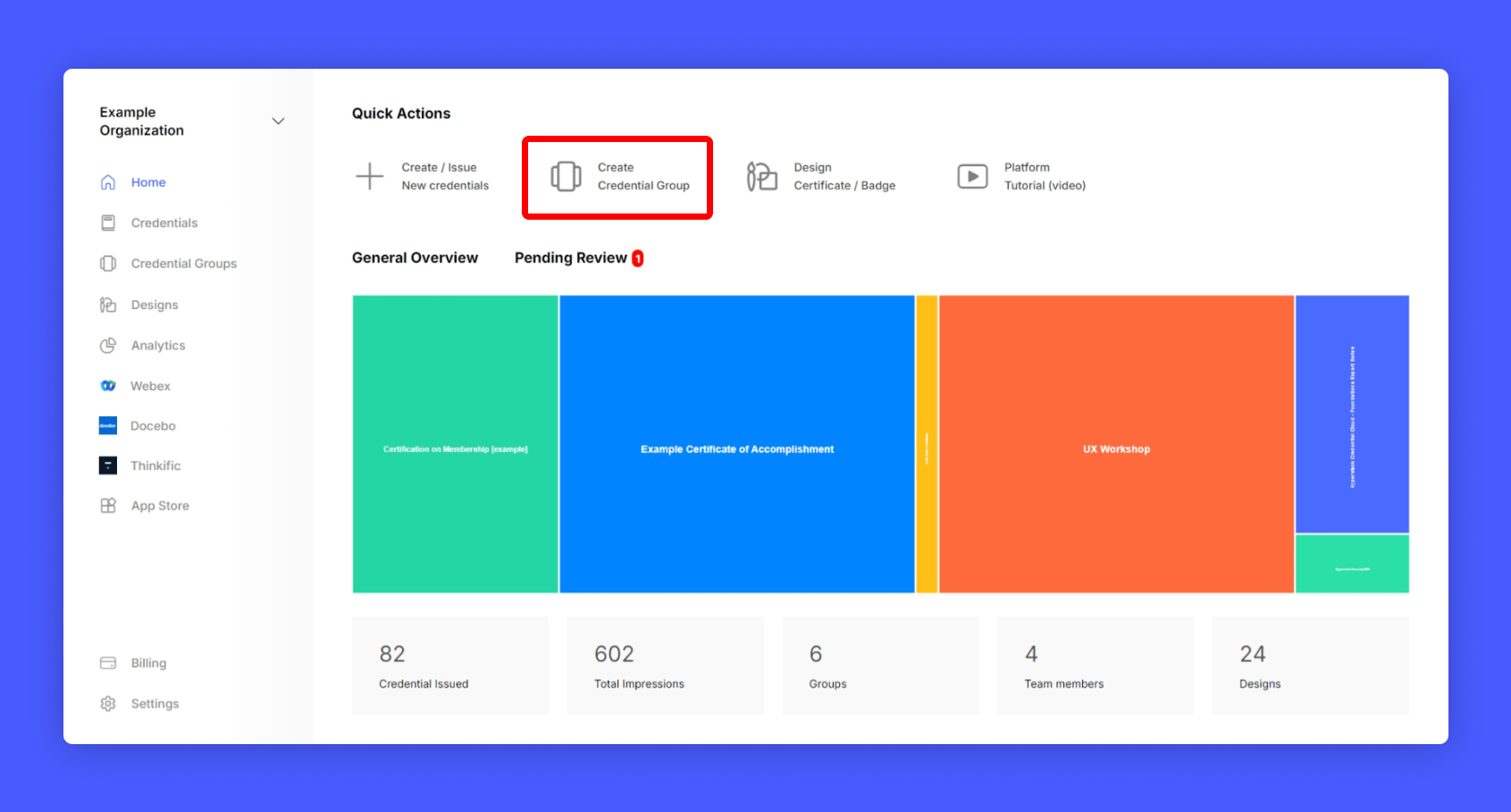
  <Step title="Click Create Credential Group from your issuer account home page">
    <Frame>
      <img src="https://mintcdn.com/hyperstack/IJj3eNeM7esUzmVV/images/creating-credential-group-1.png?fit=max&auto=format&n=IJj3eNeM7esUzmVV&q=85&s=cfa9b872737343fc807f70fac76aa664" alt="Screenshot of a deployment confirmation message that says All checks have passed." style={{ borderRadius: "0.5rem" }} width="1691" height="909" data-path="images/creating-credential-group-1.png" />
    </Frame>
  </Step>

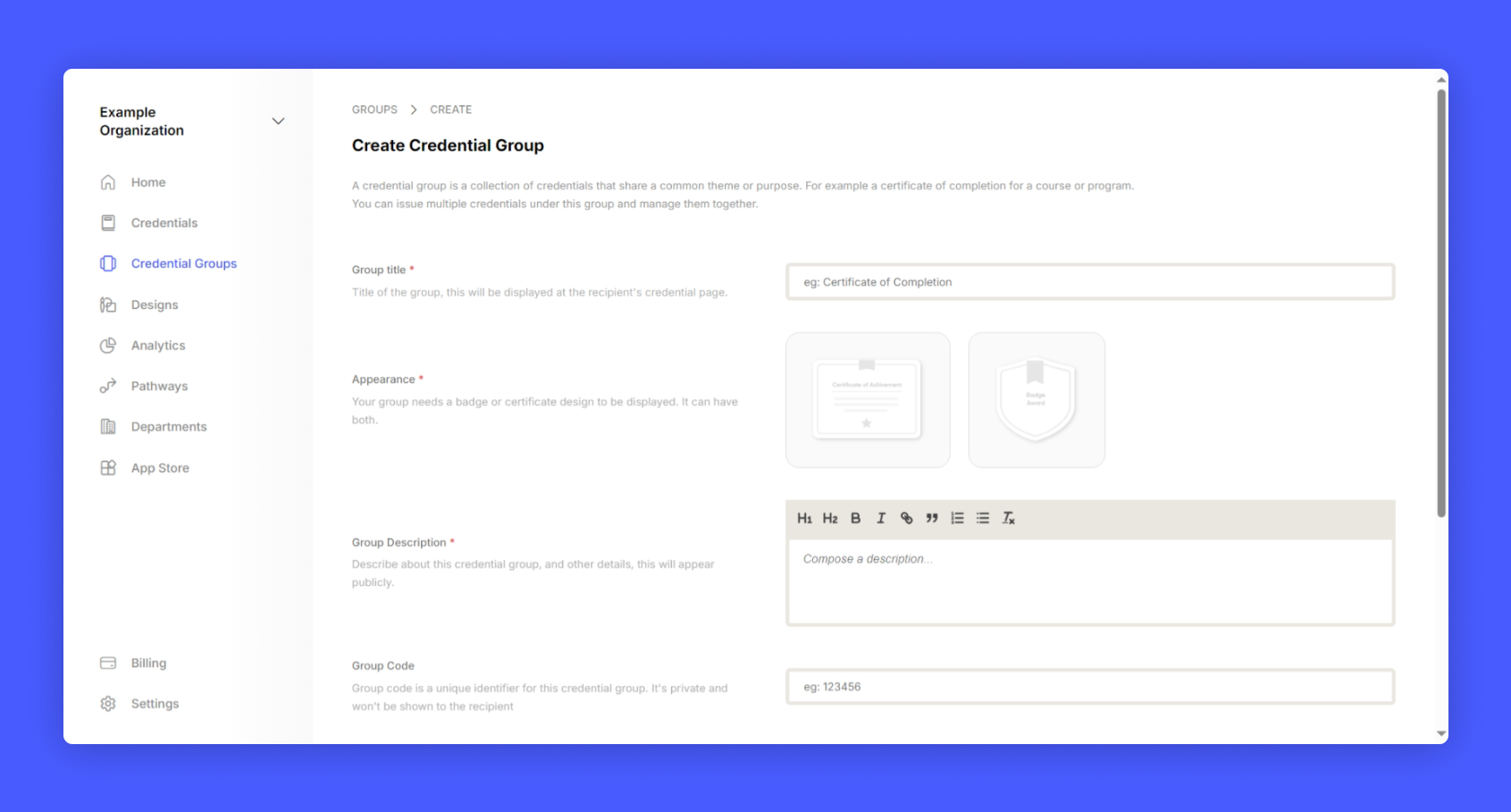
  <Step title="Fill in the credential group details">
    A blank credential group is created. Fill in with below-mentioned types,
    <Steps>
      <Step title="Title of the Credential (eg: Acme Cloud Architecture Certification)" />

      <Step title="Description (Tell about how this credential is earned and what are the values)" />

      <Step title="Skill Tags (eg: Cloud Engineer, DevOps, System Engineer etc.)" />

      <Step title="Website Link (Call To Action: Provide where others can find details about this course)" />

      <Step title="Group Code (A simple friendly 6 character code word for this group for identification)" />
    </Steps>

    <Frame>
      <img src="https://mintcdn.com/hyperstack/IJj3eNeM7esUzmVV/images/creating-credential-group-2.png?fit=max&auto=format&n=IJj3eNeM7esUzmVV&q=85&s=dd8ed28919302dfd137050e83c8e5673" alt="Screenshot of a deployment confirmation message that says All checks have passed." style={{ borderRadius: "0.5rem" }} width="1691" height="909" data-path="images/creating-credential-group-2.png" />
    </Frame>
  </Step>

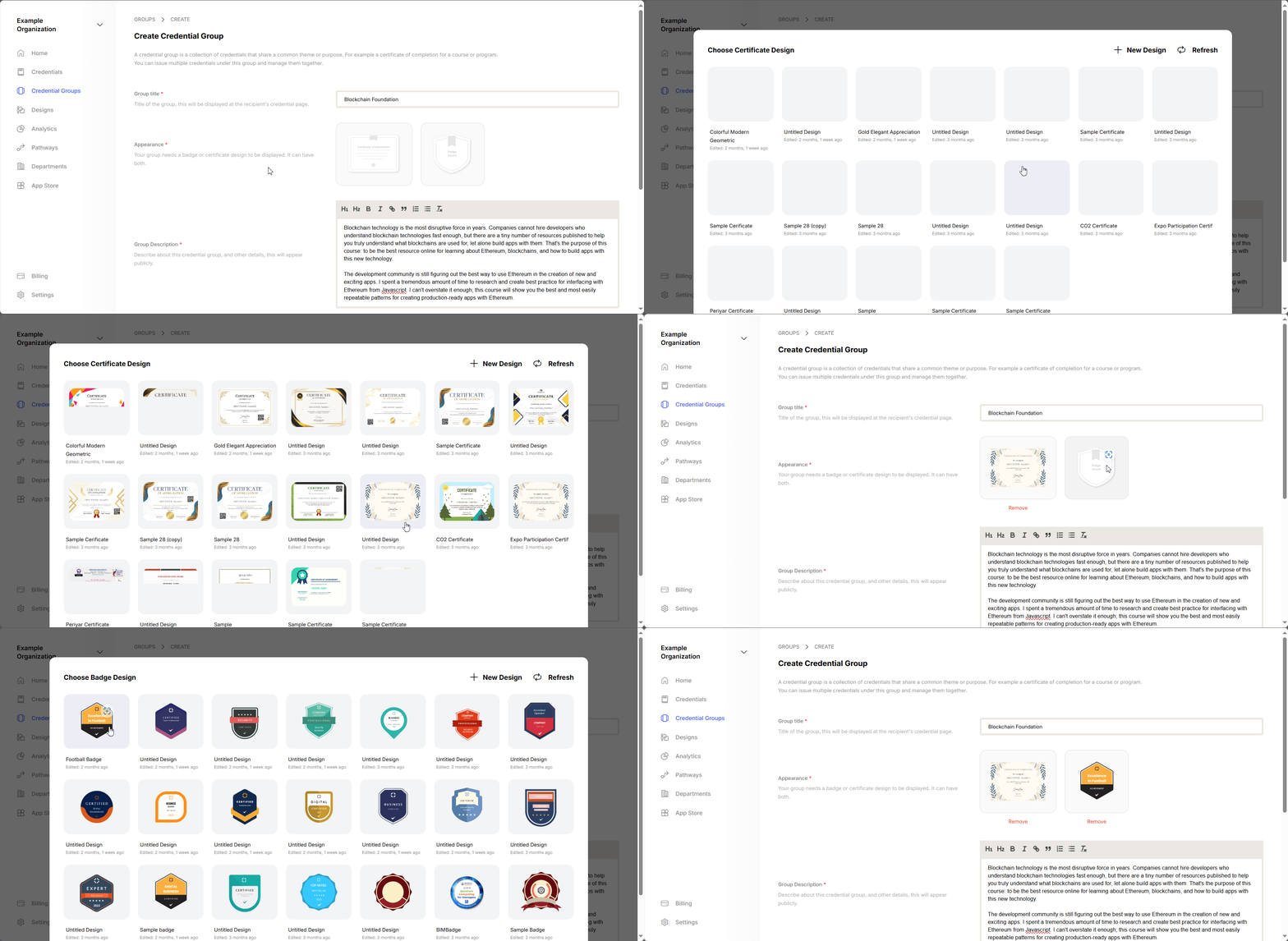
  <Step title="Choose Appearance from one of your designs">
    <Frame>
      <img src="https://mintcdn.com/hyperstack/IJj3eNeM7esUzmVV/images/creating-credential-group-3.gif?s=87d220d38a105facbc21387e297316d3" alt="Screenshot of a deployment confirmation message that says All checks have passed." style={{ borderRadius: "0.5rem" }} width="1910" height="933" data-path="images/creating-credential-group-3.gif" />
    </Frame>

    <Note>Didn't find any designs?
    Learn how to Design Certificates</Note>
  </Step>

  <Step title="Click Add Group/Save Changes button to save the group">
    For Advanced Credential Group setup, follow the link below,

    <Note>
      Quick Links
      Advanced Credential Group Configuration
    </Note>
  </Step>
</Steps>

After creating the credential group, you can start issuing credentials for the same.

<Card title=" Issuing your first Credential" icon="x" href="/tutorials/credential-setup/issuing-credential" />