> ## Documentation Index
> Fetch the complete documentation index at: https://thehyperstack.com/docs/llms.txt
> Use this file to discover all available pages before exploring further.
# Showcase Page Setup
> The Showcase page is your issuer organization's profile page on Hyperstack's Credential Cloud platform. The showcase page will reflect the general info setup on the Credential cloud platform.
Before setting up Showcase page, make sure you have completed Basic Account setup
Once set up, the issuer account is ready to issue credentials. For full features, please configure general settings and issuer info.
product.
To view your public showcase page: On General Settings, Click as mentioned below
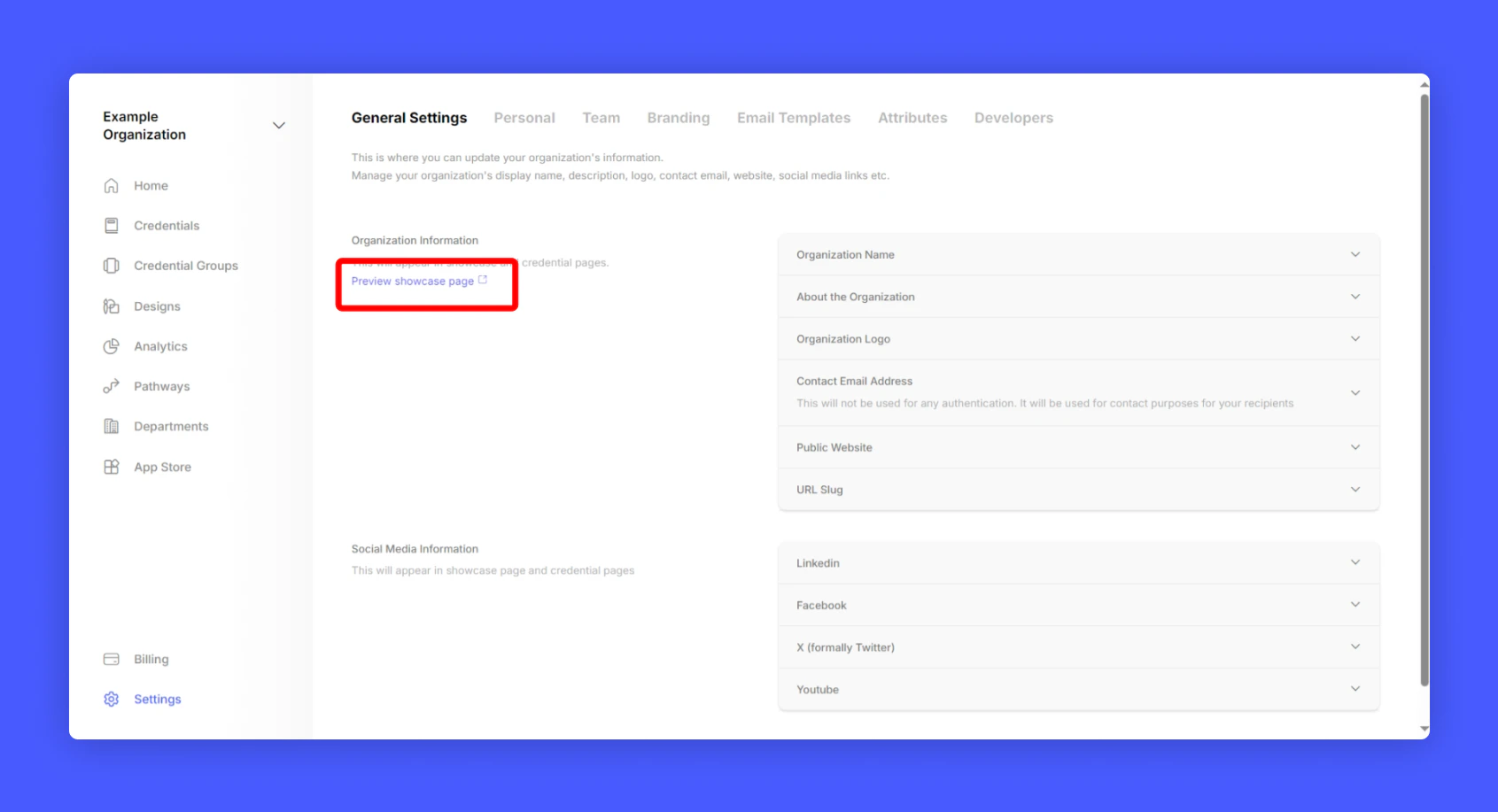 Here you'll see your public showcase page
 Initially your showcase page looks empty, to showcase your credential groups and feedback publicly.
Go to one of your credential group > under visibility section > Change group visibility to public.
Initially your showcase page looks empty, to showcase your credential groups and feedback publicly.
Go to one of your credential group > under visibility section > Change group visibility to public.
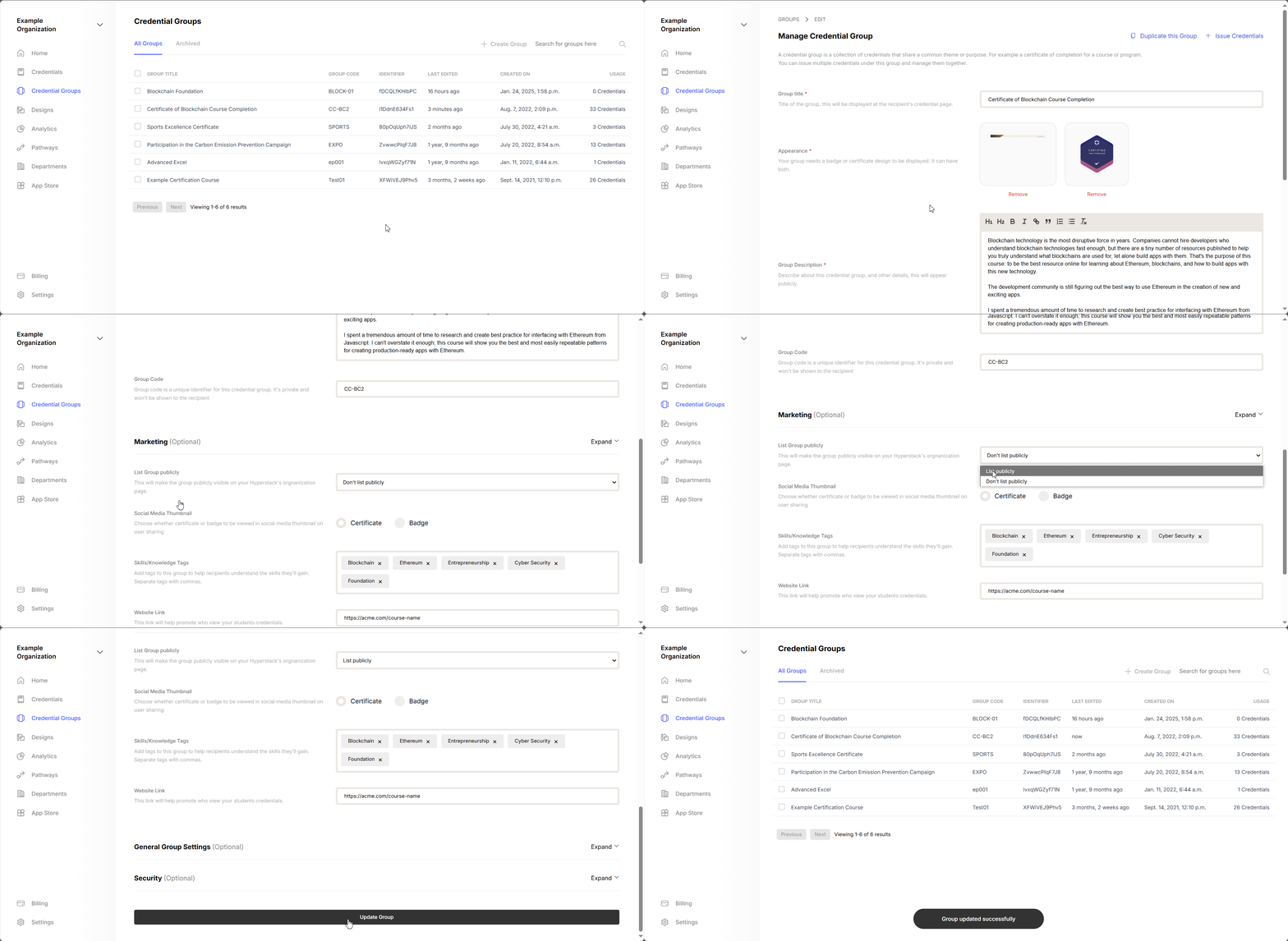 After successfully making group public, It is how look like,
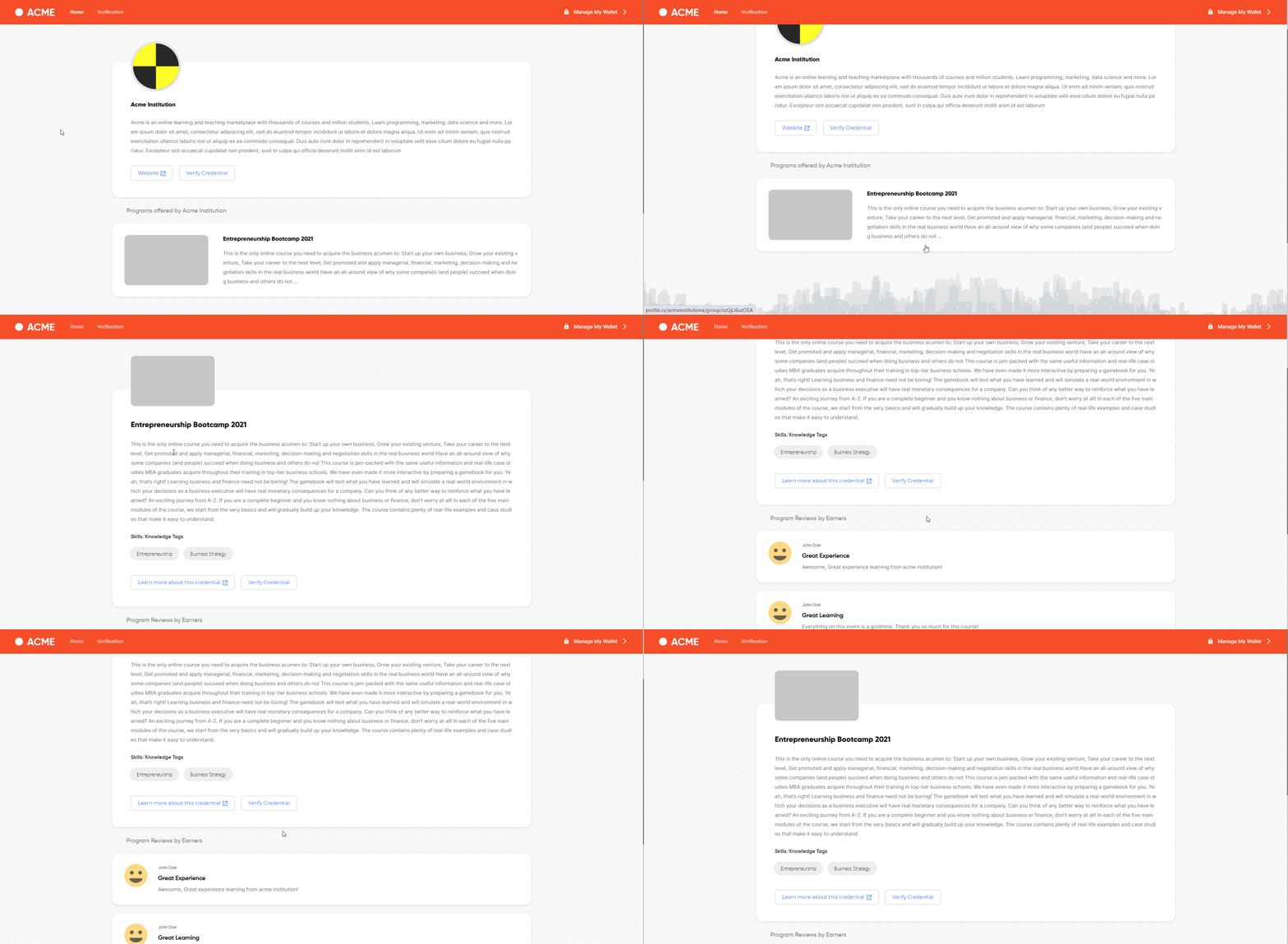 To brand your showcase page with your company logo and colors, click the link below.
Branding and white-labeling are premium features that let you customize the certificate landing page and how it appears to recipients and verifiers.
To brand your showcase page with your company logo and colors, click the link below.
Branding and white-labeling are premium features that let you customize the certificate landing page and how it appears to recipients and verifiers.