> ## Documentation Index
> Fetch the complete documentation index at: https://thehyperstack.com/docs/llms.txt
> Use this file to discover all available pages before exploring further.

# How to archive items

# How to archive and un-archive items?

You can archive groups, design templates and many other to make it read-only for all users and indicate that it's no longer actively maintained. You can also un-archive items that have been archived.

### How to archive credential groups?

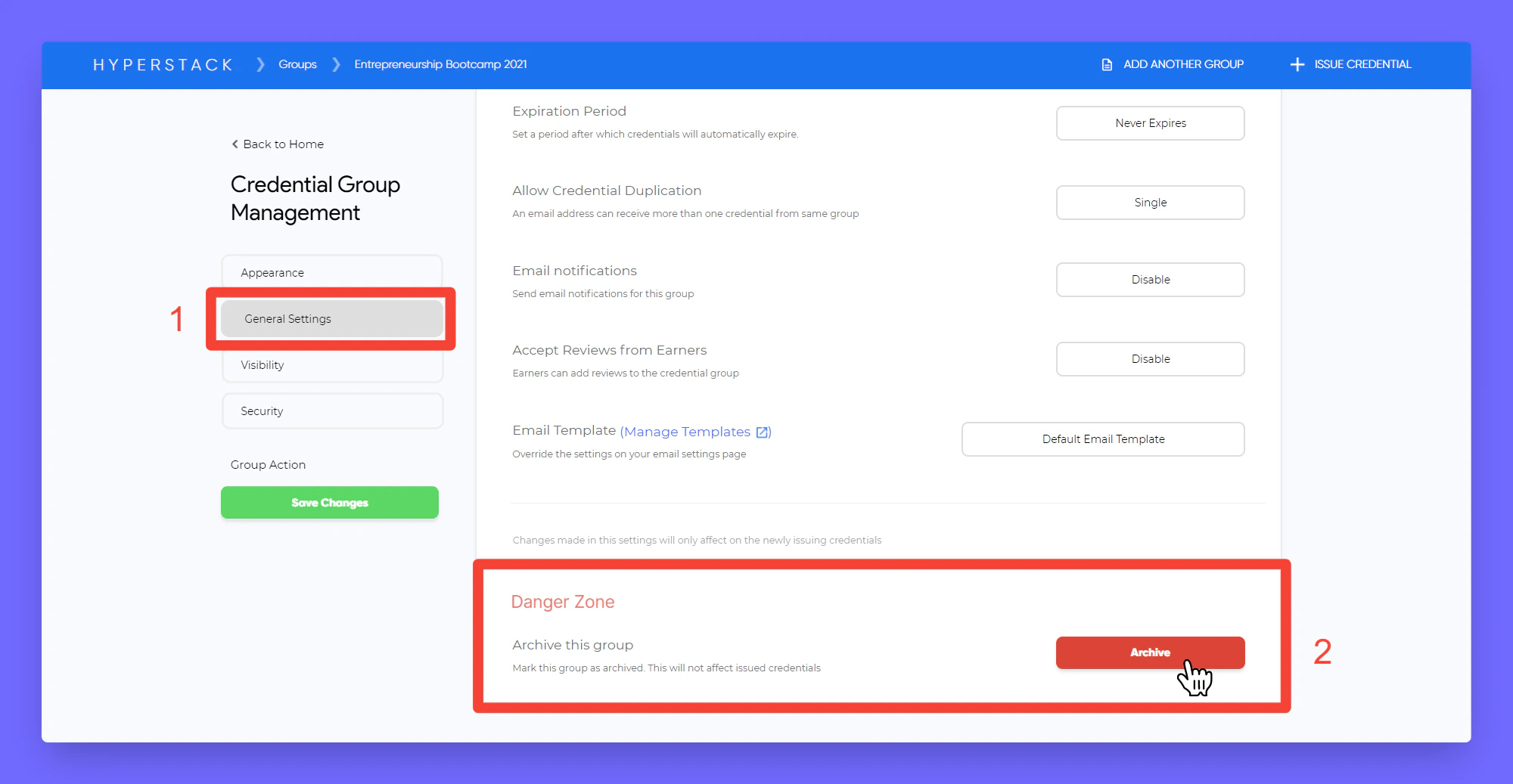
Open the Credential Group which you want to archive.

<Steps>
  <Step title="Click General Settings in the credential group" />

  <Step title="Scroll to bottom, Under 'Danger Zone' click Archive button to archive this group">
    Hurray! you have successfully archived your credential group.
    <Frame>
      <img src="https://mintcdn.com/hyperstack/IJj3eNeM7esUzmVV/images/archive-items-1.png?fit=max&auto=format&n=IJj3eNeM7esUzmVV&q=85&s=748130952ee29038e4f9598b20874624" alt="Screenshot of a deployment confirmation message that says All checks have passed." style={{ borderRadius: "0.5rem" }} width="2000" height="1037" data-path="images/archive-items-1.png" />
    </Frame>
  </Step>
</Steps>

### How to archive certificate/badge design?
<Steps>
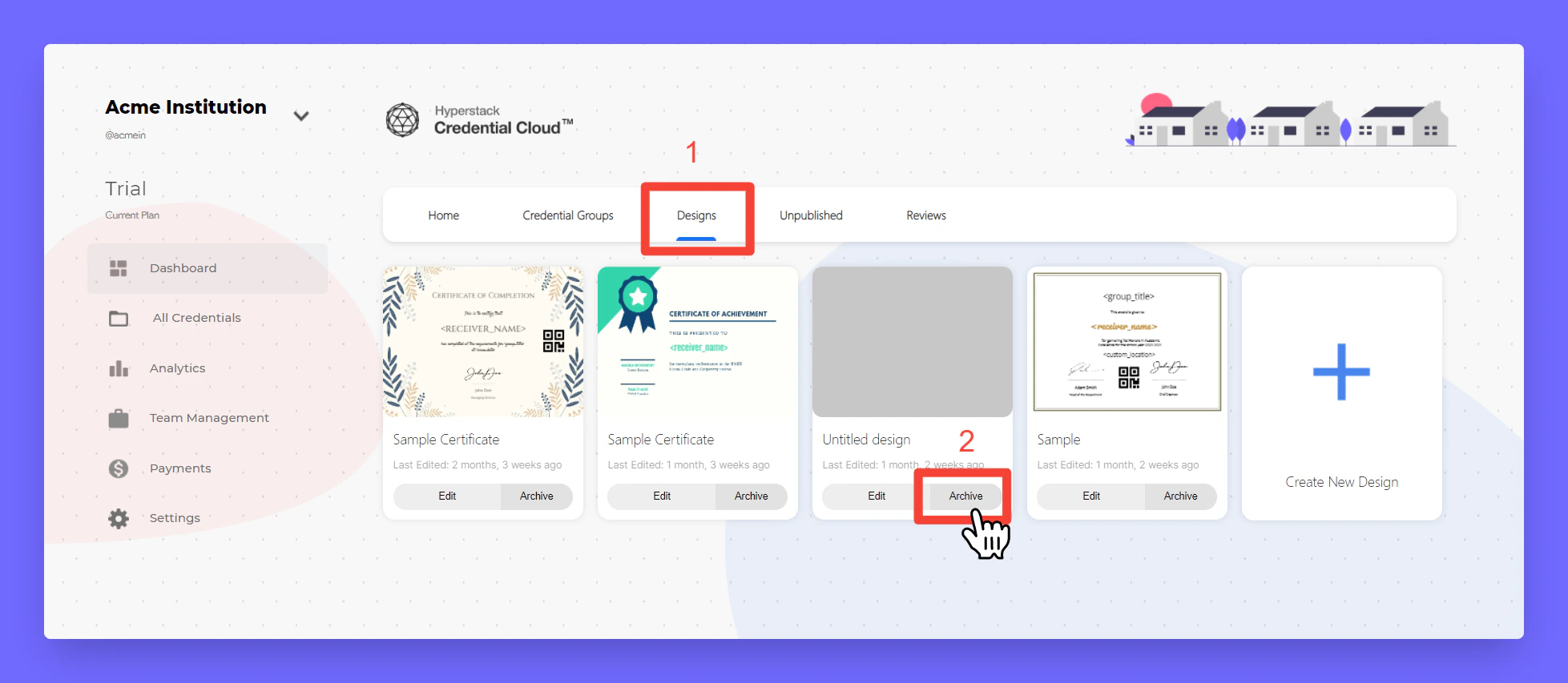
  <Step title="Click Designs from home page" />

  <Step title="Now you will see your designs, click Archive to archive the design and click confirm">
    <Frame>
      <img src="https://mintcdn.com/hyperstack/IJj3eNeM7esUzmVV/images/archive-items-2.png?fit=max&auto=format&n=IJj3eNeM7esUzmVV&q=85&s=c927a4361214b5402c7fcea5a52efc35" alt="Screenshot of a deployment confirmation message that says All checks have passed." style={{ borderRadius: "0.5rem" }} width="1957" height="853" data-path="images/archive-items-2.png" />
    </Frame>
  </Step>
</Steps>

### How to un-archive group/certificate/badge design?
<Steps>
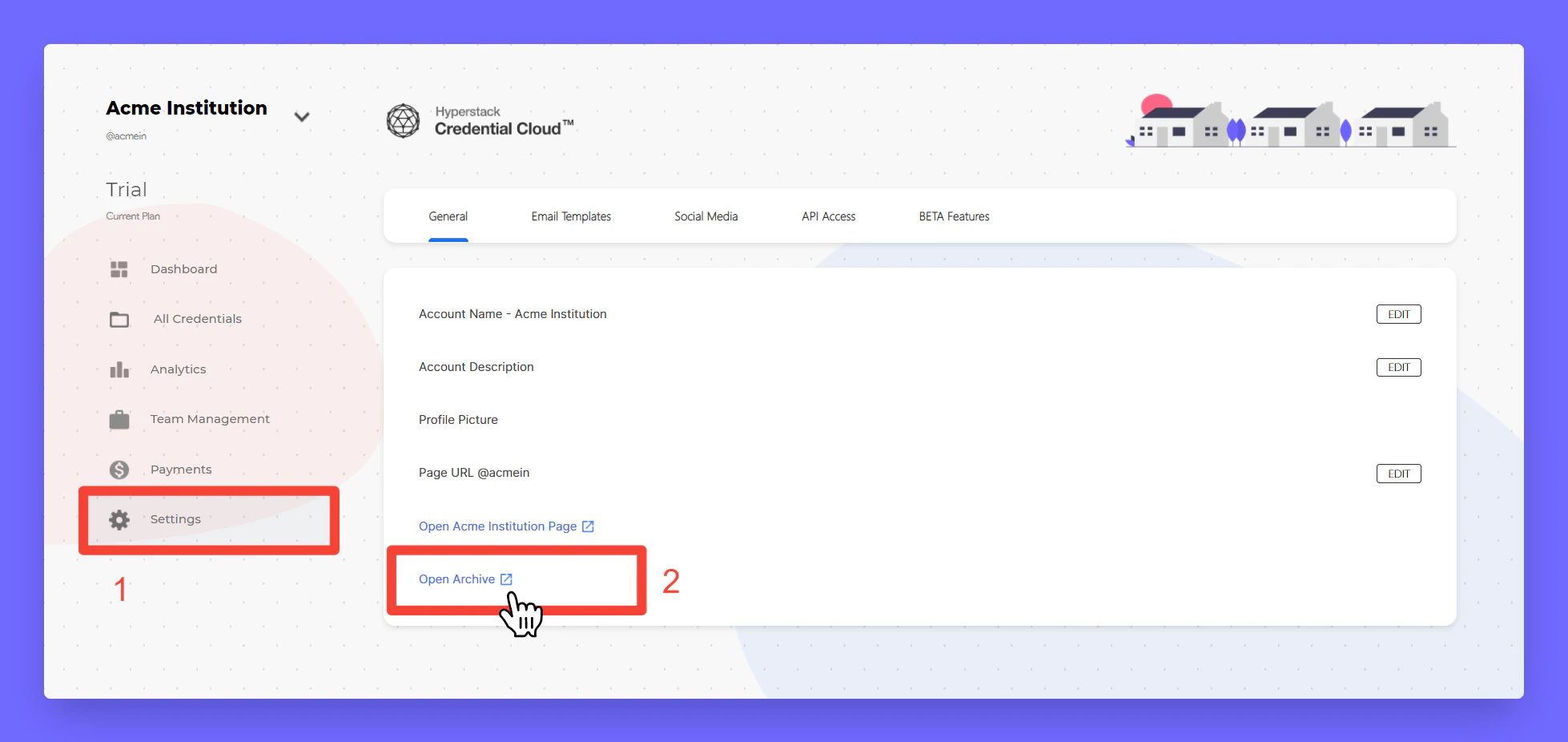
  <Step title="Click Settings from home page" />

  <Step title="Click Open Archive to open the archive directory">
    <Frame>
      <img src="https://mintcdn.com/hyperstack/IJj3eNeM7esUzmVV/images/archive-items-3.png?fit=max&auto=format&n=IJj3eNeM7esUzmVV&q=85&s=96c9cb23464bec69f4cba7ab93f3d51a" alt="Screenshot of a deployment confirmation message that says All checks have passed." style={{ borderRadius: "0.5rem" }} width="1958" height="926" data-path="images/archive-items-3.png" />
    </Frame>
  </Step>

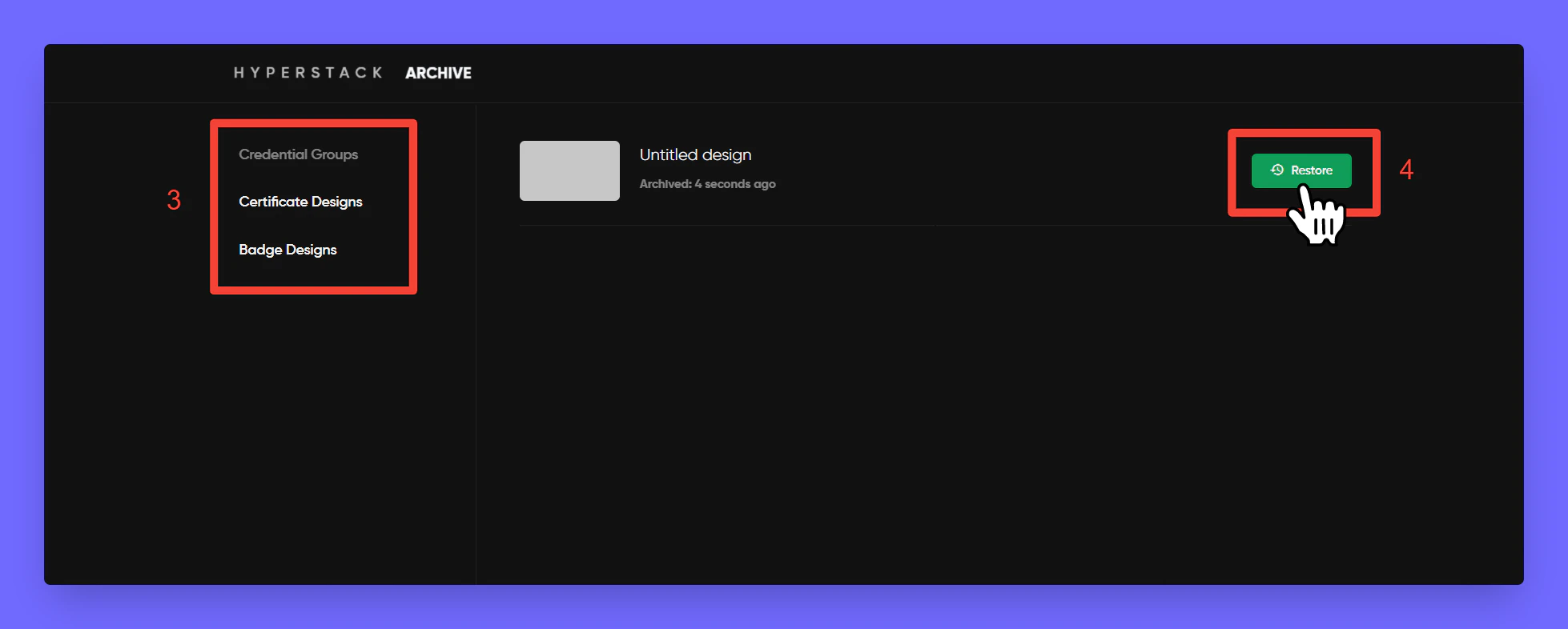
  <Step title="Select the type of item from which you want to un-archive" />

  <Step title="Click Restore to un-archive the item">
    After successful restoration the item will appear in the corresponding location.
    <Frame>
      <img src="https://mintcdn.com/hyperstack/IJj3eNeM7esUzmVV/images/archive-items-4.png?fit=max&auto=format&n=IJj3eNeM7esUzmVV&q=85&s=f2f94ba838691abf4ded7280bd22237d" alt="Screenshot of a deployment confirmation message that says All checks have passed." style={{ borderRadius: "0.5rem" }} width="1958" height="786" data-path="images/archive-items-4.png" />
    </Frame>
  </Step>
</Steps>

Hurray! You have successfully learnt how to archive and un-archive an item in Hyperstack!
