

Step 1: register Hyperstack in your LMS
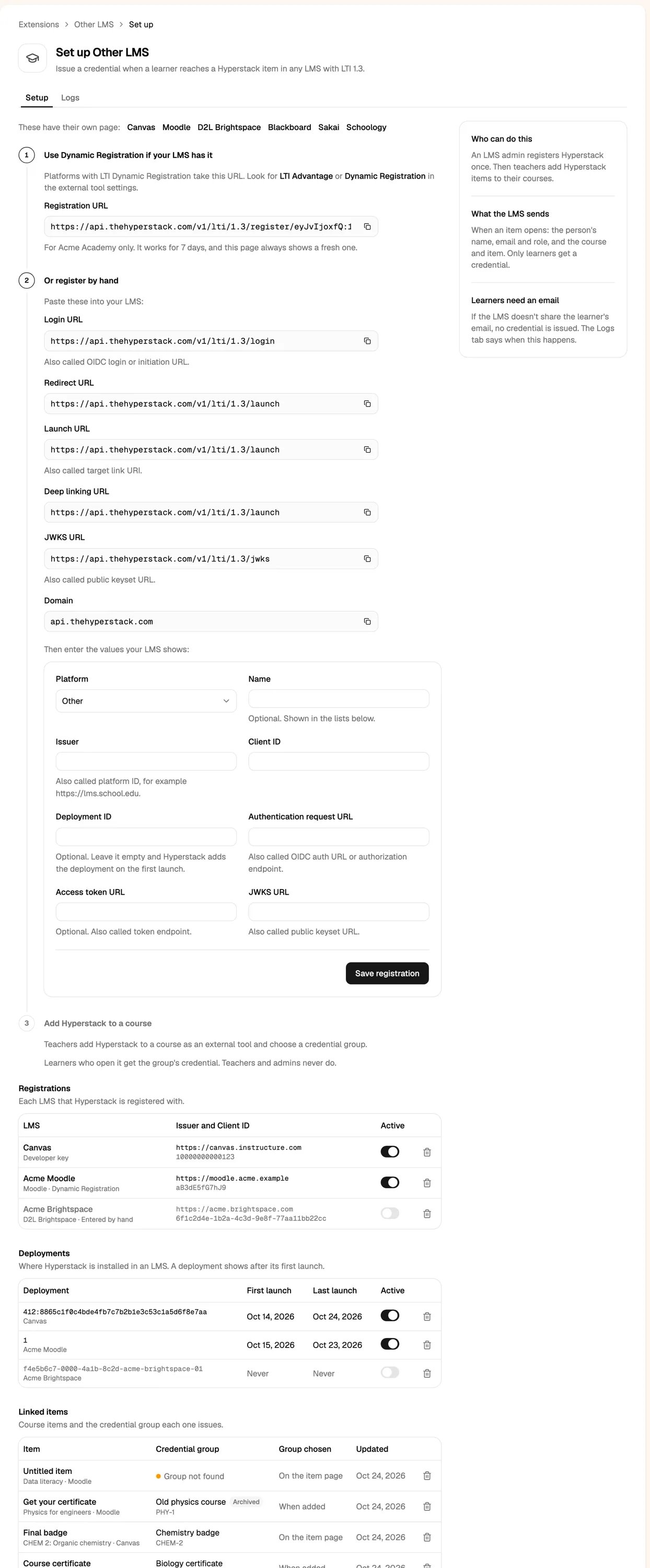
In Hyperstack, click Add integration, then Other LMS, then Integrate. If your LMS supports LTI Dynamic Registration: copy the Registration URL and paste it where your LMS registers LTI Advantage tools. It works for 7 days and connects the LMS to your organization only. If not, register by hand:-
Paste Hyperstack’s values into your LMS:
- Allow the tool to receive names and emails.
- Enter what your LMS shows in the Hyperstack form: Issuer (platform ID), Client ID, Deployment ID (optional), Authentication request URL, Access token URL (optional) and JWKS URL. Click Save registration.
Step 2: add Hyperstack to a course
Teachers add Hyperstack from the LMS’s content or external tool picker, choose a credential group, and place it where learners finish.Who gets a credential
Test with a student account (or your LMS’s “act as user”). Teacher and admin accounts never get a credential, and preview modes such as Canvas Student View have no real email.
What learners see
- Well done: their credential is ready, with View my credential. It is published at once and emailed to them. Opening the item again shows the same credential, never a second one.
- Email address needed: the LMS didn’t share their email, so nothing was issued. Ask your LMS admin to share names and emails with Hyperstack.
- Not set up yet: the item isn’t linked to a credential group. A teacher opens it and picks one.