

- Map each Wix Forms form on your site to a credential group.
- Pick which fields give the name and the email on the credential.
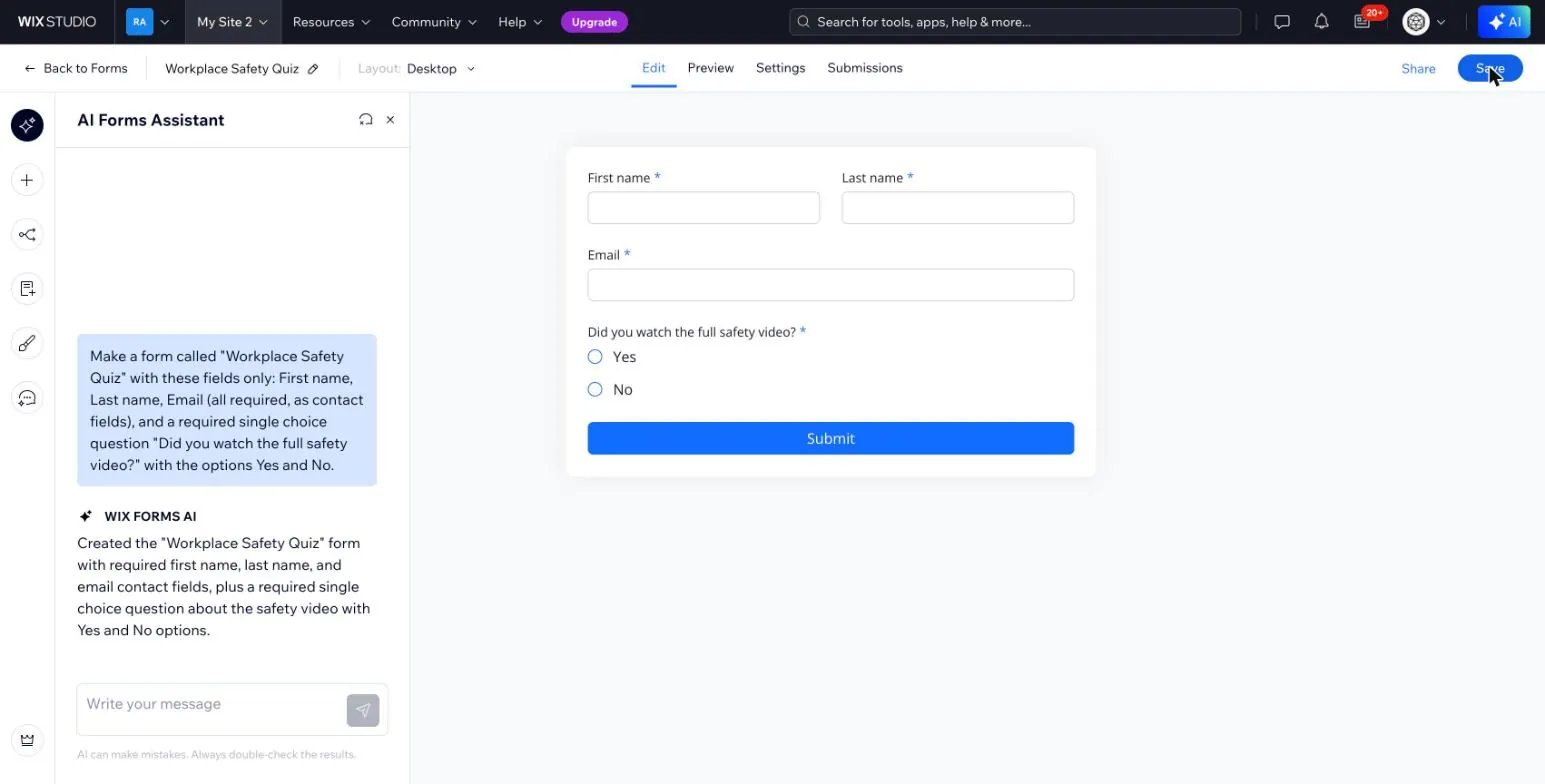
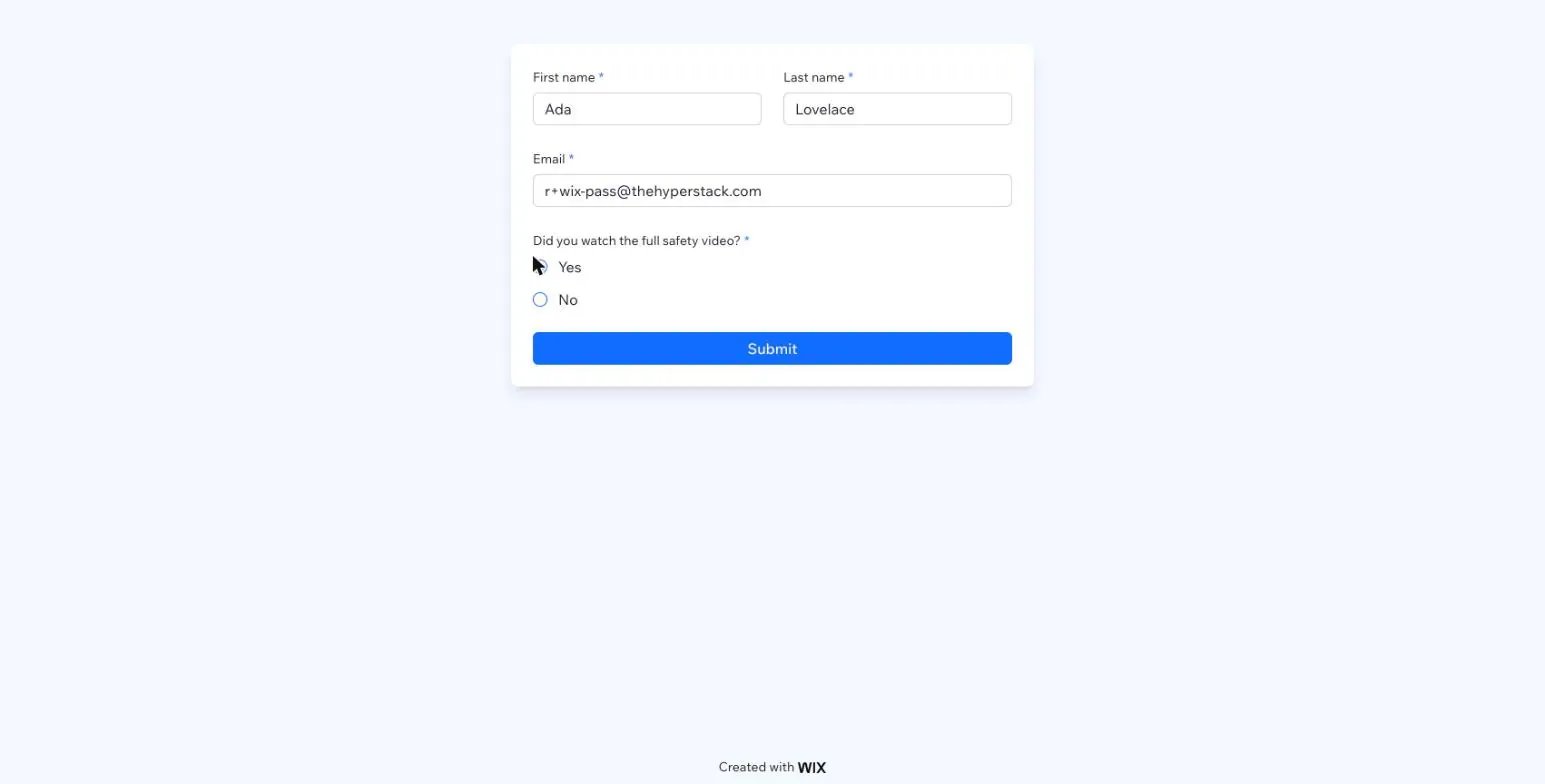
- Add a rule, so only some submissions issue a credential. For example: Did you watch the full safety video? is Yes.
- See every submission on the Logs tab, with the credential it issued or the reason it issued nothing.
Before you start
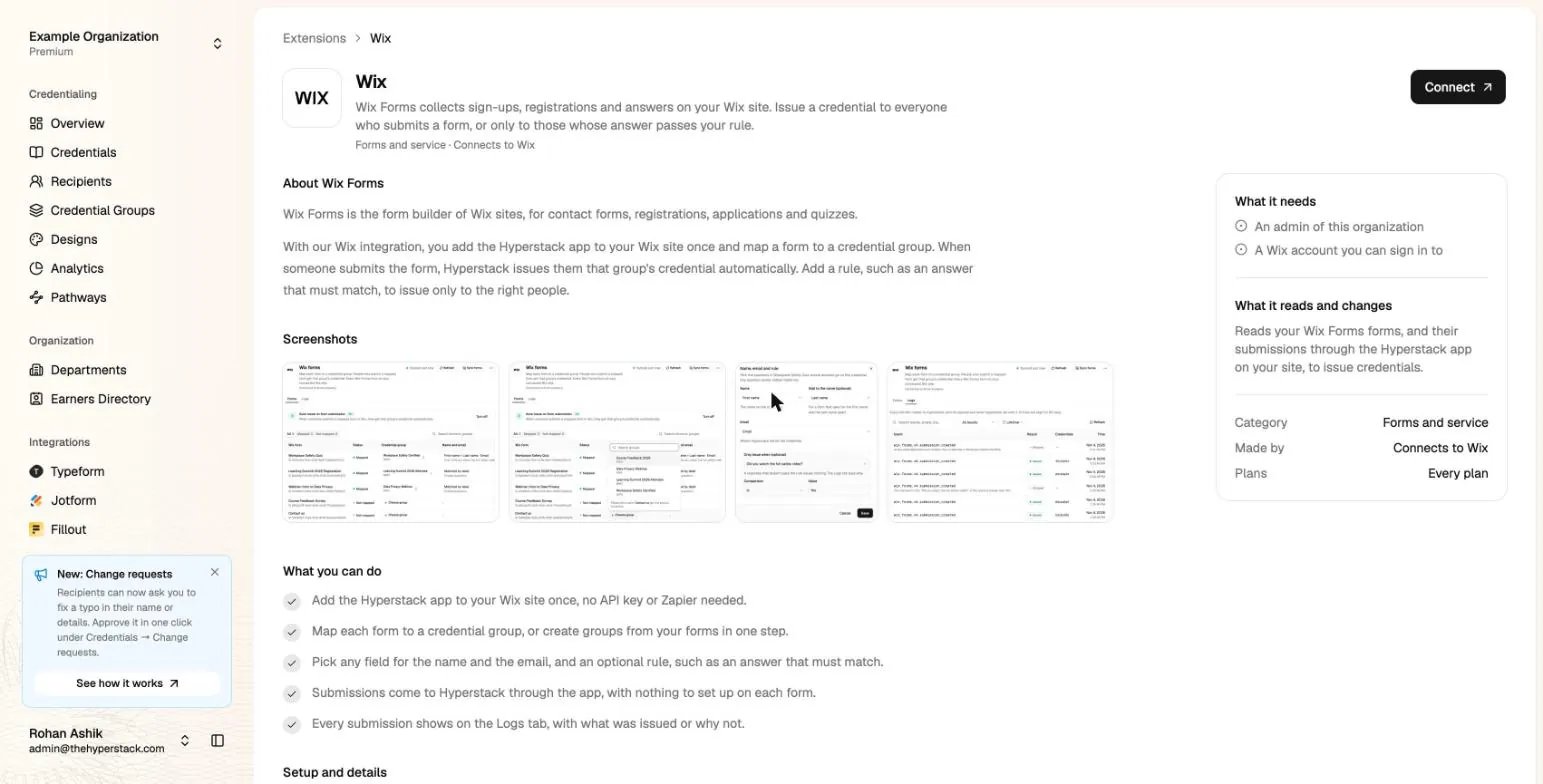
- Hyperstack: any plan. You must be an administrator of the organization.
- Wix: a Wix site with Wix Forms, and a Wix account that can add apps to that site (the site owner, or a collaborator with that right).
- At least one credential group with its design, or let Sync forms create them for you.
Step 1: Connect Wix
1
Open the Wix extension
In the Studio, click Add integration, then Wix, then Connect. Wix opens in a new tab.
2
Pick your site
Sign in to Wix if it asks. In Select Site, click the site with your forms.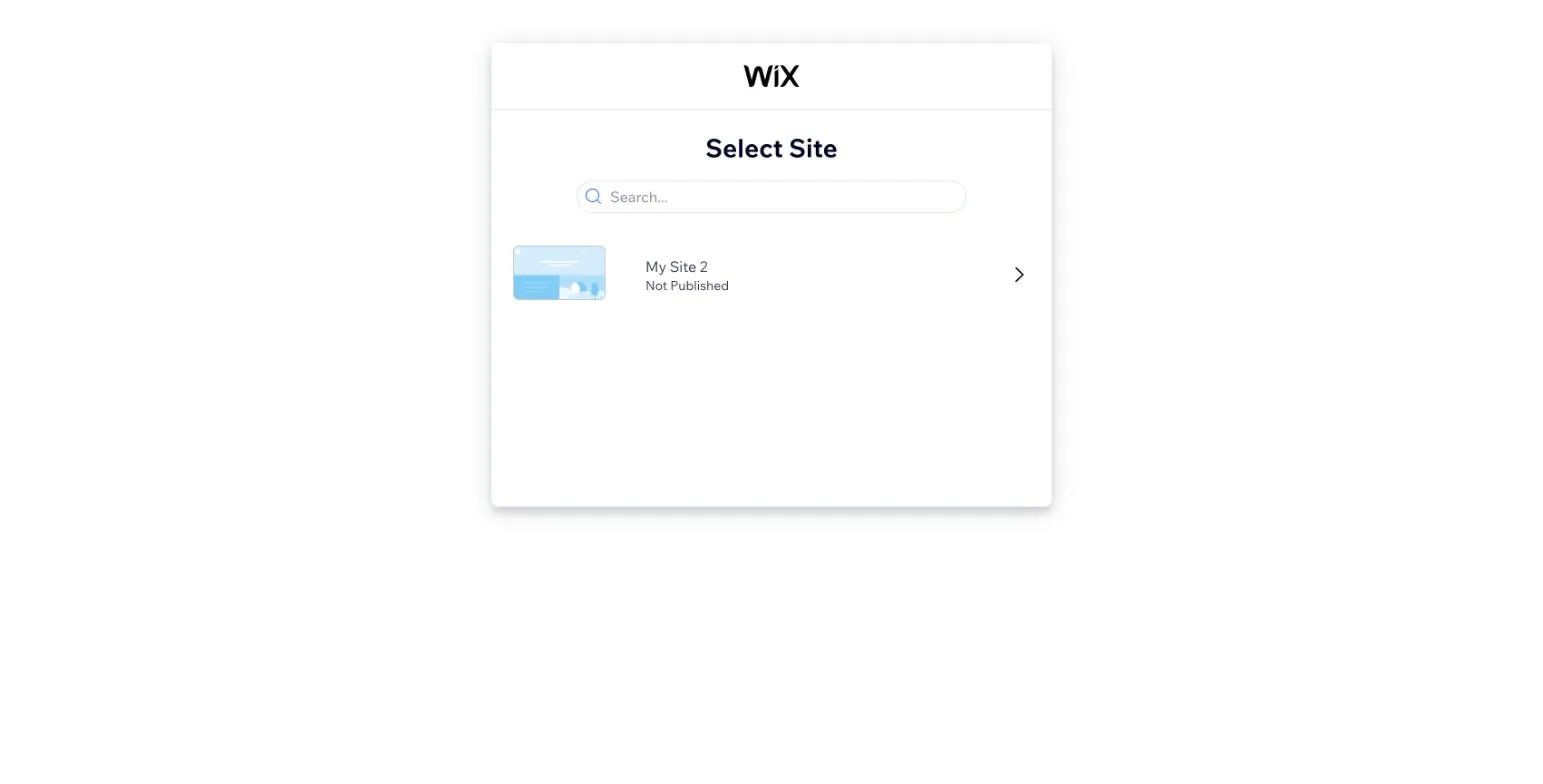
3
Add the Hyperstack app
Wix shows Adding Hyperstack will allow it to: read form submissions, read site, business and email details, and view your forms. Click Agree & Add.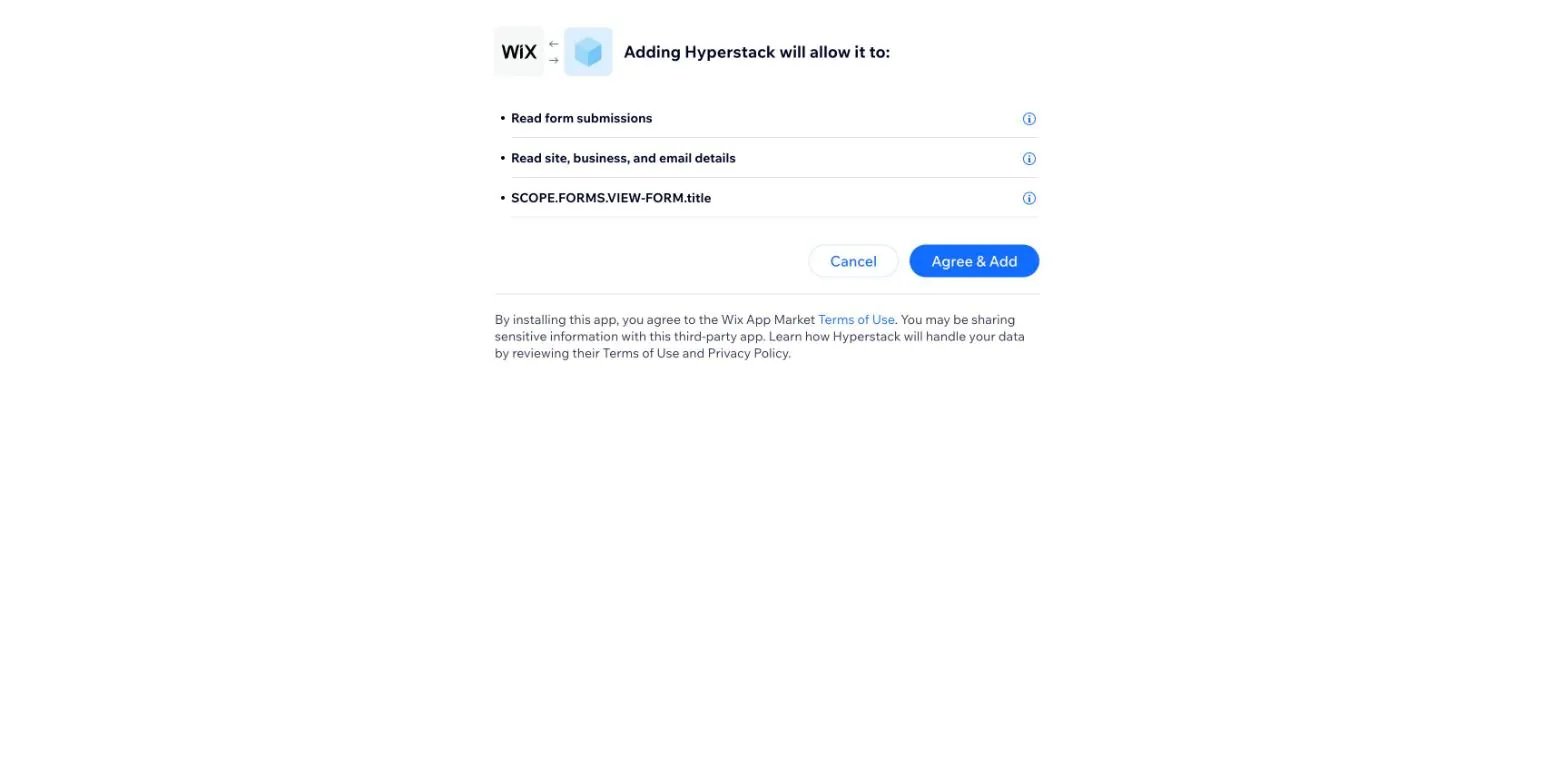
4
Open your forms
Hyperstack opens on the Wix forms page. It lists every Wix Forms form on the site, and says Connected to with your site’s name.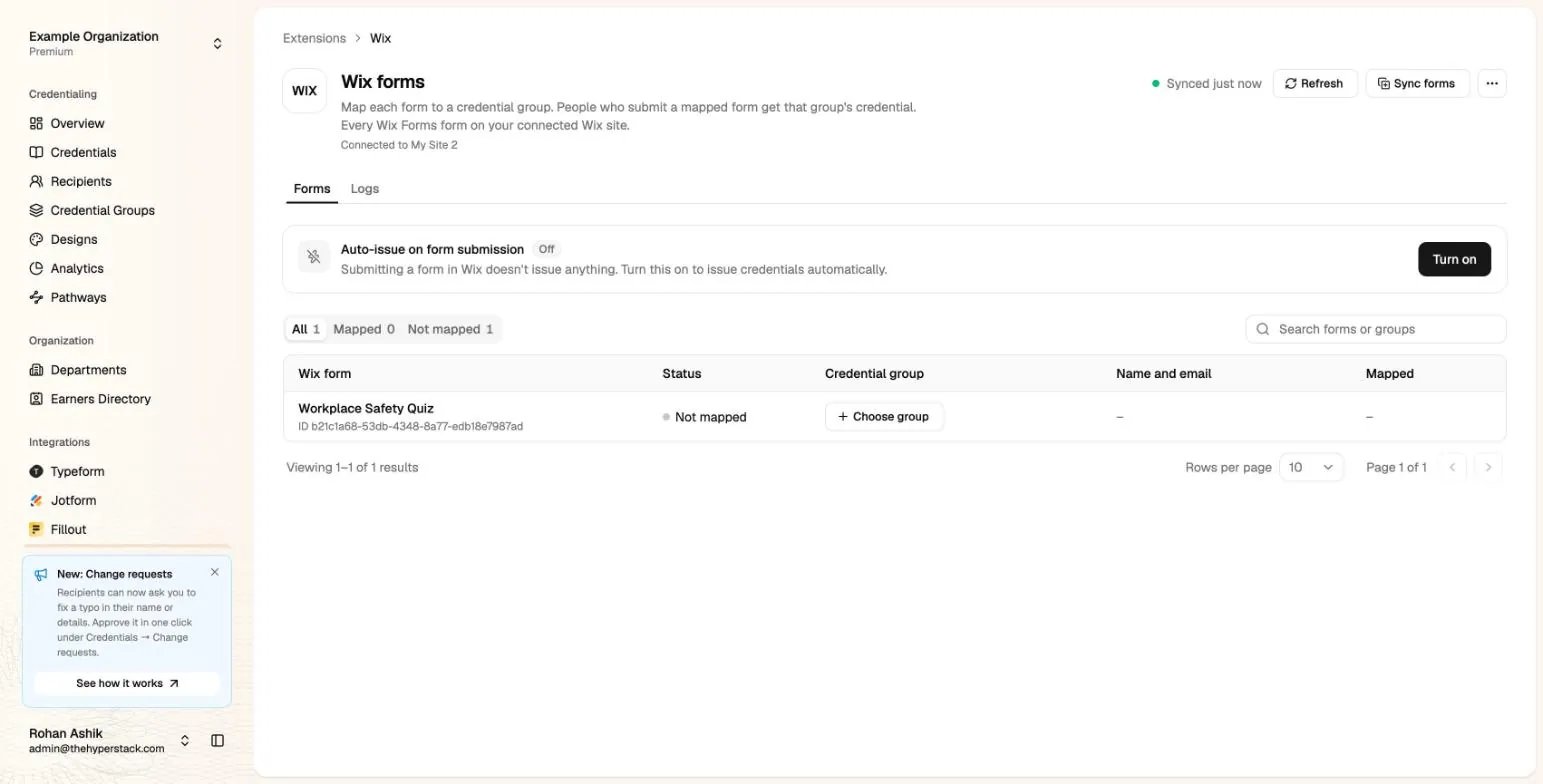
Step 2: Map your forms to credential groups
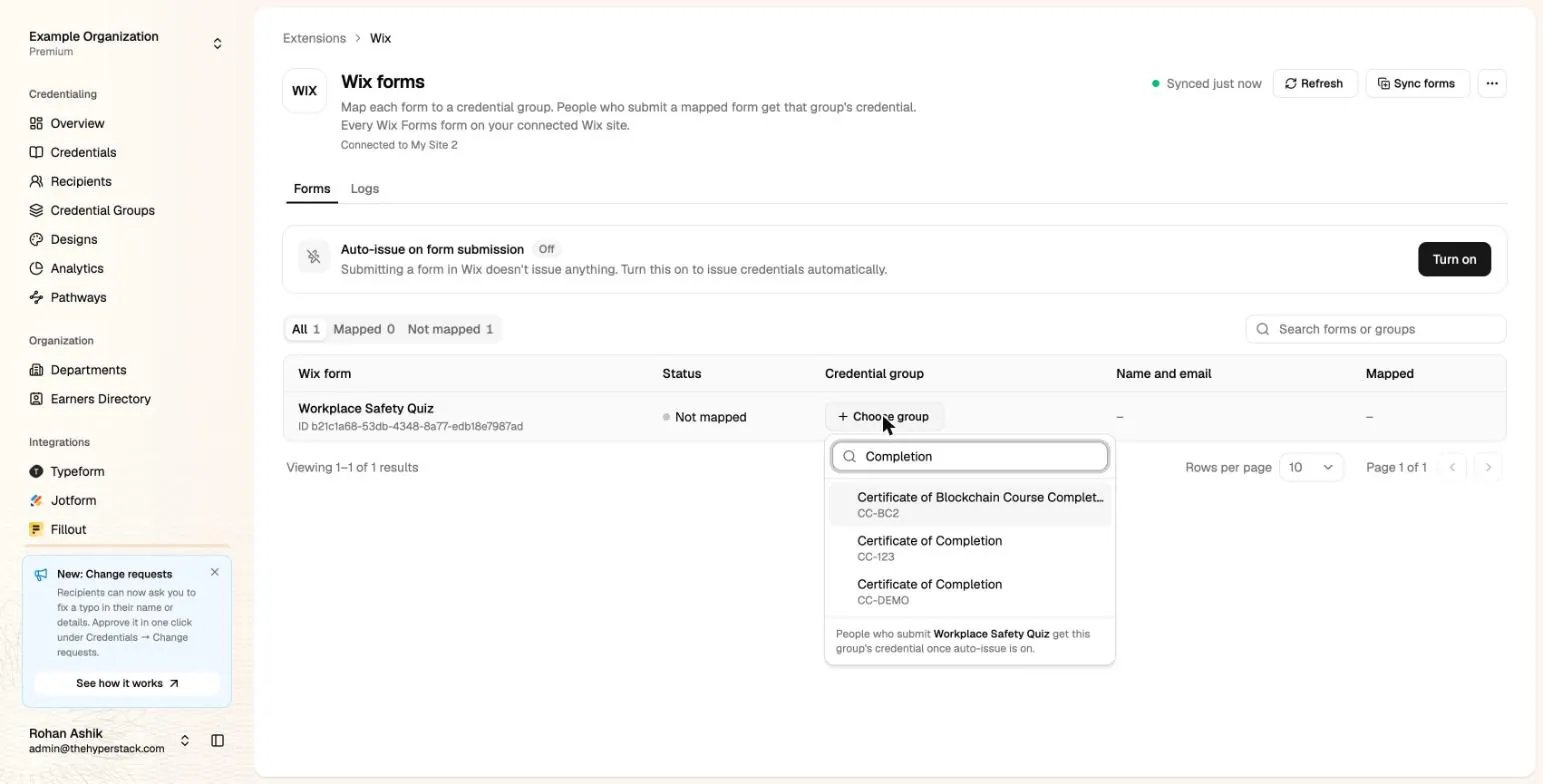
- To map one form, click Choose group on its row, type to search, and pick a credential group.
- To map many forms at once, click Sync forms. Hyperstack creates a credential group for each form that is not mapped yet, named after the form, with the design you pick.
Step 3: Pick the name, the email and an optional rule
Each mapped form has a Name and email column. It says Matched by label until you pick. Then Hyperstack reads the form’s Email, First name and Last name fields, the contact fields of Wix Forms. To pick the fields yourself, click the button in the Name and email column.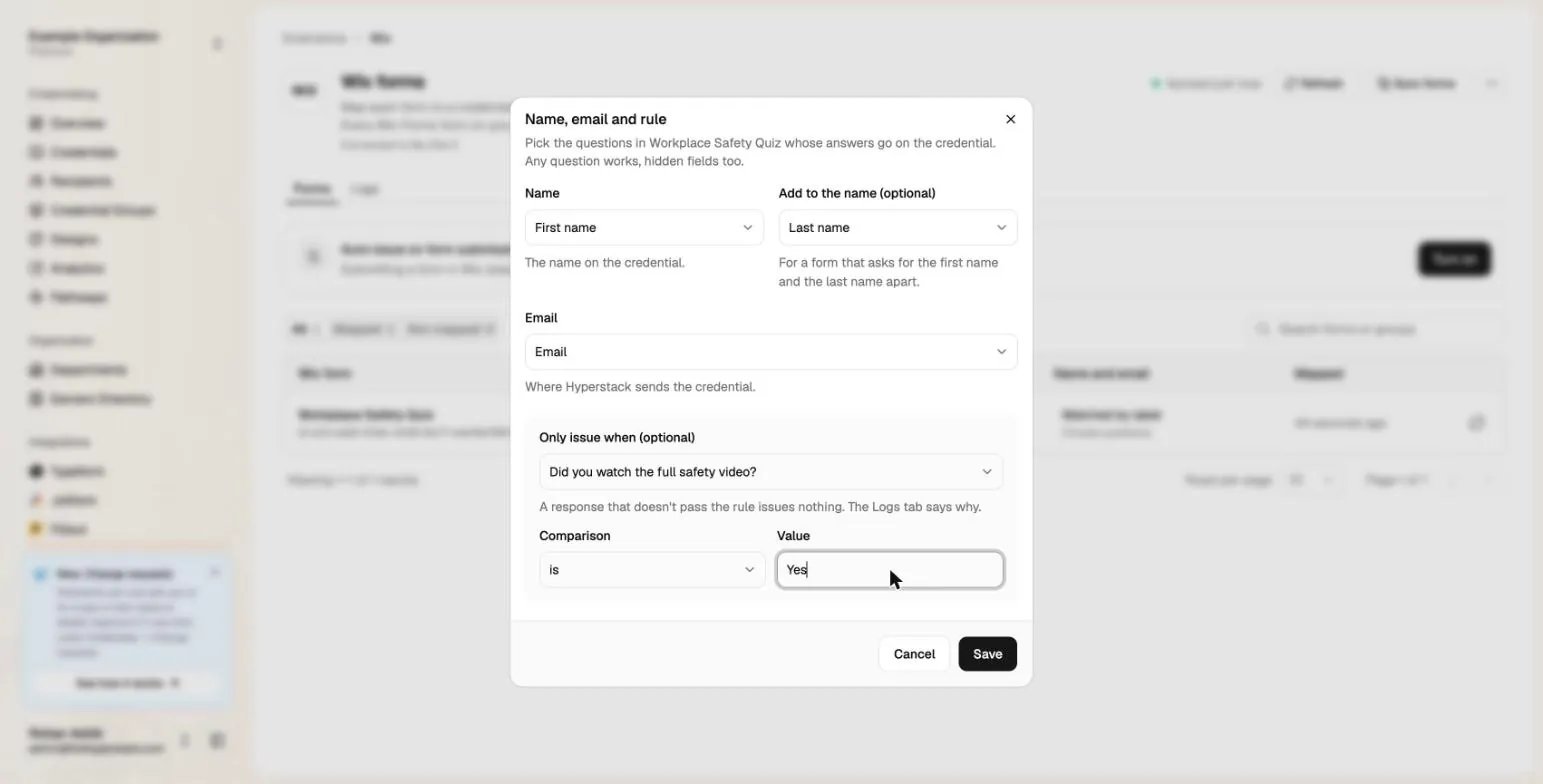
- Name: the field whose answer is the name on the credential.
- Add to the name (optional): a second field added after the first one, such as Last name after First name.
- Email: the field whose answer is the email address. Hyperstack sends the credential there.
- Only issue when (optional): pick a field, a comparison and a value.
For a choice field, Hyperstack compares the option’s value, which is the option’s text unless you changed it in Wix. A checkbox answers yes or no.
Click Save. The column shows what you picked, for example First name + Last name · Email and Only if Did you watch the full safety video? is Yes.
Step 4: Turn on auto-issue
Click Turn on under Auto-issue on form submission.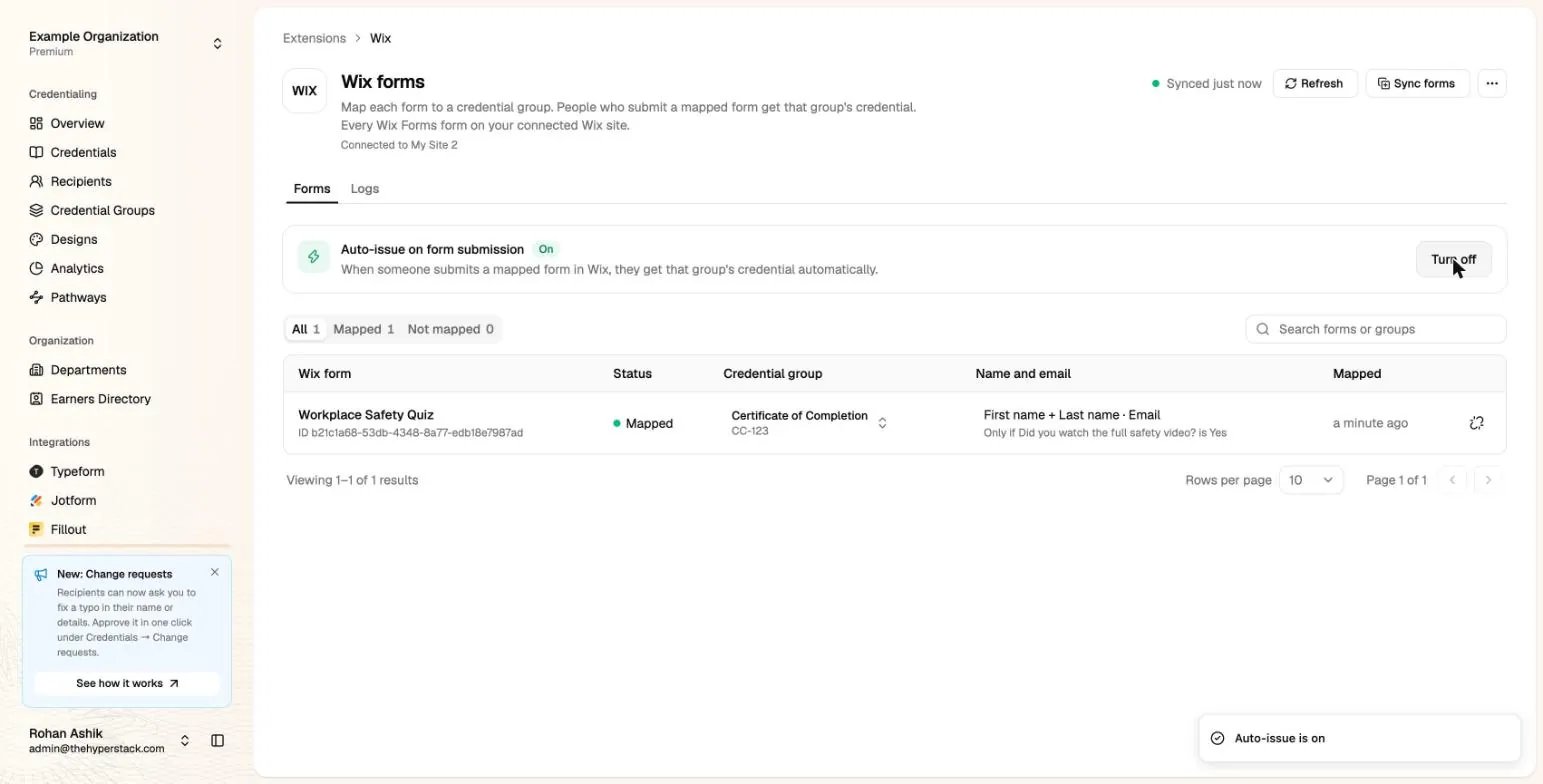
Check what happened: the Logs tab
The Logs tab lists every submission of your mapped forms, for 90 days.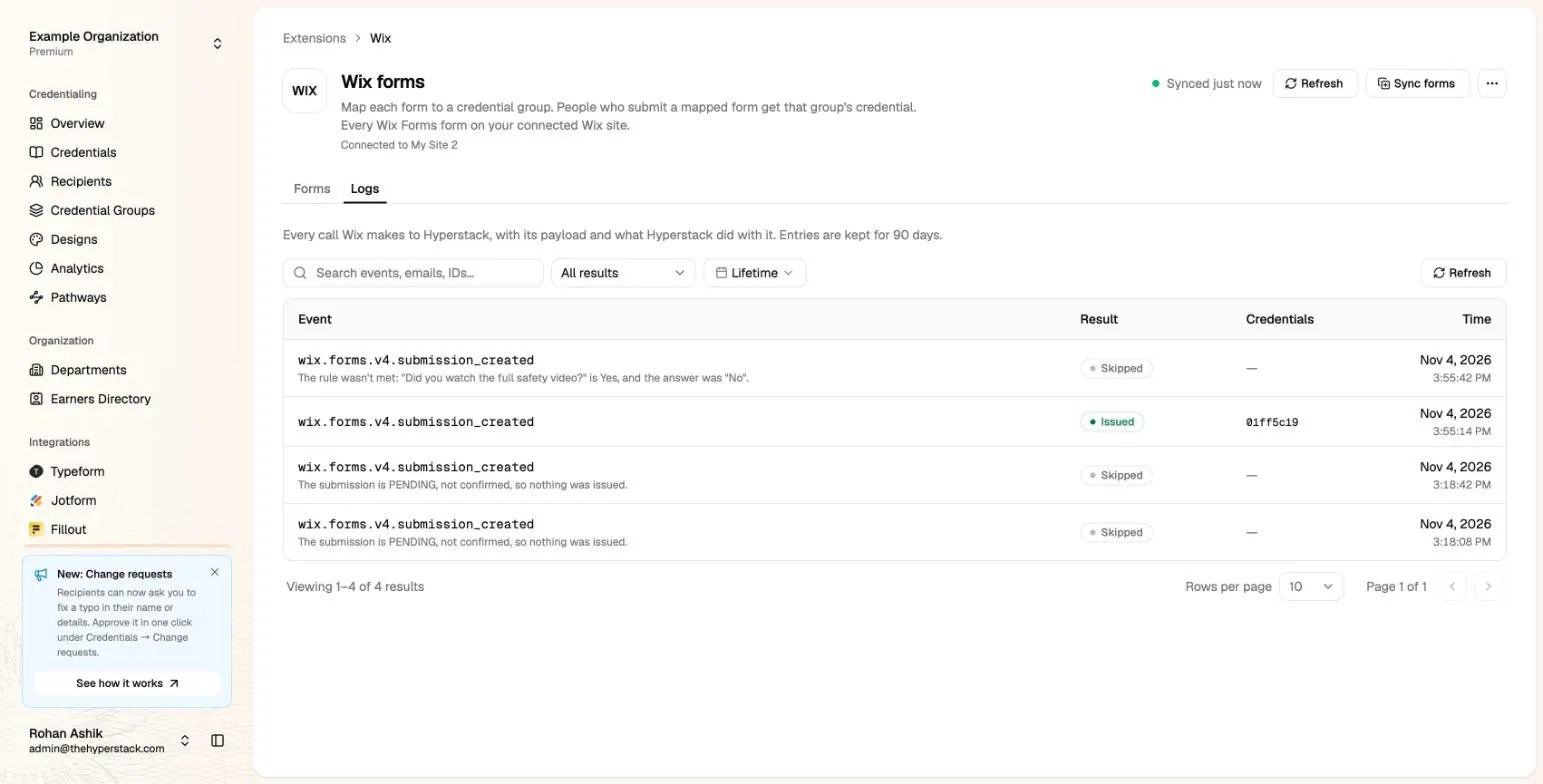
- Issued: a credential was created. Its ID shows in the Credentials column.
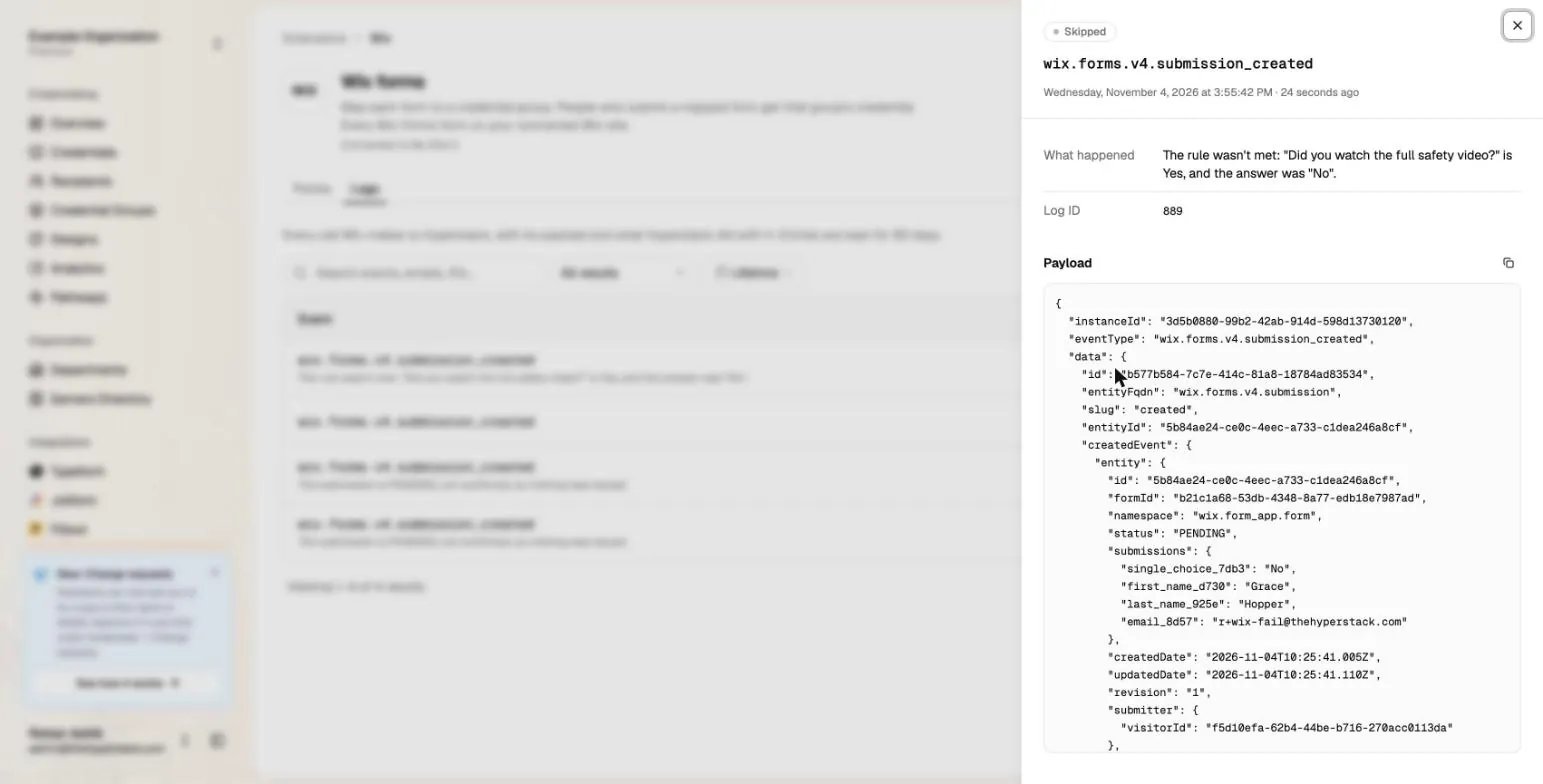
- Skipped: nothing was issued, and the line says why. For example: the rule wasn’t met, the email answer isn’t an email address, or the person already has a credential in that group.
- Failed: something went wrong while Hyperstack issued the credential. Contact us.
Good to know
- One credential per email per group. If a person submits the form again, nothing new is issued.
- Payments: a form that takes a payment issues nothing while its payment is still waiting.
- What Hyperstack keeps: the site’s app ID, a short-lived access token and the site’s name. A credential keeps only the form, the submission ID and the time. Hyperstack doesn’t copy the form answers into the credential.
- Security: Wix signs every submission it sends. Hyperstack refuses a call that Wix didn’t sign.
- Turn off auto-issue to stop issuing but keep your mappings.
- Open App on the Hyperstack app in your Wix dashboard opens the Wix page in the Studio.
Disconnect Wix
Click the ⋯ button at the top right of the Wix page, then Disconnect Wix. Hyperstack deletes your mappings. Credentials you already issued stay as they are.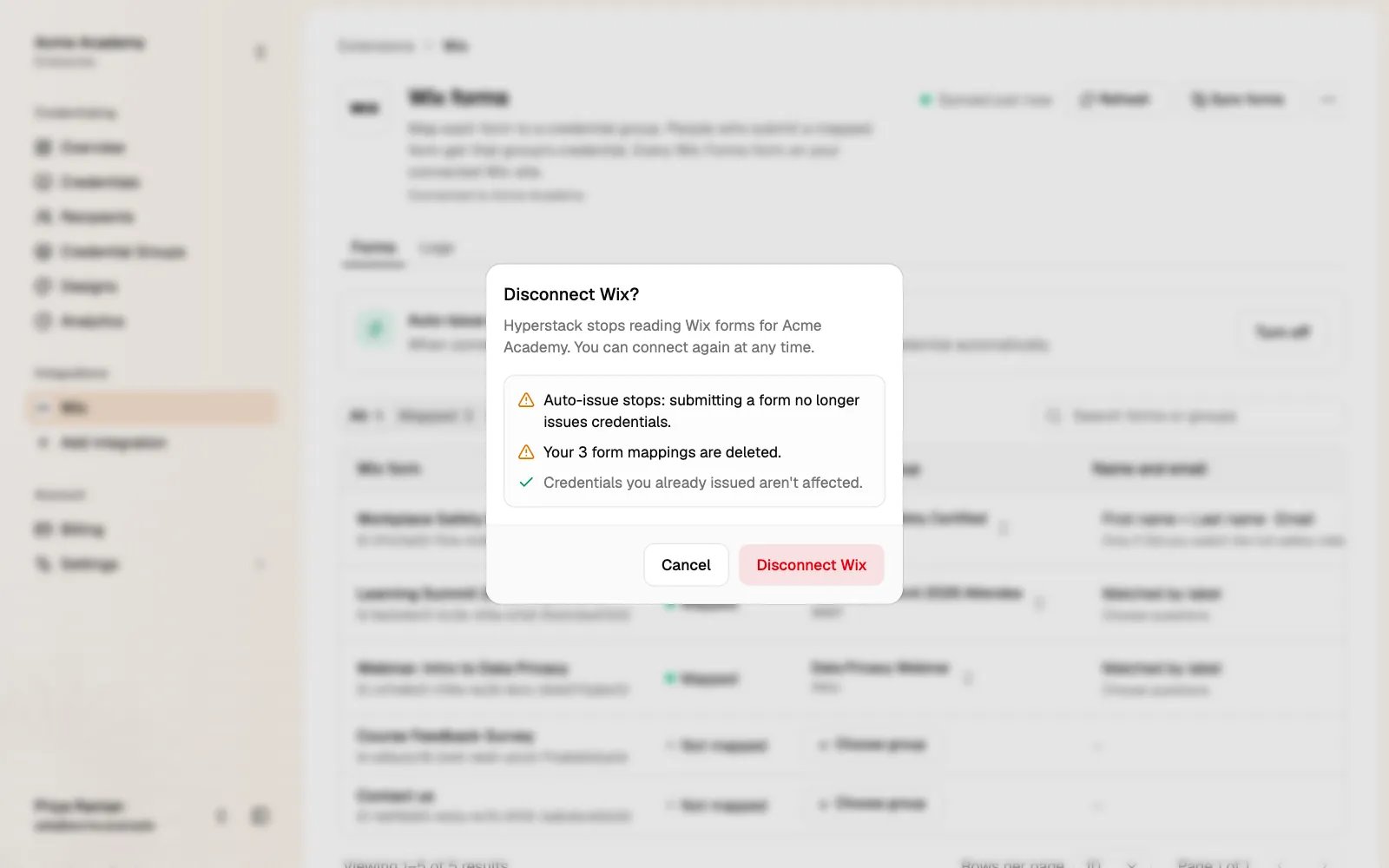
Troubleshooting
Questions or problems: support@thehyperstack.com.