

- Map each Fillout form to a credential group.
- Pick which questions give the name and the email on the credential. Any question works, hidden fields too.
- Add a rule, so only some submissions issue a credential. For example: Score (quiz) is at least 8.
- See every submission on the Logs tab, with the credential it issued or the reason it issued nothing.
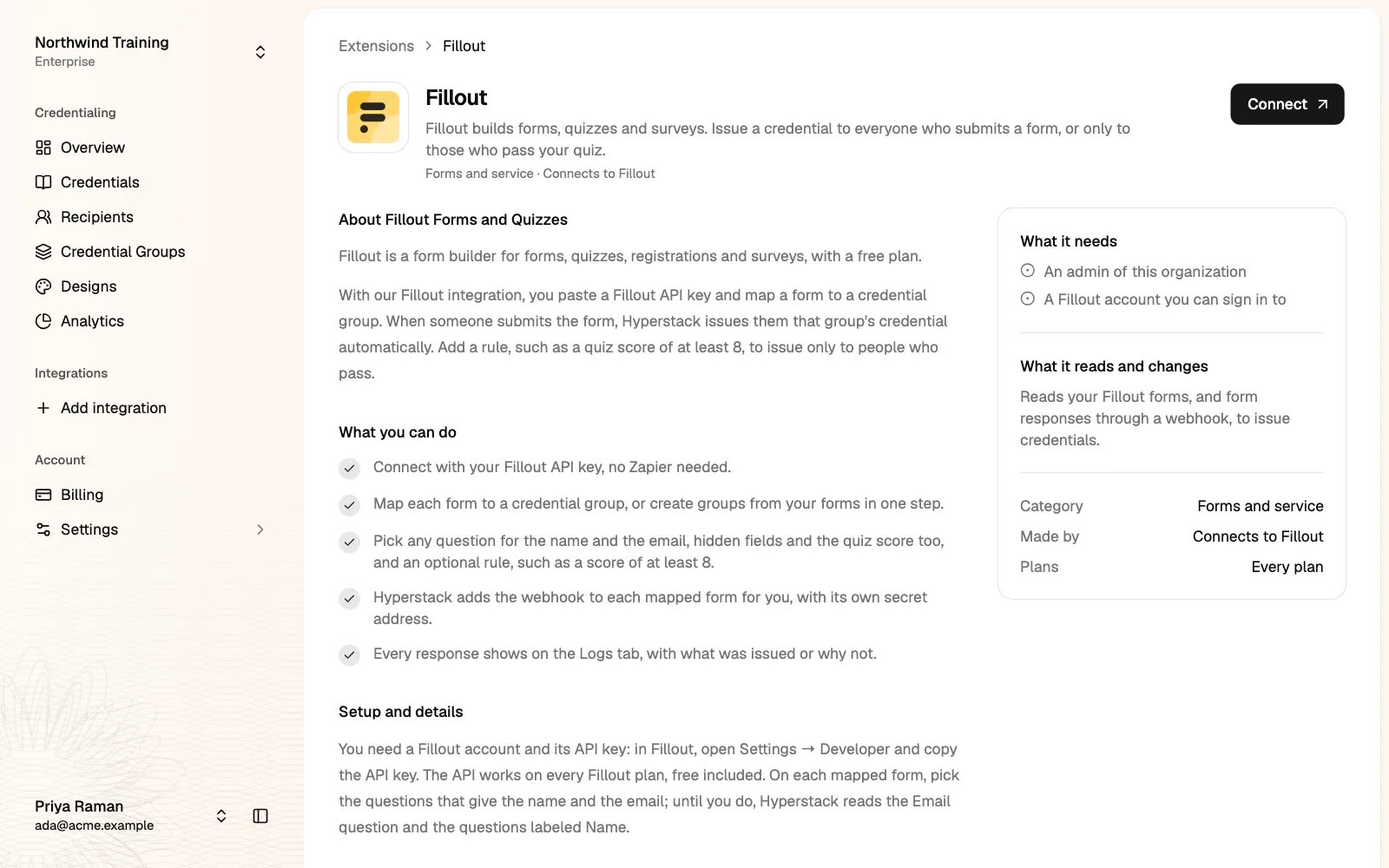
Before you start
- Hyperstack: any plan. You must be an administrator of the organization.
- Fillout: a Fillout account in which you are an admin of the organization. The API works on every Fillout plan, the free plan included. EU organizations work too.
- At least one credential group with its design, or let Sync forms create them for you.
Fillout is made by Zite. In Fillout’s settings, the API page is called Zite REST API. It is the same API key.
Step 1: Copy your API key in Fillout
1
Open the Developer settings
Sign in to Fillout. Click your organization’s name at the top left, then Settings, then Developer (open it directly).
2
Turn on the API and copy the key
On the API key tab, click Enable API if there is no key yet. Copy the API key.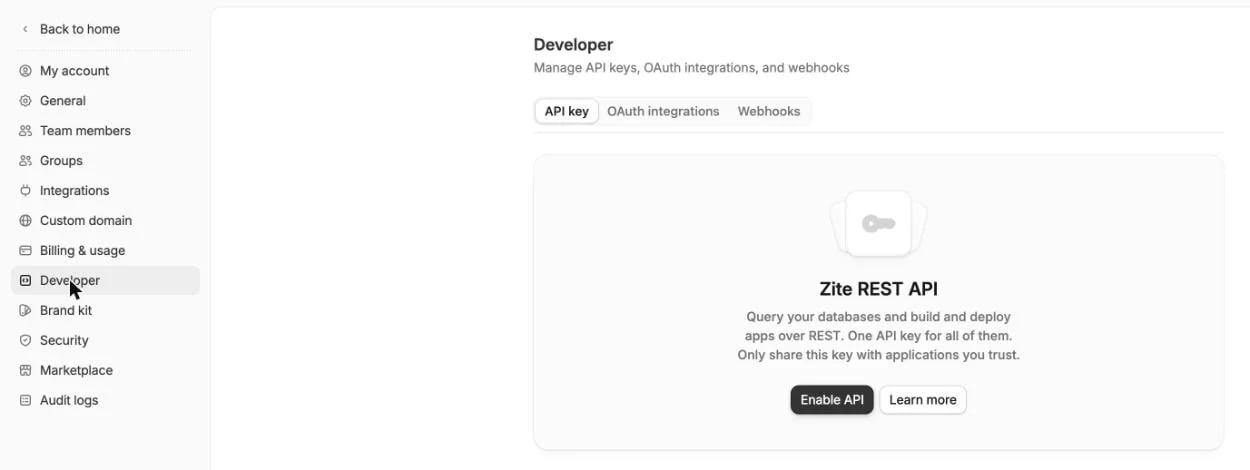
Step 2: Connect Fillout
1
Open the Fillout extension
In the Studio, click Add integration, then Fillout, then Connect. The Connect Fillout page opens in a new tab.
2
Paste the key
Paste the key into Fillout API key and click Connect Fillout. Hyperstack checks the key with Fillout before it saves anything. It never shows the key again.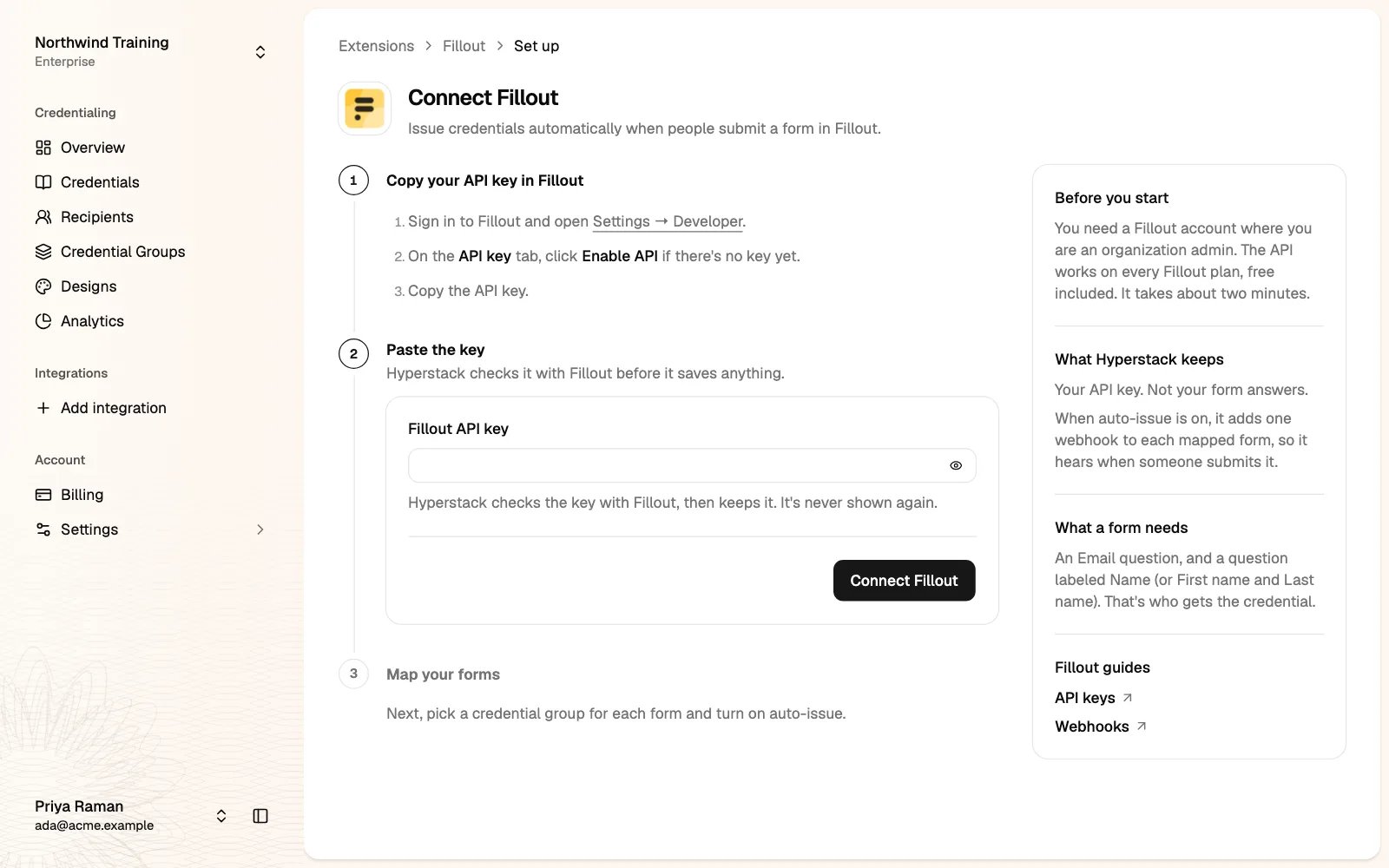
3
Open your forms
The page says Fillout is connected, with the date. Click Map forms. The Fillout forms page lists every form of your Fillout organization.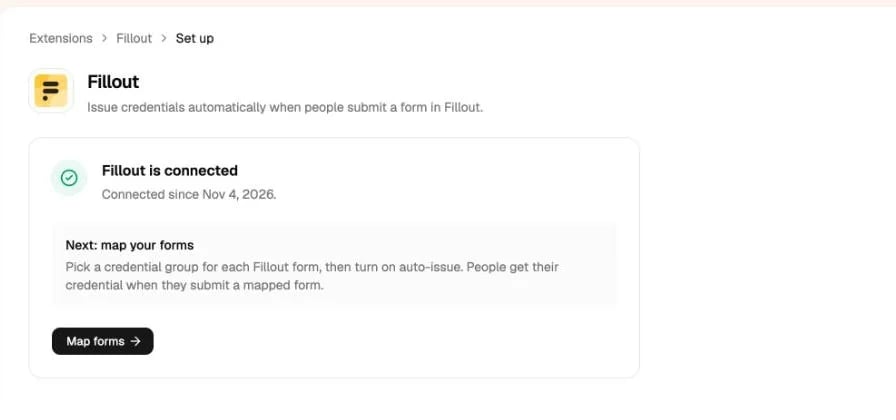
Step 3: Map your forms to credential groups
- To map one form, click Choose group on its row, type to search, and pick a credential group.
- To map many forms at once, click Sync forms. Hyperstack creates a credential group for each form that is not mapped yet, named after the form, with the design you pick.
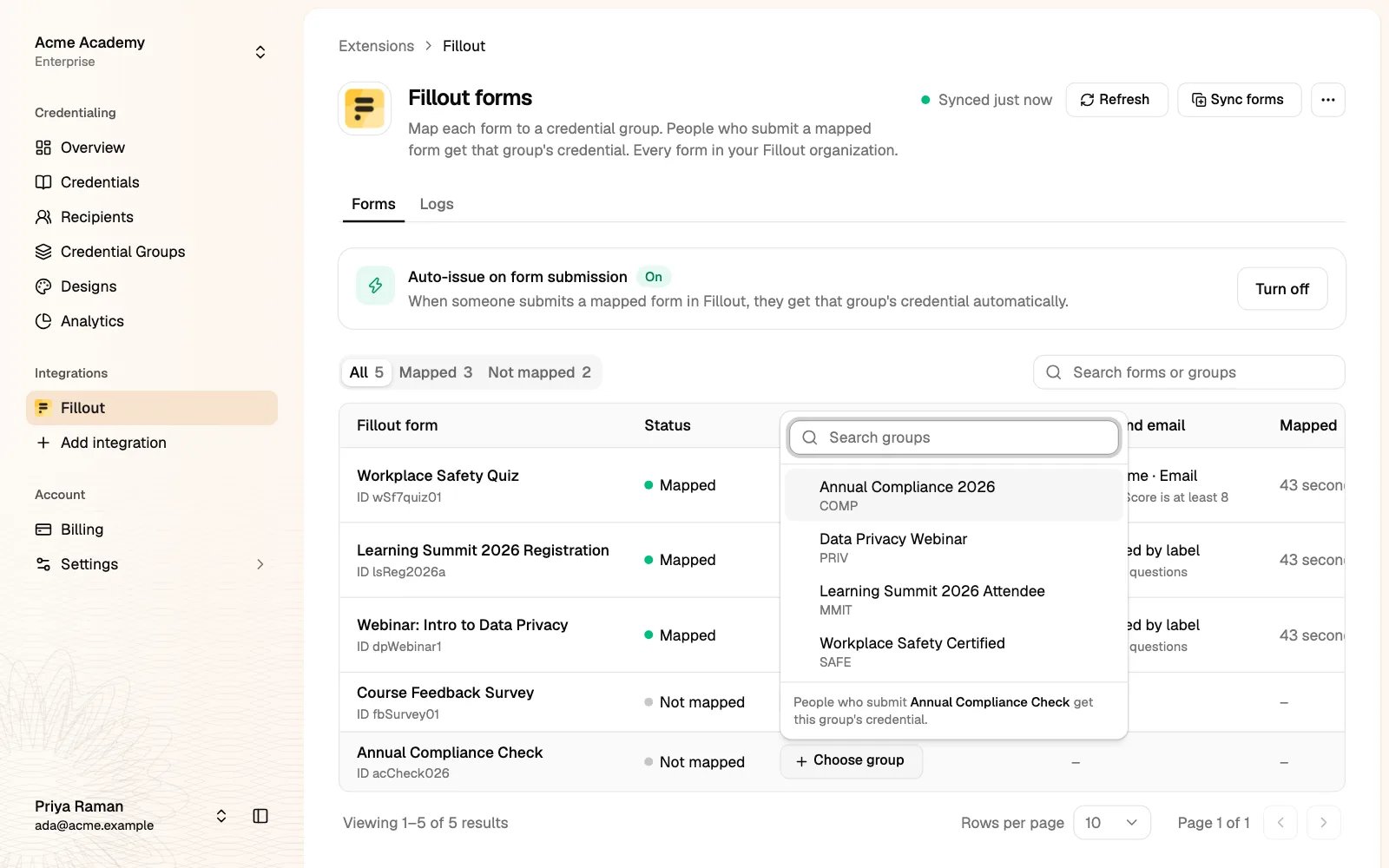
Step 4: Pick the name, the email and an optional rule
Each mapped form has a Name and email column. It says Matched by label until you pick. Then Hyperstack reads the form’s Email question and its question named Name or Full name (or questions named First name and Last name). To pick the questions yourself, click the button in the Name and email column.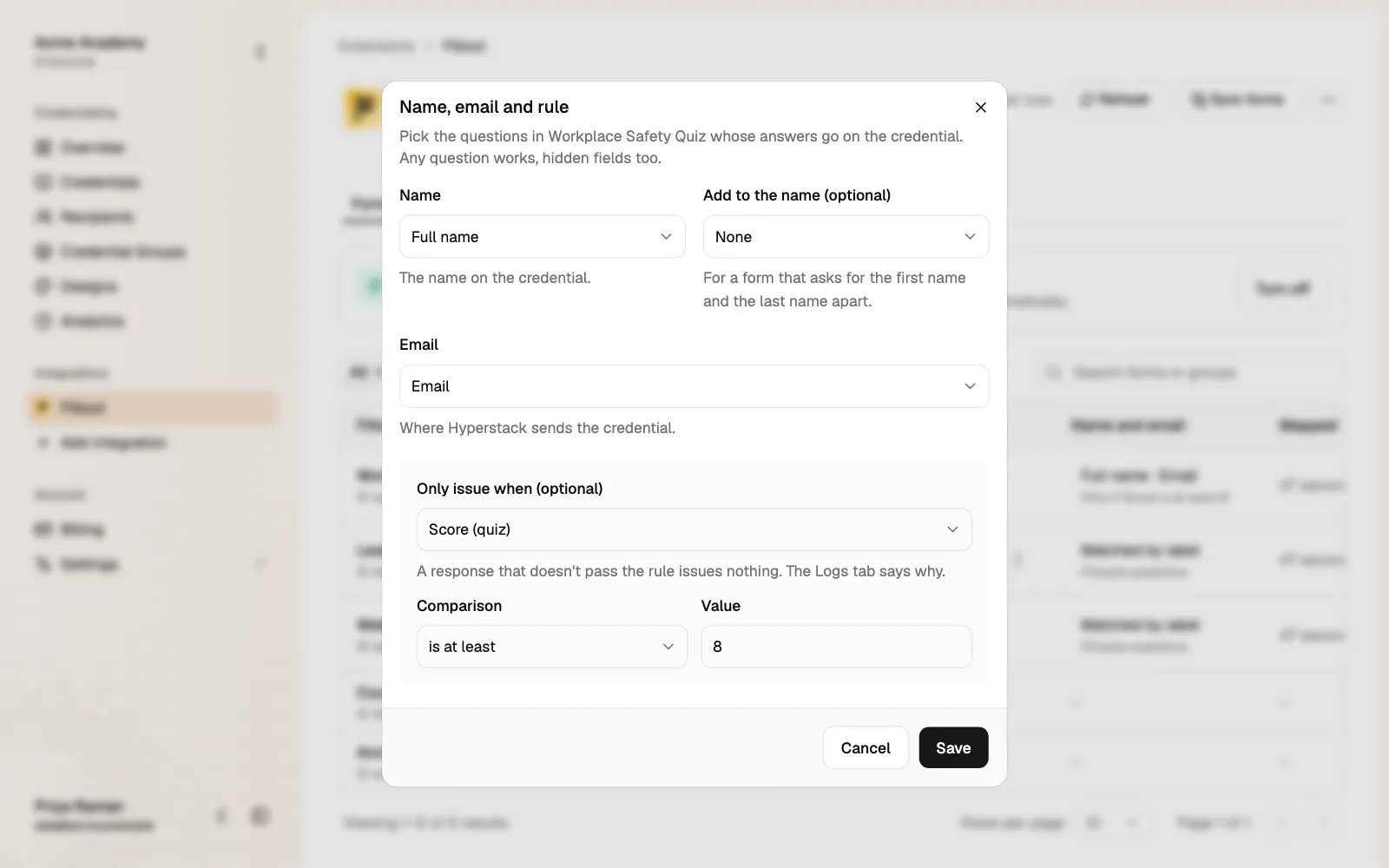
- Name: the question whose answer is the name on the credential.
- Add to the name (optional): a second question added after the first one. Use it for a form that asks for the first name and the last name in two questions.
- Email: the question whose answer is the email address. Hyperstack sends the credential there. A hidden field works too, so you can put the email in the form’s link.
- Only issue when (optional): pick a question, a comparison and a value. On a form in quiz mode, you can pick Score (quiz). A calculation shows with its name and “(variable)”.
For a multiple-choice or dropdown question, Hyperstack compares the text of the option. For a question with more than one answer, such as check boxes, the answers are joined with commas.
Click Save. The column shows what you picked, for example Full name · Email and Only if Score is at least 8.
Step 5: Turn on auto-issue
Click Turn on under Auto-issue on form submission. Hyperstack adds one webhook to each mapped form in Fillout.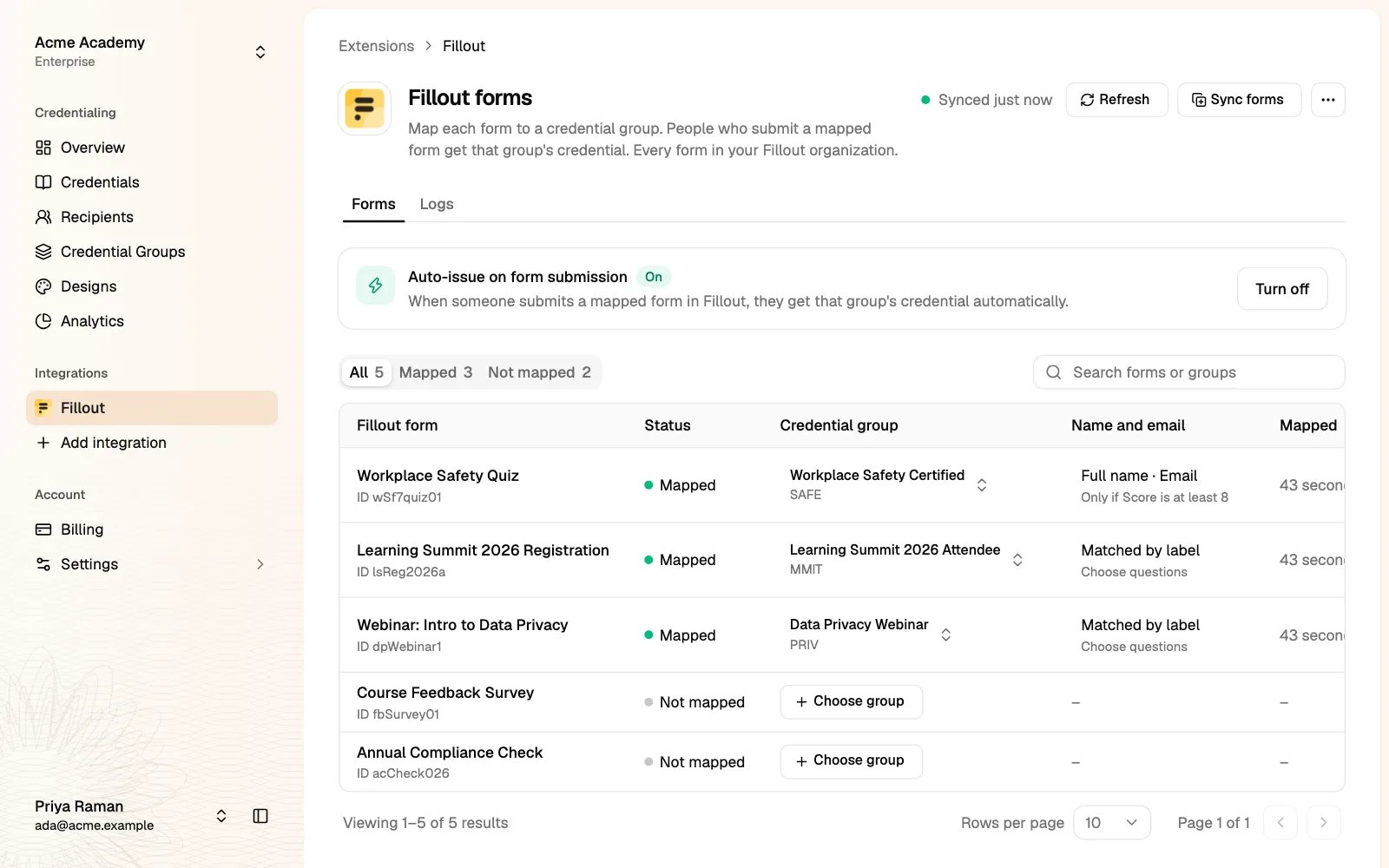
Check what happened: the Logs tab
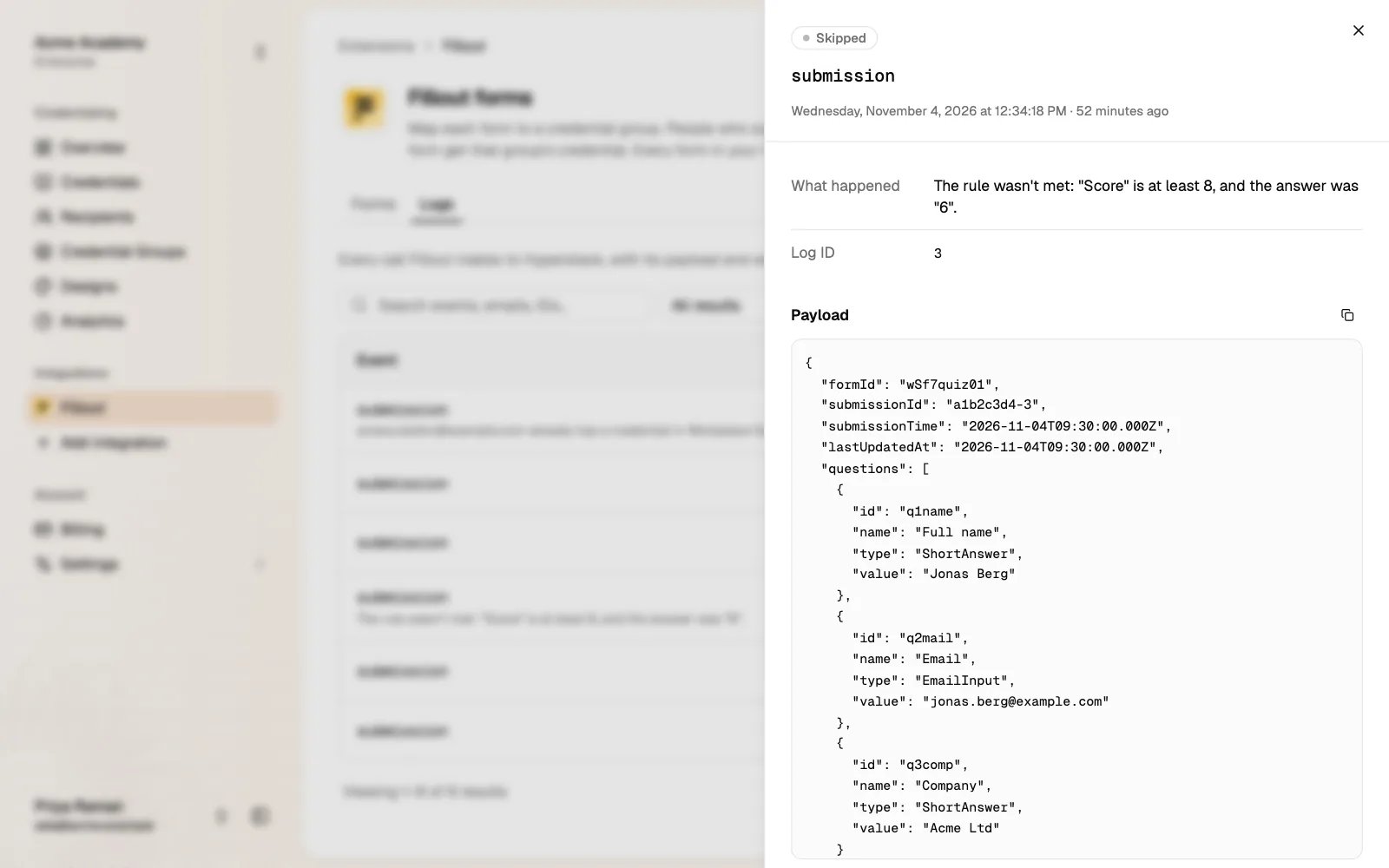
The Logs tab lists every submission that Fillout sends, for 90 days.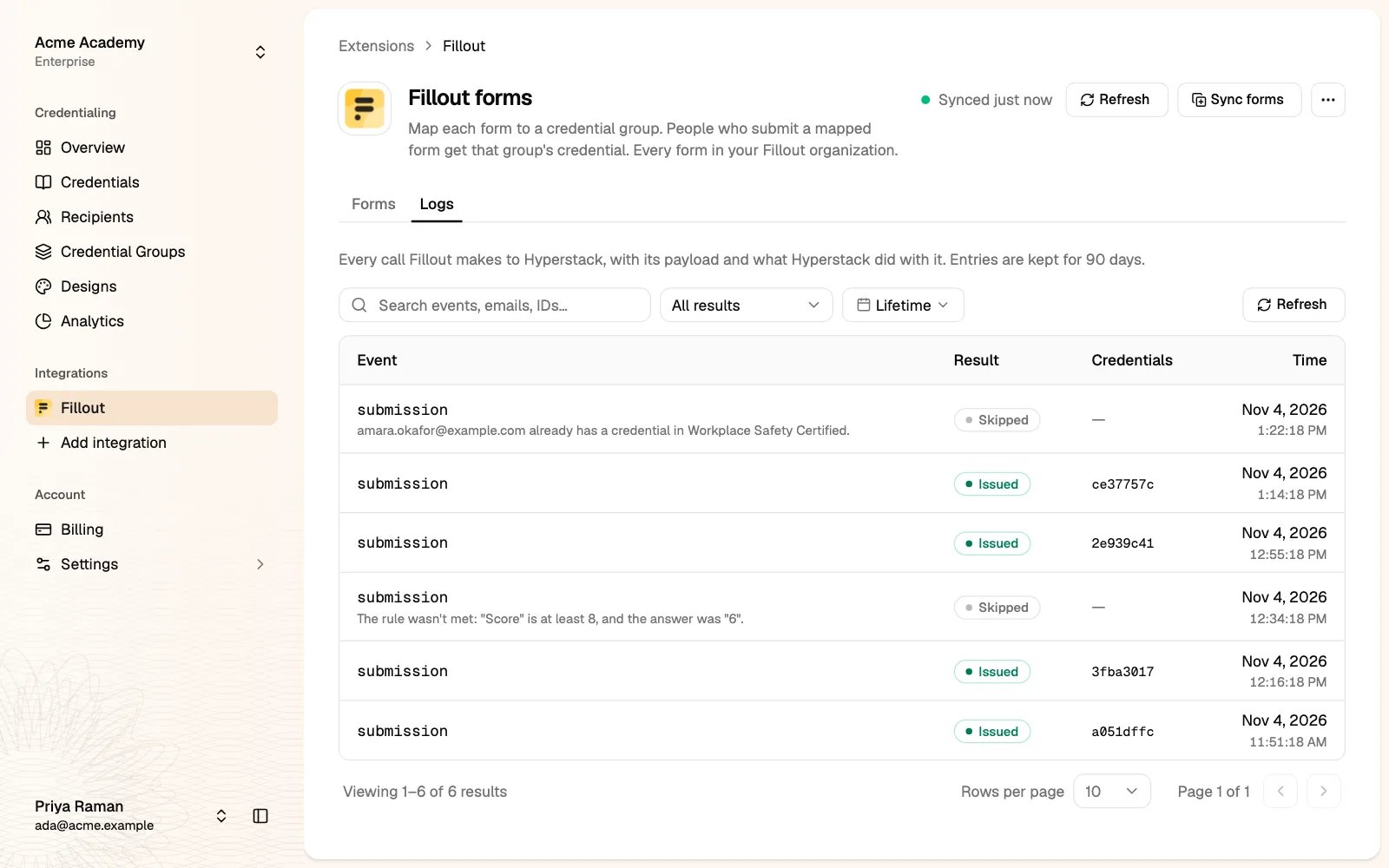
- Issued: a credential was created. Its ID shows in the Credentials column.
- Skipped: nothing was issued, and the line says why. For example: the rule wasn’t met, the email answer isn’t an email address, or the person already has a credential in that group.
- Failed: the call was refused, for example because it came to an old webhook address.
Good to know
- One credential per email per group. If a person submits the form again, nothing new is issued.
- What Hyperstack keeps: your Fillout API key. A credential keeps only the form ID, the submission ID and when it was sent. Hyperstack doesn’t copy the form answers into the credential.
- Security: Fillout doesn’t sign its webhooks, so each webhook address has a secret of its own. When you disconnect, the secret is deleted, and Hyperstack refuses calls to the old address.
- API limits: Fillout’s free plan allows 1,000 submissions a month. Hyperstack uses no API call for a submission, only when you open the forms page or map a form.
- Turn off auto-issue to stop issuing but keep your mappings. Hyperstack removes the webhooks from your forms.
Disconnect Fillout
Click the ⋯ button at the top right of the Fillout page, then Disconnect Fillout. Hyperstack removes its webhooks from your forms in Fillout and deletes your mappings. Credentials you already issued stay as they are.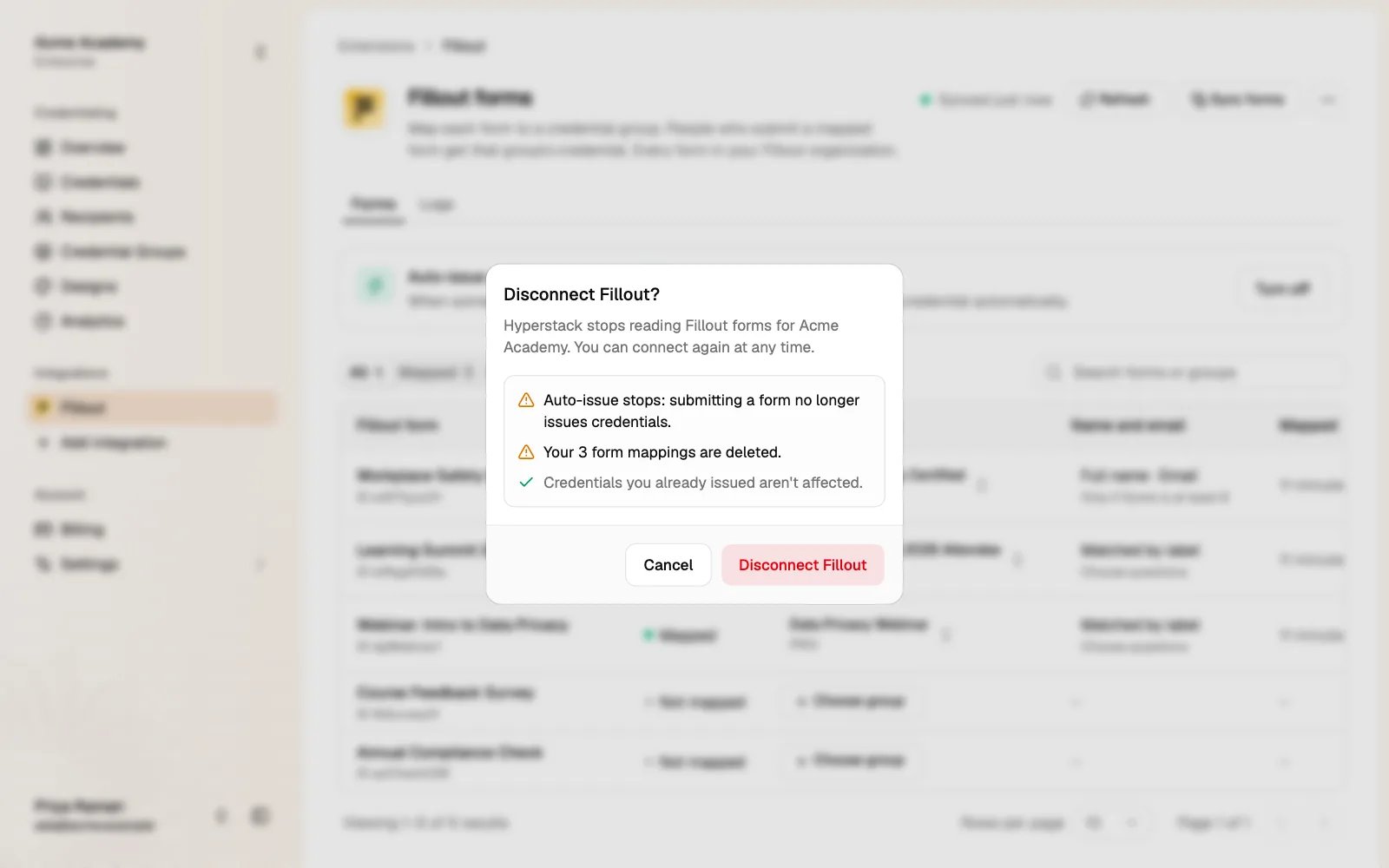
Troubleshooting
Questions or problems: support@thehyperstack.com.