

Hyperstack connects to your Docebo platform with an API app. You map each Docebo course to a credential group. When a learner completes a mapped course, Docebo tells Hyperstack, and the learner gets that group’s credential.
Docebo is on the Premium and Enterprise plans. You must be an administrator in Hyperstack and a Superadmin in Docebo. Setup takes about five minutes.

Step 1: open the Docebo setup in Hyperstack

  1. In the Studio, click Add integration, then Docebo.
  2. Click Install. The Connect Docebo page opens.
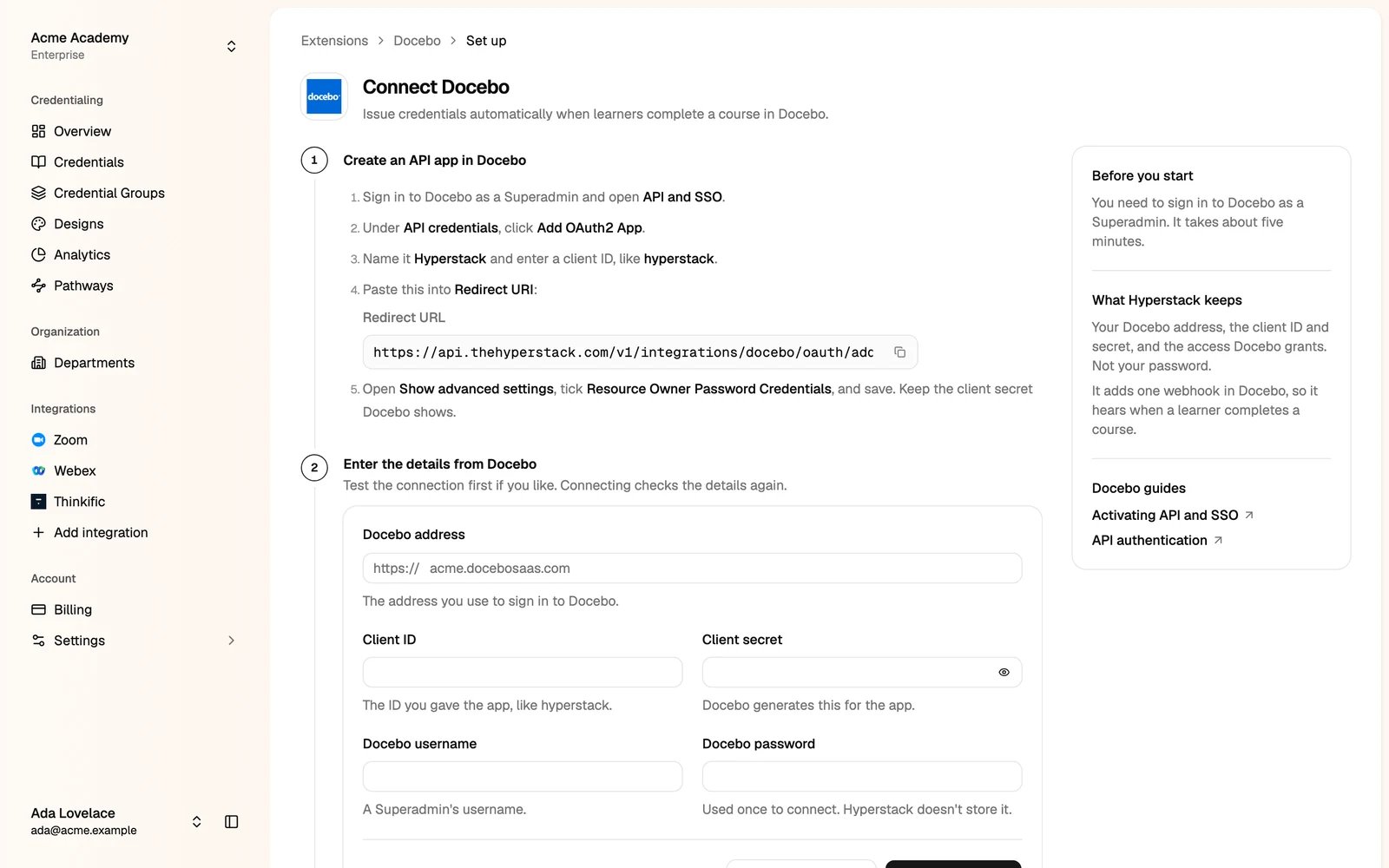
The Connect Docebo page with the steps and the connection form

Step 2: create an API app in Docebo

  1. Sign in to Docebo as a Superadmin and open API and SSO.
  2. Under API credentials, click Add OAuth2 App.
  3. Name it Hyperstack and enter a client ID, like hyperstack.
  4. Paste the Redirect URL from the Connect Docebo page into Redirect URI.
  5. Open Show advanced settings, tick Resource Owner Password Credentials, and save. Keep the client secret Docebo shows.

Step 3: connect

Enter the details from Docebo on the Connect Docebo page:
  • Docebo address: the address you use to sign in, like acme.docebosaas.com.
  • Client ID and Client secret of the app you created.
  • Docebo username and Docebo password of a Superadmin. The password is used once to connect. Hyperstack doesn’t store it.
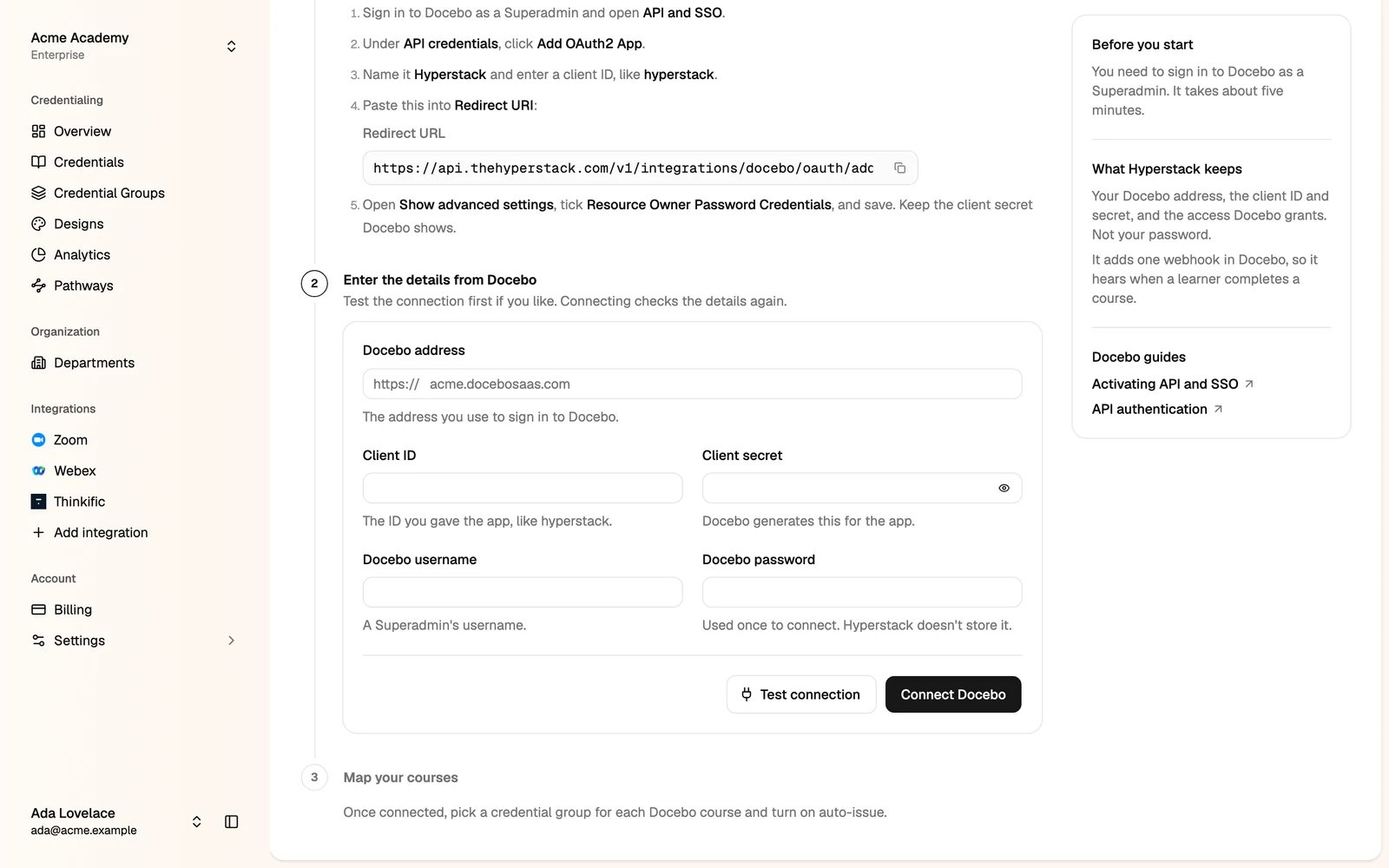
The Docebo connection form with Test connection and Connect Docebo
Click Test connection if you like, then Connect Docebo. Hyperstack adds one webhook in Docebo, so it hears when a learner completes a course.

Step 4: map your courses

Click Docebo in the sidebar. You see every course in your Docebo platform.
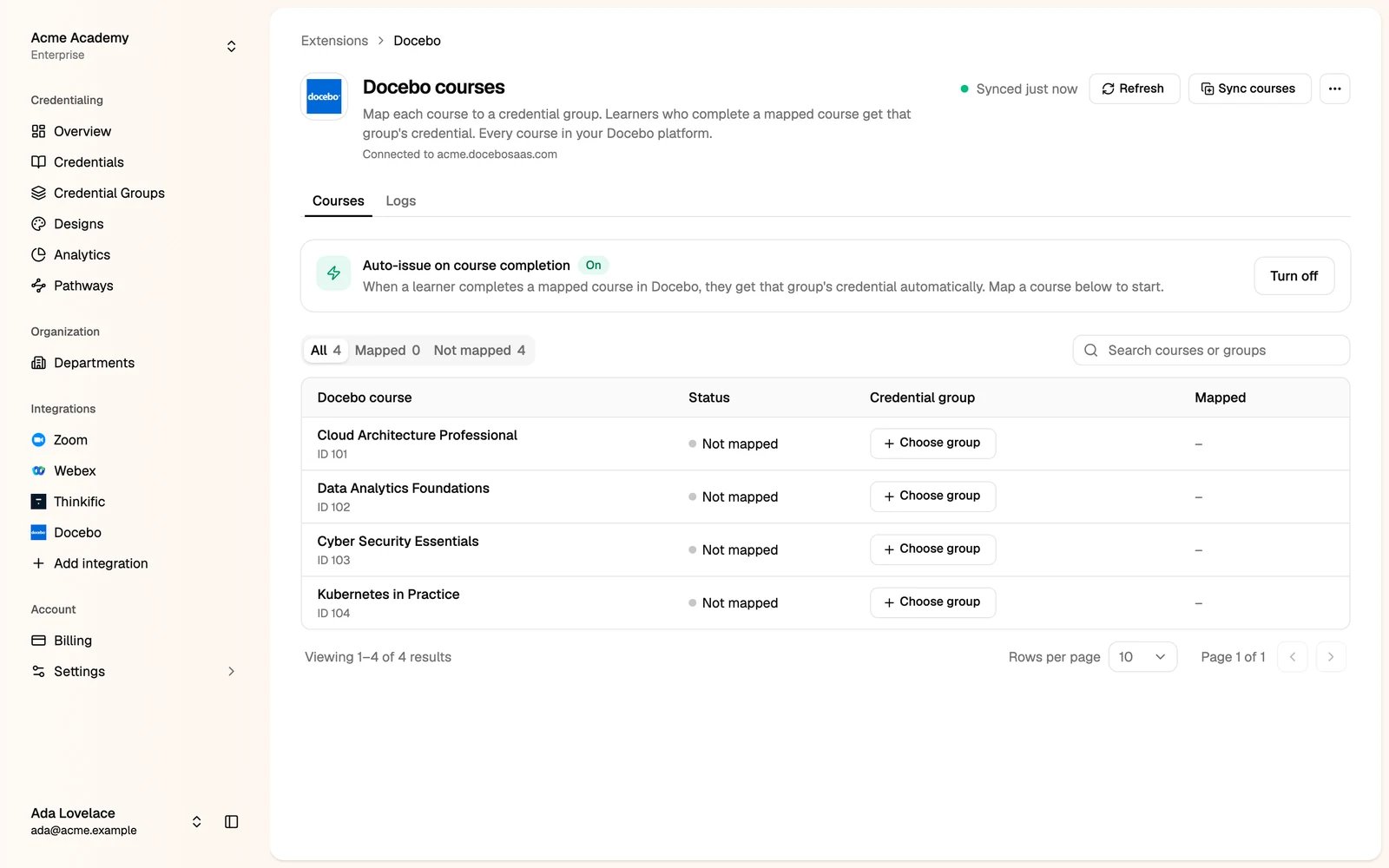
Docebo courses in the Studio, with auto-issue on
  1. Click Choose group next to a course and pick a credential group.
  2. Check that Auto-issue on course completion is On.
Learners who complete a mapped course now get that group’s credential automatically.
Sync courses creates a credential group for each course that isn’t mapped yet, named after the course, and maps it.

Docebo details on the credential

Designs can use Docebo attributes, such as Docebo Course Code, Docebo Course Name, Docebo Instructors and Docebo additional fields (country, course dates, course status and training hours). Find them in the Attributes panel of the design editor.

Check what was issued

The Logs tab lists each completion Docebo sent, and what Hyperstack issued, or why it didn’t, for example a course that isn’t mapped.

Disconnect Docebo

Click the menu at the top right of the Docebo page, then Disconnect Docebo. Auto-issue stops and your course mappings are deleted.
Last modified on October 20, 2026