

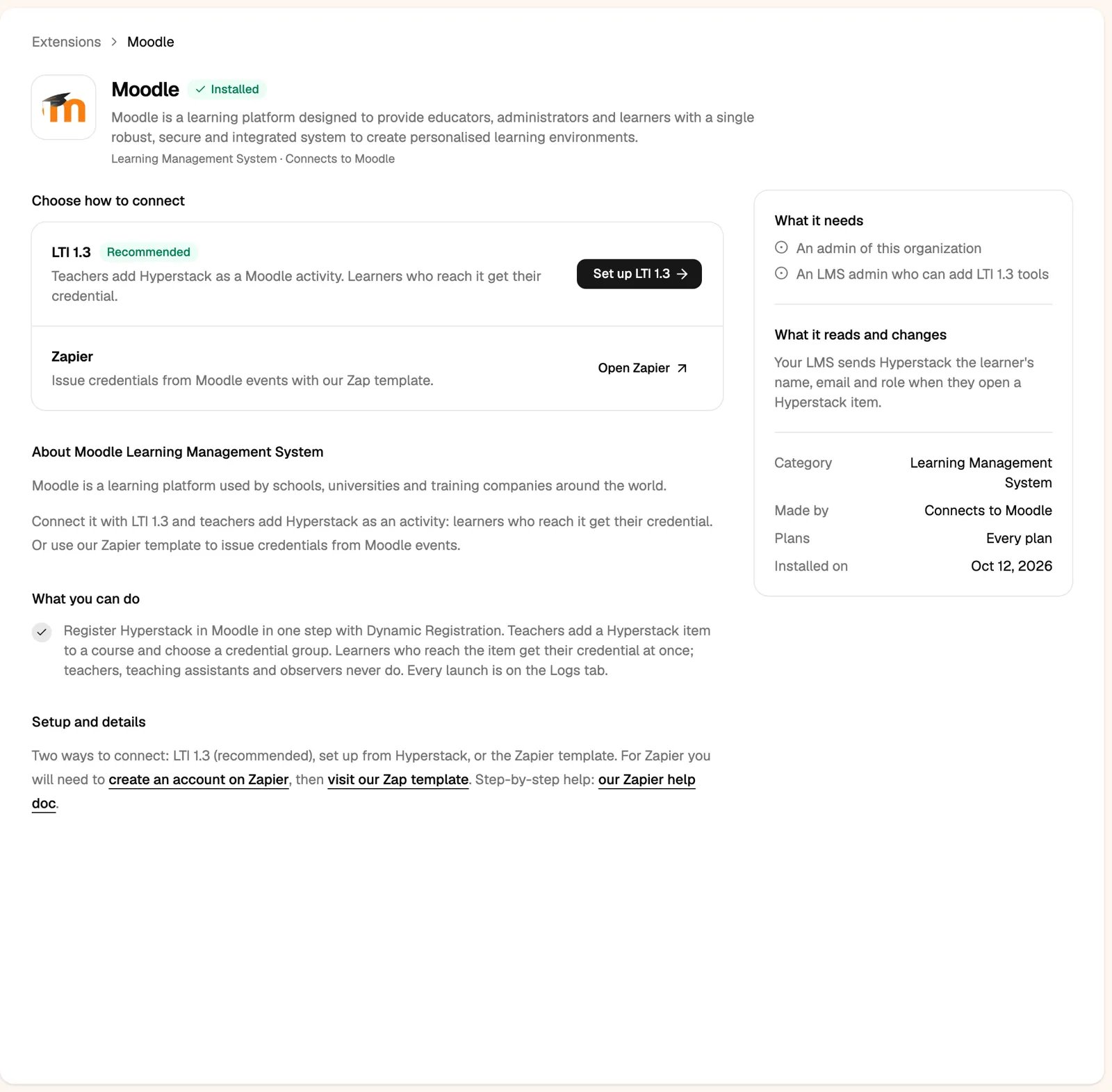
Before you start
- A credential group with its design.
- Administrator access in Hyperstack.
- A Moodle site administrator.
Step 1: register Hyperstack in Moodle
1
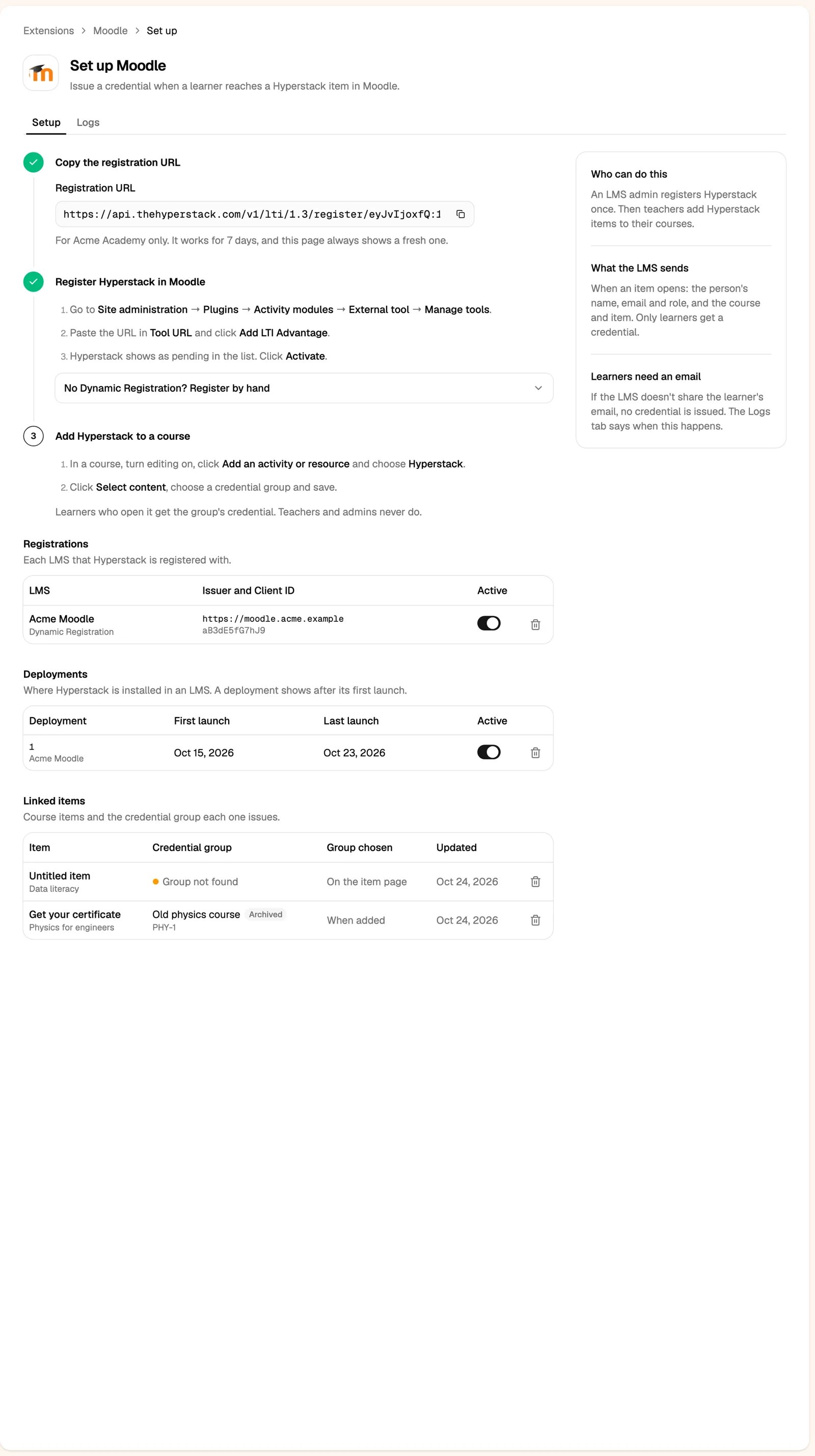
In Hyperstack, open the Moodle setup page
Click Add integration, then Moodle, choose LTI 1.3, and copy the Registration URL. It works for 7 days and connects Moodle to your organization only.
2
In Moodle, go to Site administration, Plugins, Activity modules, External tool, Manage tools
Paste the URL in Tool URL and click Add LTI Advantage. Moodle registers Hyperstack.
3
Activate the tool
Hyperstack shows as Pending in the tool list. Click Activate.
4
Check the tool settings
Share launcher’s name with tool and Share launcher’s email with tool must be Always (registration sets them). Set Tool configuration usage so Hyperstack shows in the activity chooser.
Step 2: add Hyperstack to a course
- In the course, turn editing on, click Add an activity or resource and choose Hyperstack.
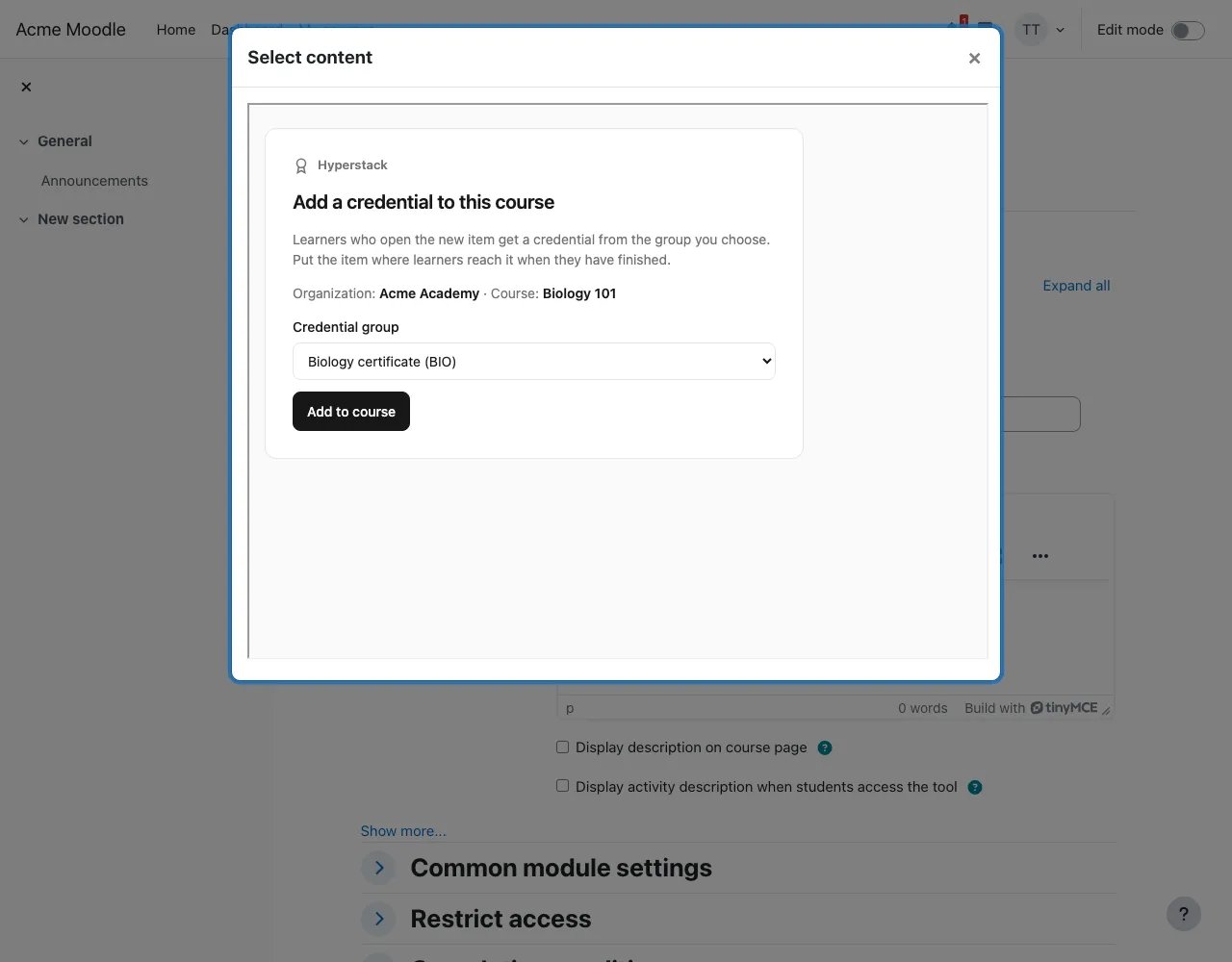
- Click Select content. Hyperstack shows your credential groups: choose one and click Add to course.
- Save the activity. Use Restrict access so it opens only when the learner has finished the course.
Who gets a credential
Test with a student account (or your LMS’s “act as user”). Teacher and admin accounts never get a credential, and preview modes such as Canvas Student View have no real email.
What learners see
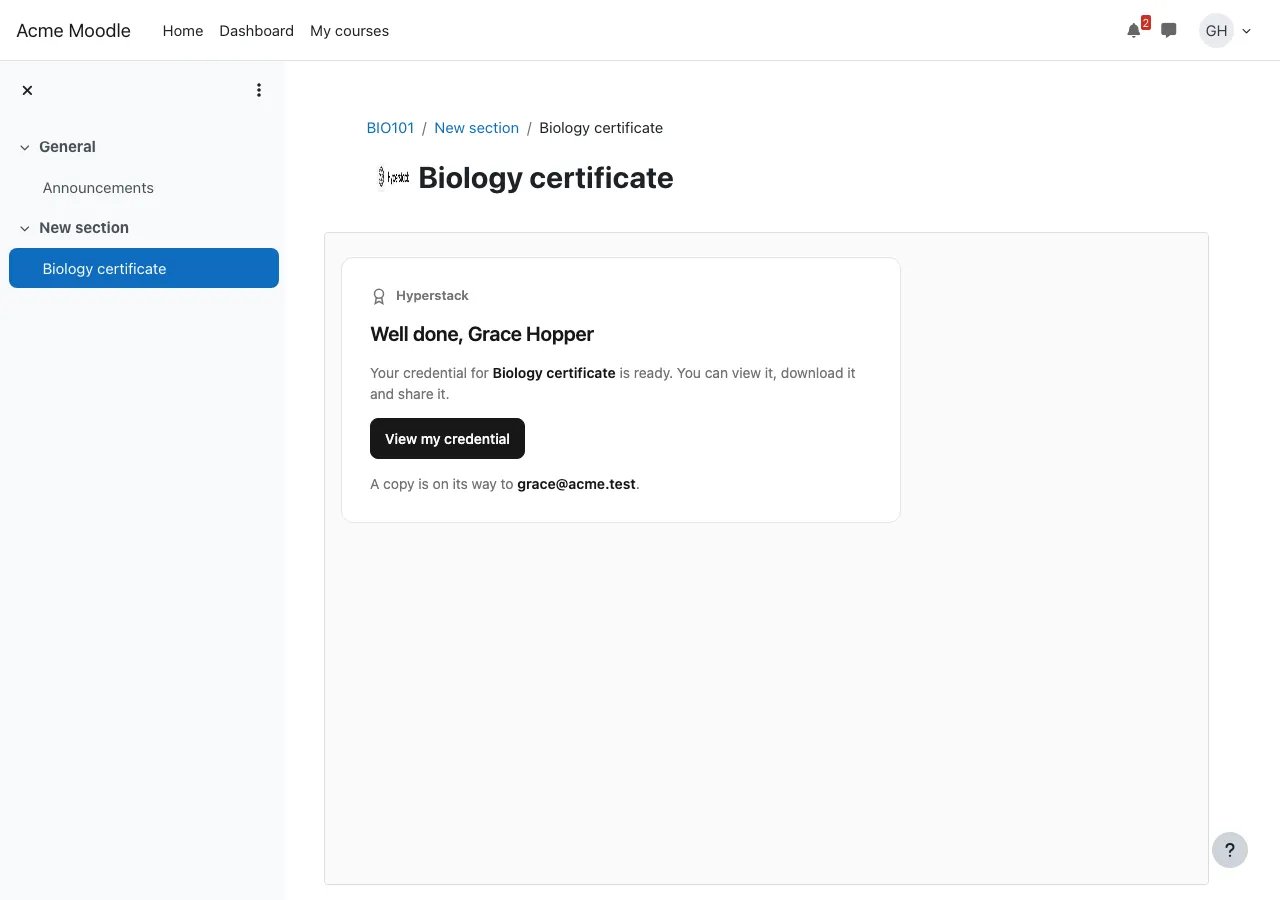
- Well done: their credential is ready, with View my credential. It is published at once and emailed to them. Opening the item again shows the same credential, never a second one.
- Email address needed: the LMS didn’t share their email, so nothing was issued. Ask your LMS admin to share names and emails with Hyperstack.
- Not set up yet: the item isn’t linked to a credential group. A teacher opens it and picks one.