

Before you start
- A credential group with its design.
- Administrator access in Hyperstack.
- A Sakai administrator.
Step 1: register Hyperstack in Sakai
- In Hyperstack, click Add integration, then Sakai, then Integrate. Copy the Registration URL.
- In Sakai’s Administration Workspace, open External Tools, start an LTI Advantage tool with Dynamic Registration, and paste the URL.
- Allow the tool to receive names and emails, and make it available to the sites that need it.
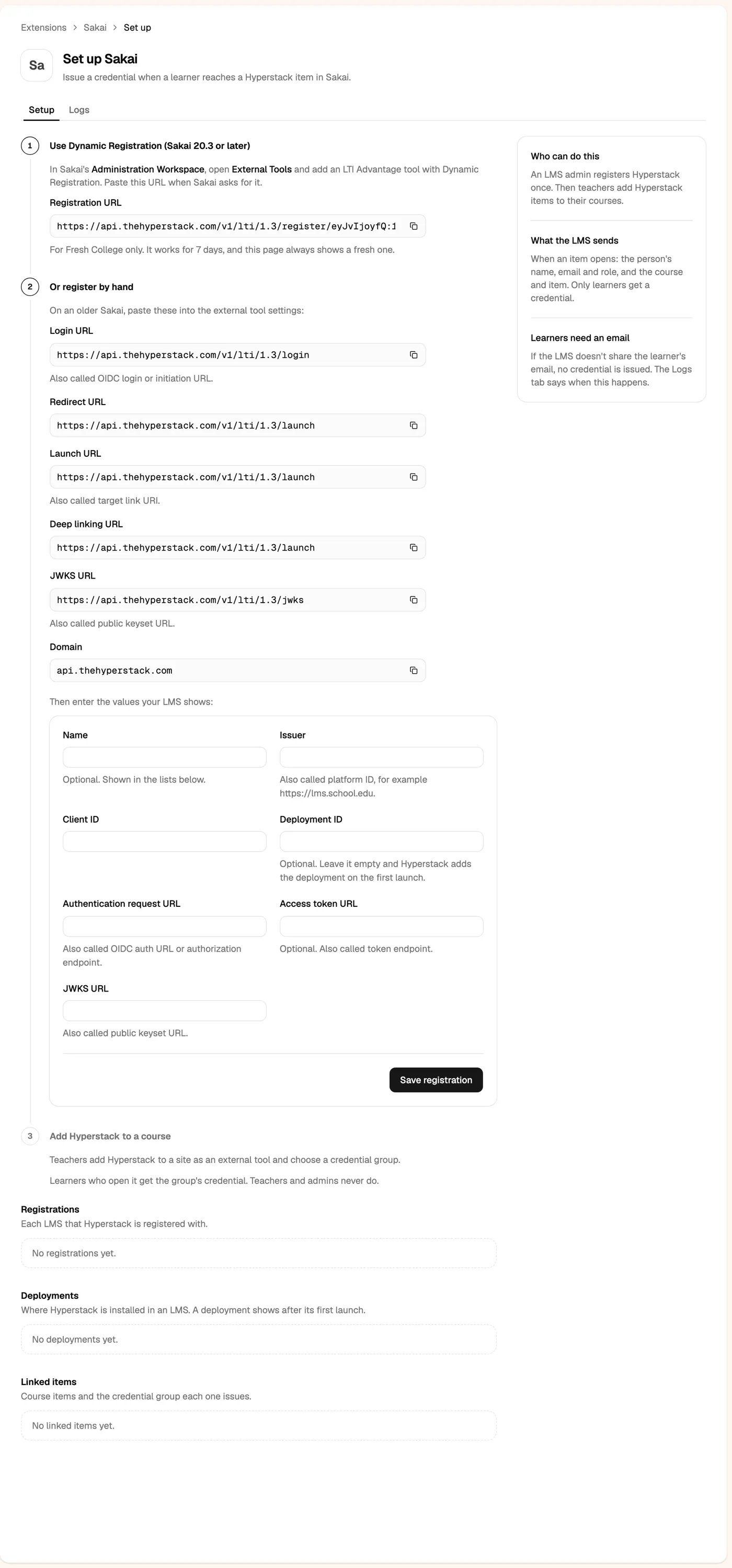
Step 2: add Hyperstack to a site
Teachers add Hyperstack in Lessons (or as an external tool), choose a credential group, and place it where learners finish.Who gets a credential
Test with a student account (or your LMS’s “act as user”). Teacher and admin accounts never get a credential, and preview modes such as Canvas Student View have no real email.
What learners see
- Well done: their credential is ready, with View my credential. It is published at once and emailed to them. Opening the item again shows the same credential, never a second one.
- Email address needed: the LMS didn’t share their email, so nothing was issued. Ask your LMS admin to share names and emails with Hyperstack.
- Not set up yet: the item isn’t linked to a credential group. A teacher opens it and picks one.