

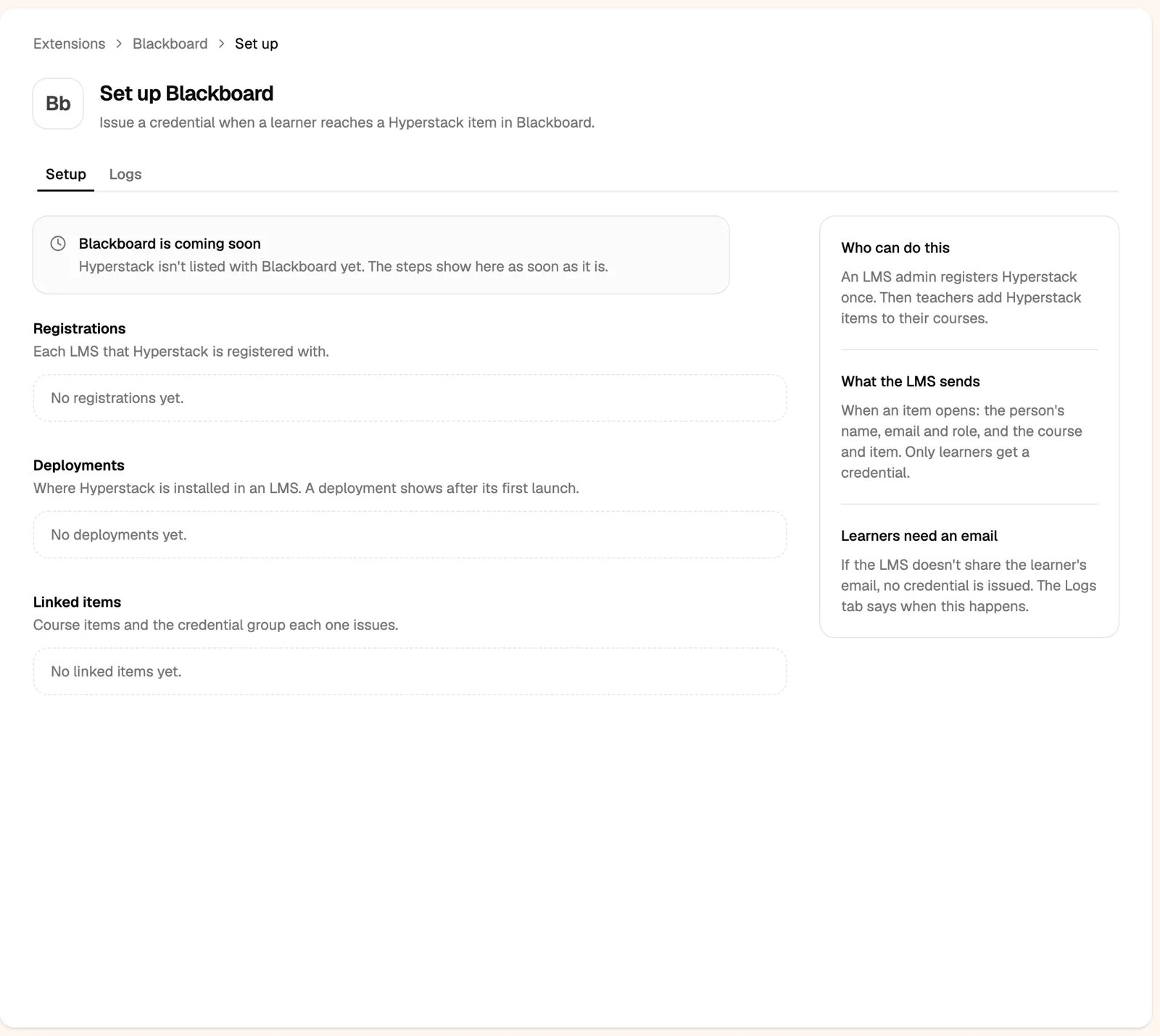
The Blackboard setup page in Hyperstack shows Blackboard is coming soon until Hyperstack’s Blackboard listing is live. The steps below appear there as soon as it is.
Before you start
- A credential group with its design.
- Administrator access in Hyperstack.
- A Blackboard system administrator.
Step 1: register Hyperstack in Blackboard
1
In Hyperstack, open the Blackboard setup page
Click Add integration, then Blackboard, then Integrate. Copy the Application ID.
2
In Blackboard, go to Administrator Panel, LTI Tool Providers
Click Register LTI 1.3/Advantage Tool, paste the Application ID in Client ID and click Submit.
3
Approve the tool
Check Tool Status is Approved, and under User Fields to Send allow role, name and email.
4
Connect Blackboard to your organization
In Hyperstack, click Make connection code. Open a Hyperstack item once in Blackboard as an administrator and type the code when asked. Each Blackboard site needs its own code.
Step 2: add Hyperstack to a course
- In the course, open Content Market (Ultra) or Build Content (Original) and choose Hyperstack.
- Hyperstack shows your credential groups: choose one and click Add to course.
- Use release conditions (Ultra) or adaptive release (Original) so the item opens only when the learner has finished the course.
Who gets a credential
Test with a student account (or your LMS’s “act as user”). Teacher and admin accounts never get a credential, and preview modes such as Canvas Student View have no real email.
What learners see
- Well done: their credential is ready, with View my credential. It is published at once and emailed to them. Opening the item again shows the same credential, never a second one.
- Email address needed: the LMS didn’t share their email, so nothing was issued. Ask your LMS admin to share names and emails with Hyperstack.
- Not set up yet: the item isn’t linked to a credential group. A teacher opens it and picks one.