

Before you start
- A credential group with its design.
- A Hyperstack account with administrator access, to create an API key. The free plan covers up to 20 recipients.
- A Moodle site administrator.
- Moodle’s cron running. Moodle works out course completion in a scheduled task, so credentials go out a few minutes after a learner completes the course.
Step 1: install the plugin
1
Download the plugin
Download
local_hyperstack.zip from the latest release on GitHub. The plugin will also be on the Moodle Marketplace.2
Install it in Moodle
Go to Site administration, Plugins, Install plugins, upload the zip, and complete the upgrade.
Step 2: connect Moodle to Hyperstack
1
In Hyperstack, create an API key
Open Settings, Developers, and create an API key. Copy it.
2
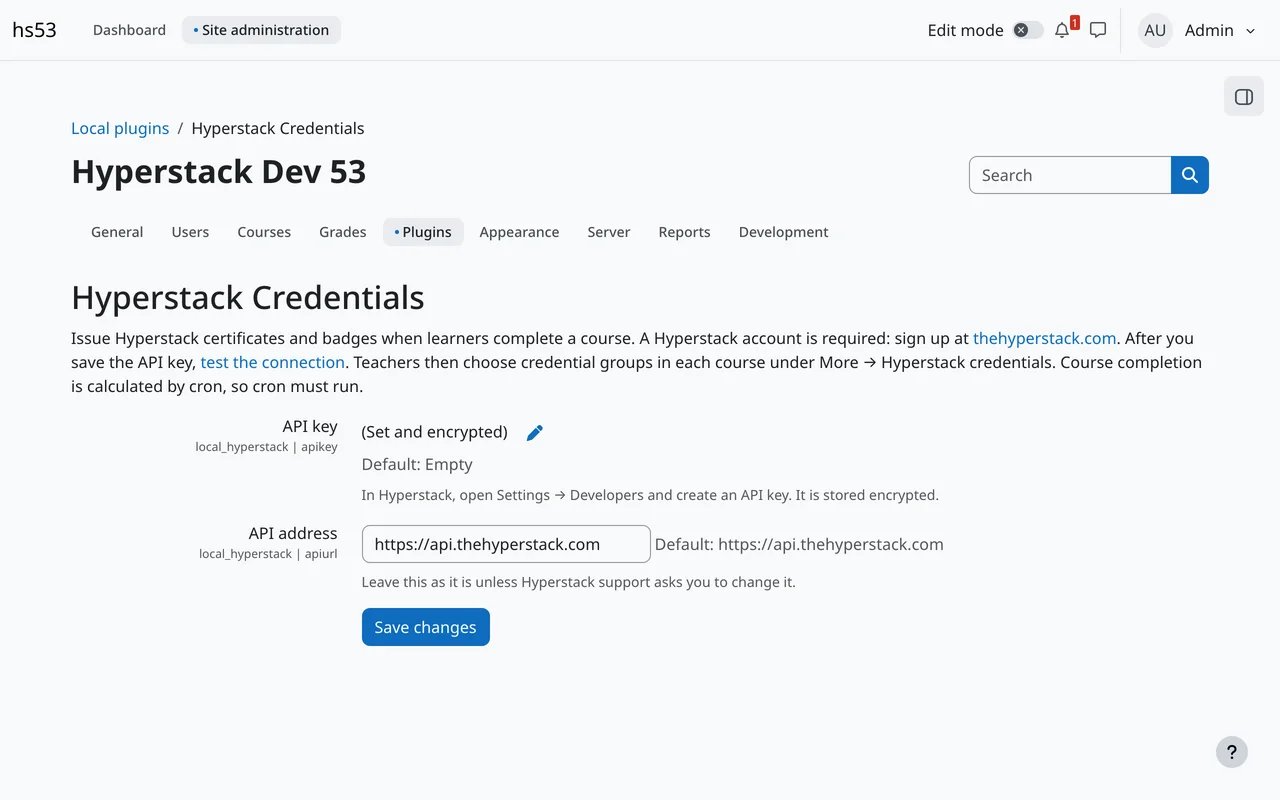
In Moodle, open the plugin settings
Go to Site administration, Plugins, Local plugins, Hyperstack Credentials. Paste the key in API key and click Save changes. Moodle stores the key encrypted.
3
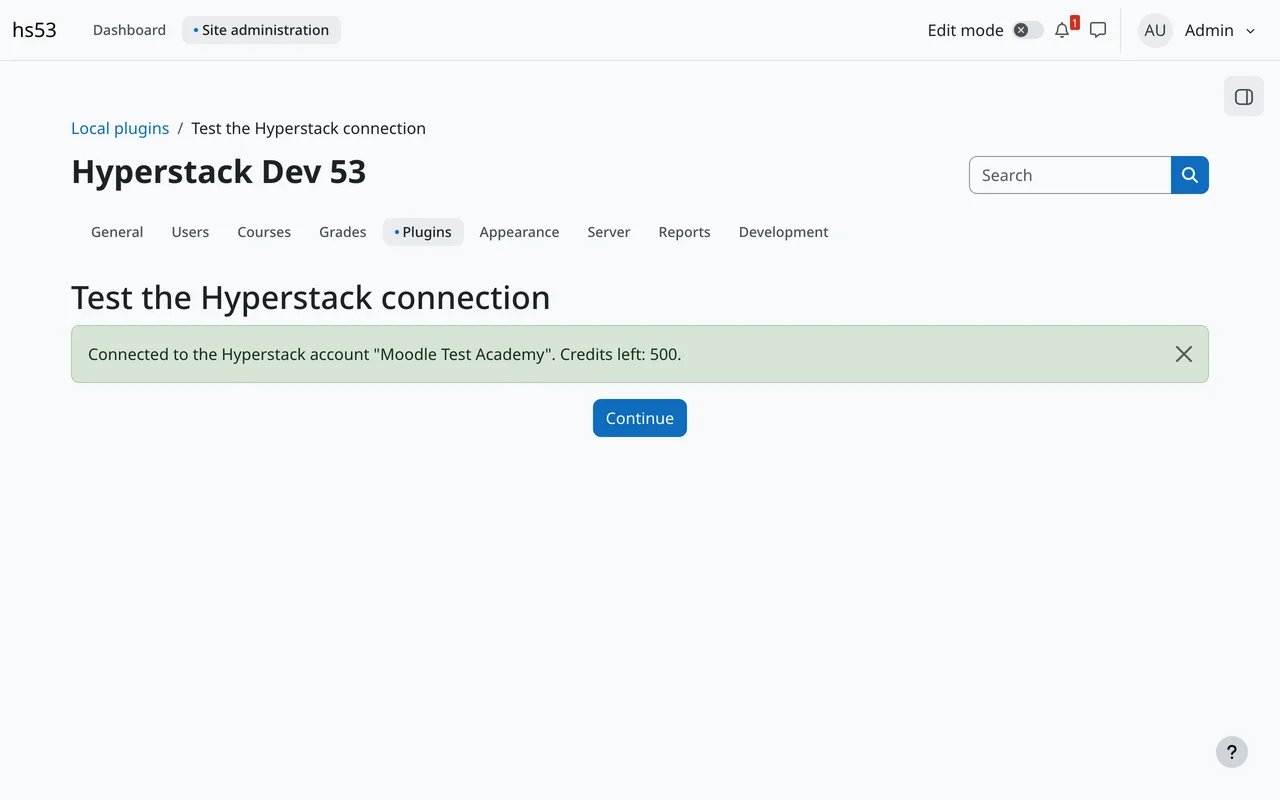
Test the connection
Click test the connection. Moodle shows your Hyperstack organization name and credit balance.
Step 3: choose a course’s credential groups
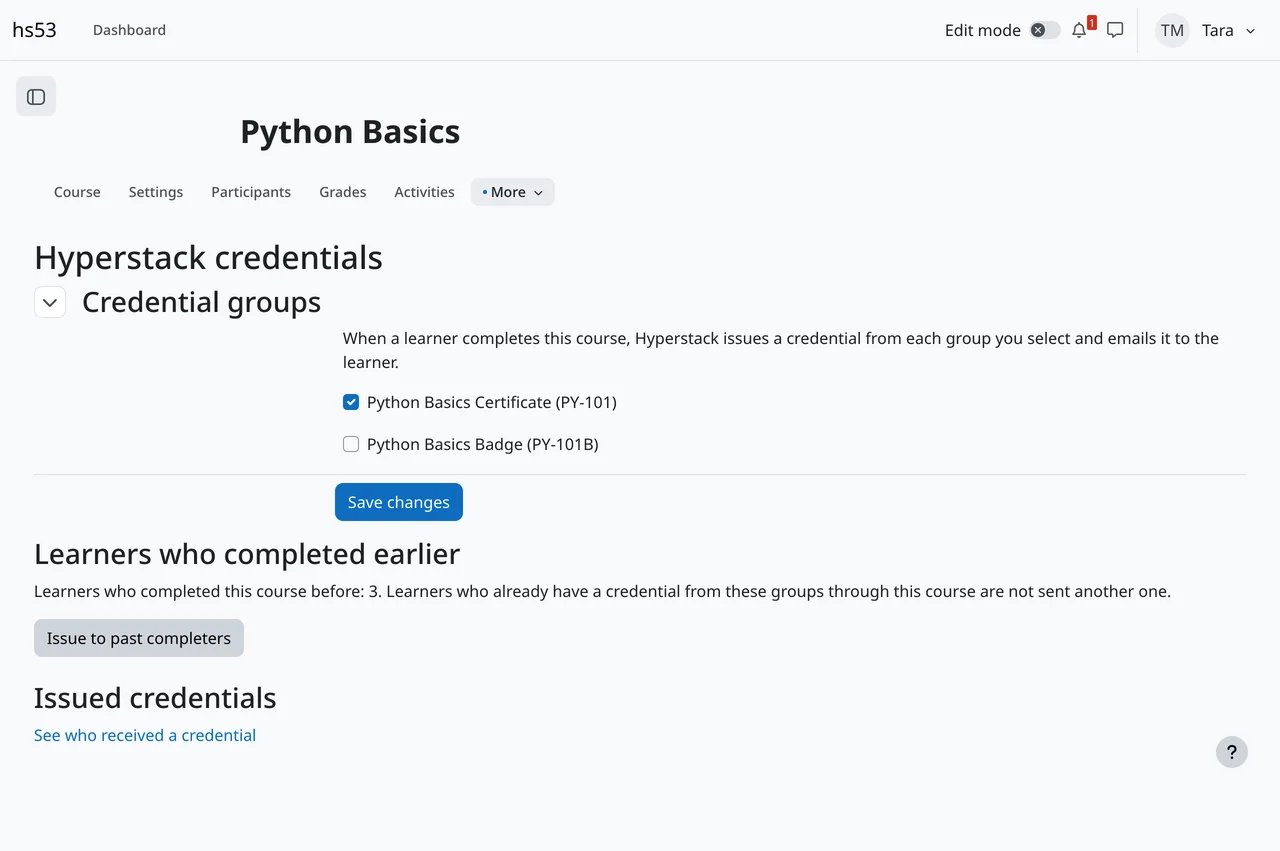
A teacher with editing rights, or a manager, does this in each course.- Check that the course has Completion tracking on (course settings) and course completion conditions set (More, Course completion). Without them nothing is issued, and the plugin page shows a warning.
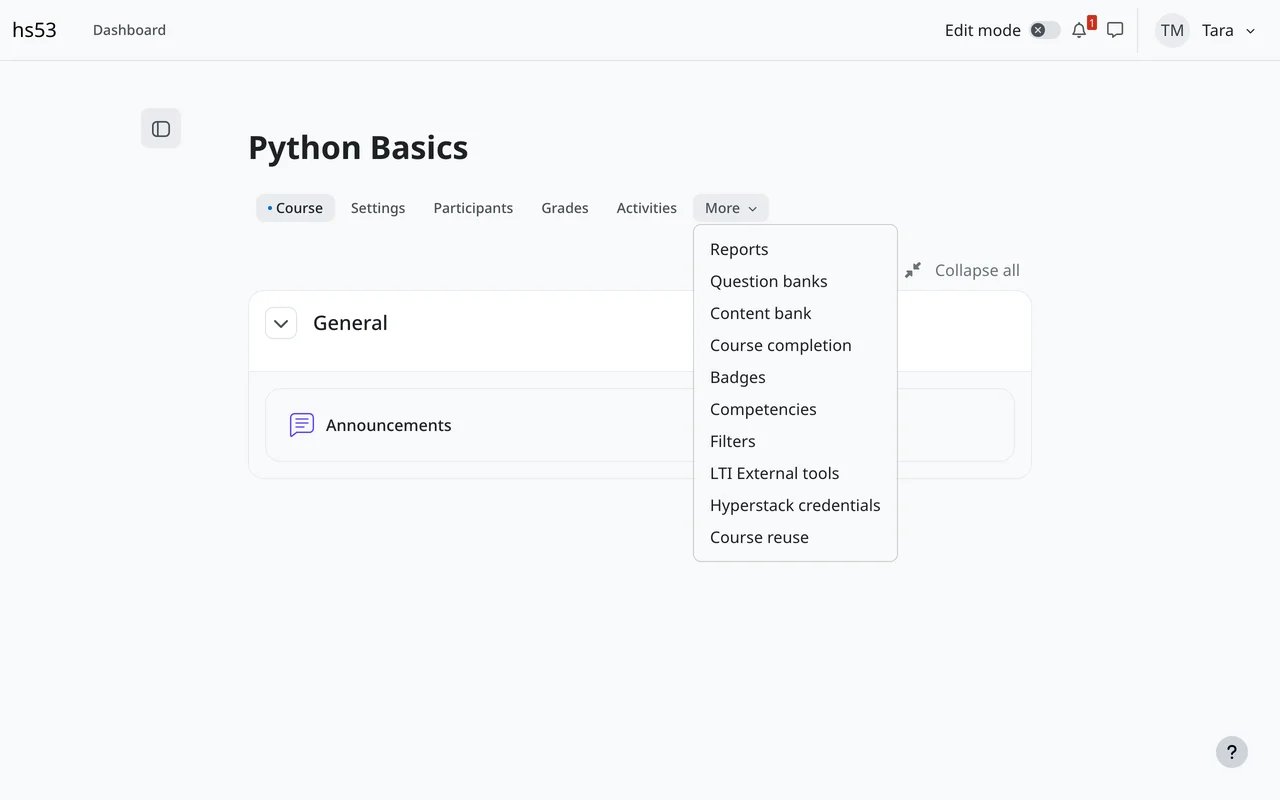
- In the course, open More, Hyperstack credentials.
- Select the credential groups to issue and click Save changes. Archived groups are not listed.
What learners get
When a learner completes the course, they get one credential from each selected group, by email, a few minutes later. A learner gets a credential from the same course and group only once. Each credential uses one credit, as usual. Suspended and deleted Moodle users are skipped.Follow what was issued
On the plugin page, click See who received a credential. The report lists each learner with the credential group, the status and a link to the credential.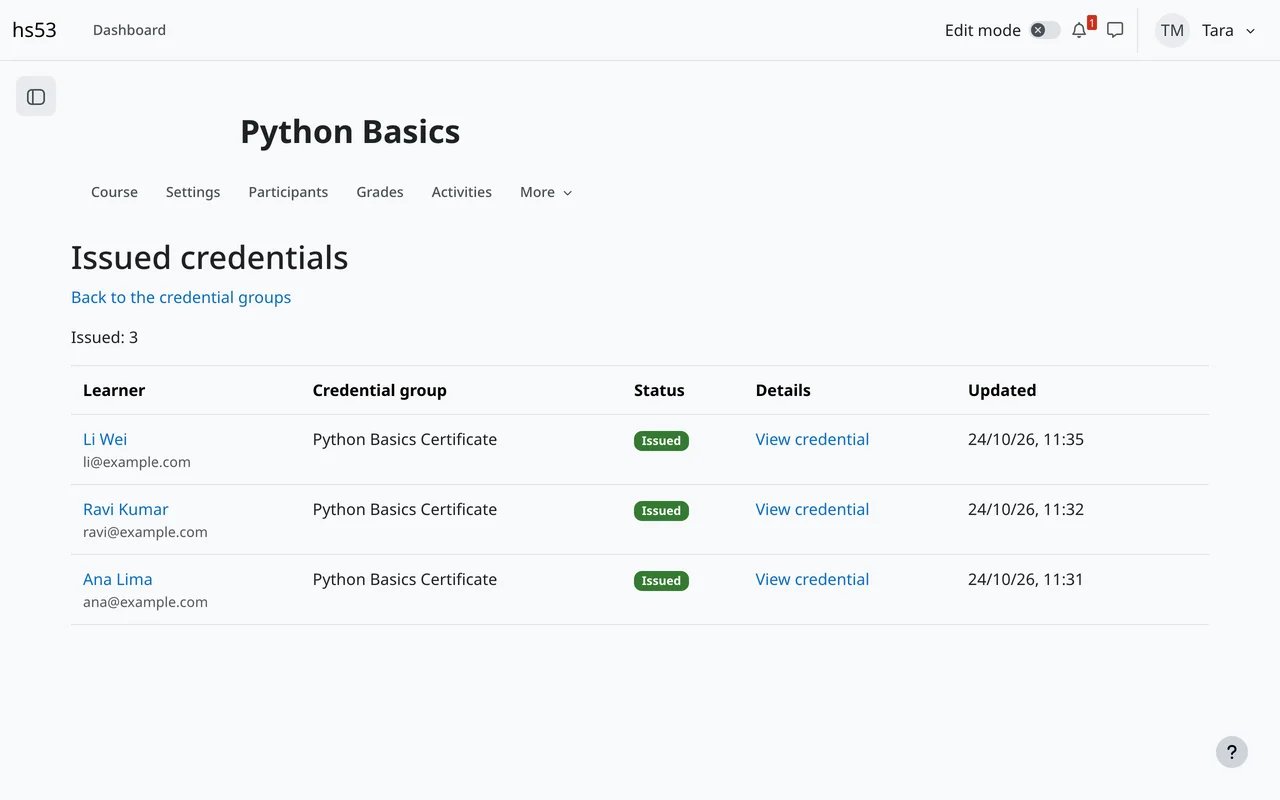
Troubleshooting
- Nothing is issued: check that cron runs, and that the course has completion tracking and completion conditions. The learner must show as complete in Reports, Course completion.
- Hyperstack did not accept the API key: the key was deleted or mistyped. Create a new one in Hyperstack and save it in the plugin settings.
- The saved API key cannot be read: the Moodle site’s encryption key changed (for example after moving the site). Enter the API key again.
- Retrying for a long time: add credits in Hyperstack. Moodle keeps trying for about a day and a half; after that the status is Failed, and Retry sends it.