

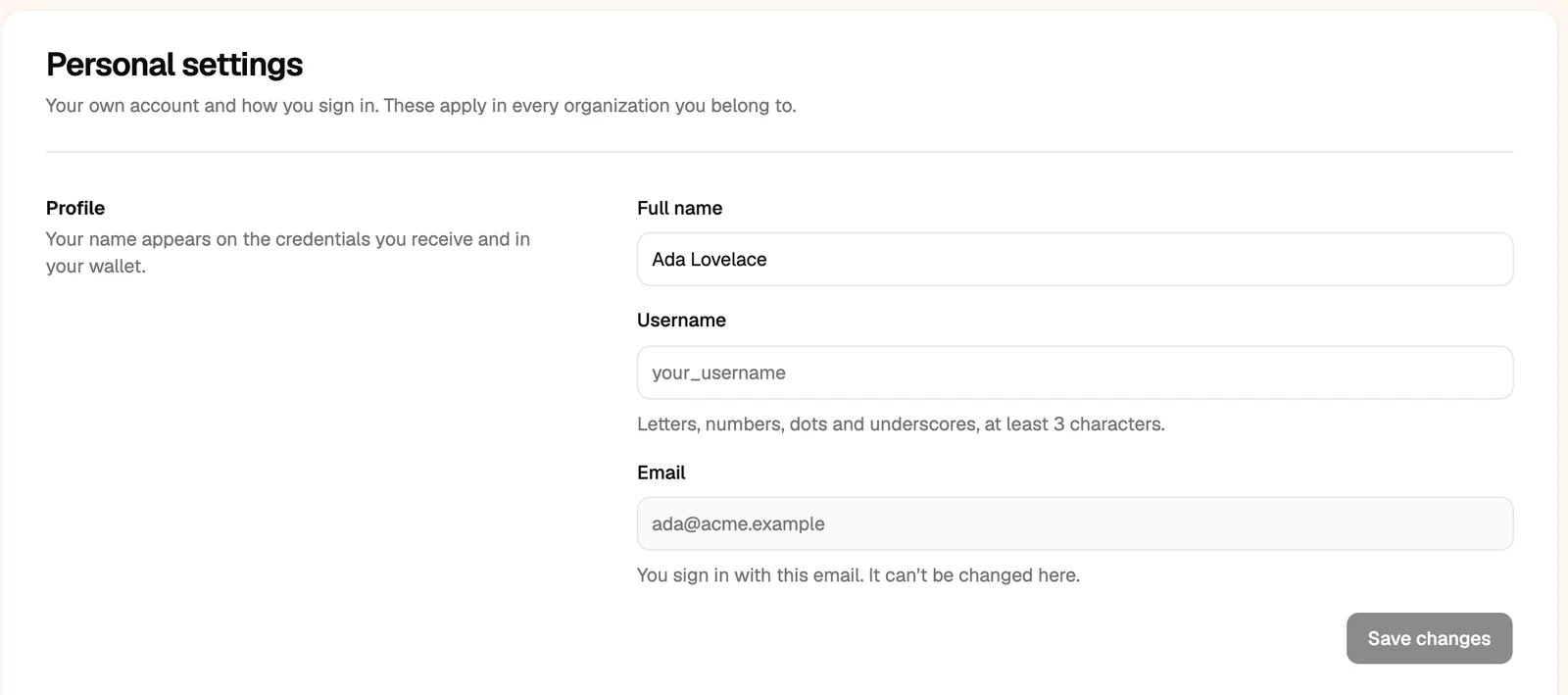
Profile
Change your full name and username. Your name appears on the credentials you receive and in your wallet. You sign in with your email, which you can’t change here.Ways to sign in
- Email and password.
- Sign in with Google.
- Passkey: sign in with your face, fingerprint or device PIN.
Passkeys
A passkey only works on Hyperstack, so it can’t be phished. Under Passkeys, add one for each device you use. You need a current version of Chrome, Safari, Edge or Firefox.Two-factor authentication
Two-factor authentication protects your account if someone learns your password.1
Under Two-factor authentication, click Set up
You need an authenticator app on your phone, such as Google Authenticator, Microsoft Authenticator or Authy.
2
Scan the QR code with the app
Can’t scan it? Enter the setup key in the app.
3
Enter the 6-digit code from the app and click Verify and turn on