

How it works
1
The recipient asks
From their wallet, the recipient types the correct name or detail and adds a note if they want.
2
You review
The request shows in your Studio under Credentials → Change requests. You see the old value, the new value and their note.
3
You approve or reject
Approve, and the credential is updated at once. Reject, and nothing changes. Either way, we email the recipient your answer.
What recipients can ask to change
- Their name, as it shows on the credential.
- Any of your custom attributes, for example a grade or course hours.
For issuers: answer a request
See new requests
A number next to Credentials in the sidebar shows how many requests are waiting. Go to Credentials → Change requests.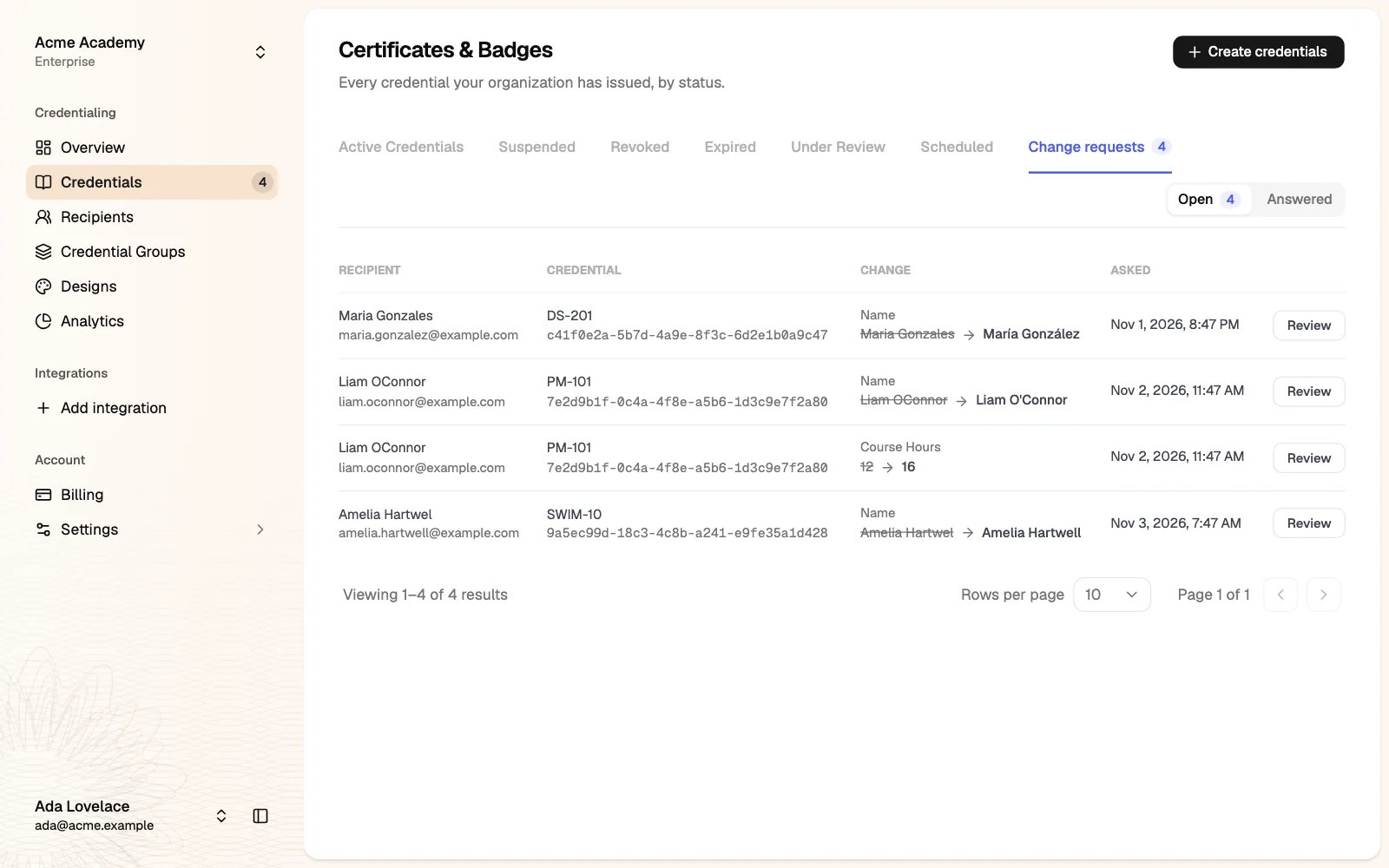
- Recipient: the name and email of the person who asked.
- Credential: the group code and the credential ID. Click the ID to open the credential.
- Change: what they want to change, with the old value struck through and the new value next to it.
- Asked: when they asked.
Approve or reject
1
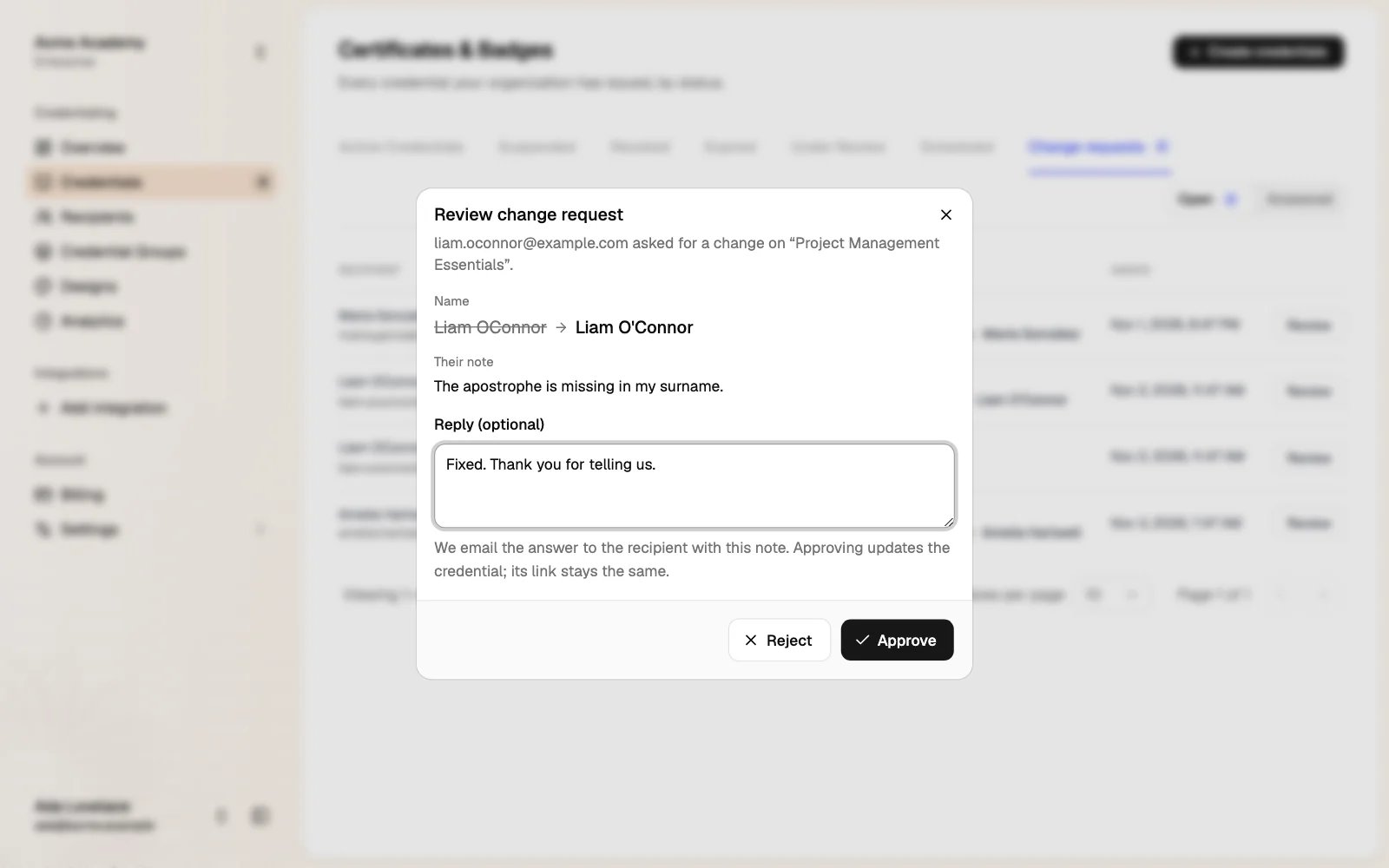
Click Review on the request
2
Check the change and the note
If someone on your team changed the value after the recipient asked, a yellow notice tells you.
3
Add a reply (optional)
We add your reply to the email we send to the recipient.
4
Click Approve or Reject
- The credential page, the downloads and the verification page show the new value at once.
- The credential link stays the same, so links the recipient already shared keep working.
- The change is saved in the credential’s history and in your audit logs, the same as an edit you make yourself.
Each request is for one detail. When a recipient asks for two changes, for example the name and the course hours, you see two requests. Approve or reject each one.
Requests on a credential’s page
When you open a credential that has open requests, a Change requested card shows at the top. Click Review to answer from there.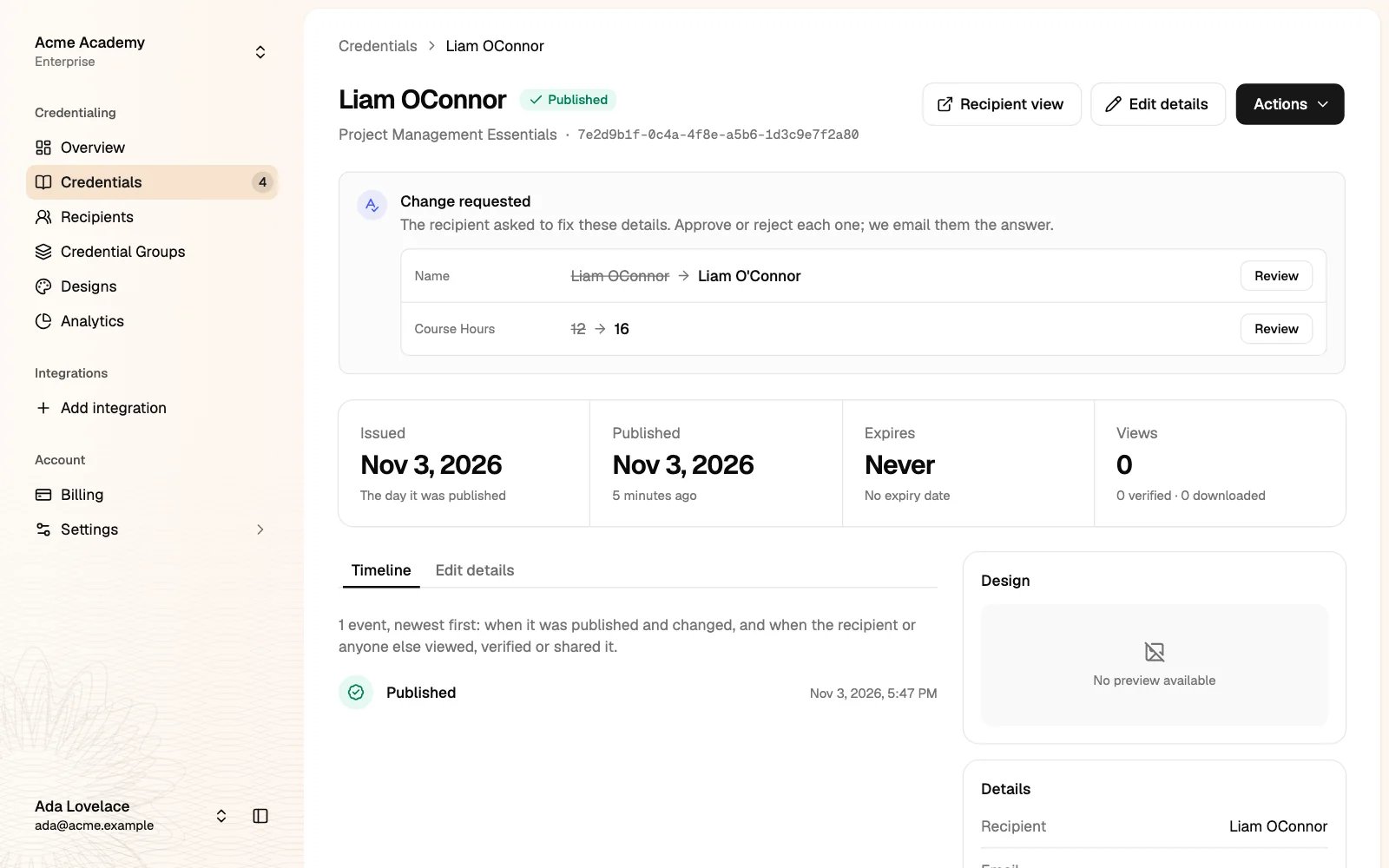
Answered requests
Click Answered to see the requests you approved or rejected, who answered them and when. Requests the recipient cancelled show as Taken back.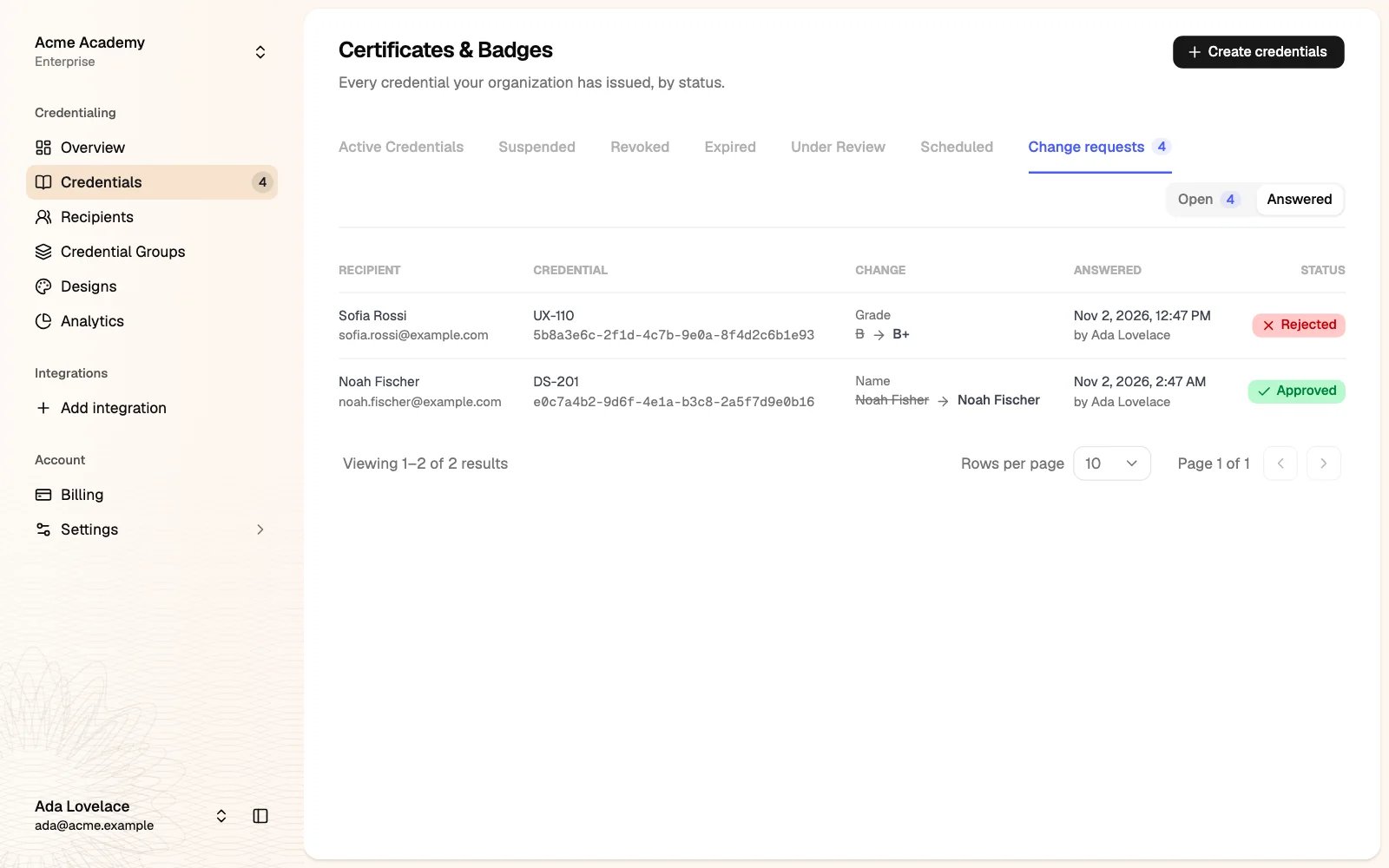
For recipients: ask for a change
You can send this part to your recipients.1
Sign in to your wallet
Go to hyperstack.id and sign in with the email your credential was sent to.
2
Open the menu on the credential
Click the ⋯ button on the credential, then Request a change.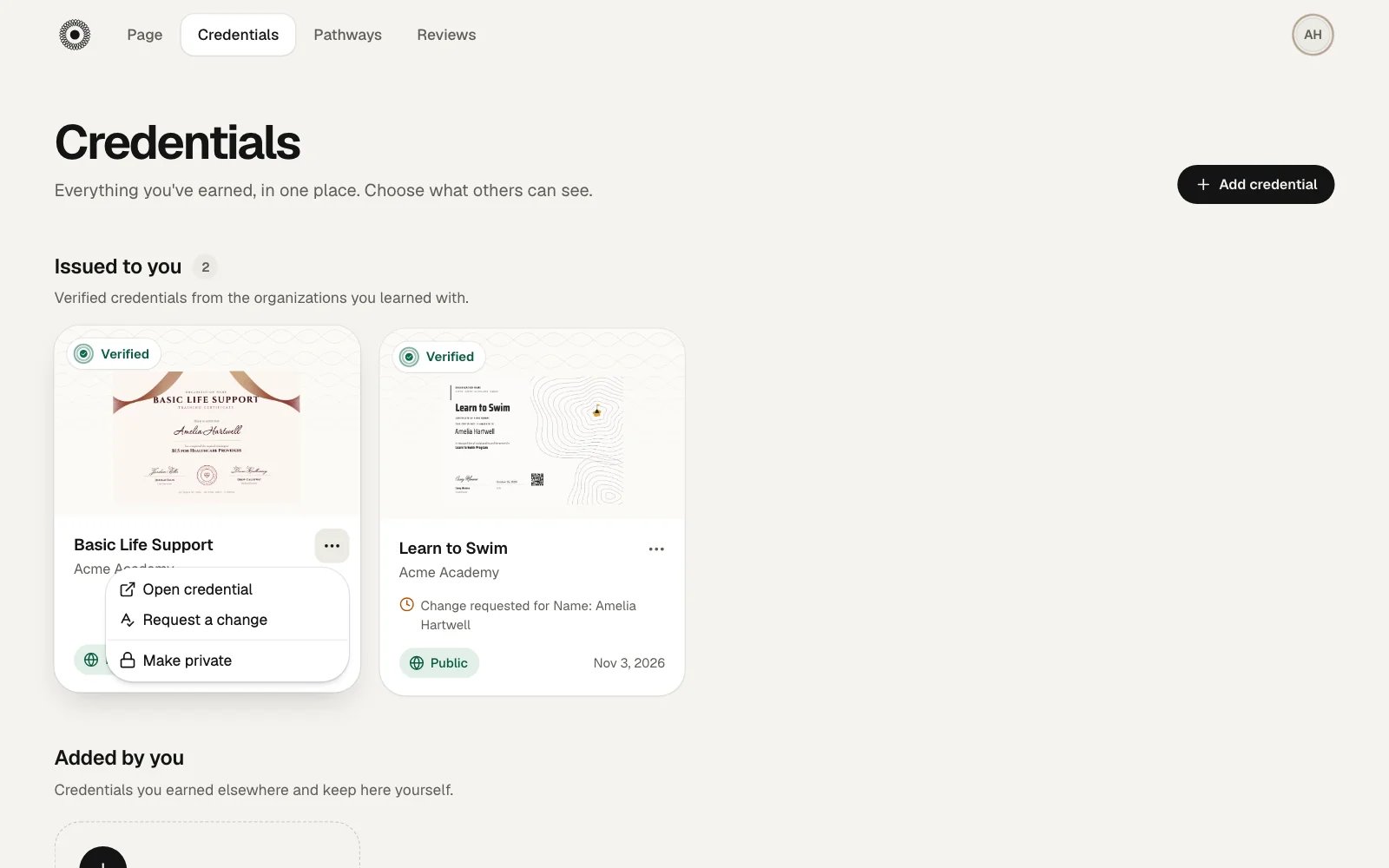
3
Type the correct details
Change only what is wrong. Add a note to explain, if you like. Then click Send request.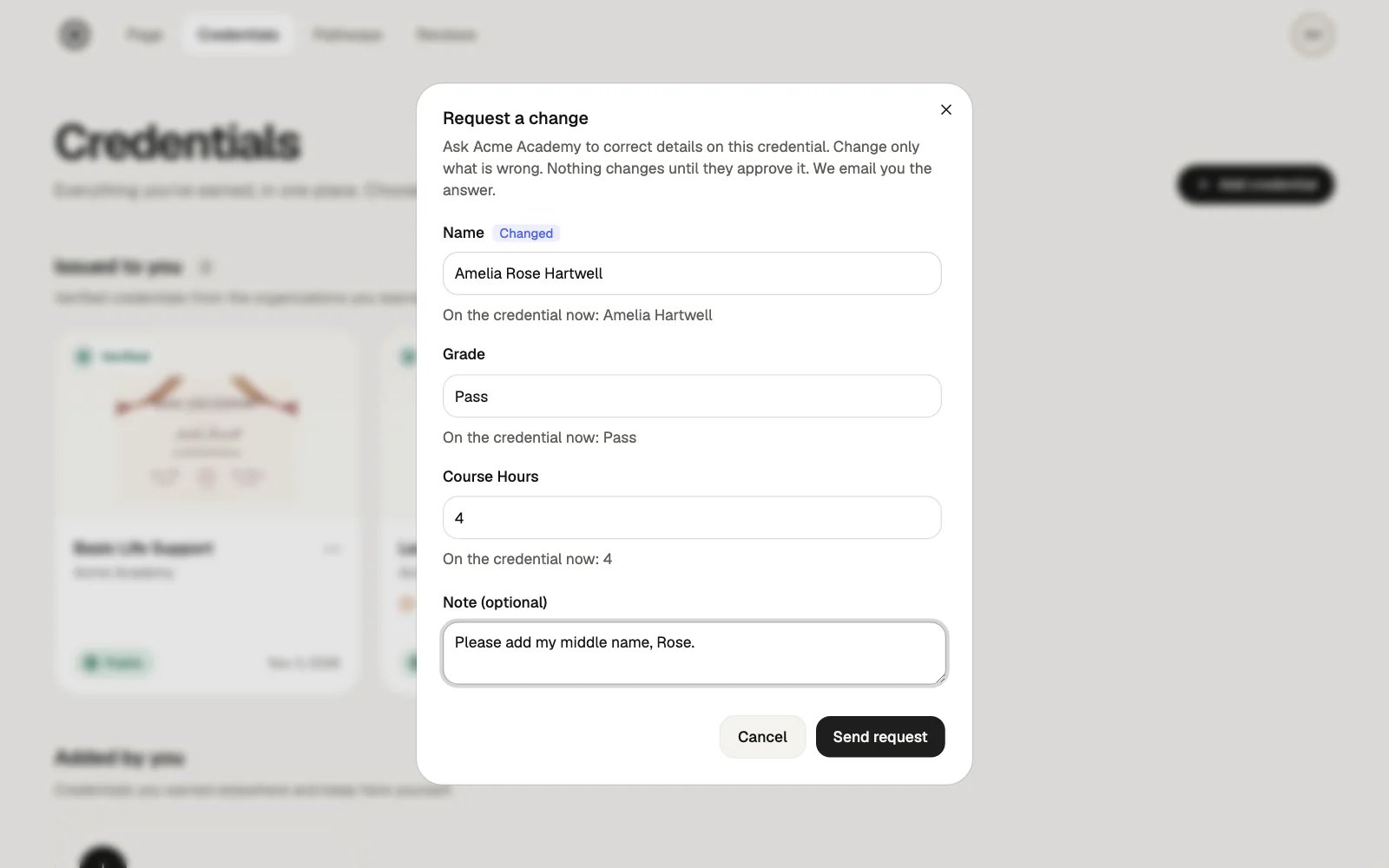
4
Wait for the answer
The credential shows Change requested until the issuer answers. We email you when they do.
Questions
Does it cost credits?
Does it cost credits?
No. Approving a change request uses no credits.
Do we get an email when a recipient asks?
Do we get an email when a recipient asks?
No. New requests show as a number next to Credentials in the sidebar and on the Change requests tab.
Does the credential stay verified after a change?
Does the credential stay verified after a change?
Yes. The credential keeps its link and stays valid. Verification shows the new details.
Can a recipient ask again after a rejection?
Can a recipient ask again after a rejection?
Yes. They can send a new request from their wallet at any time. They can’t send a second request for the same detail while the first one is still open.
Can recipients ask for a change on a revoked credential?
Can recipients ask for a change on a revoked credential?
No. Change requests are only for published credentials that are not revoked.
Can I turn change requests off?
Can I turn change requests off?
No. Every organization has them. Nothing on a credential changes until you approve it.