

- The credential page shows the group’s text in the visitor’s language.
- The credential email goes in the recipient’s language, when your email template has a translation in it.
Group translations are on every plan. Email template translations need custom email content, on the Premium and Enterprise plans. You need the Credential issuer or Administrator role to translate a group, and an administrator to change the default language.
Set your default language
The default language is the language you write in. It is English unless you change it.1
Go to Settings → Language
It is under Organization.
2
Choose the Default language

3
Click Save changes
A group in another language
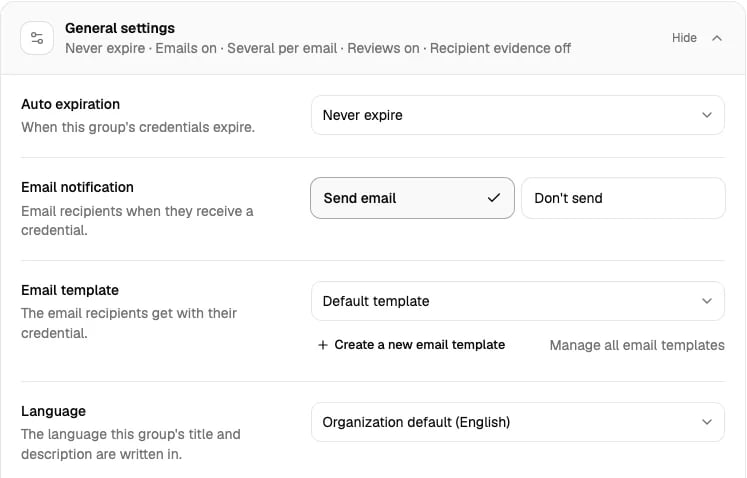
If one group is written in another language, for example a French course, set that group’s own language.- Open the group. Under More settings, open General settings.
- Choose its Language. Organization default uses your default language.
- Click Update group.
Translate a group’s text
1
Open the group
Go to Credential Groups and click the group. A new group must be saved first.
2
Click Review under the description
The line under the description shows how many languages have a translation, and how many you need to check.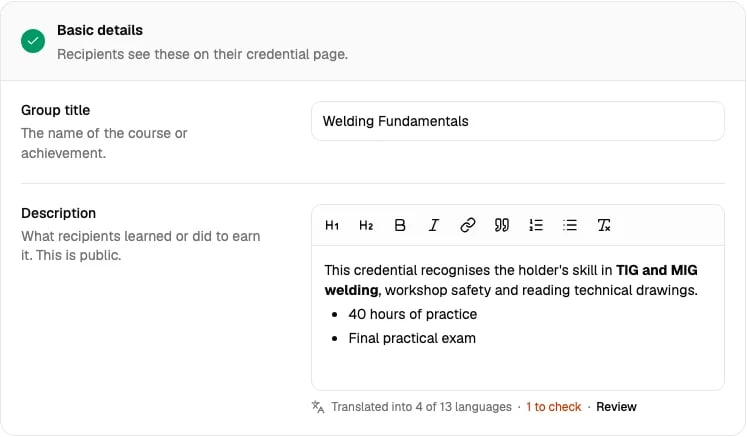
3
Choose a language and click Translate
The Translations panel lists the 13 other languages with their state. Click a language to see your original next to its translation.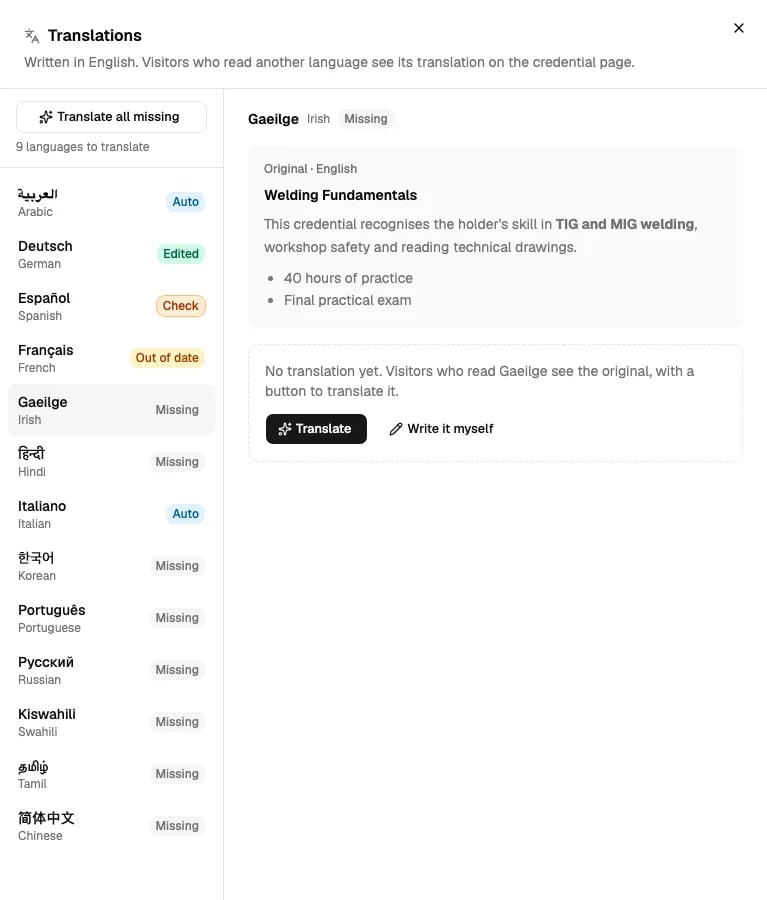
- Translate: AI translates the title and description in a few seconds.
- Write it myself: type your own translation.
- Translate all missing: translates every language that has no translation or an out-of-date one. You can close the panel while it works.
Translation states
Edit a translation
Click Edit, change the title or the description, then click Save translation. The translation is now Edited.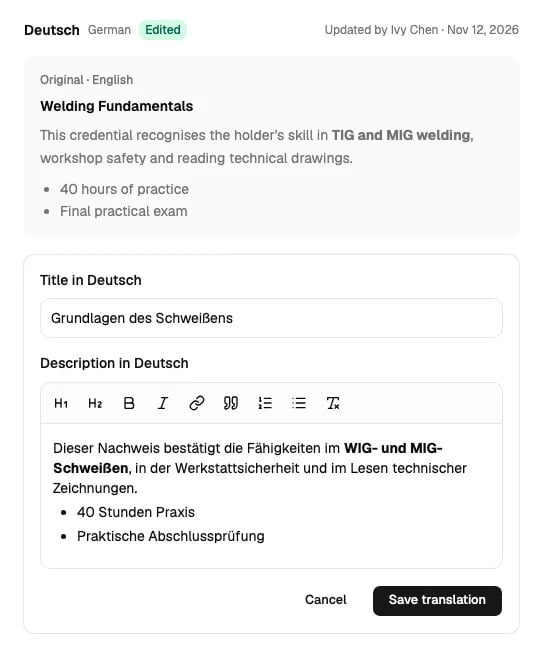
When you change the original
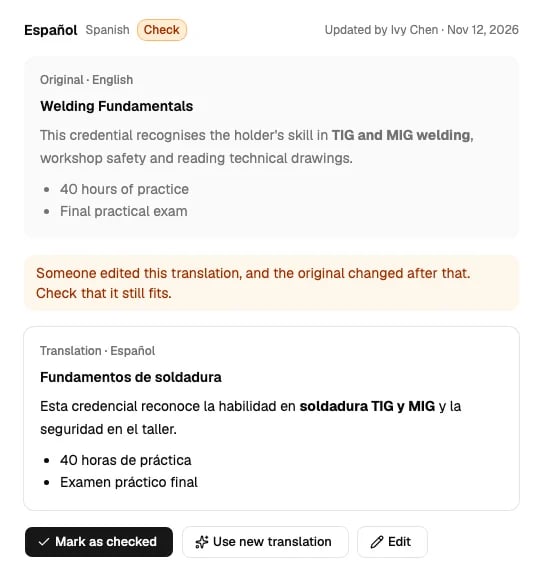
When you change the group’s title or description:- Auto translations become Out of date. Visitors no longer see them. Click Translate to make a new one.
- Edited translations become Check. Visitors still see them. Open each one and click:
- Mark as checked if the translation still fits.
- Use new translation to replace it with a new AI translation.
- Edit to change it yourself.
What visitors see
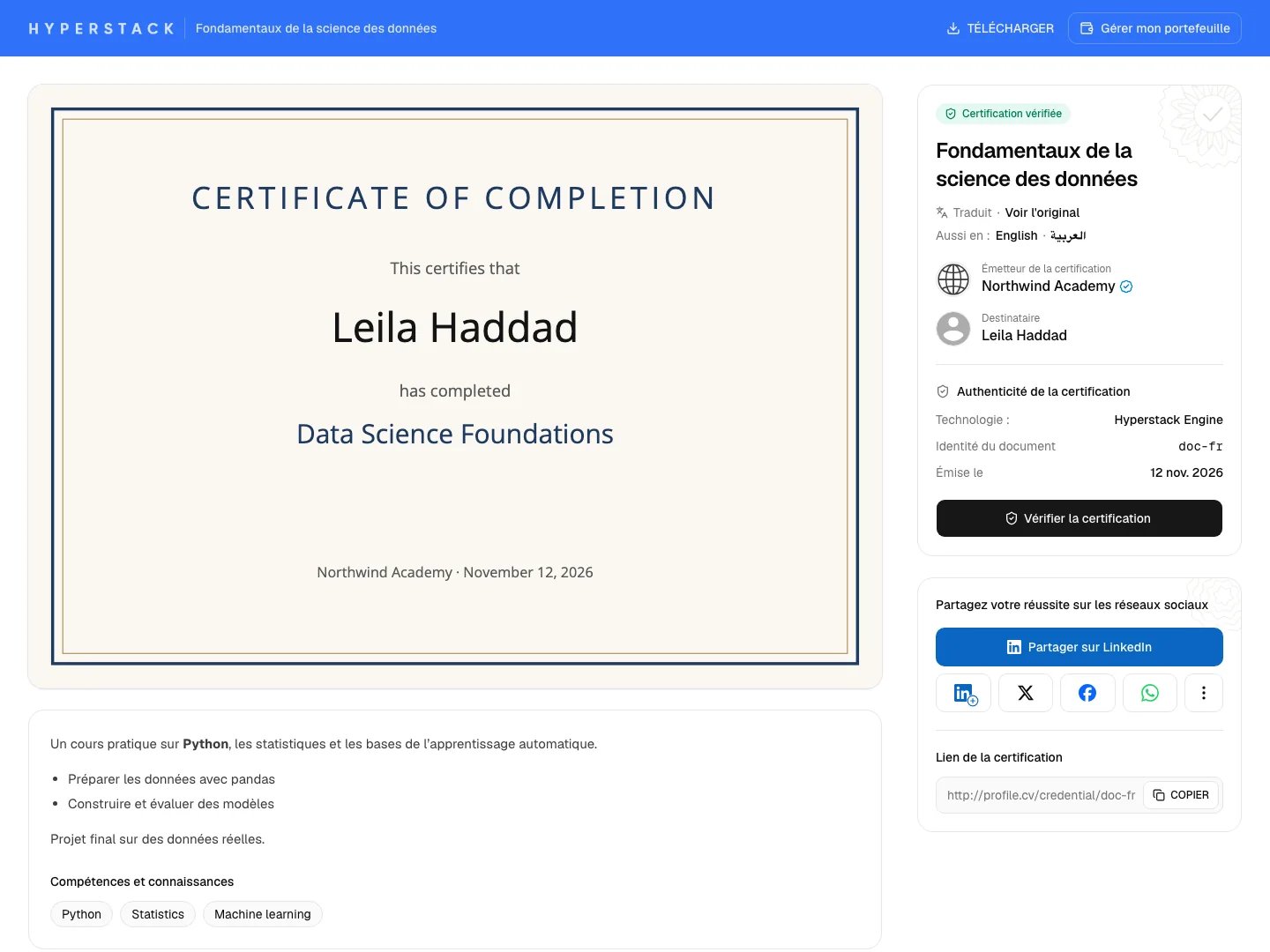
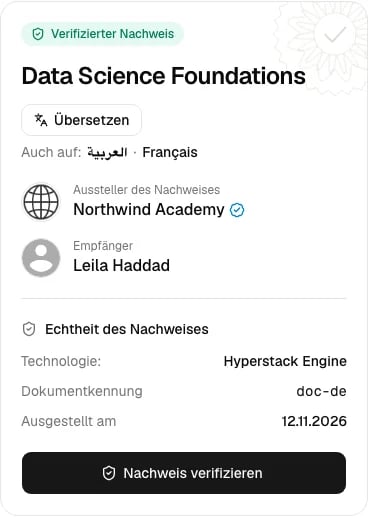
The credential page follows the visitor’s language: the one they chose at the bottom of the page, or else their browser’s language. The page’s own words were already translated. Now the group’s title and description are too.- A translation is saved: the page shows it at once, with Translated · Show original. Also in lists the other languages the group has, to switch by hand.
- No translation is saved: the page shows your original with a Translate button. AI translates the text for the visitor, and Hyperstack saves it. Later visitors see it at once, and it shows as Auto in your Translations panel. You can edit it there.
- The visitor reads the group’s language: the page shows your original.
Send the email in the recipient’s language
The whole email goes in one language: the subject, your text, the buttons, the footer and the dates. For this, the group needs your own email template, with a translation in that language. The built-in default email is in English only.Translate an email template
1
Open the template
Go to Settings → Email Templates and click the template. A new template must be saved first.
2
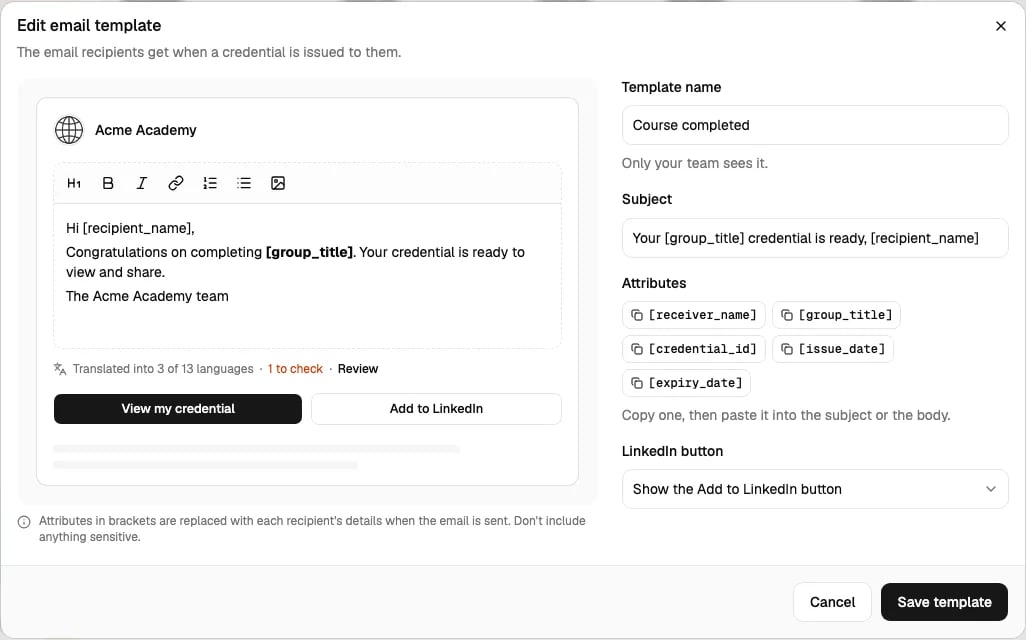
Click Review under the email
3
Translate the subject and the body
The panel works as it does for groups. AI keeps the attributes in square brackets, such as 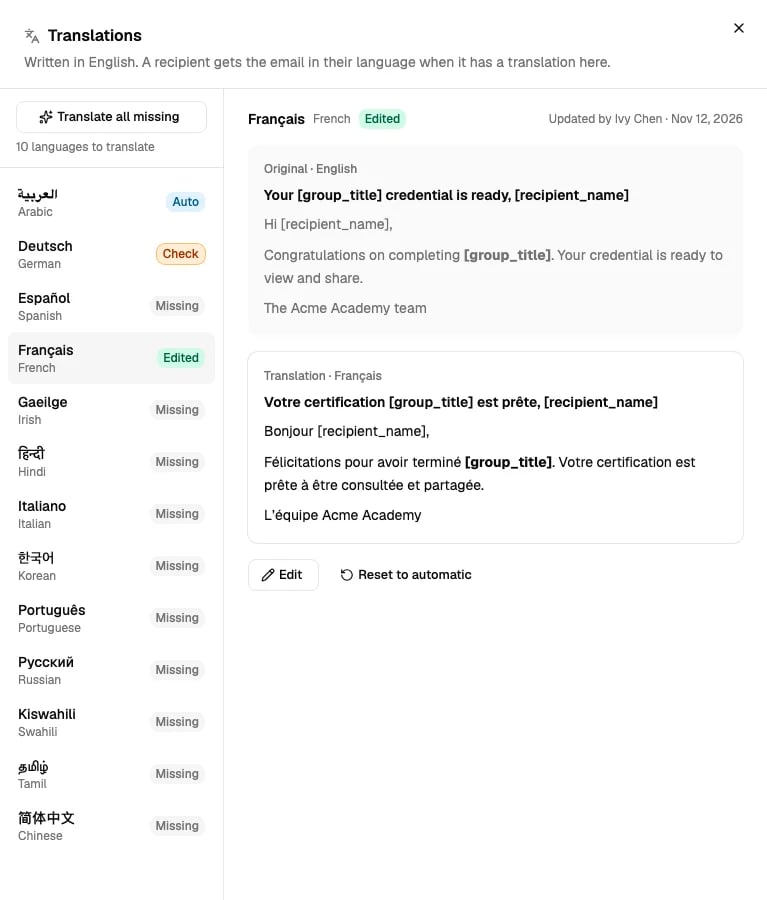
[recipient_name], exactly as they are. Keep them as they are when you edit too.Preview the email in a language
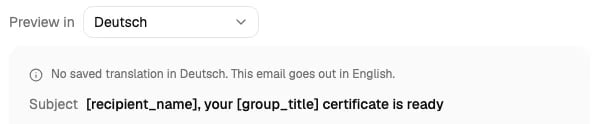
Preview in, above the email, shows the saved template in another language: your translated text, our buttons and footer, and the date.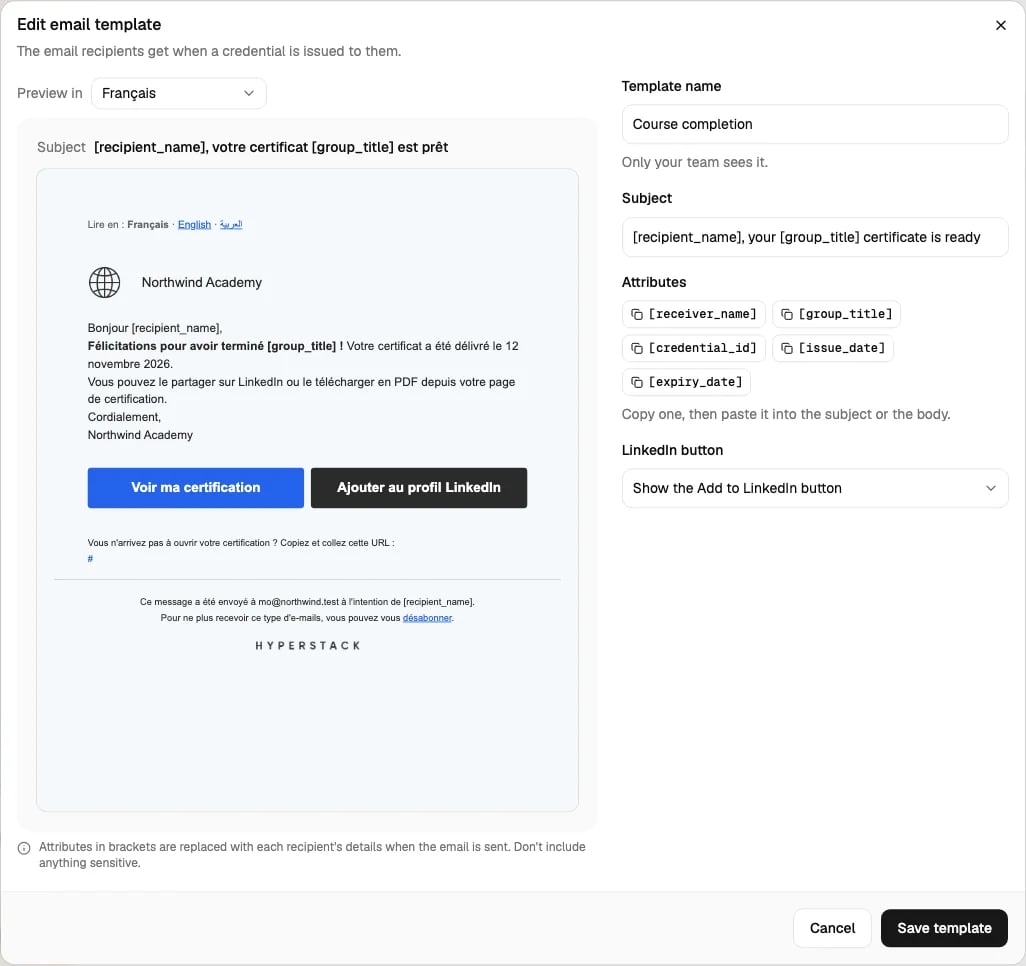
Which language an email goes in
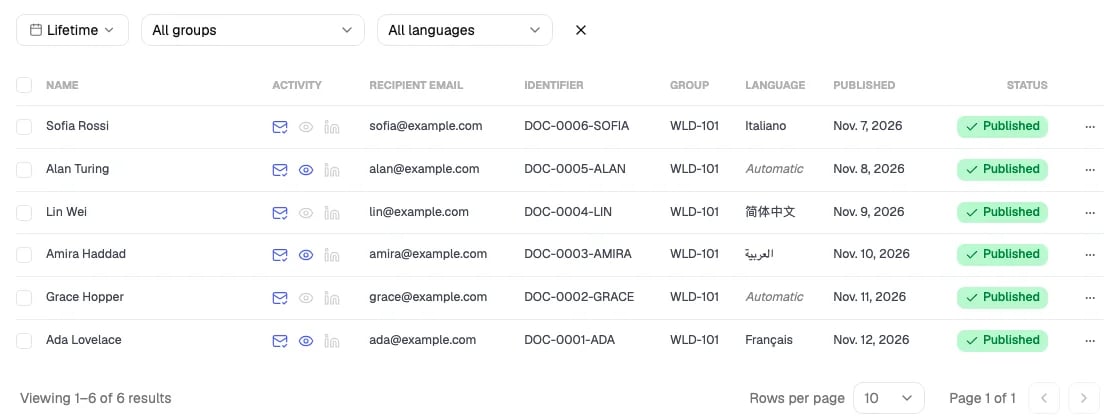
Hyperstack takes the first language it has from this list:- The credential’s language, when you set one. See Choose a credential’s language.
-
The recipient’s own language. Hyperstack learns it when the recipient:
- chooses a language in their wallet, or
- clicks a language in the Read in line of an email, or
- opens a credential from an email’s button. Their browser’s language is used only if nothing else is known.
- The group’s language.
- Your default language.
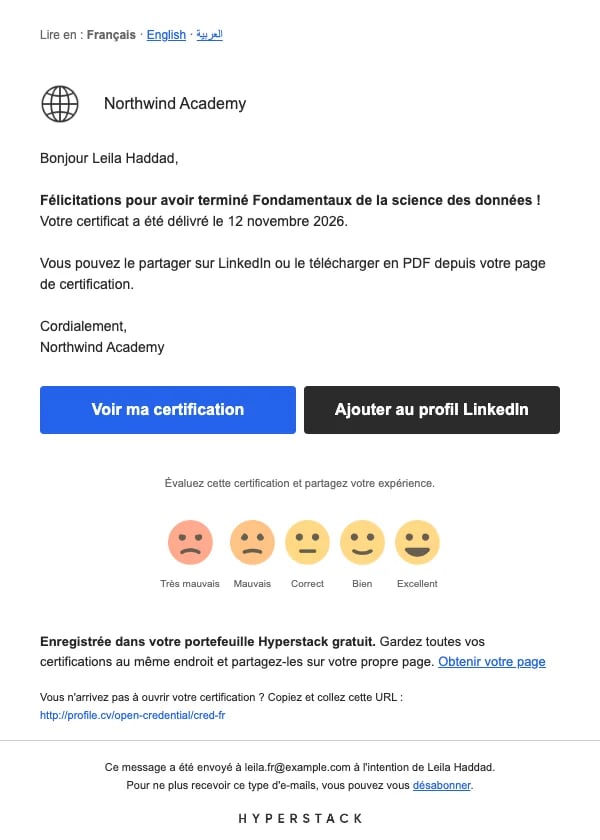
[group_title] and [group_description] in the email use the group’s translation in the email’s language, when it has one.
Choose a credential’s language
Most of the time you can leave it on Automatic. Set a language when you know what the recipient reads, for example for a course taught in Spanish.When you issue
-
Add by hand: under the recipients, click change next to Language: Automatic, and choose a language. It is used for every recipient you type in.

-
Upload a spreadsheet: add a column named Language to your file, with a language for each row. Use a code such as
fr, or a name such asFrenchorFrançais. Leave a cell empty for automatic. The column is not in the CSV and Excel templates: add it yourself. The Studio matches the column by itself only when every value in it is a language. Otherwise, match it under Match columns. A row with a value that is not a language is marked: fix it before you continue. -
API and AI assistants: send
language. See Use the API or an AI assistant.
After you issue
Open the credential, click Edit details and change Language. Then Resend invitation to send the email in the new language.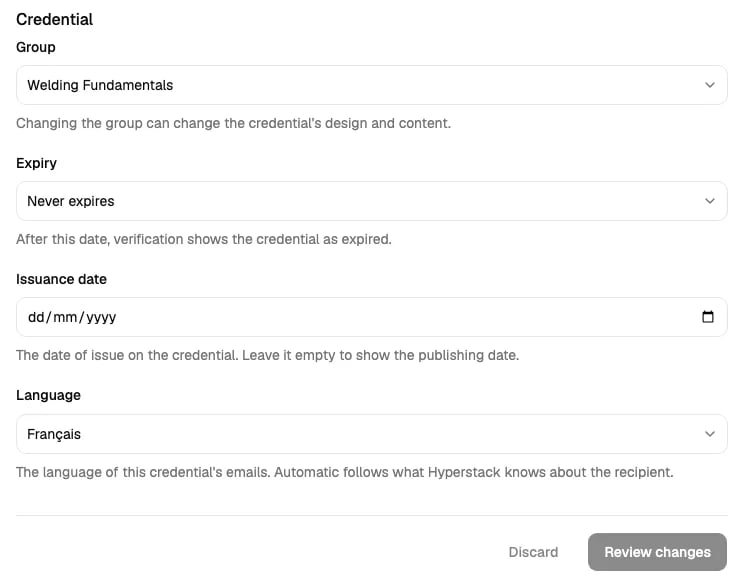
Where the credential’s language shows
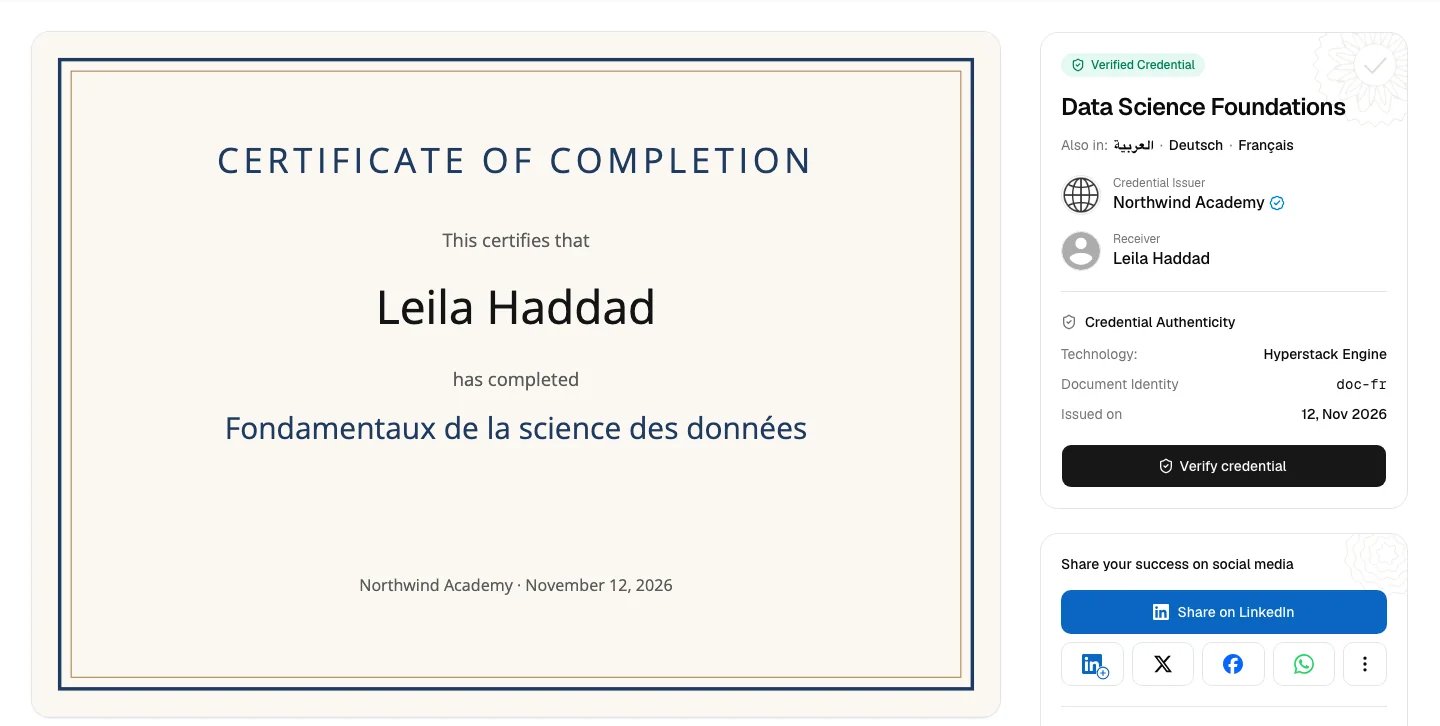
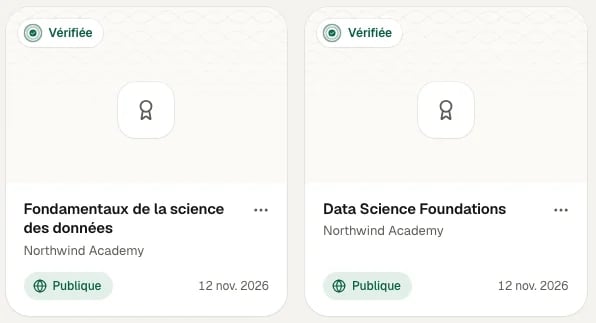
When a credential has a language, these use the group’s translation in that language:- The group title and description on the certificate and badge, through
[group_title]and[group_description]. The other words on your design stay as you designed them. - The title of Add to LinkedIn Profile.
- The name and description in the Open Badges downloads, which also say the language.
- The title and description that search engines and link previews show.
What is not translated
- Skill and knowledge tags
- Transcripts
- Fixed words on a design
- Google Wallet passes
- Your showcase page and pathways
- The built-in default email
Language codes
Use the API or an AI assistant
- Issue Credential and Generate Credential take an optional
language: a code such asfr, or a name such asFrench. Leave it out, or send it empty, for automatic. An unknown value returns400withinvalid_language, and no credential is made. - The MCP server takes
languageon each row ofissue_credentialsand onupdate_credential.
Limits
- AI can’t translate a text longer than 12,000 characters. Write that translation yourself.
- Each team member can translate a limited number of times a minute and a day. Visitors’ Translate buttons have their own limit. When a limit is reached, try again later.
- If a translation fails, nothing is saved. Click Translate again.