

- ESCO, the European Commission’s list of skills, or
- your own skill list, such as your competency framework with your own codes.
- The credential page marks linked tags. A click opens a short panel about the skill.
- The Open Badges 2.0 and 3.0 data of each credential carries the skill as an
alignment, the standard field for this. - Each skill of your own list gets a public skill page, unless it has a web page of its own.
Skills are on every plan: ESCO skills and your own skill lists. You need the Credential issuer or Administrator role to link skills, and an administrator to manage your own skill lists.
What is ESCO
ESCO is the European Commission’s free list of skills, in many languages. It has about 13,900 skills, each with a name, a description and a fixed web address. Hyperstack uses ESCO version 1.2.1. Skill names and descriptions come in English, Arabic, German, Spanish, French, Irish, Italian and Portuguese. In Hyperstack’s other languages, they show in English. When you link a tag to an ESCO skill, the badge carries a standard skill with a stable link. Employers and other systems can read it in the badge’s data, the same way for every issuer. Skills from ESCO, European Commission. This service uses the ESCO classification of the European Commission.Link a tag when you add it
1
Open the group
Go to Credential Groups and click the group, or create a new one.
2
Open Marketing
Under More settings, click Marketing. The field is Skill and knowledge tags.
3
Type two or more letters
A list opens under the field: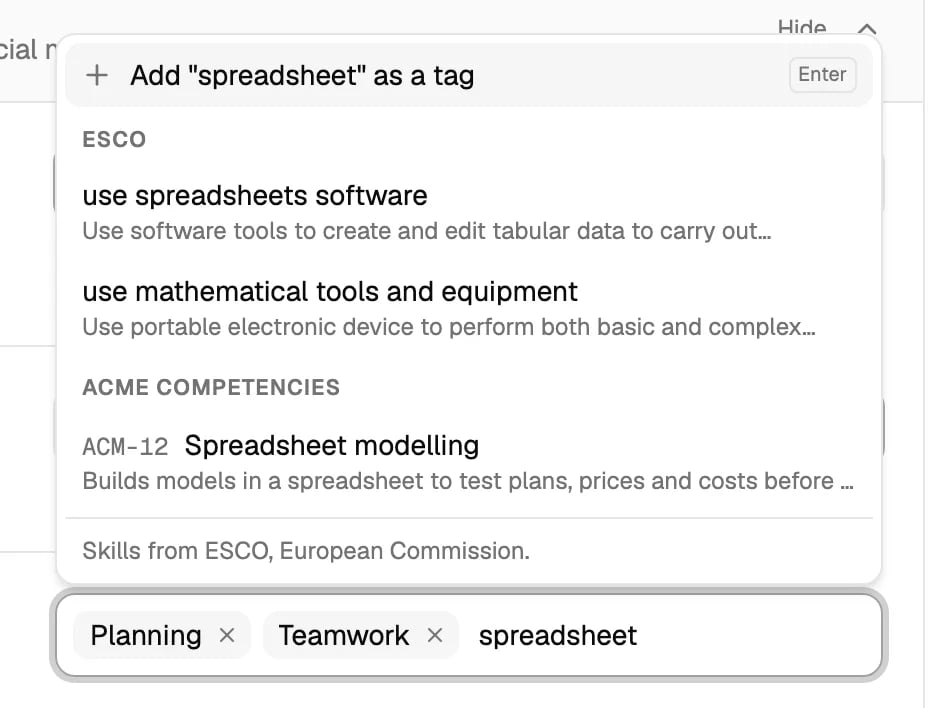
- The first row is Add ”…” as a tag. Press Enter to add your text as a plain tag, as before.
- Under ESCO are up to 6 ESCO skills, each with its description.
- Under each of your own lists are up to 3 of its skills, with their codes.
4
Pick a skill
Click a skill, or move to it with the arrow keys and press Enter. It is added as a linked tag. A skill that is already in the field shows Added.
5
Save the group
Click Update group or Create group. Links are saved only with the group.
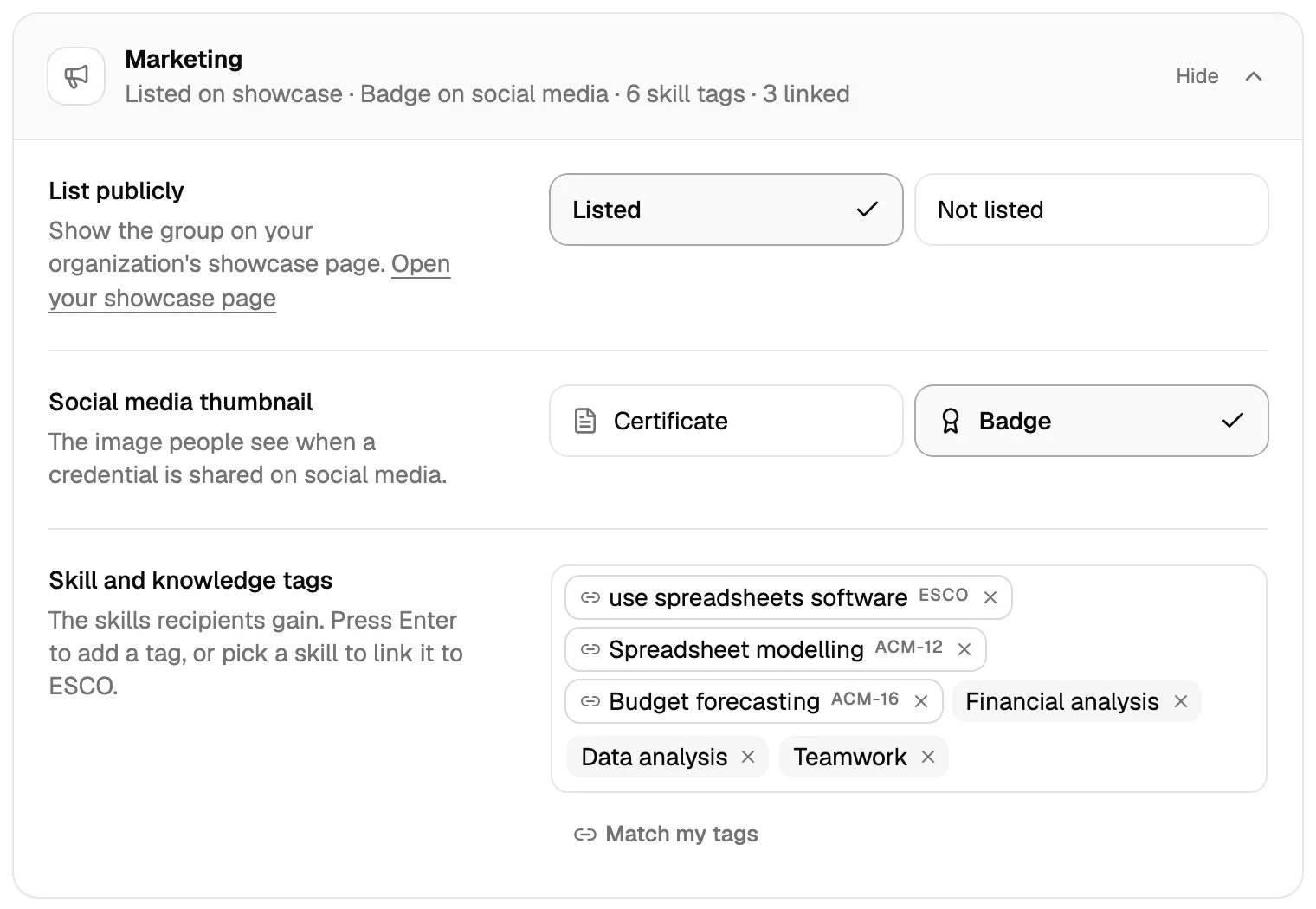
Link a tag you already have
1
Click the tag
Its menu opens.
2
Click Link to a skill…
The search opens with the tag’s text in it. Change the text to search for something else.
3
Choose a skill and click Link skill
The tag keeps its own text. Only the link is added.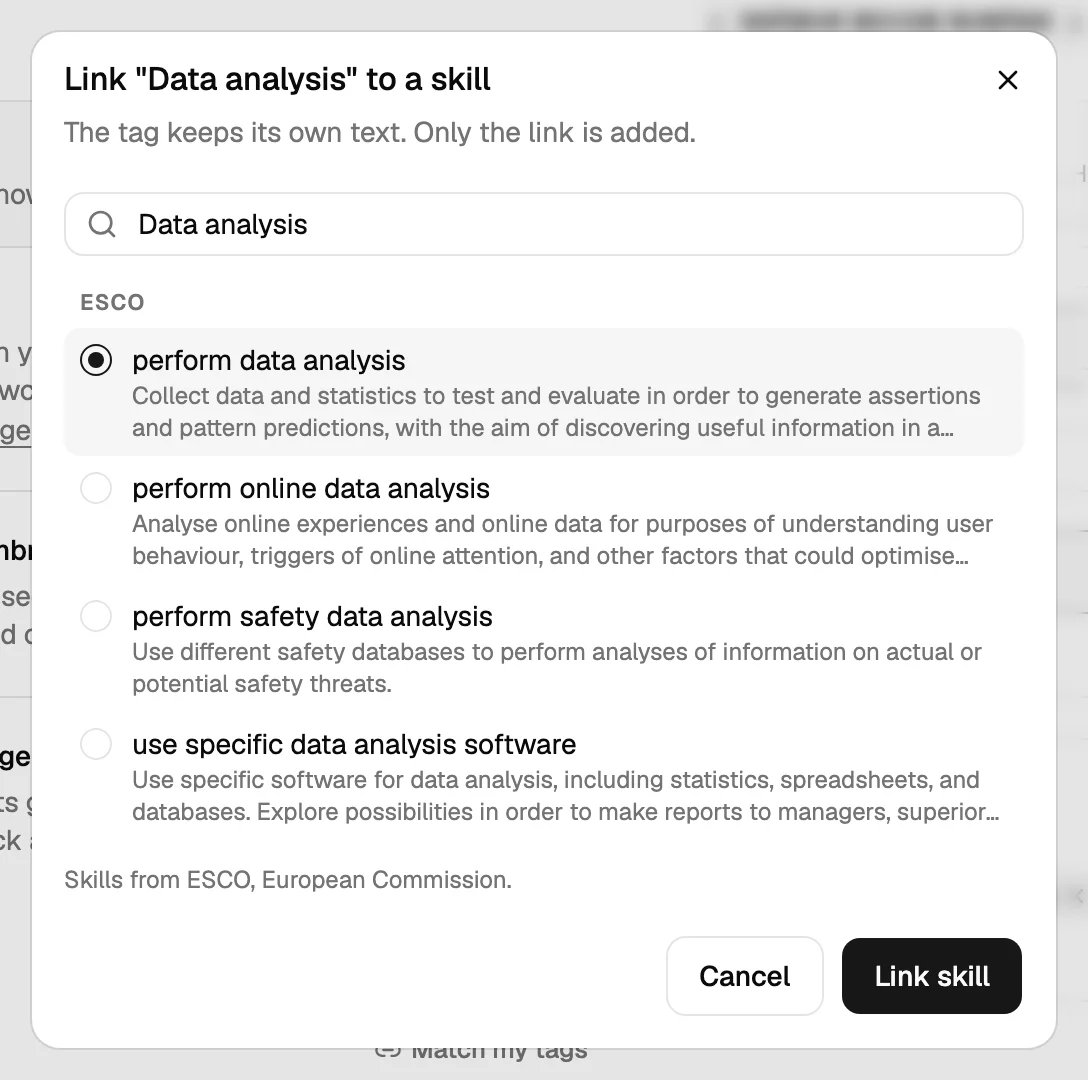
4
Save the group
The menu of a linked tag
Click a linked tag to see its skill and where it comes from.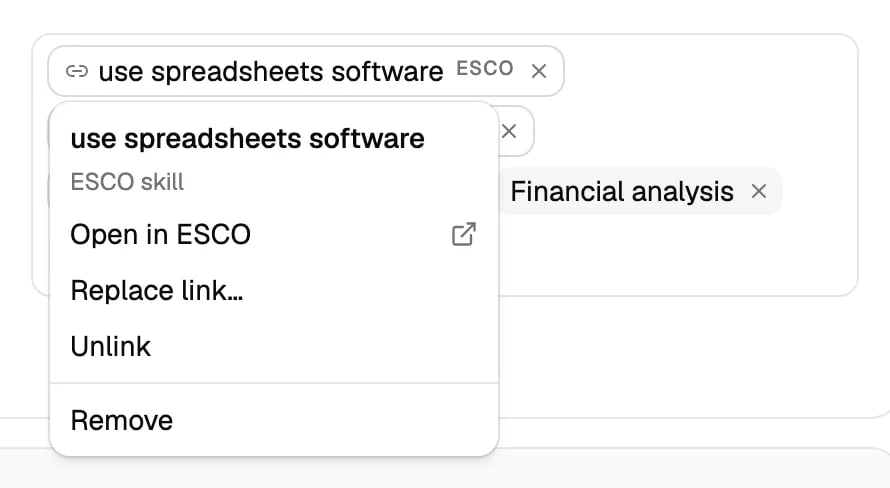
- Open in ESCO or Open skill page: opens the skill’s page in a new tab.
- Replace link…: links the tag to another skill.
- Unlink: the tag becomes plain. Click Undo in the message to take it back.
- Remove: removes the tag and its link, like ×.
Match my tags
Use Match my tags to link many plain tags at once. The button shows when the field has at least one plain tag.1
Click Match my tags
Hyperstack looks for an ESCO skill for each plain tag. Each row shows the tag, the skill it found, the skill’s description and how it matched: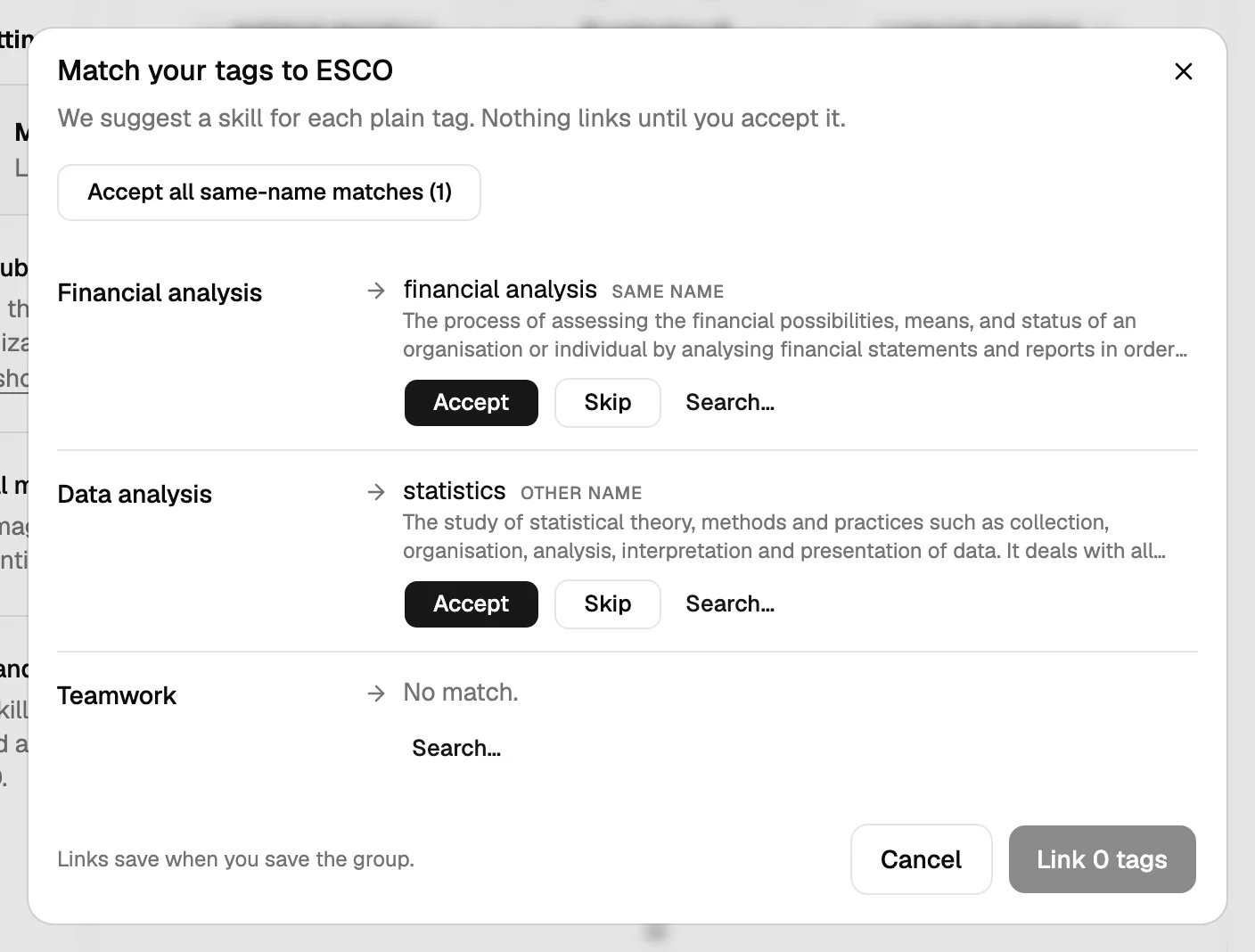
- Same name: the ESCO skill has the same name as your tag.
- Other name: your tag is another name of the ESCO skill.
- No match.: nothing found. Click Search… to look for a skill yourself.
2
Accept or skip each row
Click Accept to link the tag, or Skip to leave it plain. Undo takes back your choice. Accept all same-name matches accepts only the Same name rows.Nothing links until you accept it. Read the description first: a match by name can still be the wrong skill.
3
Click Link N tags
The links go into the form.
4
Save the group
Your own skill lists
Keep your own competency list under Settings → Skills. Skills is under Workspace in the settings menu. Groups pick from your lists next to ESCO.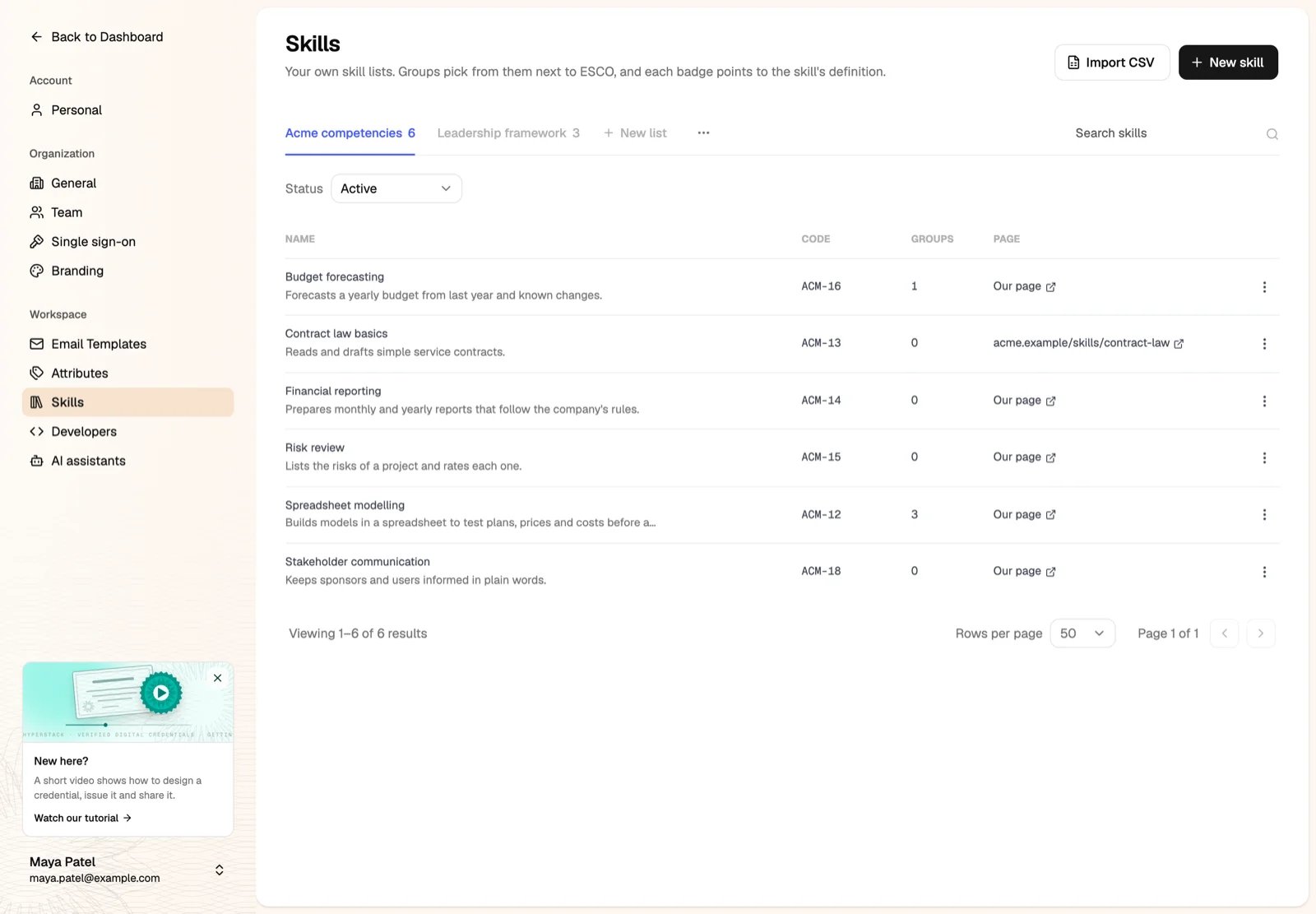
- Name and description.
- Code.
- Groups: how many groups use the skill.
- Page: the skill’s own web page, or Our page when Hyperstack makes one. See The public skill page.
Add a skill
1
Click New skill
With no list yet, the window first asks for the list’s name. The list name shows on badges as the framework, for example “Acme competencies”.
2
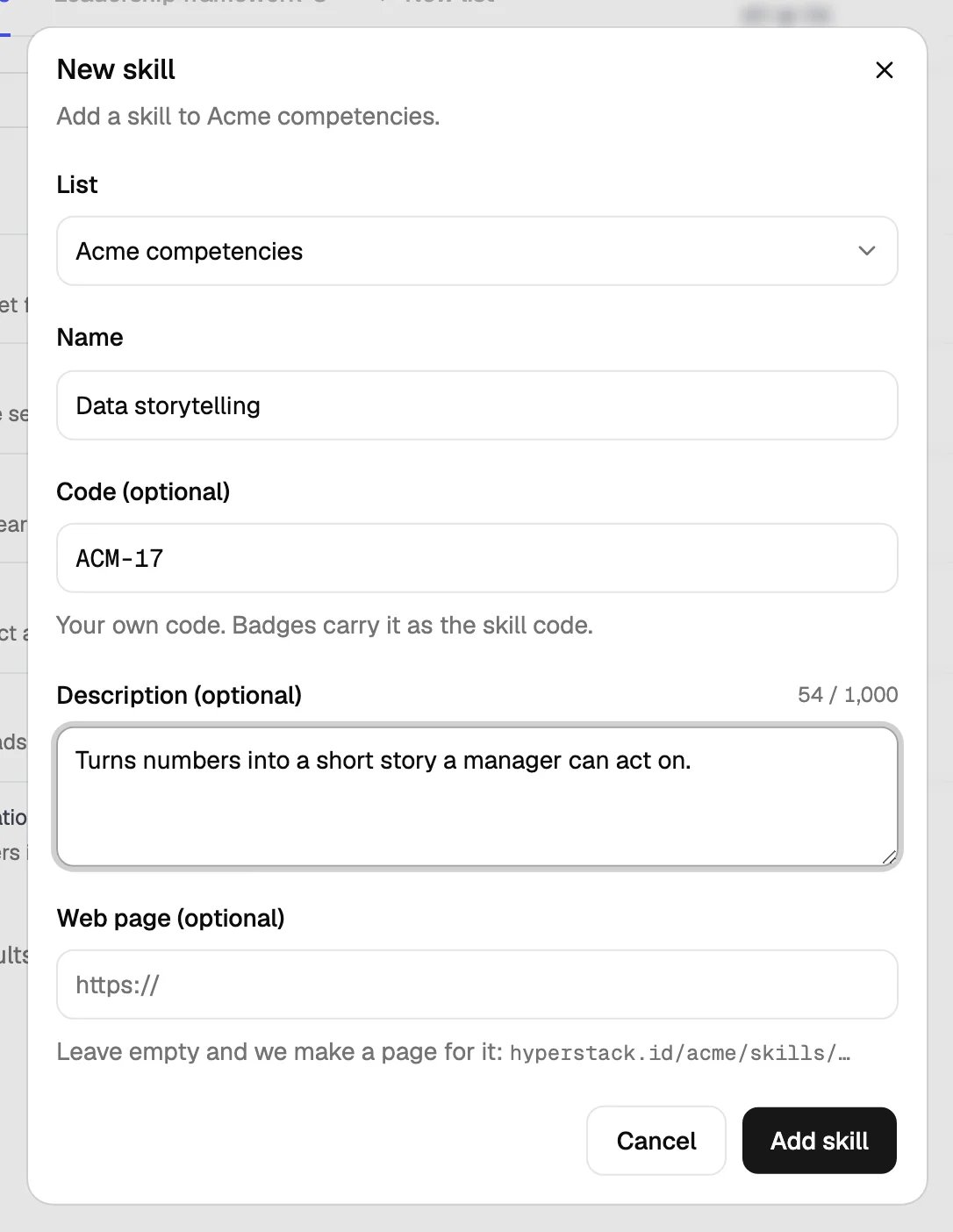
Fill in the skill
- List: shows when you have more than one list.
- Name: required.
- Code (optional): your own code. Badges carry it as the skill code. Each code can be in a list once.
- Description (optional): what the skill means.
- Web page (optional): the skill’s page on your own site. It must start with
https://. Leave it empty and Hyperstack makes a page for the skill.
3
Click Add skill
Lists
- New list: adds a list. A list name can be used once.
- ⋯ next to the tabs: Rename list, or Delete list. You can delete a list only when no group has used its skills.
Retire or delete a skill
Click ⋮ on the skill’s row.
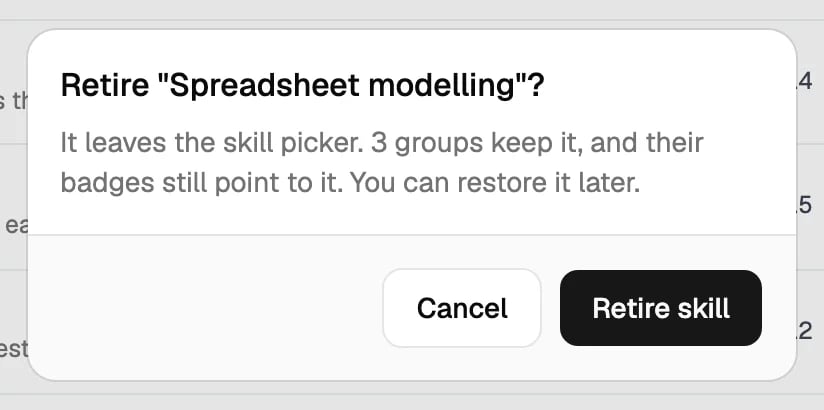
- Retire skill: the skill leaves the list you pick from in groups. Groups that use it keep it, and their badges still point to it. A retired tag shows Retired in the group form. To bring the skill back, click Restore.
- Delete skill: only for a skill that no group has ever used. It is deleted for good.
Import skills from a CSV file
1
Click Import CSV
2
Choose the list
Under Add to list, choose a list, or New list….
3
Choose your CSV file
Up to 1 MB and 1,000 skills. Click Download a sample CSV for a file to start from.
4
Check the preview
Each row shows New, Update or its problem. Rows with problems are listed first.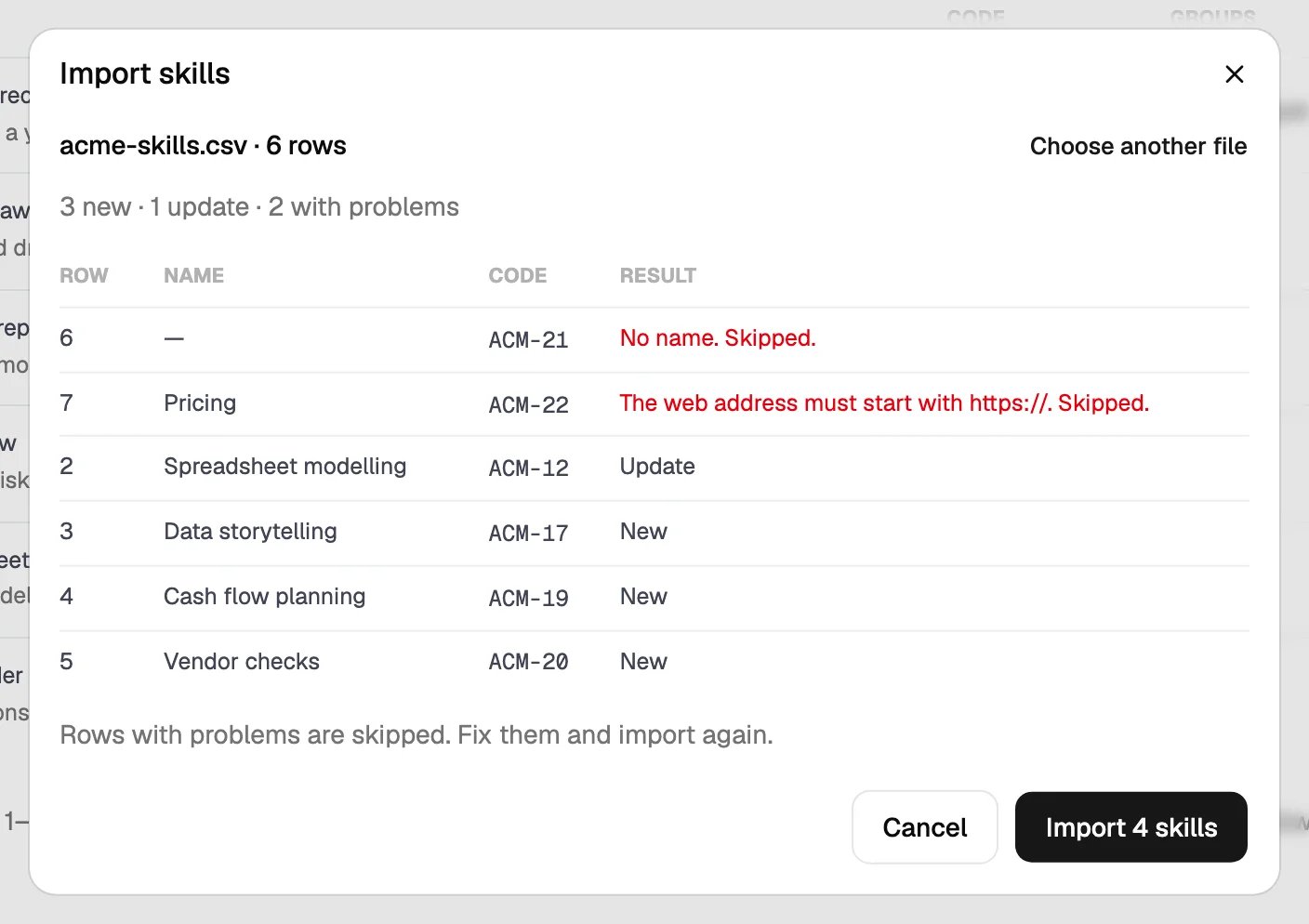
5
Click Import N skills
The window closes and the list opens.
name is needed. The columns can be in any order.
The sample file:
- A row with a code updates the skill with that code in the list.
- A row without a code updates the skill with the same name. Upper and lower case don’t matter.
- Any other row adds a new skill.
- A retired skill that matches is updated and stays retired.
What recipients and verifiers see
The credential page
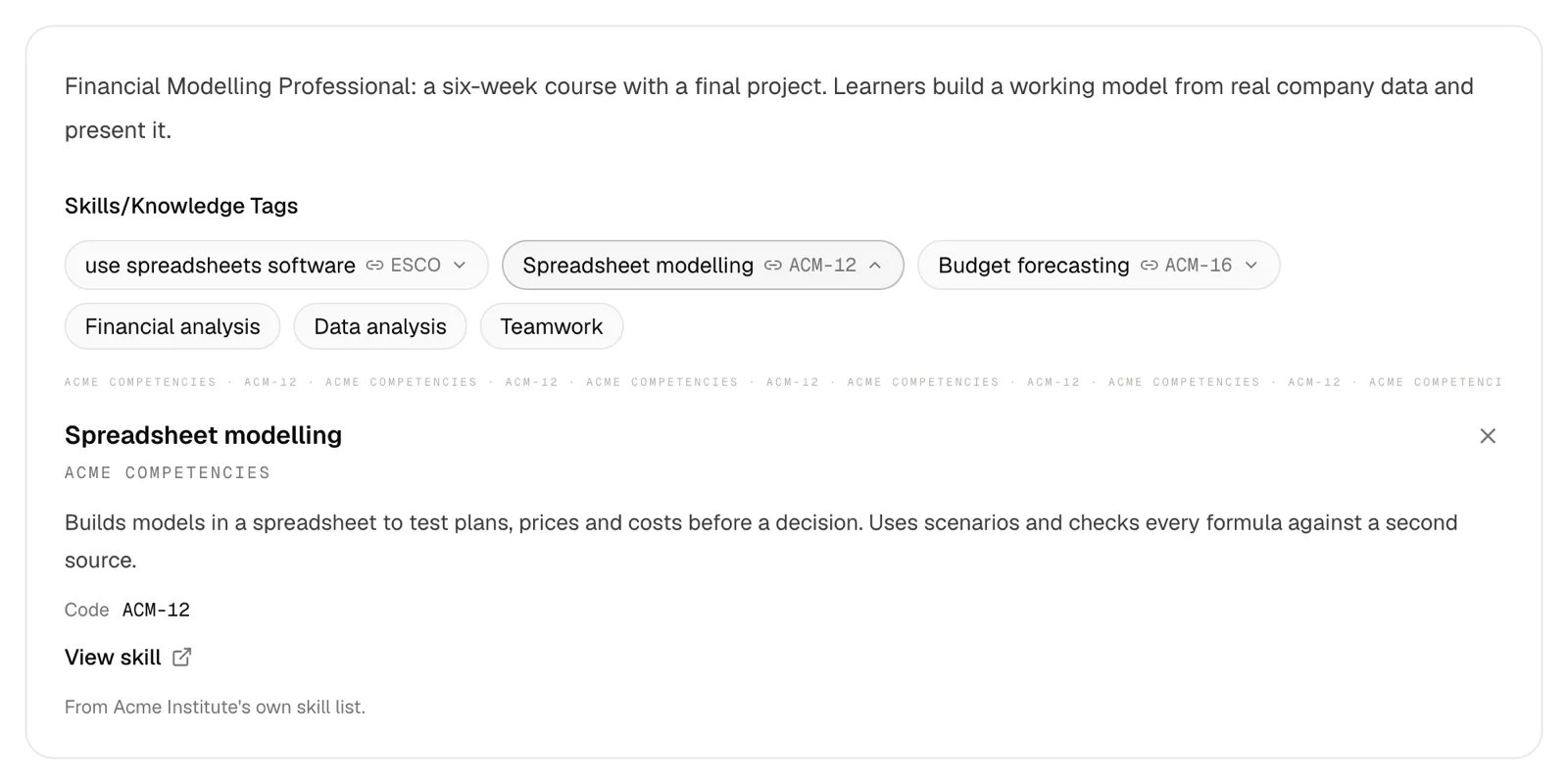
Linked tags show the link icon and their mark: ESCO or your code. Plain tags look as before. A click on a linked tag opens a panel under the tags.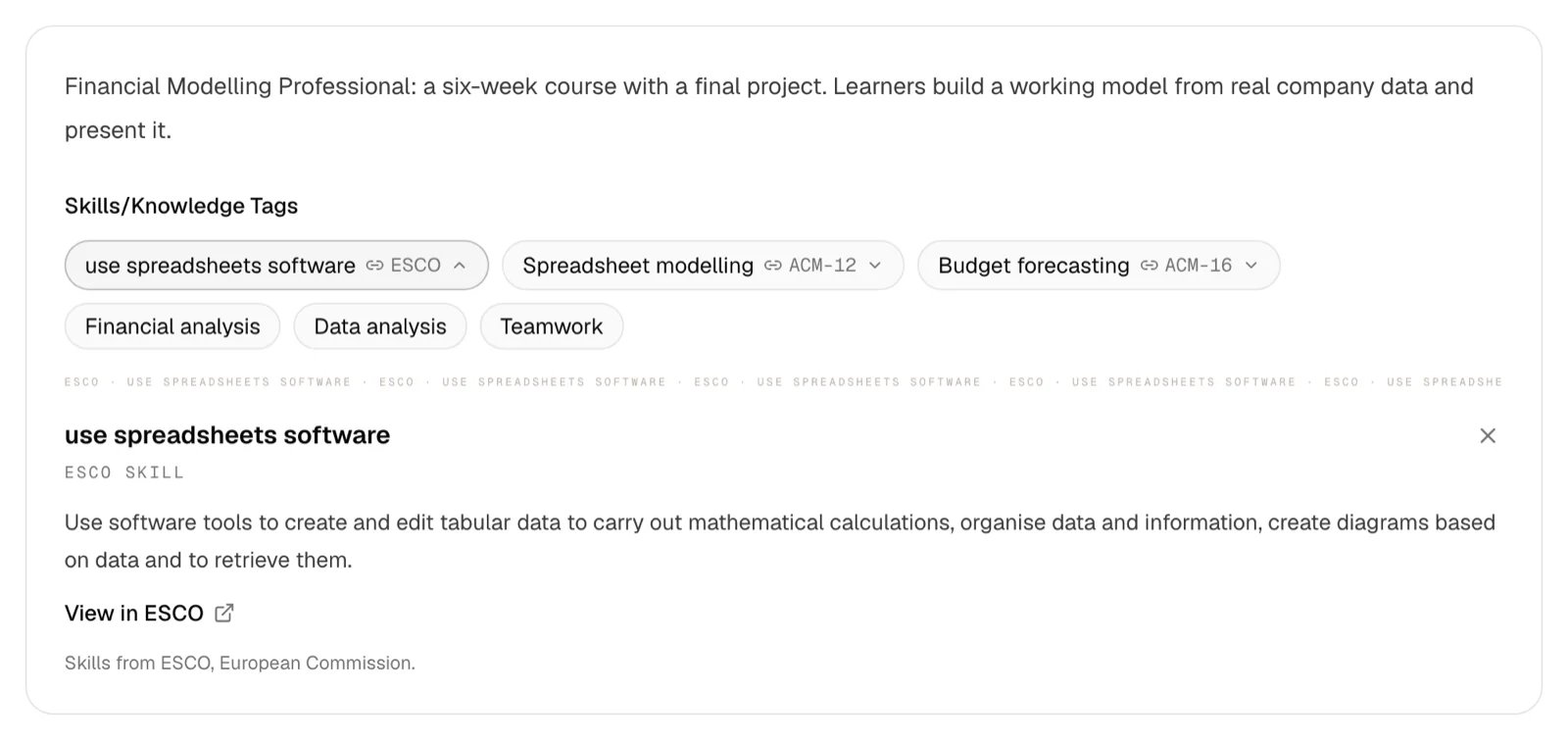
- the ESCO name of the skill and ESCO skill,
- its description,
- View in ESCO, which opens the skill on the ESCO site,
- Skills from ESCO, European Commission.
Open Badges
The Open Badges 2.0 and 3.0 data of each credential has analignment list, with one entry per linked skill, in the order of your tags:
tagsstays as before, with all your tags.- A group without linked tags has no
alignment. Its data stays exactly as before. - The data is made each time someone opens it. So a new link, or an edit of your skill, shows in every credential of the group at once, also in credentials you issued before.
What does not change
- The certificate and badge images, the PDF, the credential ID and the blockchain record.
- The transcript, your showcase page and the earners directory. They show the tags as before.
- The wallet, emails and Google Wallet passes.
- Add to LinkedIn Profile. LinkedIn does not take skills from it.
The public skill page
Each skill of your own list without a web page of its own gets a public page:https://hyperstack.id/<your organization>/skills/<skill id>
Badges link to this page in targetUrl. View skill on the credential page opens it too. To get the link, click Copy page link in the skill’s menu, or open it from Our page in the table.
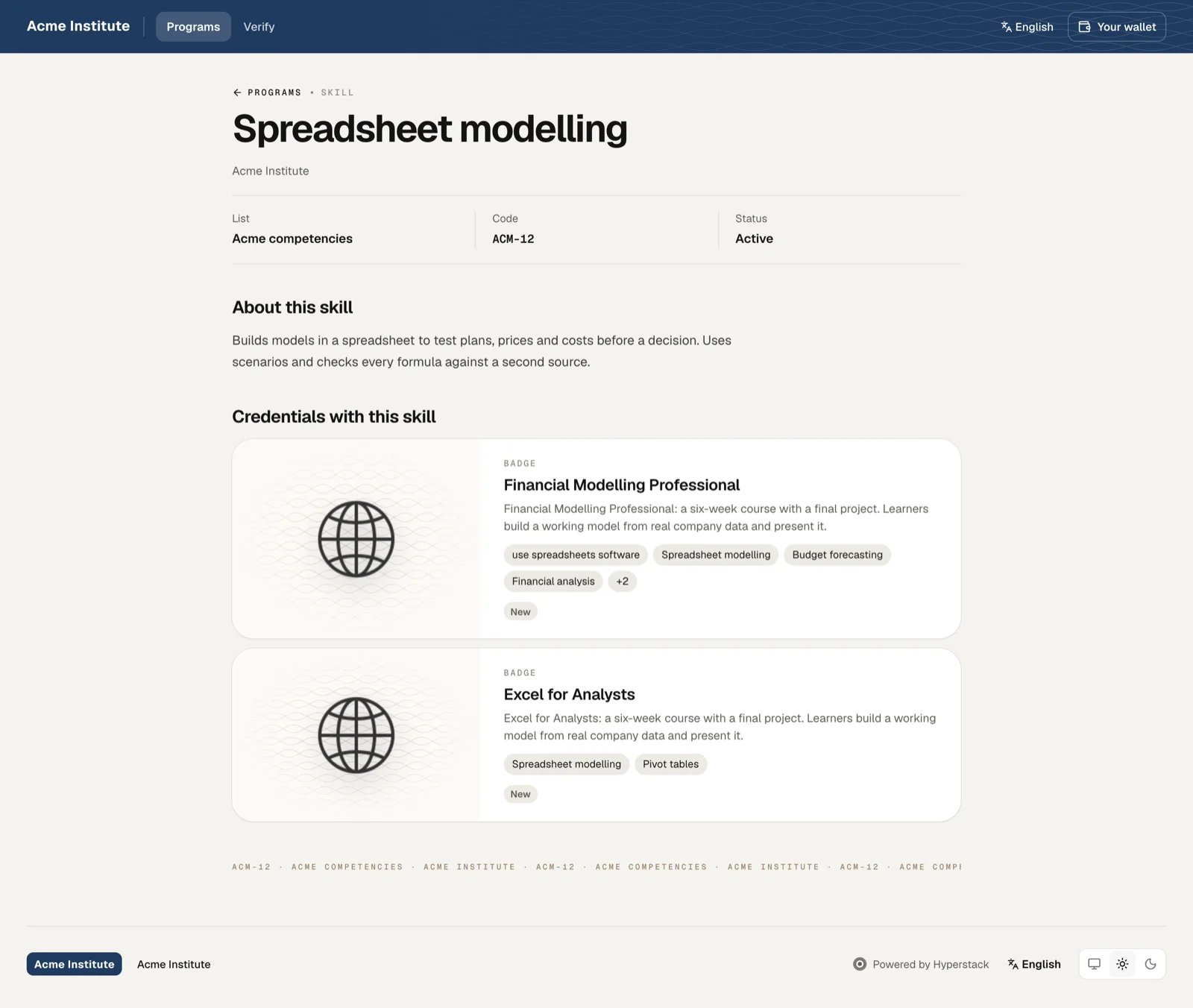
- the skill’s name, your organization’s name, the list, the code and the status,
- About this skill, when the skill has a description,
- Credentials with this skill: up to 24 of your groups that use the skill and are listed publicly. Each links to its program page.
- A retired skill keeps its page, marked Retired, so badges that point to it keep working.
- A skill with its own web page has no page here. Its address sends visitors to your web page, so badges issued before you added the web page still work.
- On your own domain, the page also opens at
<your domain>/skills/<skill id>. Badges always use thehyperstack.idaddress, so they keep working if your domain changes.
Languages
- In the Studio, the search finds skills in the Studio’s language and in English. ESCO names show in the Studio’s language when ESCO has it, else in English.
- On the credential page and in Open Badges, ESCO names and descriptions are in the credential’s language, or else the group’s language, when ESCO has it. Otherwise they are in English.
- Your own skills show as you typed them, in every language.
- Tags keep their text in every language. See Credential Languages.
Outdated ESCO skills
ESCO publishes a new version from time to time. If a new version drops a skill that you linked, the tag shows a warning sign in the group form, and its menu says Outdated in ESCO with the version. Badges still carry the skill. Click Replace link… to link a current skill if you want. The credential page shows the skill as before.Audit logs
Changes to links and skill lists show in the audit logs: links, unlinks, accepted matches, and skills added, edited, retired, restored or imported.Use the API or an AI assistant
- The API returns
skillswith a group that has linked tags: each tag’s name, framework, code and web address.tagsstays as before. Groups can be created and updated withskillstoo. GET https://api.thehyperstack.com/v1/skills?q=searches ESCO and your own lists, and returns up to 20 skills.- The MCP server has a
search_skillstool.create_groupandupdate_grouptakeskills, andget_groupreturns them.
Limits
Skills from ESCO, European Commission.