Single sign-on is on the Enterprise plan. Only administrators can change these settings in Settings → Single sign-on.
Verify a domain
Only people with an email on a verified domain can sign in with SSO. You prove that a domain is yours with a DNS TXT record. Add each email domain your team uses, for exampleacme.com and acme.co.uk.
1
Enter the domain and click Add domain
Enter only the domain, such as
acme.com, without https:// or @.2
Add the TXT record to your DNS
Hyperstack shows the record to add. Copy the Name and the Value: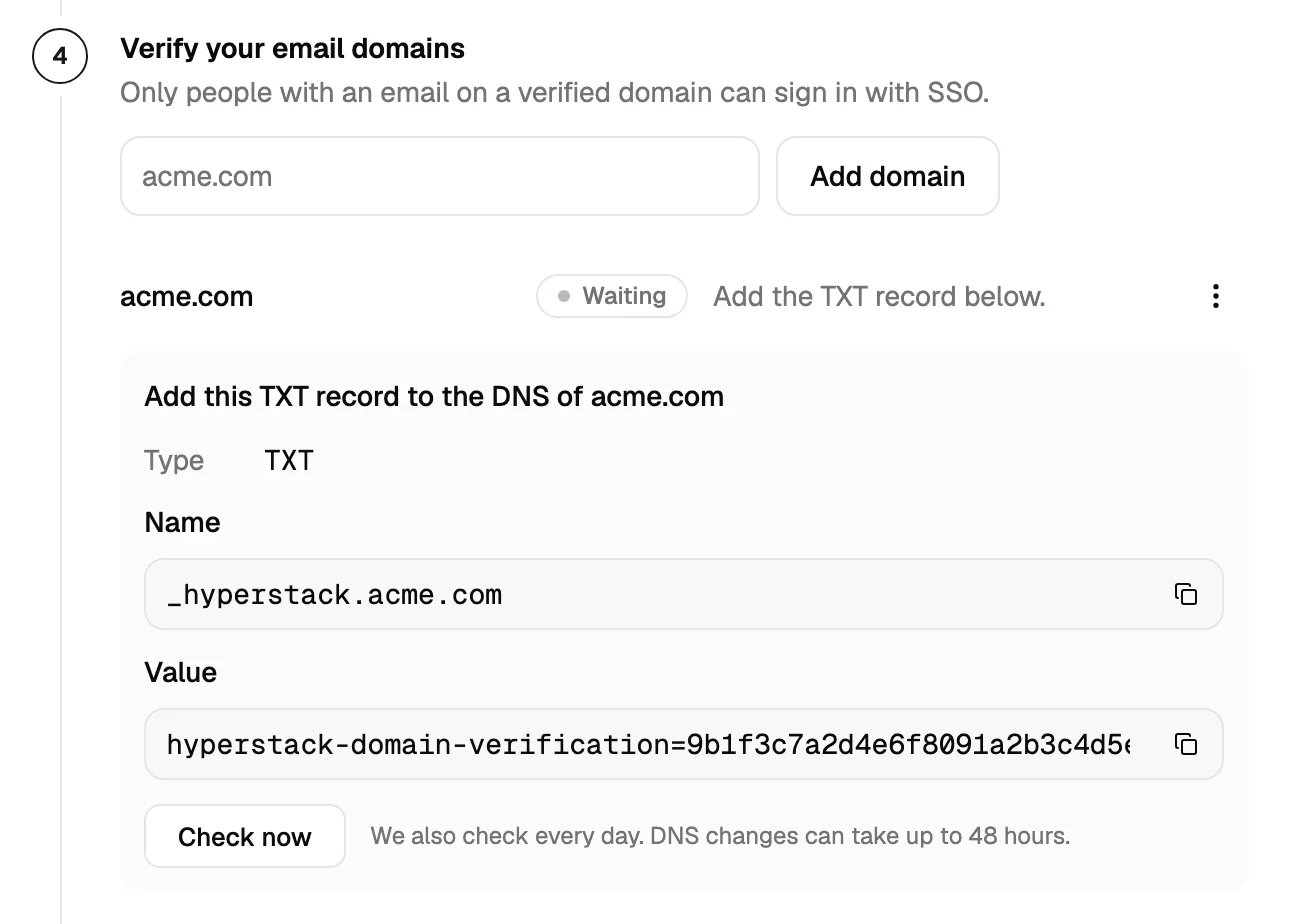
Add the record where you manage your domain’s DNS, such as Cloudflare, GoDaddy, Route 53 or your IT team’s DNS. The record goes on
_hyperstack.acme.com, not on acme.com itself.3
Click Check now
When Hyperstack finds the record, the domain shows Verified. DNS changes can take up to 48 hours. If the record is not found yet, you see We didn’t find the record. Check the name and value, then try again. We also check every day, so a waiting domain turns Verified by itself when the record appears.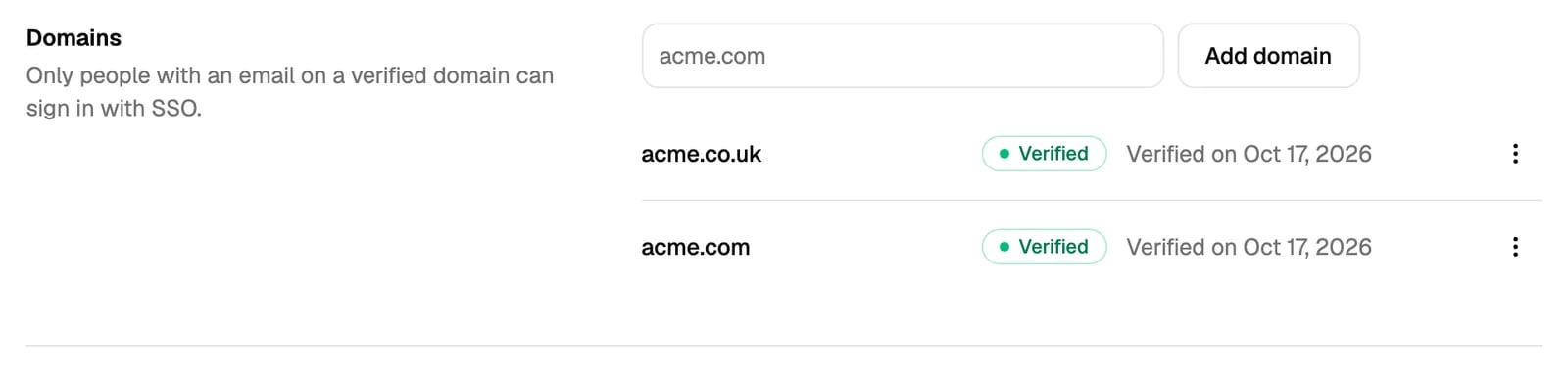
Domain status
To check again, show the record, or remove a domain, click the menu at the end of its row: Check now, Show DNS record or Remove. When you remove a domain, people with that email domain can’t sign in with SSO any more. Members keep their accounts.
If a domain is refused
Turn on SSO
Turn on SSO works when a test sign-in passed and at least one domain is verified. Until then, the page says Pass a test sign-in first. or Verify an email domain first. When SSO is on, your team can sign in with SSO. Passwords, Google and passkeys keep working.Enforce SSO
When you enforce SSO, members can open your organization only after an SSO sign-in. Use it when your IT team must control who gets in.Before you enforce
The Enforce SSO section shows what is missing. You need:- SSO turned on.
- A test sign-in that passed in the last 7 days. Pass a test sign-in first. A test counts for 7 days.
- At least one verified domain.
- Two-factor authentication or a passkey on the owner’s account. This is the owner’s way back in if your provider stops working. See Owner emergency access.
- If you aren’t the owner: an SSO sign-in of your own in the last 24 hours. The page says Sign in with Okta first, so we know it works for you.
- Members whose email is not on a verified domain lose access. Change their email, or verify their domain, first. The owner keeps emergency access.
- Members who never signed in with SSO must be assigned to the app in your provider, or they lose access.
Turn it on
1
Turn on Require SSO to open Acme
It is in the Enforce SSO section of Settings → Single sign-on.
2
Read the checks
The Enforce SSO for Acme? dialog shows what passed and who loses access: members outside your verified domains, members who haven’t signed in with SSO yet, and the AI assistant connections (MCP) of other members that are removed.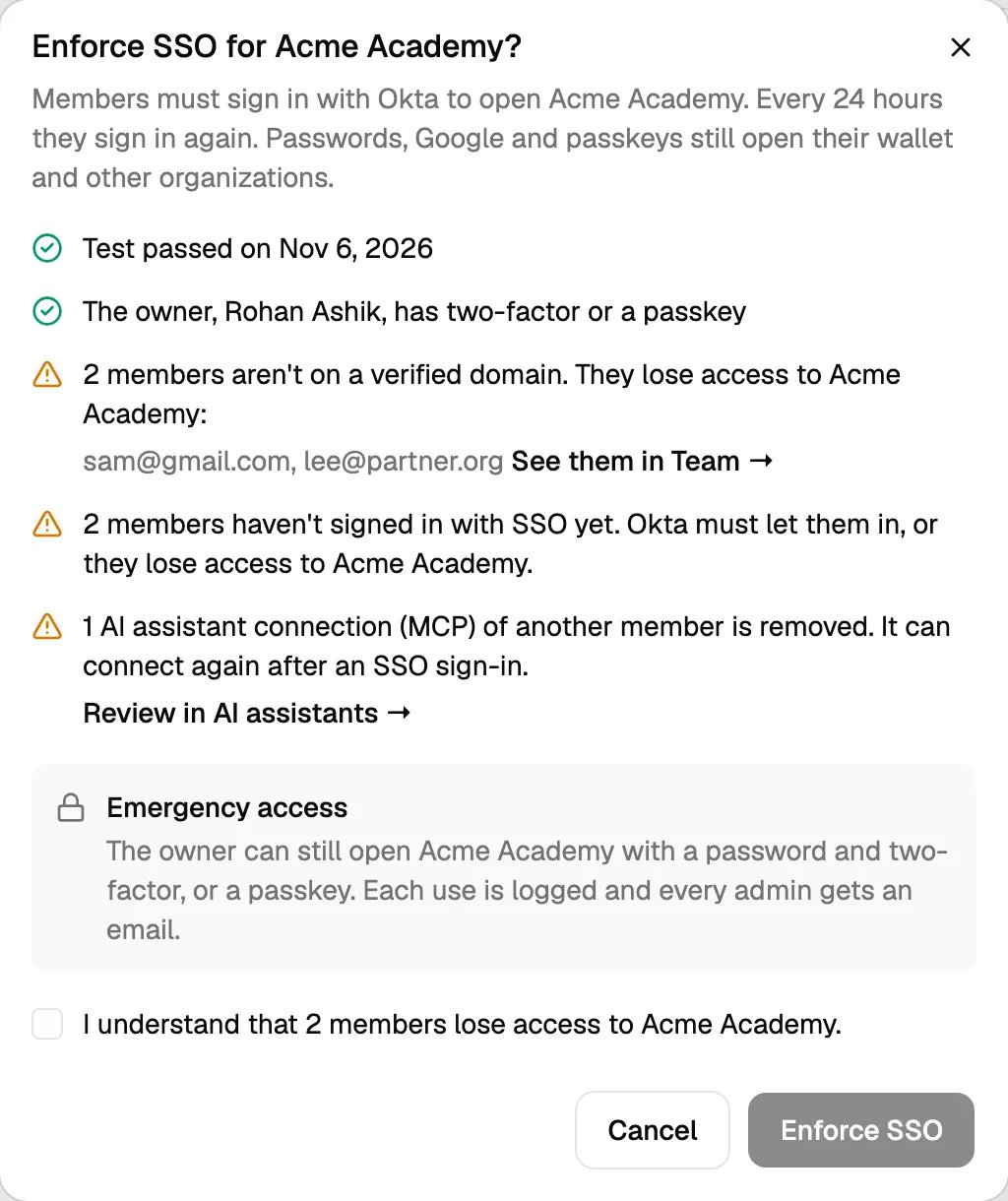
3
Click Enforce SSO
You see SSO is enforced. Every admin got an email.
What changes for members
- To open your organization, members must sign in with SSO. A password, Google or a passkey still opens their wallet and their other organizations.
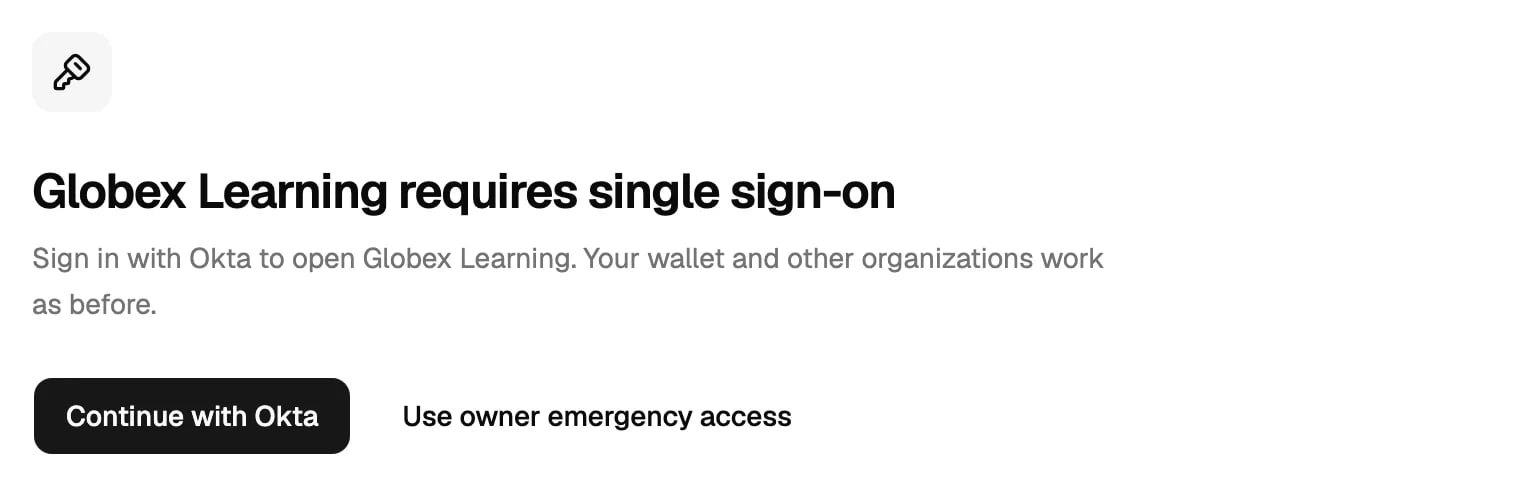
- A member who signs in another way and opens your organization sees Acme requires single sign-on, with a Continue with Okta button (Continue with SSO for other providers). The owner also sees Use owner emergency access.
- Every 24 hours, members sign in with SSO again. They see Sign in again to open Acme. This is how a person you turn off in your provider loses access within a day.
- On the sign-in page, a member who enters an email on your domain sees Continue with SSO. The password, Google and passkeys are behind Sign in another way.
- A member whose only organizations all enforce SSO can’t sign in to the Studio with a password, Google or a passkey. They see Your organization requires single sign-on and Continue with SSO. Their password still opens their wallet.
- While SSO is enforced, you can only invite people with an email on your verified domains. Other emails get Acme requires SSO, so only people on acme.com can join.
- Settings → Team shows Can’t sign in next to members outside your verified domains, and Emergency access only next to an owner outside them.
- AI assistant connections (MCP) of members, except the owner, are removed. Members connect them again after an SSO sign-in.
- API keys, webhooks and integrations keep working.
Stop enforcing
Turn off Require SSO to open Acme. The dialog Stop enforcing SSO? asks you to confirm. Click Stop enforcing. Members can open your organization with a password, Google or a passkey again at once. Every administrator gets an email.Turn off SSO or delete the connection
The Turn off or delete section has two buttons:- Turn off SSO: members can’t sign in with your provider any more. Your settings stay, and Turn on SSO brings SSO back. Turning off SSO also stops enforcement. People without a password can set one with Forgot password or sign in with Google. Every administrator gets an email.
- Delete connection: removes the connection and its settings, and unlinks people from your provider. People keep their accounts and roles. Your domains stay verified.
Change the connection
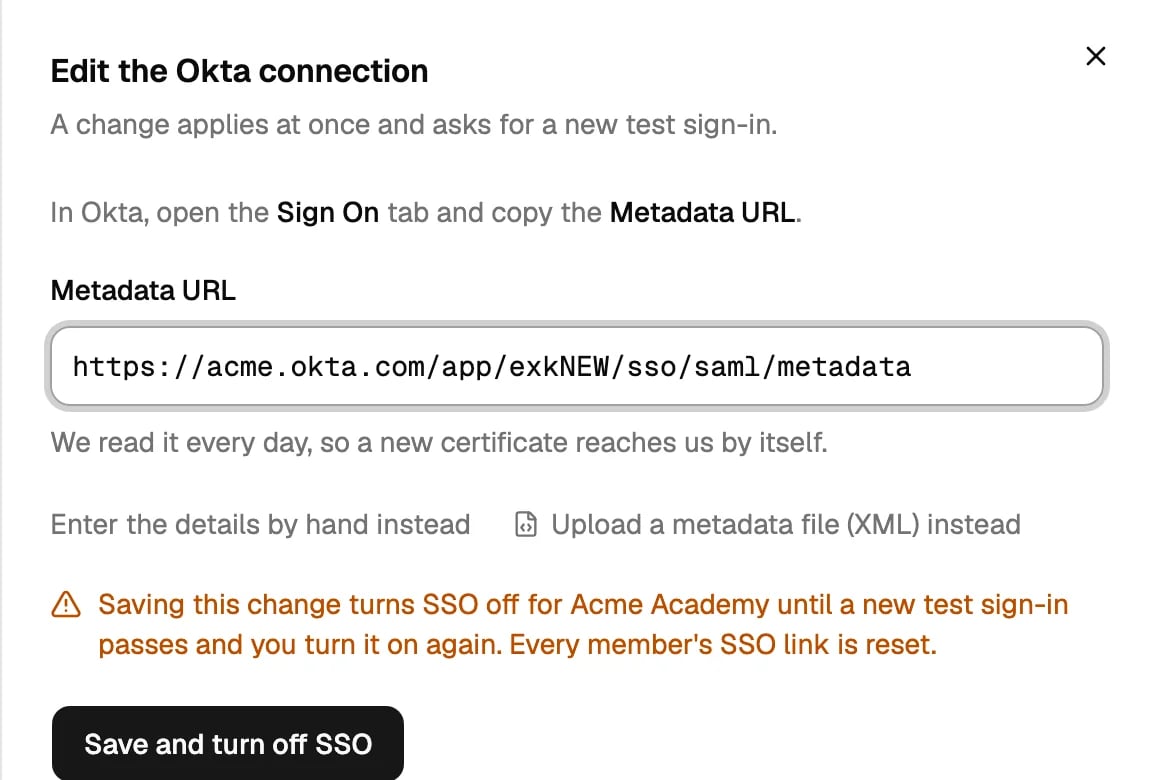
Click Edit connection. A change applies at once and asks for a new test sign-in. Until a new test passes, the page shows Test needed. To see our values again, click Show the values for your provider. Some values decide whom Hyperstack trusts: the metadata URL, the sign-in URL, the issuer, the signing certificate, the issuer URL, the client ID and the client secret. When SSO is on and you change one of them, SSO turns off:- The sheet warns you first: Saving this change turns SSO off for Acme until a new test sign-in passes and you turn it on again. Every member’s SSO link is reset. The button reads Save and turn off SSO.
- Enforcement also stops. Passwords open your organization again.
- Every member links their account again on their next SSO sign-in.
- The owner and every administrator get an email.
Certificate notices
For SAML, Hyperstack shows a notice on Settings → Single sign-on from 30 days before your provider’s certificate ends. Every administrator also gets an email 30, 7 and 1 days before.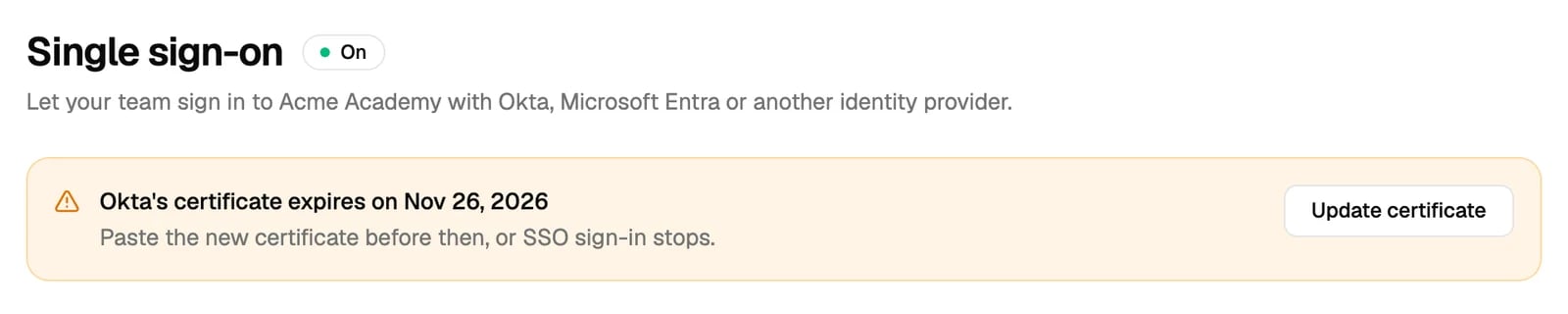
- With a metadata URL: make the new certificate active in your provider before the date. Hyperstack reads the metadata URL once a day and adds the new certificate next to the old one, so both work until the old one ends. After your provider makes a new certificate active, click Refresh certificates in the Connection section. Hyperstack reads the metadata URL at once and adds the new certificate. SSO stays on, and members don’t need to link again. The audit logs show the new certificate.
- Without a metadata URL: click Update certificate and add the new certificate before the date. A new certificate is a change of a trusted value, so SSO turns off until a new test passes. See Change the connection. Plan the change with the person who manages your provider.
Troubleshooting
Sign-in page messages
Members see these messages on the sign-in page when an SSO sign-in doesn’t go through.
On the Sign in with SSO step:
Test sign-in results
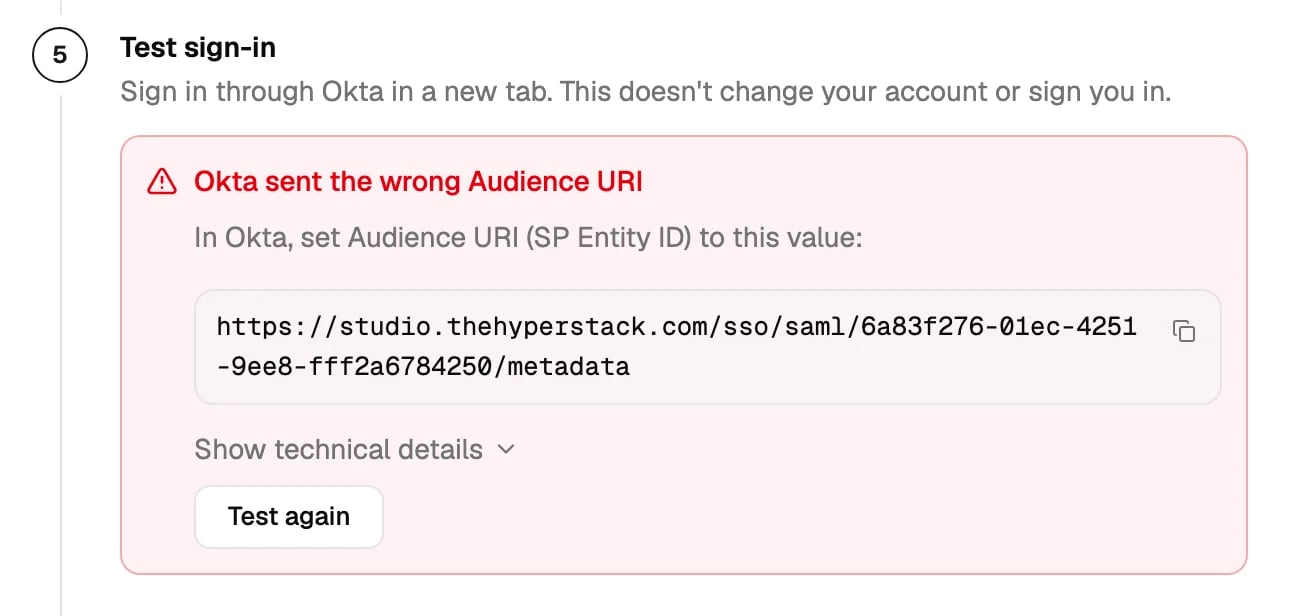
Test sign-in shows the exact reason when a test fails. Click Show technical details for the full answer, and send it to the person who manages your provider.