

Words used in these guides
What you need
- The Enterprise plan.
- An administrator of your Hyperstack organization.
- The person who manages Okta, Entra or your other identity provider. Set-up takes about 20 minutes, so ask them to join you.
- Access to the DNS of your email domain, to add one TXT record.
How set-up works
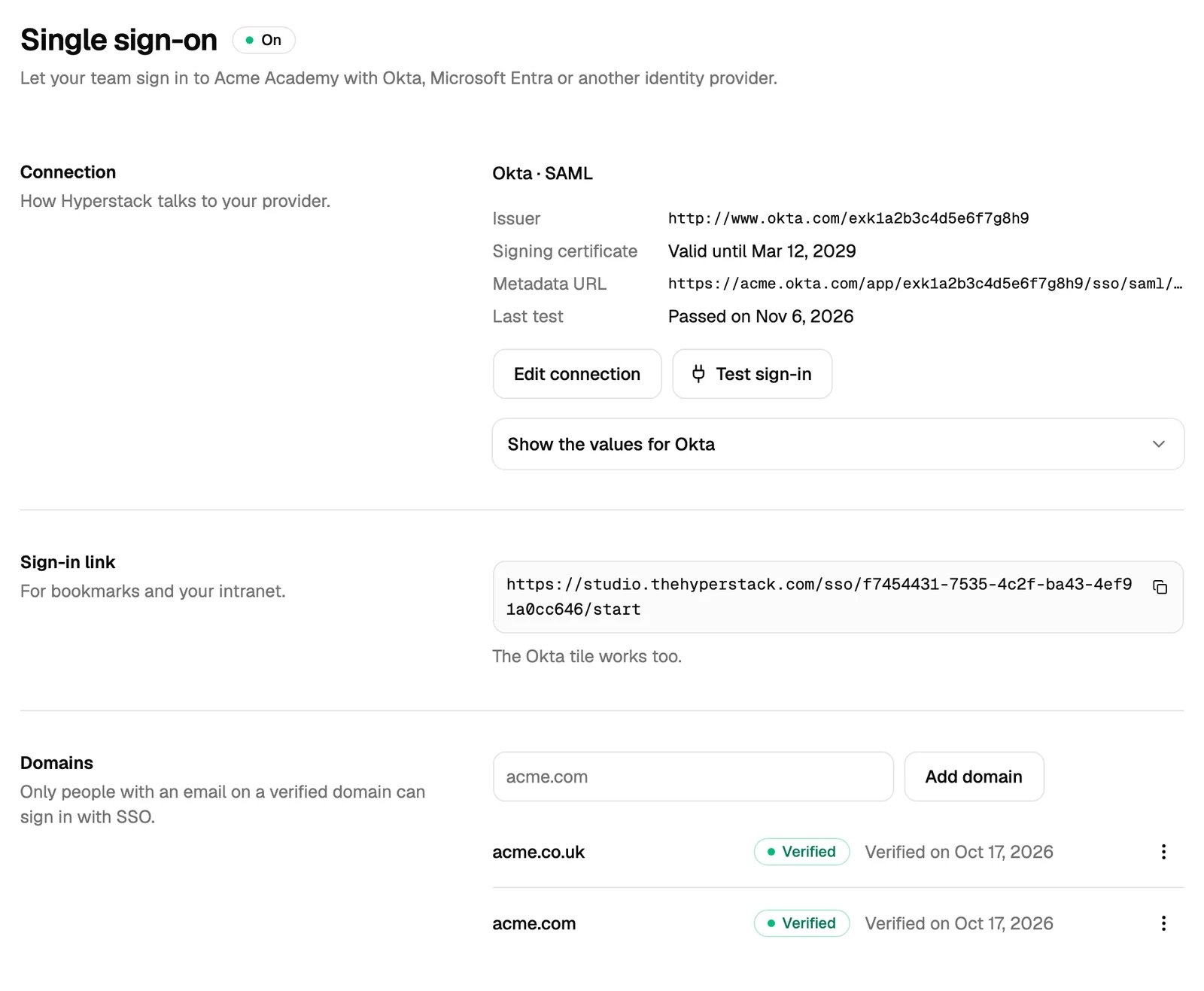
Go to Settings → Single sign-on. The page takes you through six steps:- Choose your identity provider: Okta, Microsoft Entra, Other SAML provider or Other OIDC provider.
- Add Hyperstack to your provider: copy our values into your provider.
- Connect your provider: paste your provider’s values back into Hyperstack, then click Save connection.
- Verify your email domains: add a TXT record to your DNS.
- Test sign-in: sign in once through your provider to prove that it works.
- Turn on SSO: your team can now sign in with SSO. Passwords keep working.
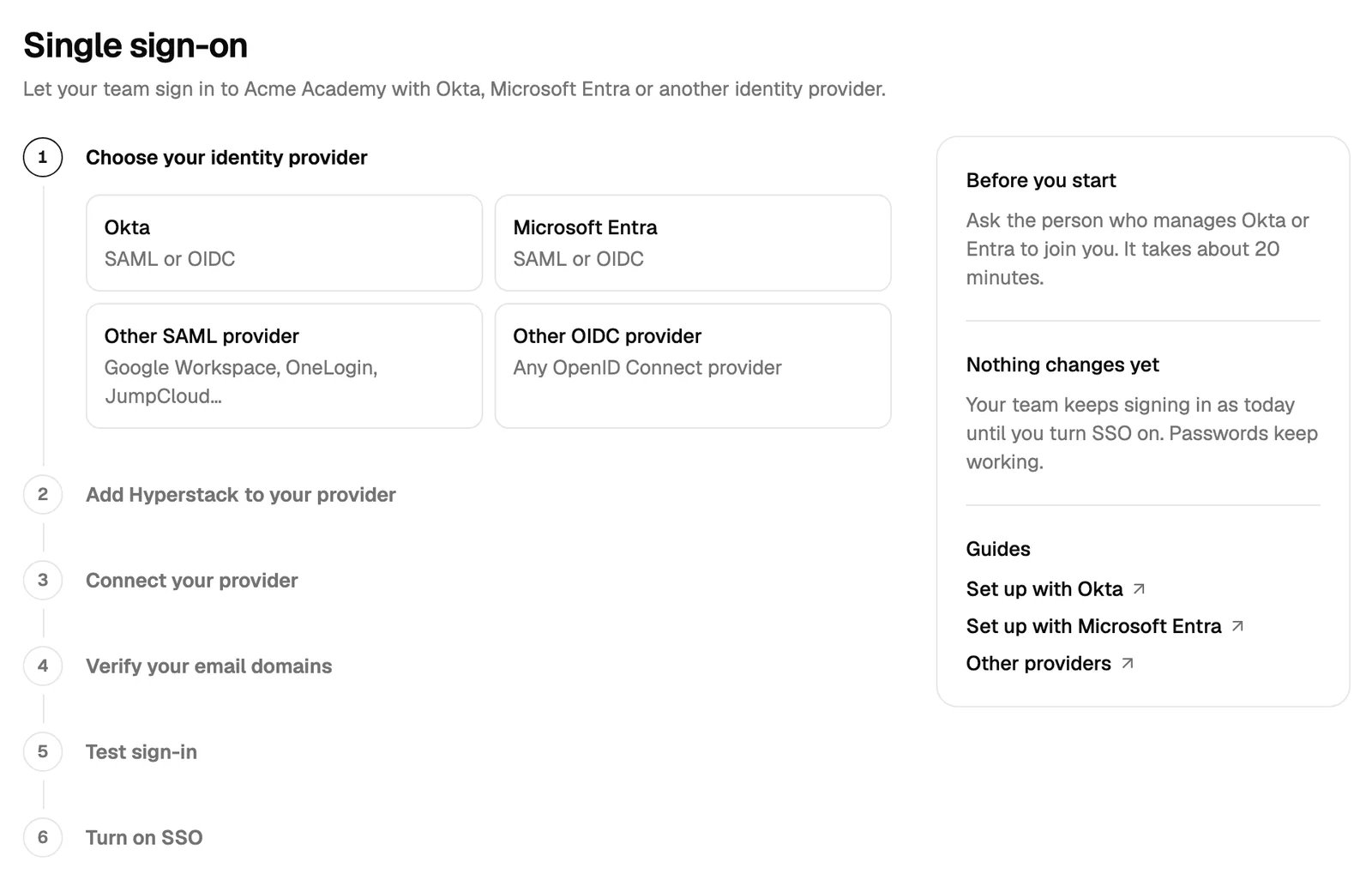
Okta
Microsoft Entra ID
Other providers
Who can sign in with SSO
Single sign-on lets in only people who are already on your team, or who have an invitation that is not accepted yet.- Team members sign in with SSO the first time and are linked to your provider. Their roles, their wallet and their other organizations don’t change.
- Invited people sign in with SSO and join your organization at once, with the roles of their invitation. They don’t need a password.
- Owners and administrators link their existing account to your provider only while they are signed in to Hyperstack. Sign in with your password first. Then run Test sign-in in Settings → Single sign-on, or sign in with SSO in the same browser. If not, the sign-in page shows Sign in with your password first. The same rule applies when an invitation makes an existing account an administrator. This stops someone in your provider from taking over an administrator’s account.
- Everyone else sees You don’t have access yet. SSO never adds people to your team by itself. To add someone, invite them in Settings → Team first.
How your team signs in
There are three ways in. They all go to your provider’s sign-in page and come back to the Studio.From the Hyperstack sign-in page
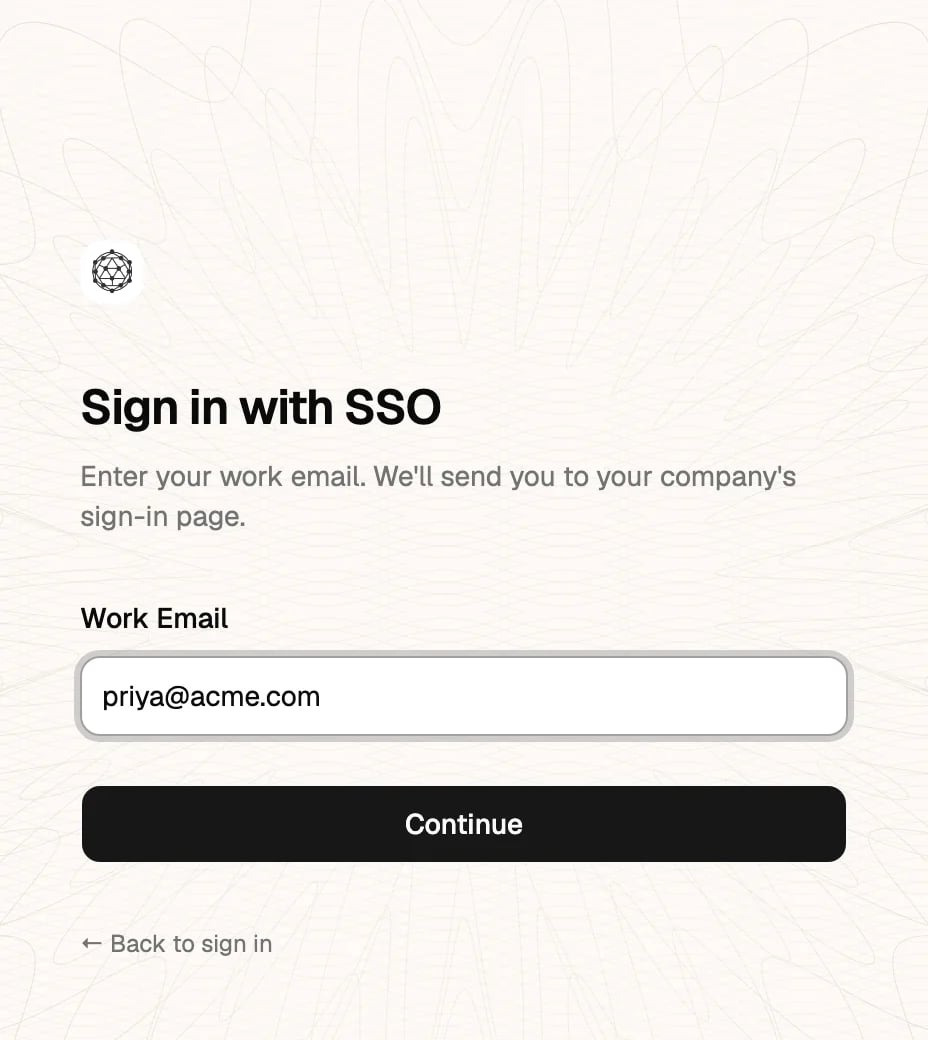
When SSO is on, the sign-in page checks your email domain. Type your work email: the password field folds away, the page says Your organization signs in with SSO., and the button reads Continue with SSO. Click it to go to your provider. To use your password instead, click Use password instead.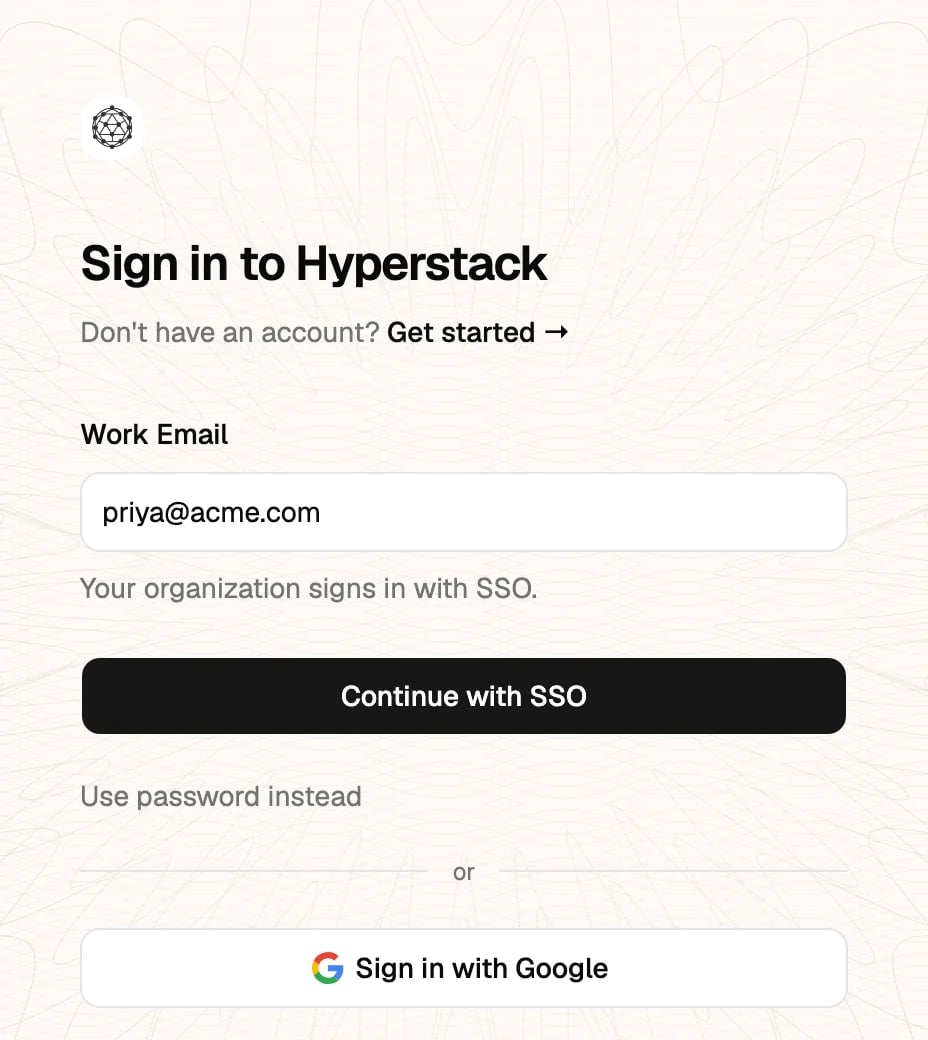
On the sign-in page, click Sign in with SSO
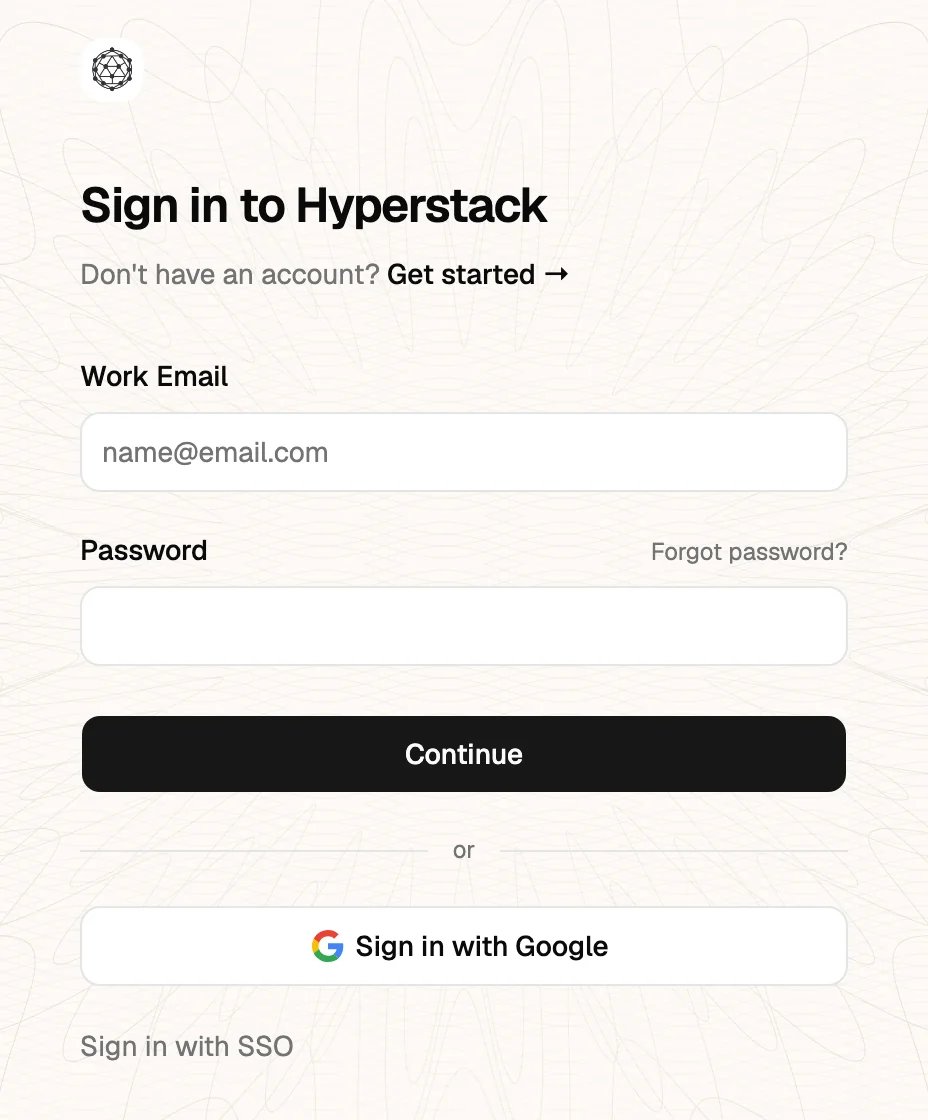
Enter your work email and click Continue
Sign in with your work account
From the Okta or Microsoft My Apps tile
When you use SAML, Hyperstack shows as a tile in the Okta dashboard or in Microsoft My Apps. Click the tile to open your organization in the Studio. With Okta OIDC, the tile works when you set Login initiated by to Either Okta or App.From the sign-in link
Settings → Single sign-on → Sign-in link has a link for your organization. Put it in your bookmarks or on your intranet. It goes straight to your provider, with no email step.Owner emergency access
When you enforce SSO and your provider stops working, the owner of the organization can still get in. This is the only way past an enforced SSO, and only the owner has it.Sign in with two-factor authentication or a passkey
Click Use owner emergency access
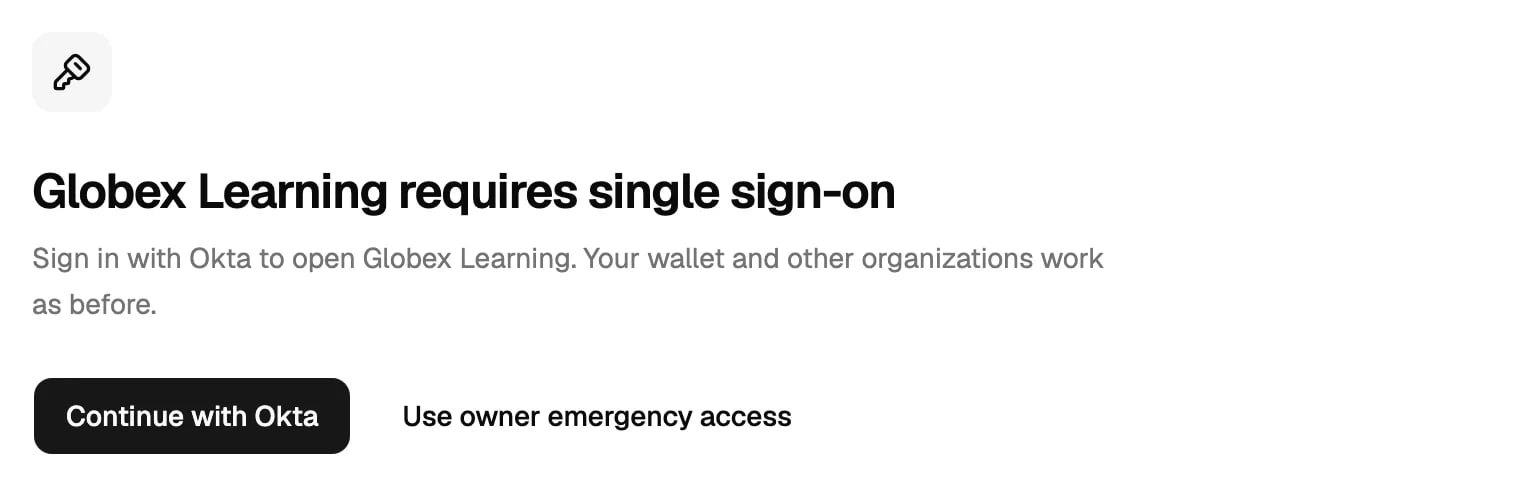
Click Open Acme
What Hyperstack support can and can’t do
Support can:- See your organization’s SSO status, provider, domains, certificate date, how many members are linked, and the reason of the last failed sign-in, to help you fix it.
- Stop enforcing SSO when your organization is locked out. Before we do this, we check who is asking: a request from the owner’s email and a second proof, such as a reply from your billing contact or a call. After the change, every administrator gets an email with the reason, and the audit logs show Hyperstack support with the reason.
- See your client secret. Hyperstack never shows a saved secret, also not to support.
- Change settings in your Okta, Entra or other provider.
- Tell you which organization uses a domain that you want to add.
- Turn SSO on, change your connection or verify a domain for you.
Questions
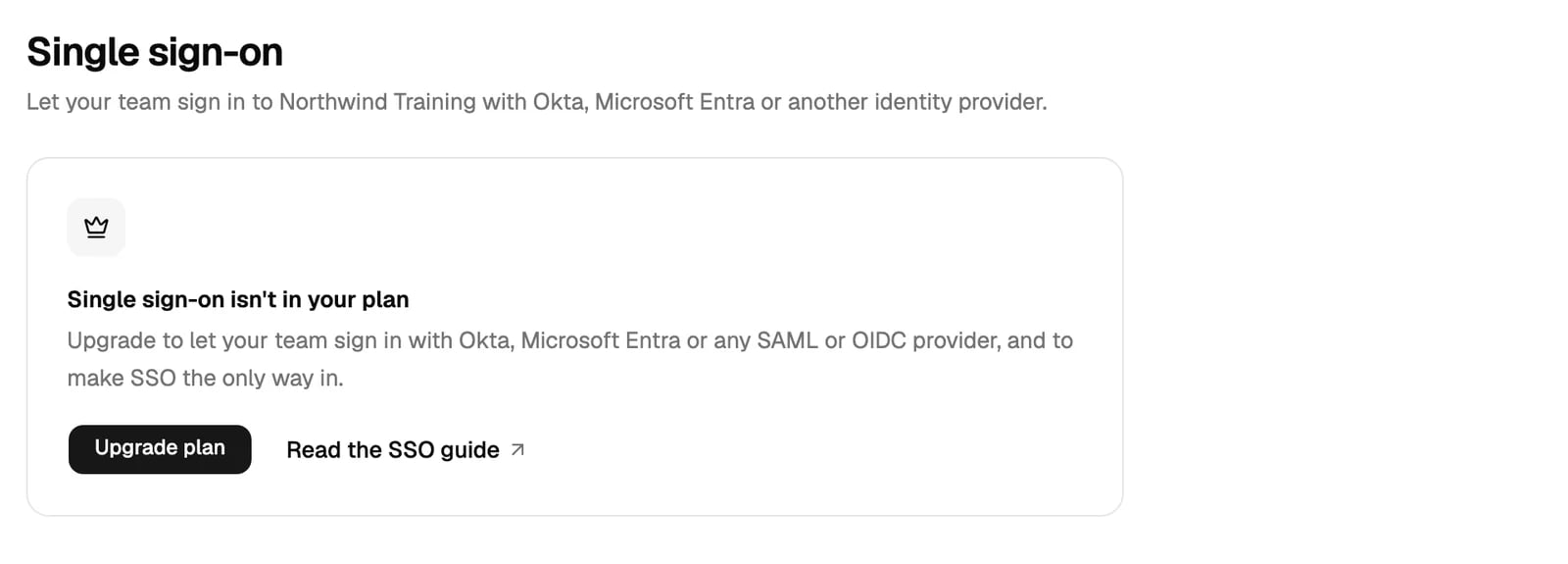
Is single sign-on on my plan?
Is single sign-on on my plan?
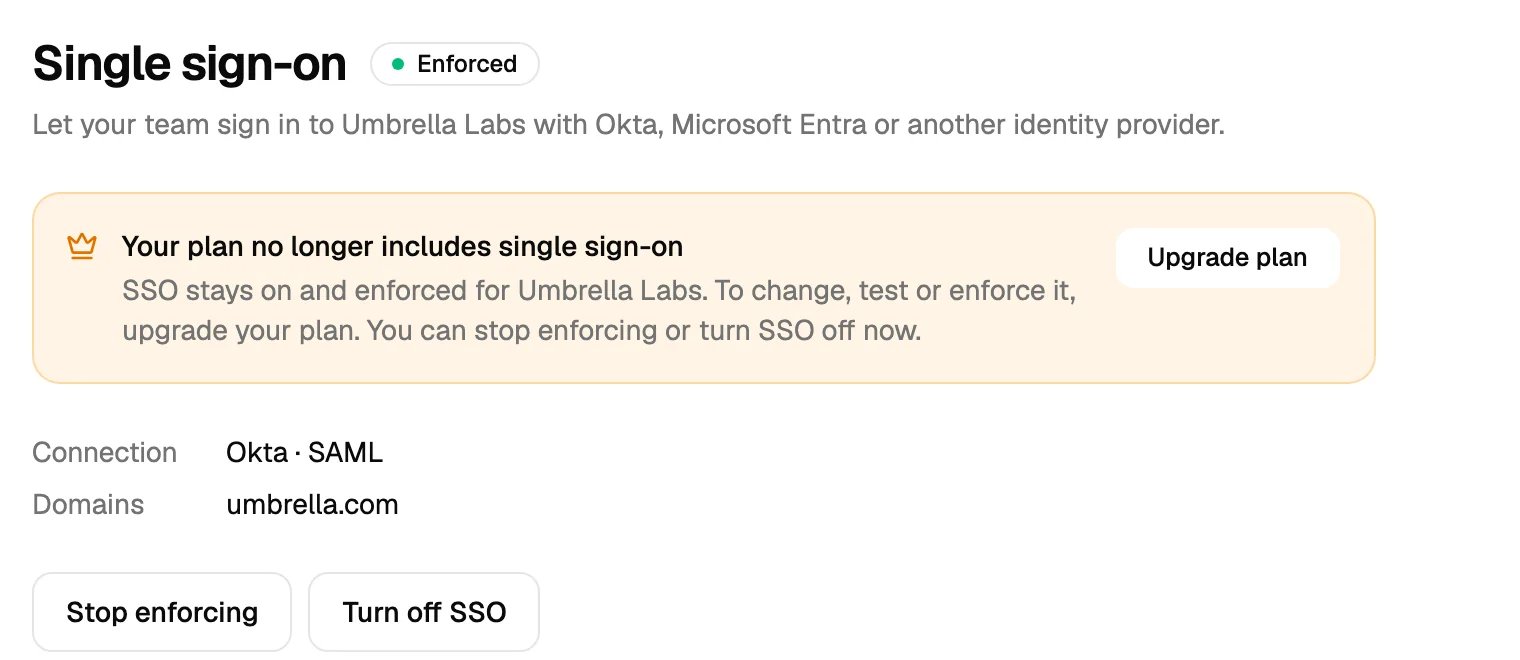
What happens to SSO if we leave the Enterprise plan?
What happens to SSO if we leave the Enterprise plan?
Do new people join by themselves when they sign in with SSO?
Do new people join by themselves when they sign in with SSO?
What happens when we turn someone off in Okta or Entra?
What happens when we turn someone off in Okta or Entra?
Can people still use their password?
Can people still use their password?
A member is in two organizations. Does SSO change the other one?
A member is in two organizations. Does SSO change the other one?
Can we use more than one identity provider?
Can we use more than one identity provider?
Can a department have its own SSO?
Can a department have its own SSO?
Does SSO sign people out of Hyperstack when they sign out of Okta or Entra?
Does SSO sign people out of Hyperstack when they sign out of Okta or Entra?
Can SSO create our team from our directory (SCIM)?
Can SSO create our team from our directory (SCIM)?
Do our API keys, webhooks and integrations keep working?
Do our API keys, webhooks and integrations keep working?
Can recipients sign in to their wallet with our SSO?
Can recipients sign in to their wallet with our SSO?