

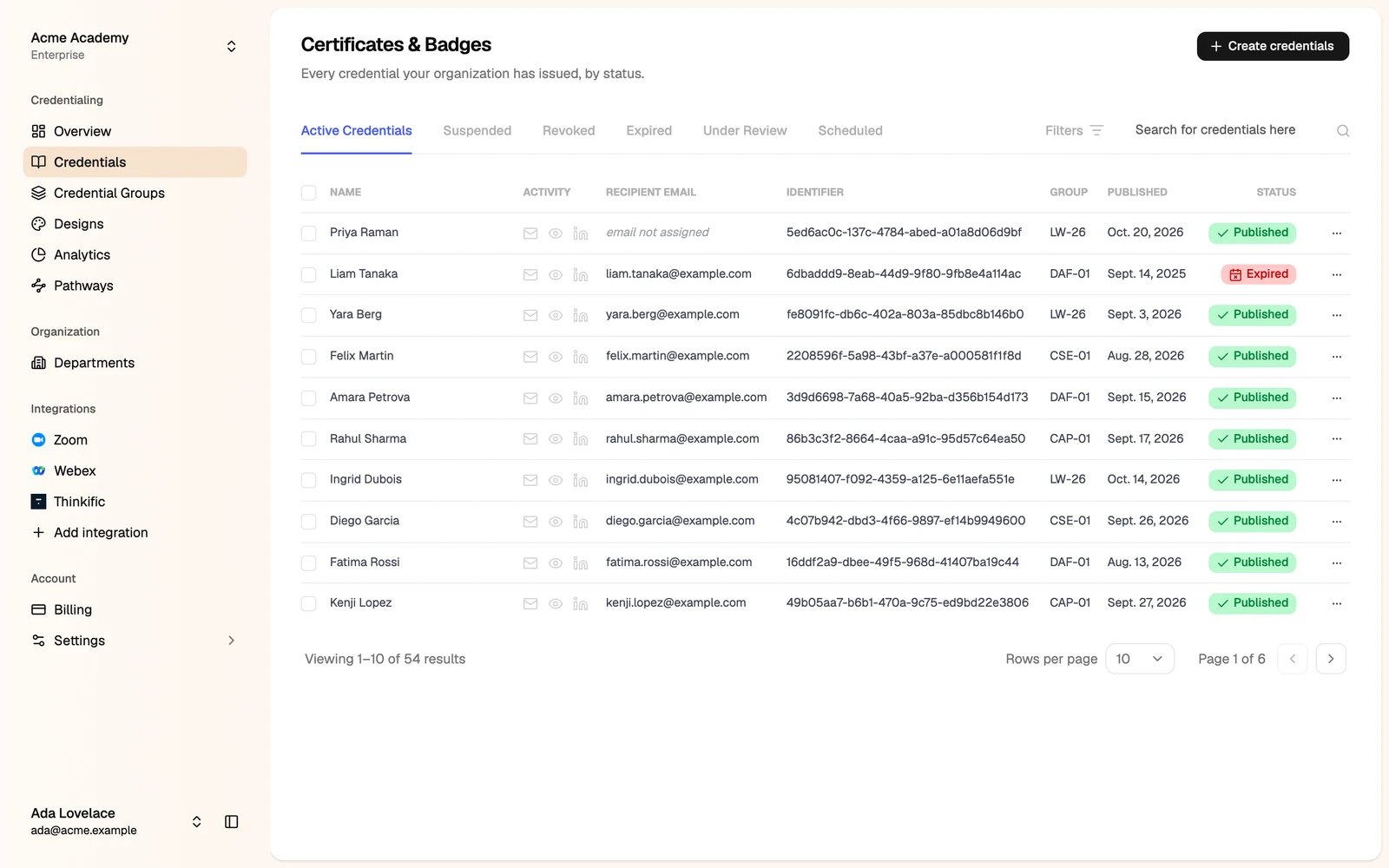
Find credentials
- Tabs: Active Credentials, Suspended, Revoked, Expired, Under Review and Scheduled.
- Search: by name, email, credential ID, group title or group code.
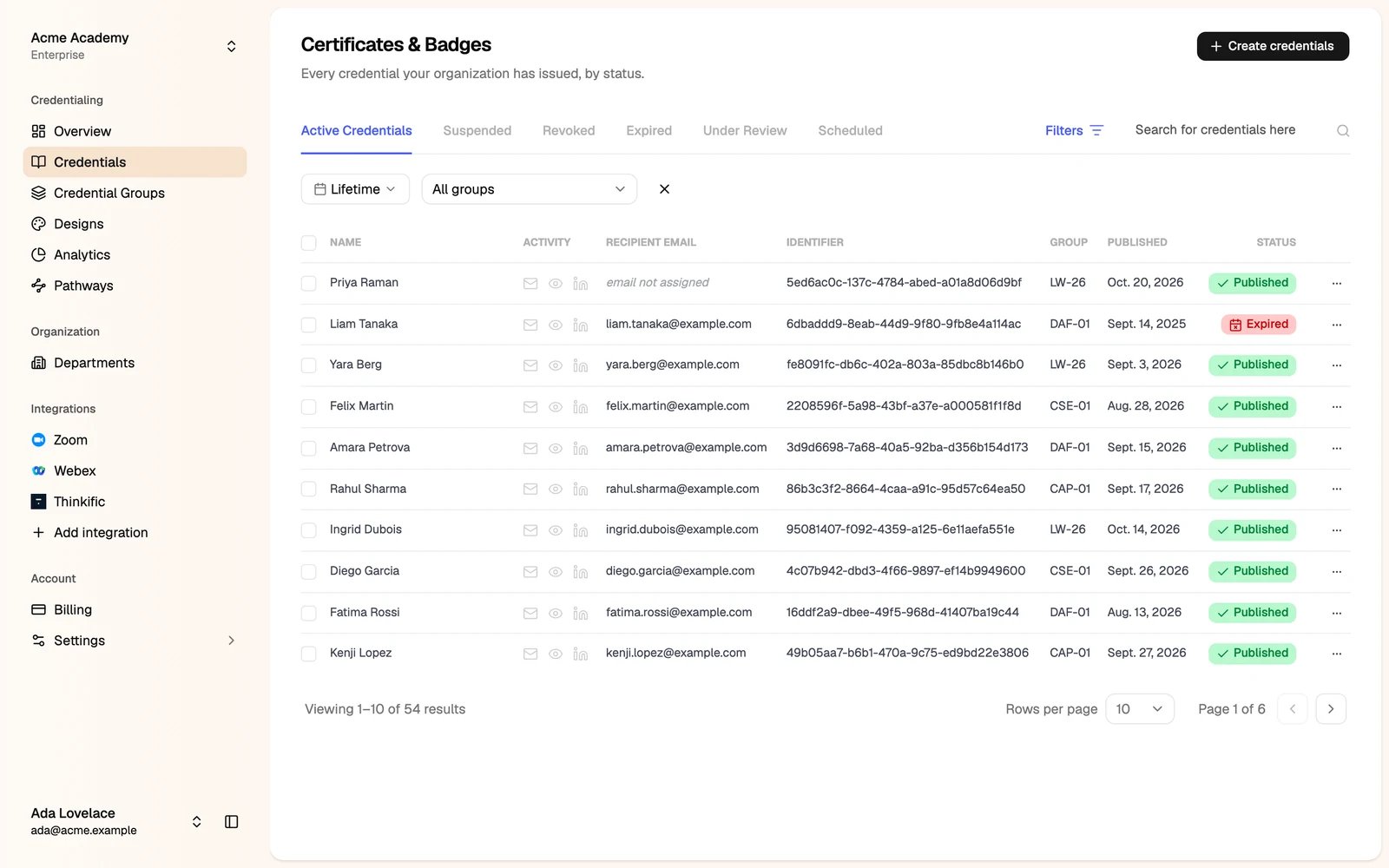
- Filters: by date range and by credential group.
Act on many credentials
Tick the credentials, then pick an action in the bar at the top. To act on every credential that matches your search and filters, click Select all in the notice above the table.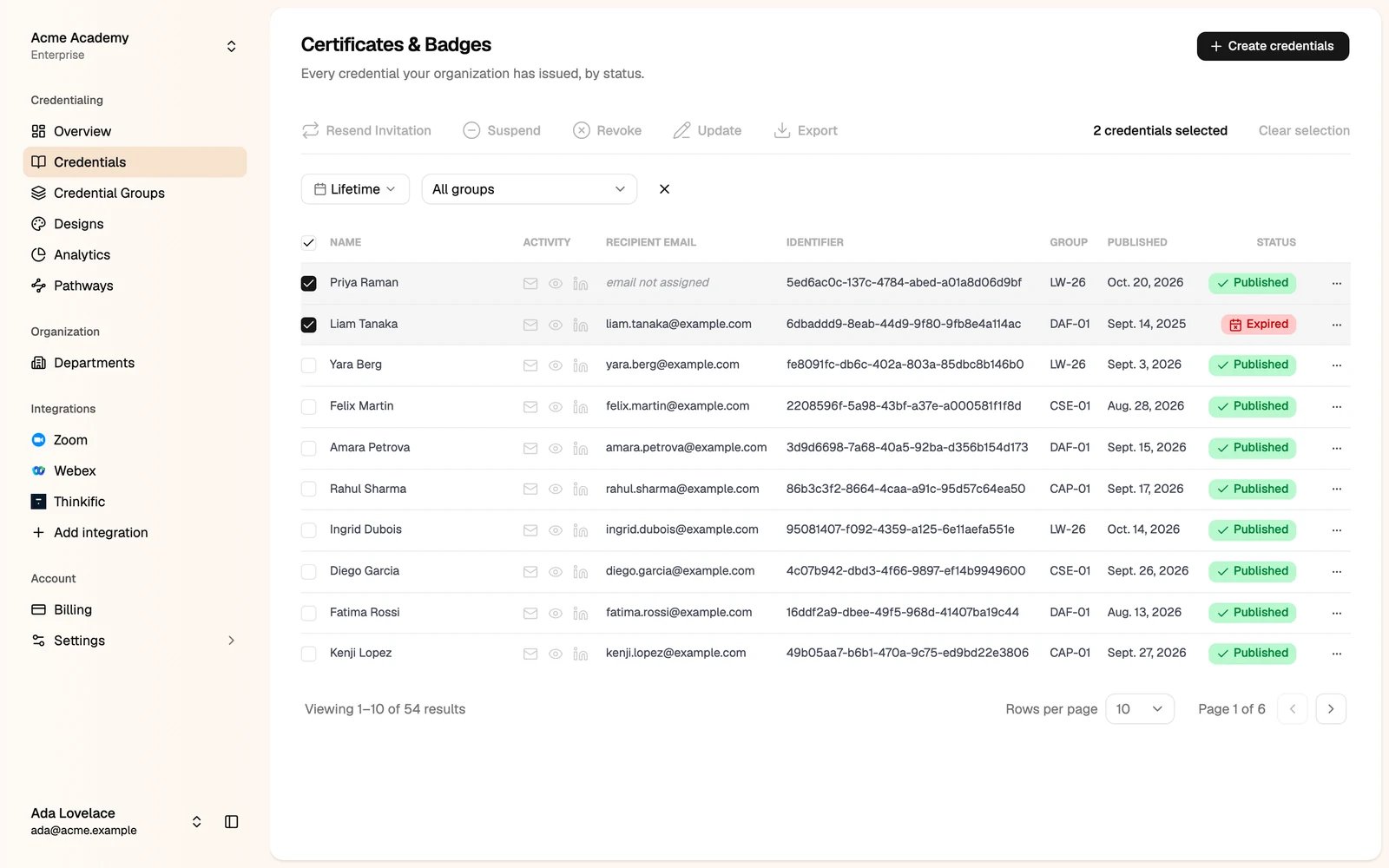
The menu at the end of each row has the same actions for one credential, plus View Details and Recipient view (the public credential page).
A credential’s page
Click a credential to open its page.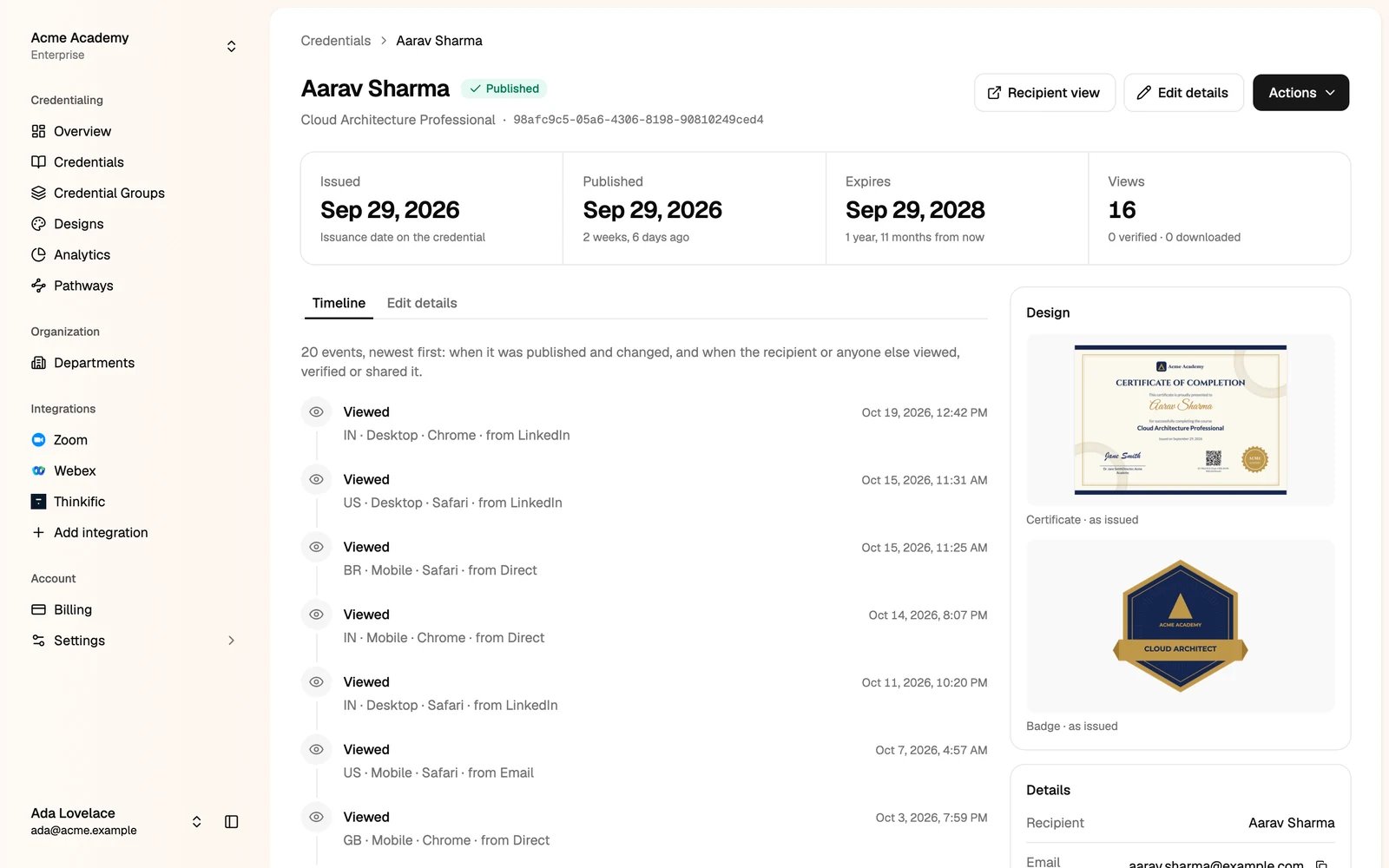
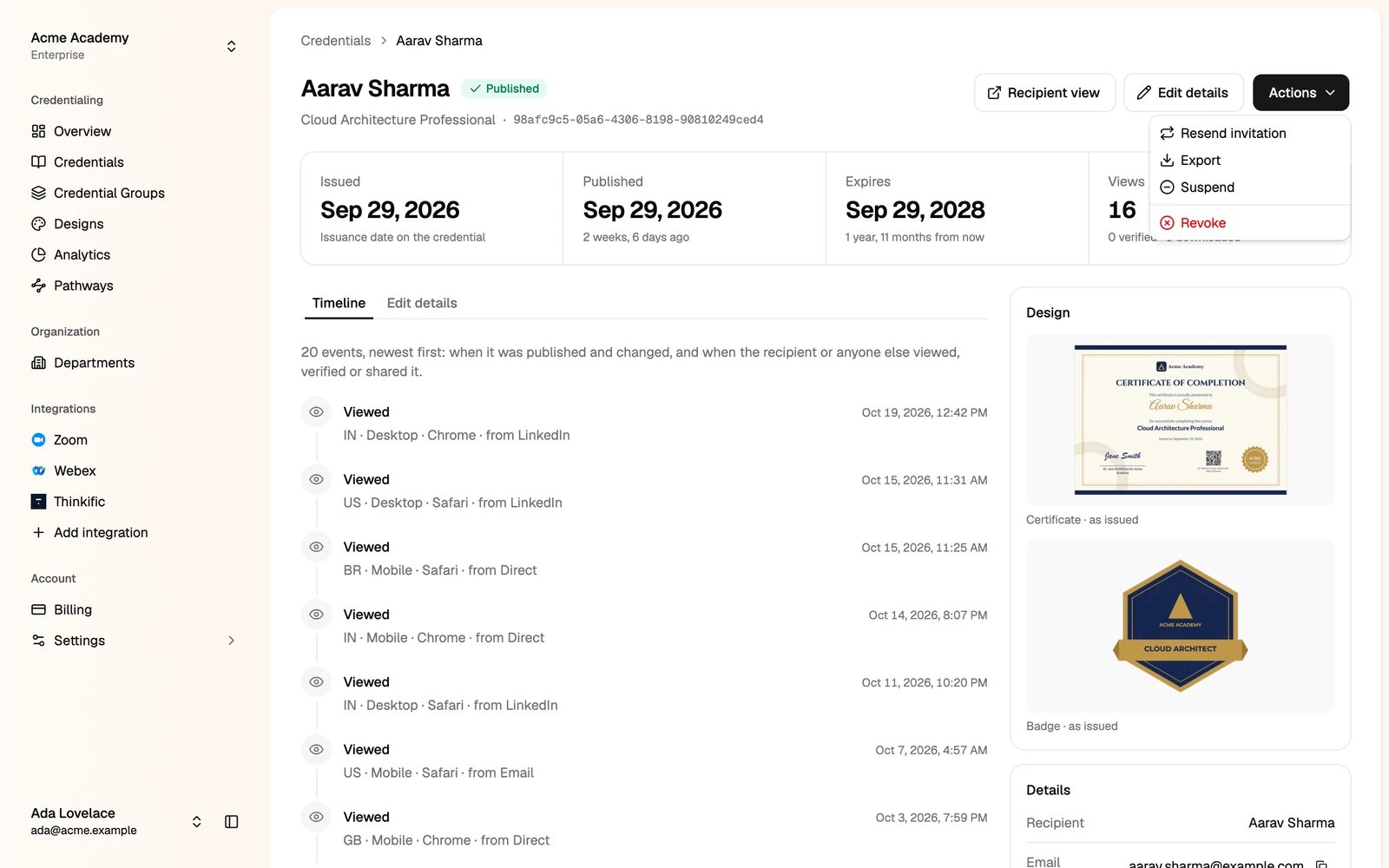
- Issued, Published, Expires and Views at the top.
- Timeline: every event, newest first. When it was published and changed, and each time someone viewed, verified or shared it, with their country, device and where they came from.
- Design: the certificate and badge as issued.
- Recipient view opens the credential’s public page.
- Actions: Resend invitation, Export, Suspend and Revoke.
Edit a credential
Click Edit details.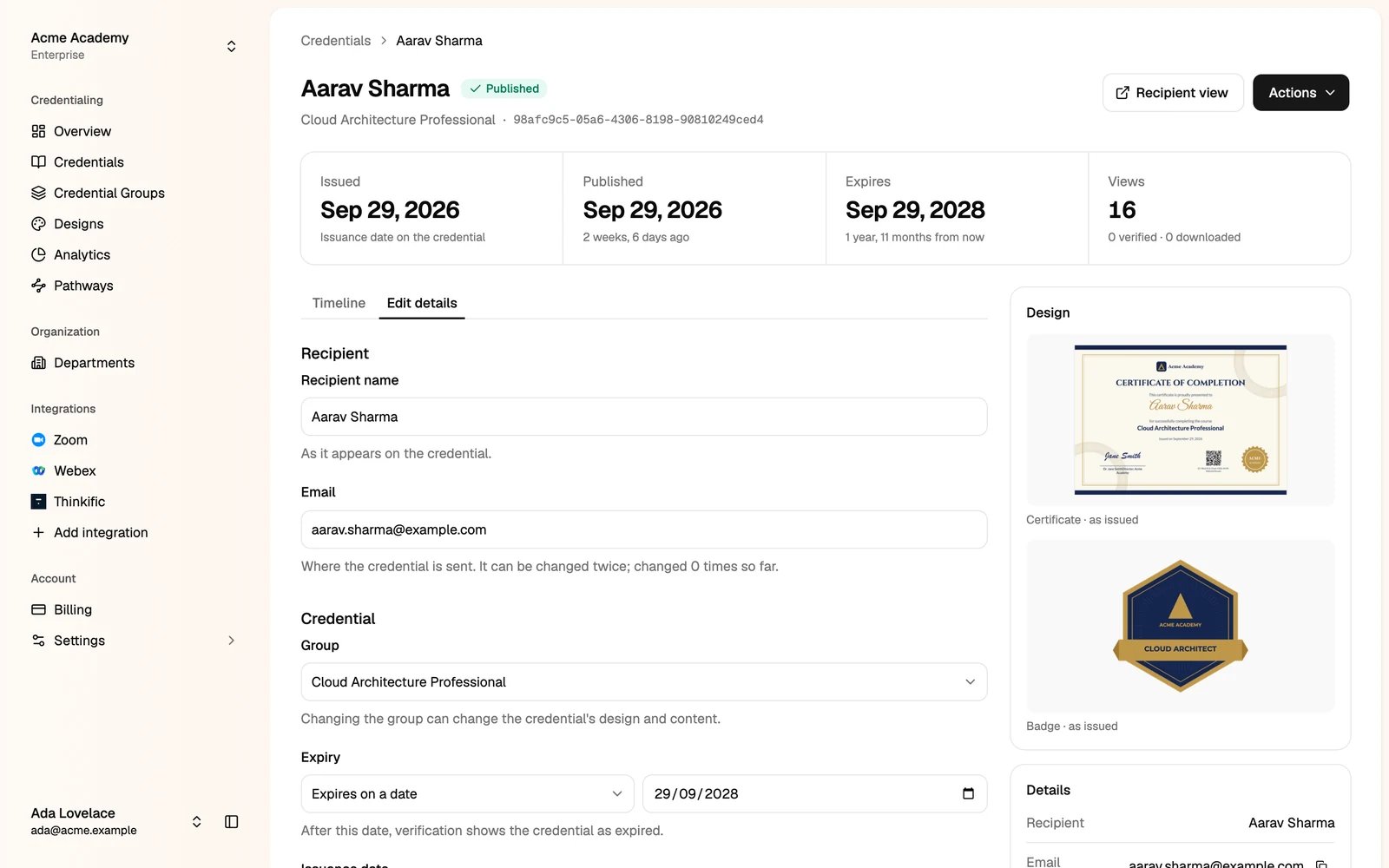
- Recipient name, as it appears on the credential.
- Email, where the credential is sent. You can change it twice.
- Group. This can change the credential’s design and content.
- Expiry: never expires, expire now, or a date. After this date, verification shows the credential as expired.
- Issuance date, the date of issue on the credential. Leave it empty to show the publishing date.
- Your custom attributes.
A revoked credential can’t be edited.
Update in bulk
To change many credentials at once:1
Select the credentials and click Update
The Studio opens Update credentials.
2
Download the sheet
It has a row for each credential. You can change: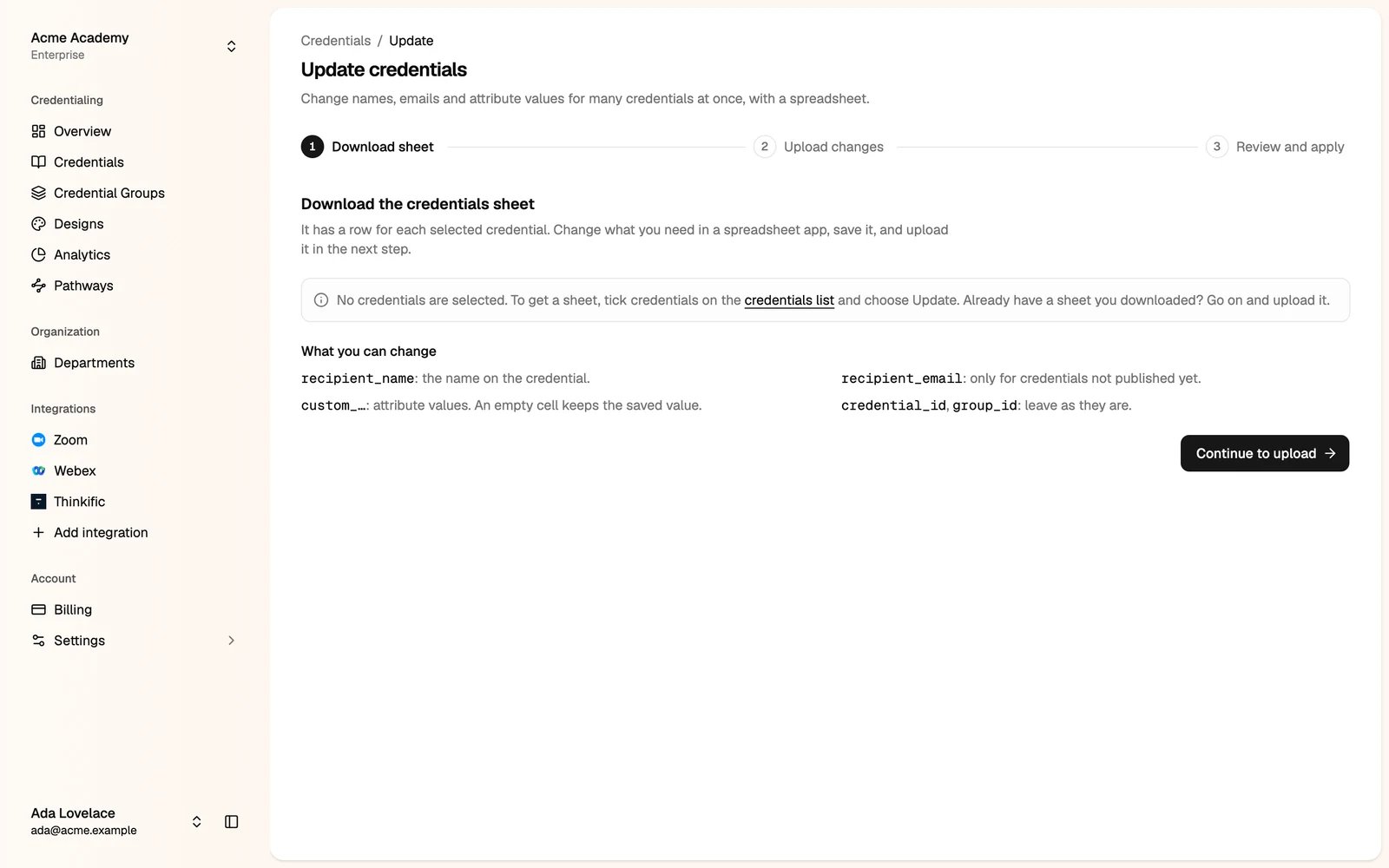
recipient_name: the name on the credential.recipient_email: only for credentials not published yet.custom_…: attribute values. An empty cell keeps the saved value.
credential_id and group_id as they are.3
Upload the changed sheet
Rows are matched by
credential_id, so you can sort or remove rows.4
Review and apply
The Studio shows what will change. Fix any row it marks, then click Update. Each credential keeps its old values in its history.
Bulk updates depend on your plan. You can always edit credentials one at a time.
Export
Select credentials and click Export, or open a credential and click Actions → Export.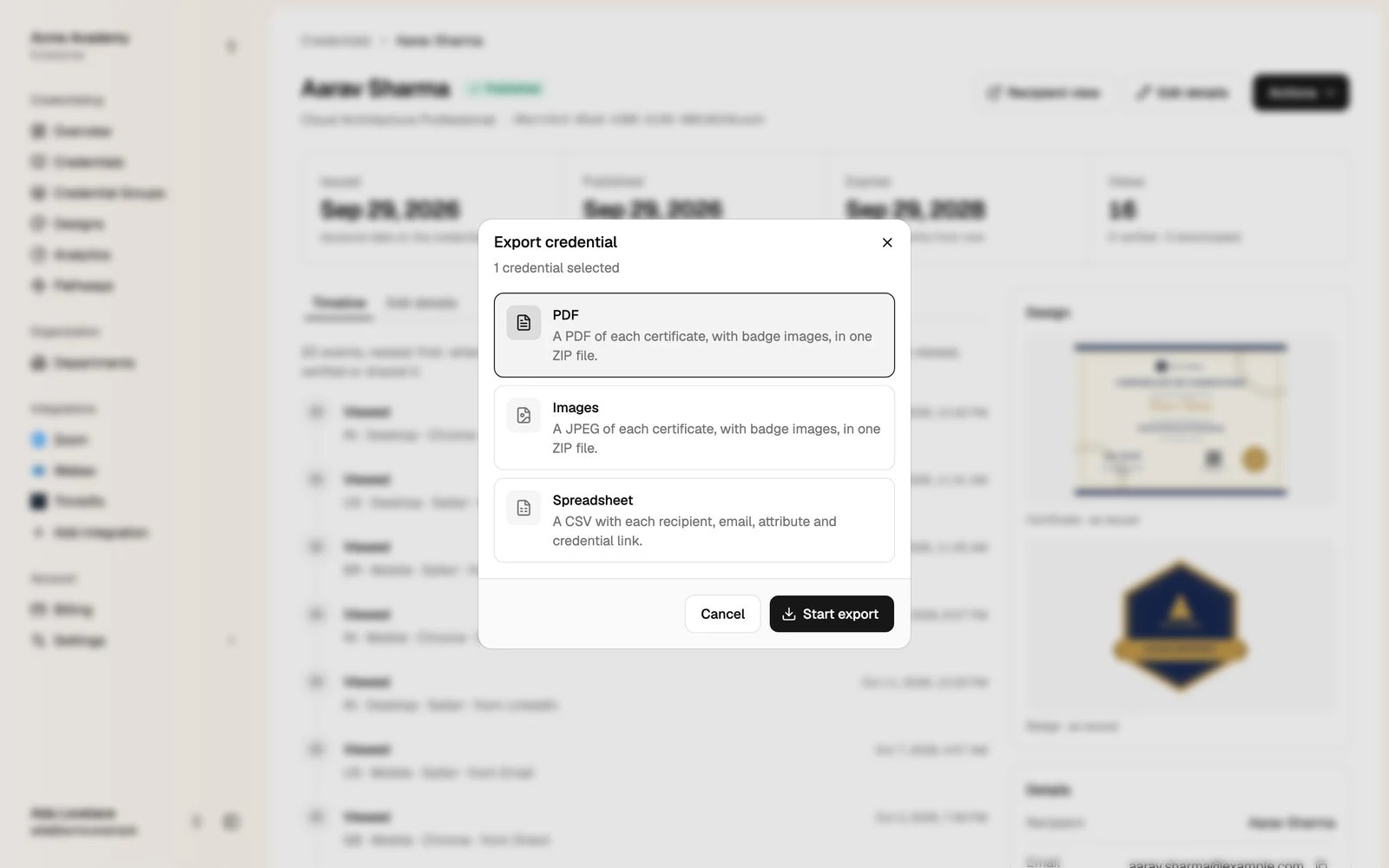
- PDF: a PDF of each certificate, with badge images, in one ZIP file.
- Images: a JPEG of each certificate, with badge images, in one ZIP file.
- Spreadsheet: a CSV with each recipient, email, attribute and credential link.