

1
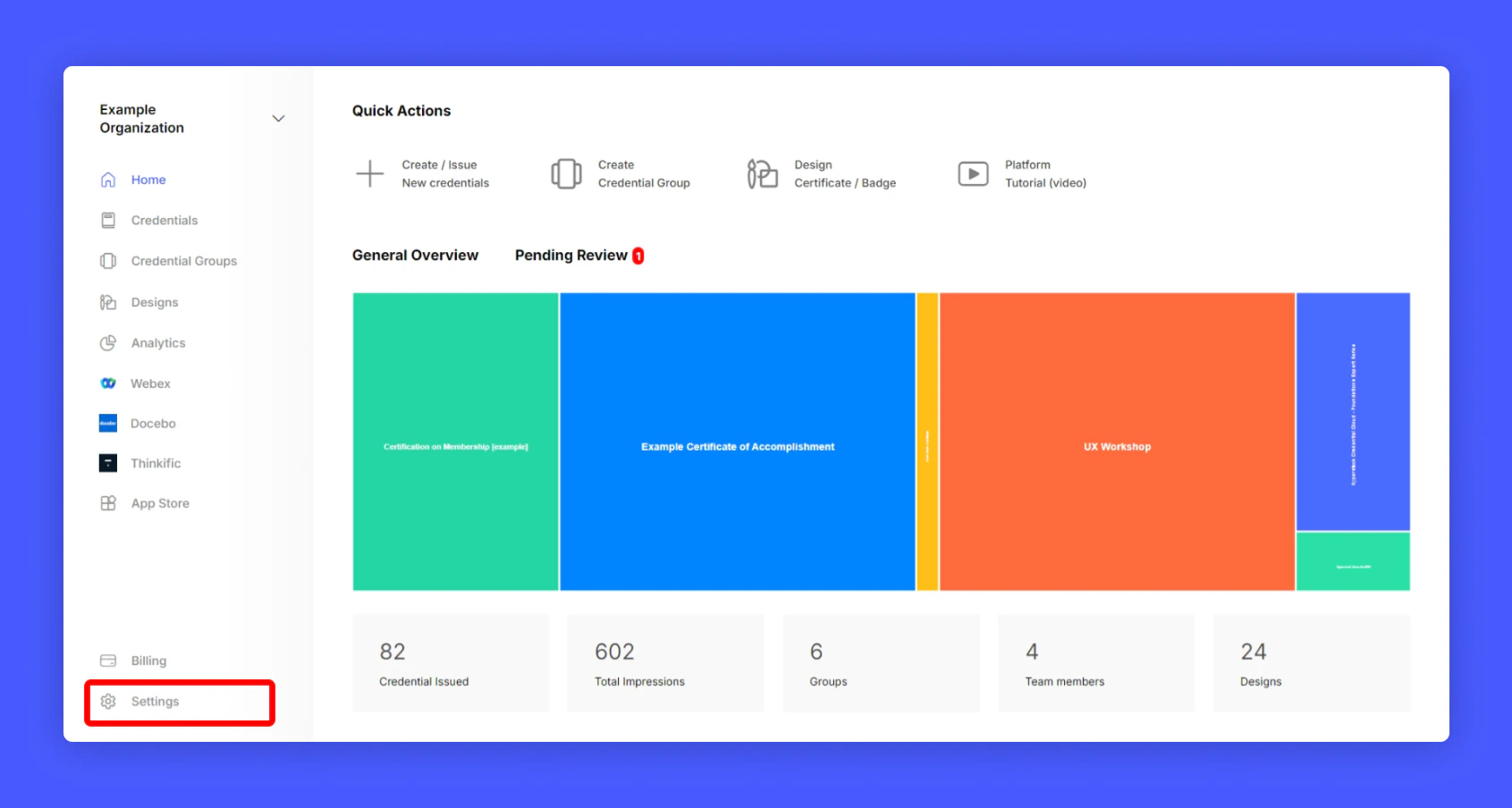
Click Settings from your issuer account home page
2
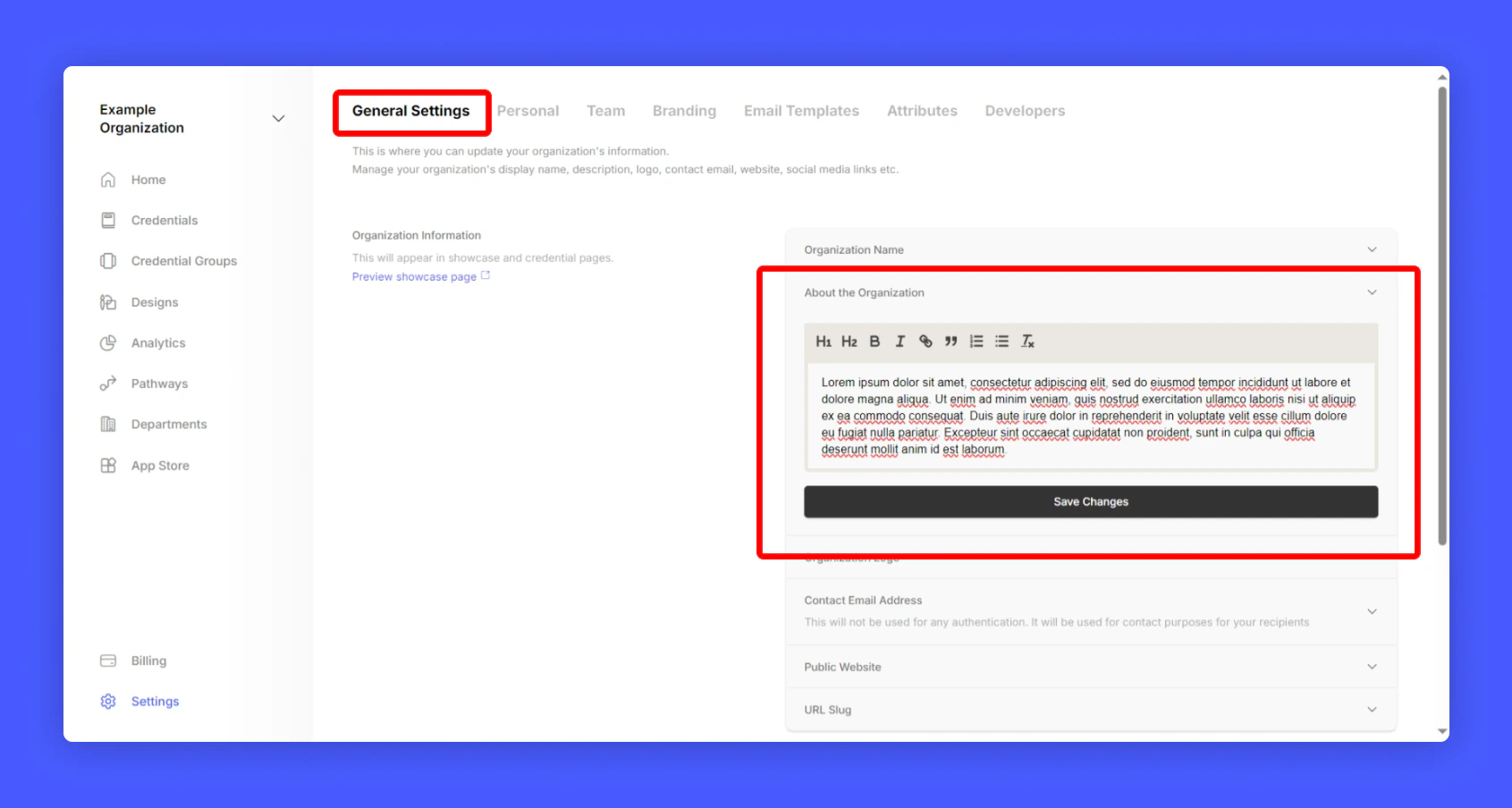
On General Settings, Select Account Description and fill about section
3
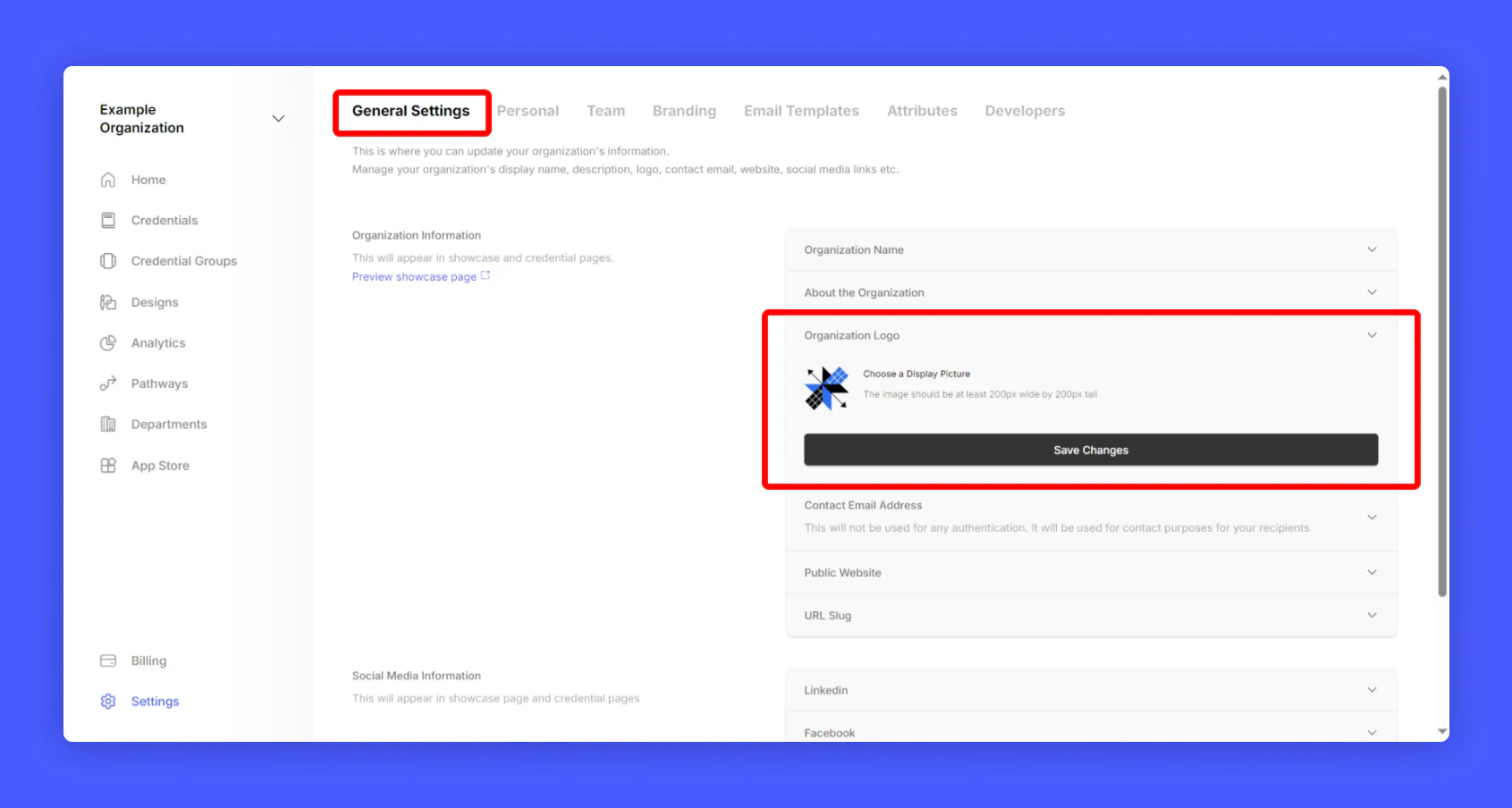
Next click Profile Picture and upload Account Display picture
4
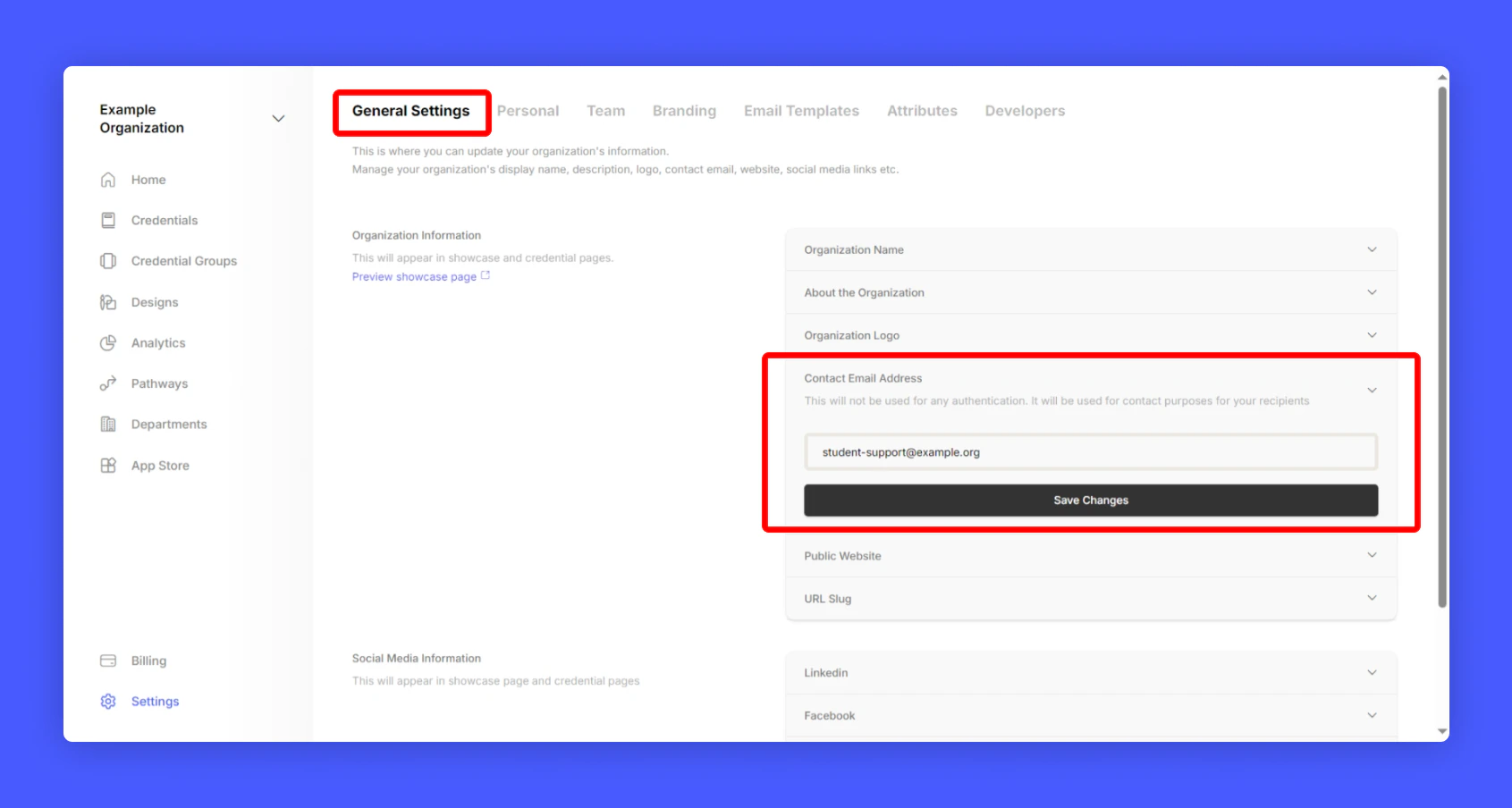
Add a support contact email under Contact Email Address section, This email will be used for any support related queries raised by your students/recipients.
5
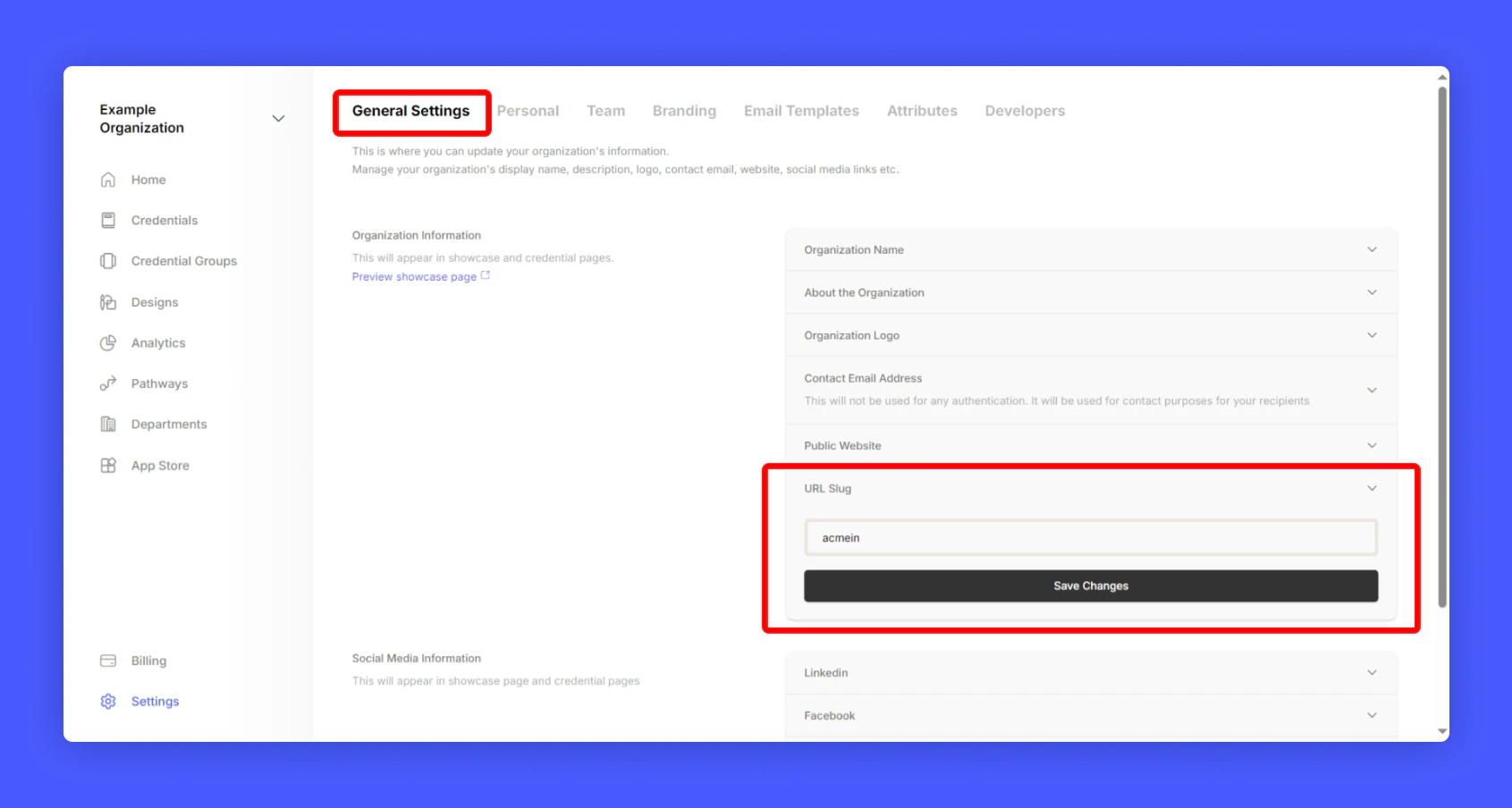
Setup recognizable account Page URL under URL Slug section
6
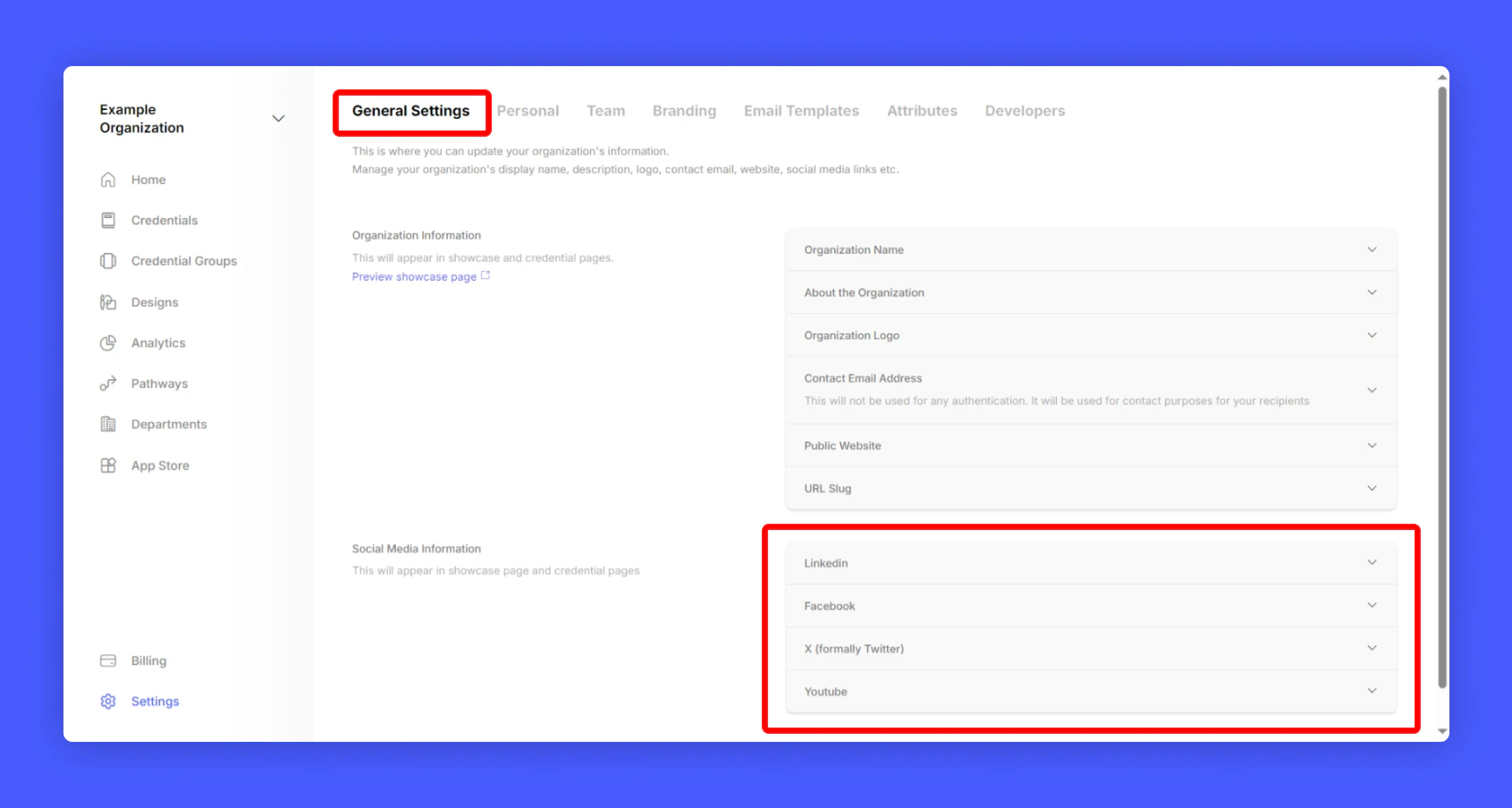
Under Social Media Information and fill-up all your social media accounts
9. Social Media Integration
Hyperstack lets recipients add certifications to their profiles with one click. To link your LinkedIn company page to certifications, provide your LinkedIn organization ID.