

The dashboard
When you sign in, the Studio opens your organization’s Overview.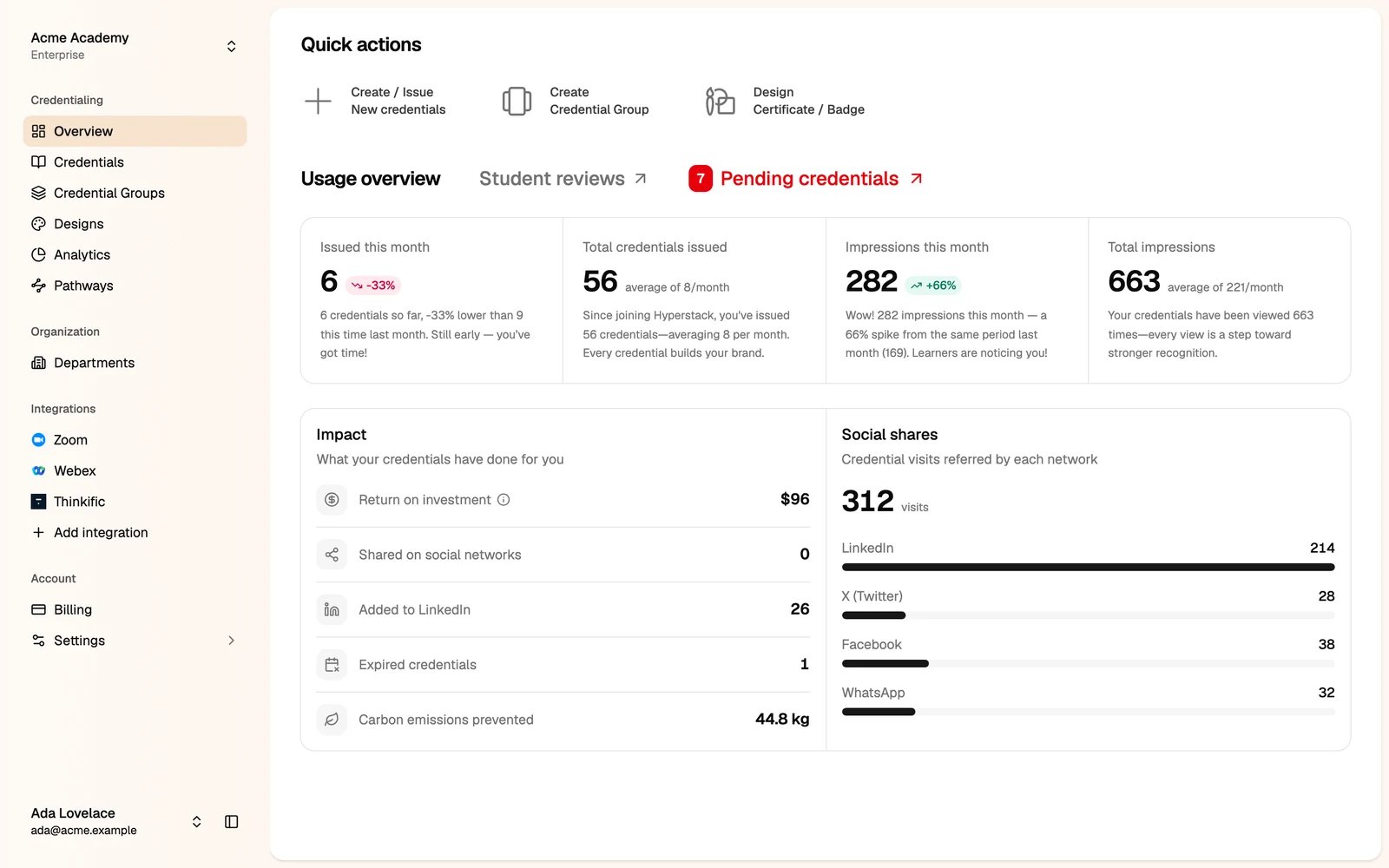
- Quick actions: issue new credentials, create a credential group, or design a certificate or badge.
- Usage overview: the credentials you issued and how often they were viewed, this month and in total.
- Student reviews and Pending credentials: links to the reviews your recipients wrote and to the credentials that wait for you to publish them.
- Impact and Social shares: what your credentials have done for you, such as LinkedIn additions and visits from each social network.
The sidebar
The sidebar has four groups. You only see the items your roles allow (see Team management).
Settings opens its own menu. Click Back to Dashboard at the top to return.
The organization menu
Click your organization’s name at the top of the sidebar.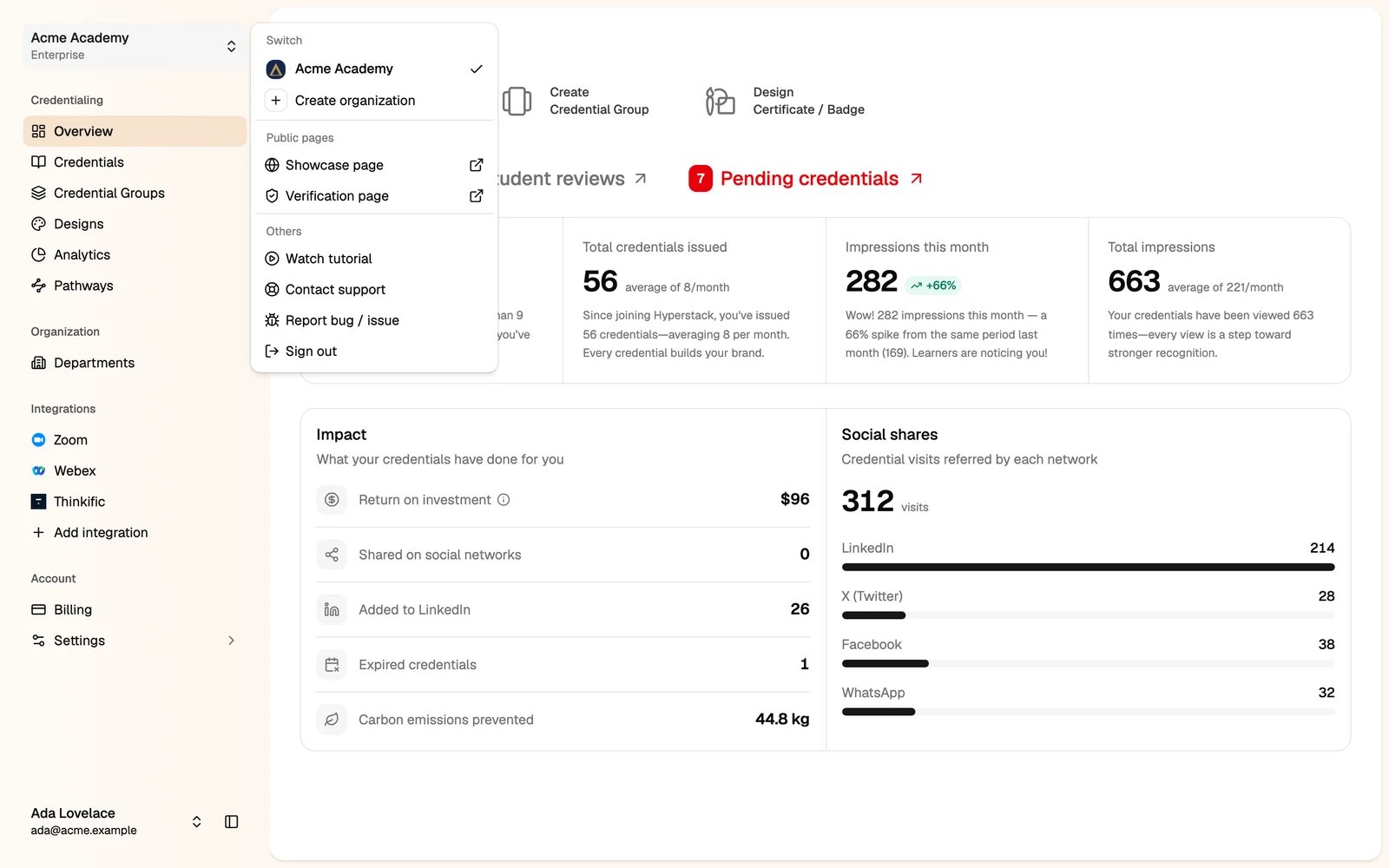
- Switch: move to another organization you belong to, or create a new one.
- Public pages: open your showcase page and your verification page.
- Others: watch the tutorial, contact support, report a bug, or sign out.
Your user menu
Click your name at the bottom of the sidebar.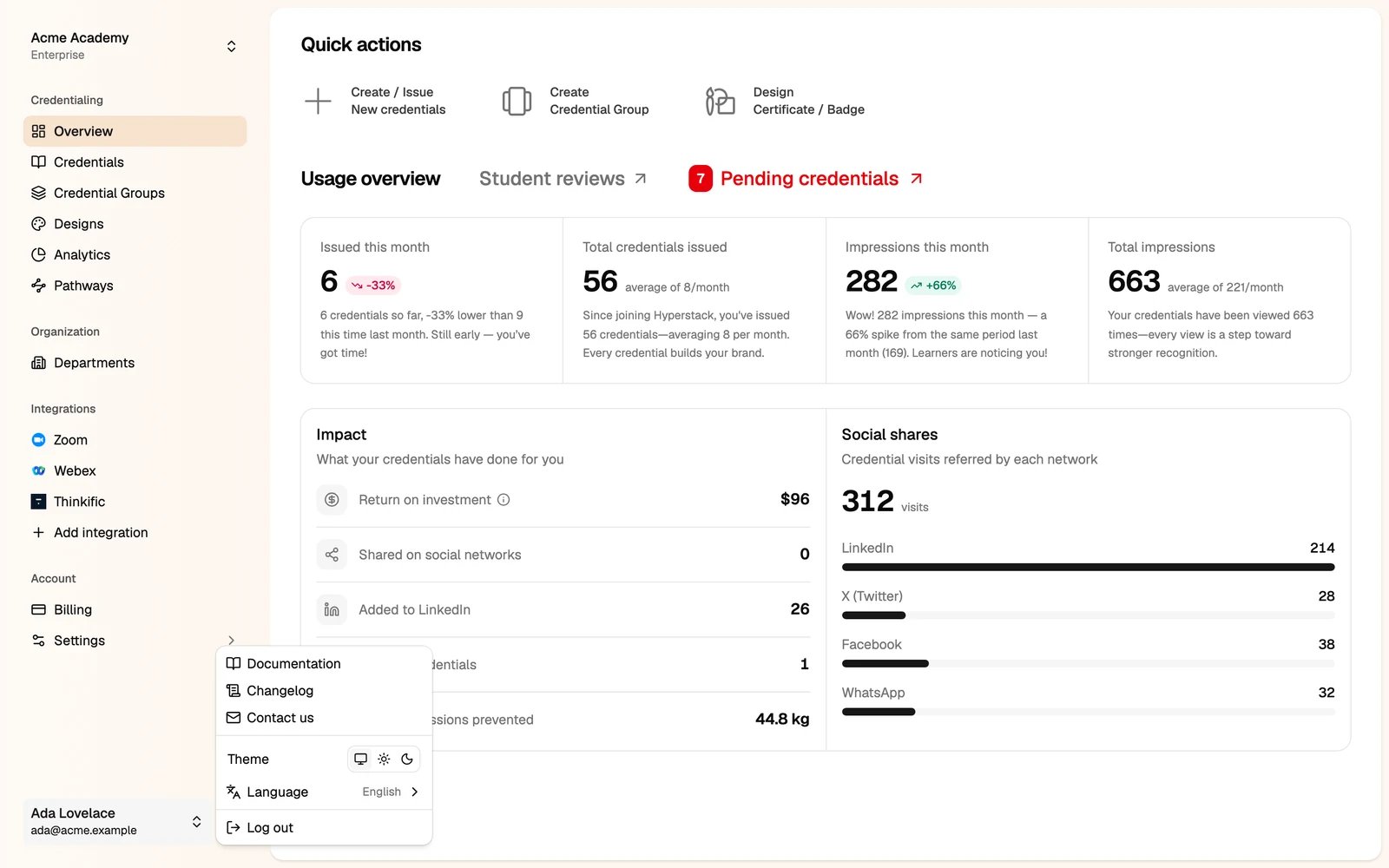
- Theme: follow your system, or pick light or dark.
- Language: the Studio is available in English, العربية, Deutsch, Español, Français, Gaeilge, हिन्दी, Italiano, 한국어, Português, Русский, Kiswahili, தமிழ் and 简体中文.
- Documentation, Changelog and Contact us open in a new tab.