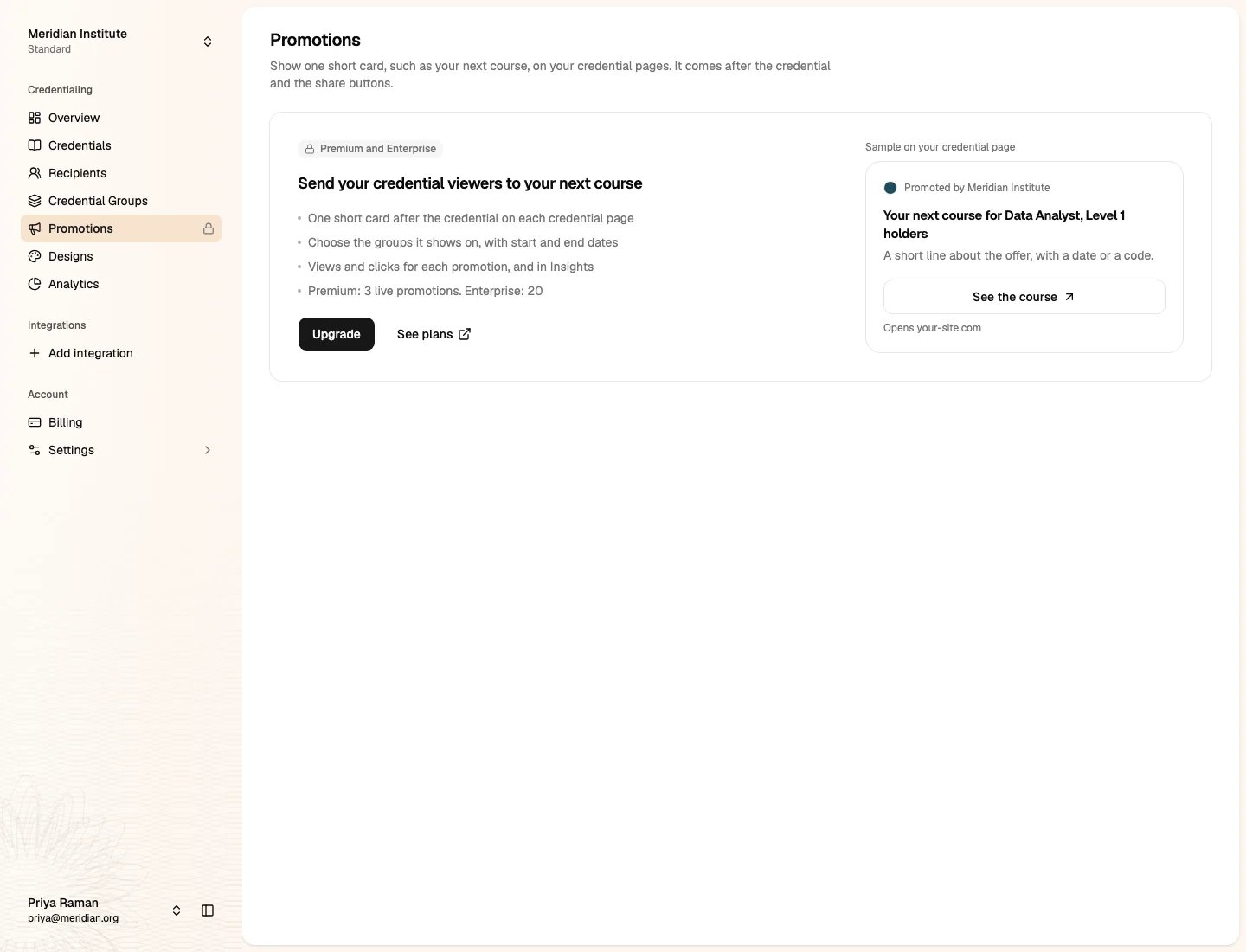
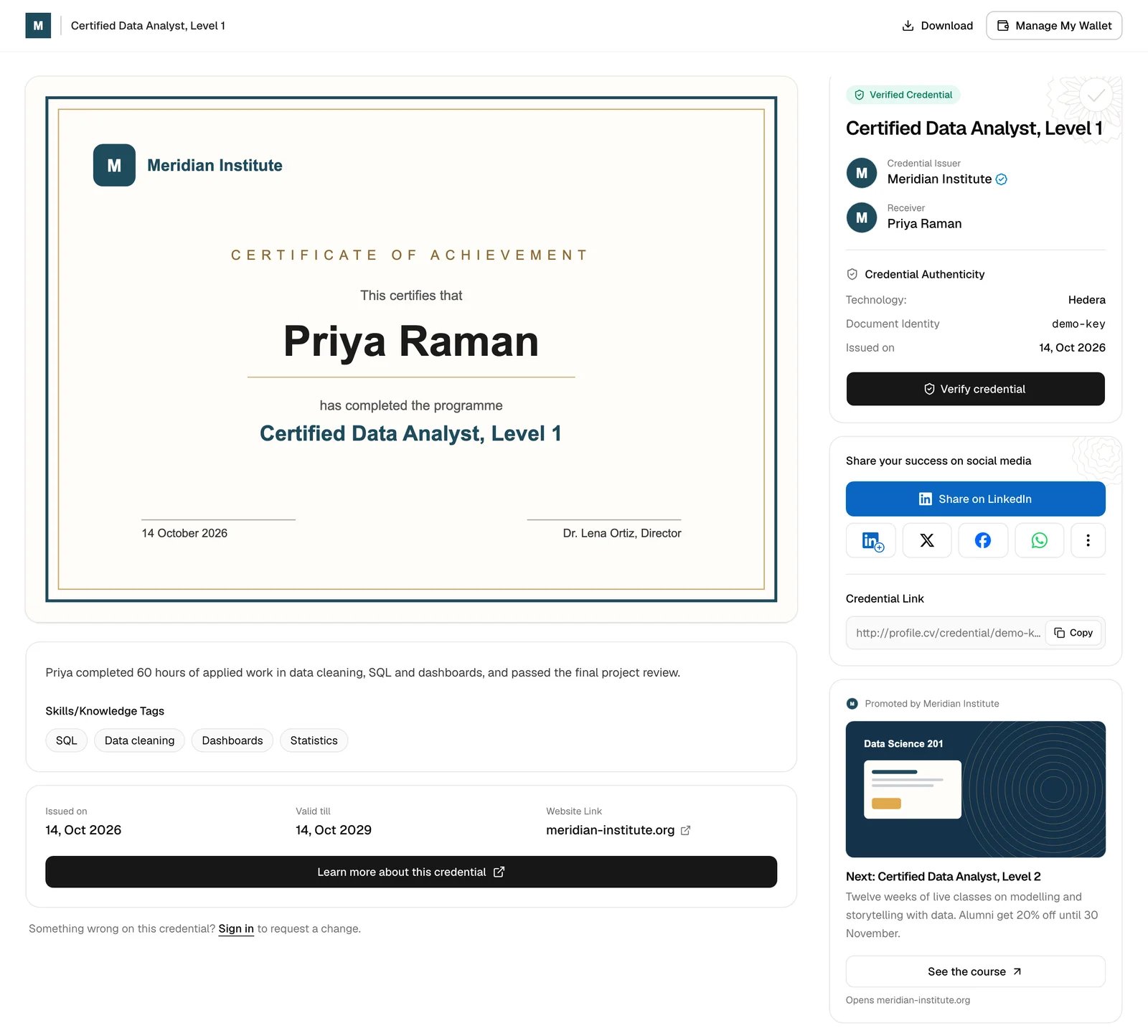
Promotions are on every paid plan. Standard and Premium can have 3 live promotions at a time, Enterprise 20. Administrators turn them on. Issuers make and change promotions.
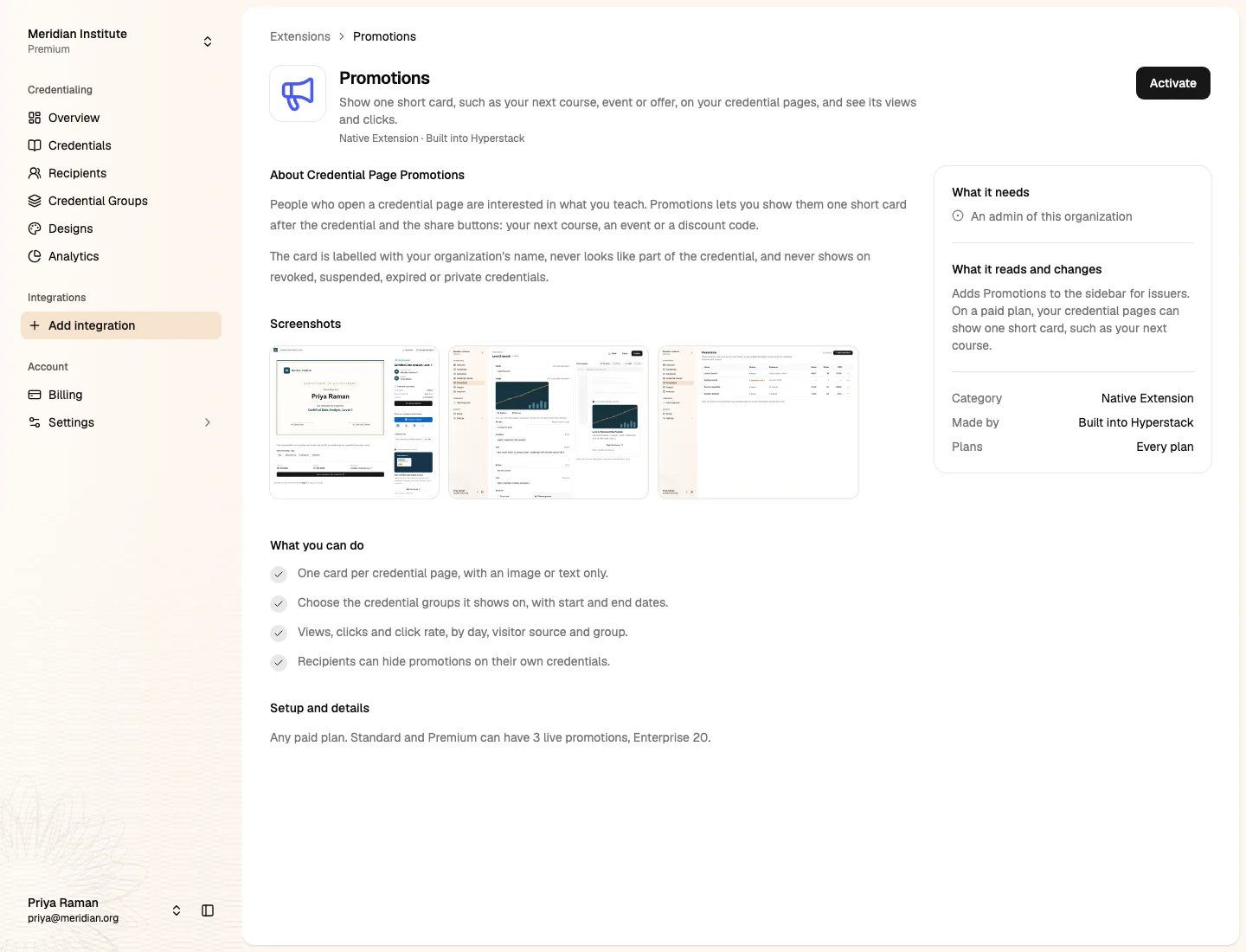
Turn on promotions
1
Go to Add integration
It is in the Integrations part of the sidebar.
2
Open Promotions and click Activate
Make a promotion
1
Go to Promotions and click New promotion
2
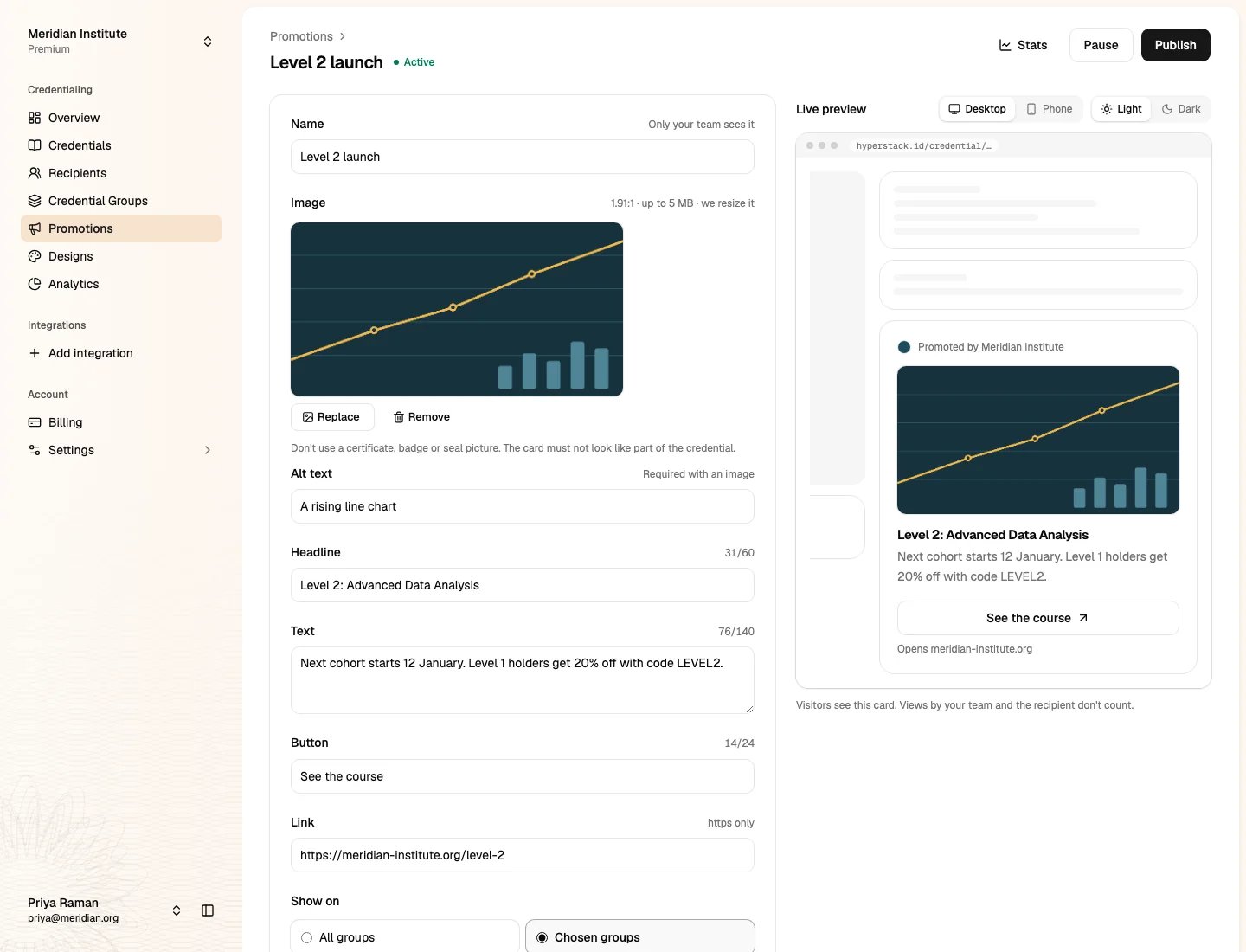
Fill in the card
- Name: only your team sees it.
- Image (optional): wider than tall works best (1.91:1, the same shape as a LinkedIn post image), up to 5 MB. Hyperstack resizes it. Add a short alt text for people who can’t see the image.
- Headline: up to 60 characters.
- Text (optional): up to 140 characters.
- Button: up to 24 characters, for example See the course.
- Link: a full link that starts with
https://.
3
Choose where it shows
- All groups: on the credentials of every credential group.
- Chosen groups: only on the credentials of the groups you tick.
4
Click Publish
The card shows on your credential pages at once. Click Save draft to keep it without showing it.
Which card shows
A credential page shows one card at most.- A credential group shows one live promotion. If you publish a new one on the same group, it replaces the old one there. The editor tells you before you publish.
- You can have one live All groups promotion. A group’s own promotion wins over it on that group.
Where the card shows, and where it doesn’t
On a computer, the card is in the right column under the share buttons. On a phone, it comes after the credential’s details. The card never shows:- On revoked, suspended, expired or private credentials, or on credentials under review.
- In the downloaded PDF, the certificate and badge images, or a printed page.
- On transcripts, your showcase page or the recipient’s wallet.
What recipients see
The credential belongs to the recipient. On their own credential page, they see Hide on all my credentials above the card. They can also turn off Show issuers’ promotions in their wallet settings. Then no promotion shows on any of their credentials.
Views and clicks
Go to Promotions to see each promotion’s status, views, clicks and click rate (CTR) for the last 30 days. Switch to All time for the totals since each promotion was published.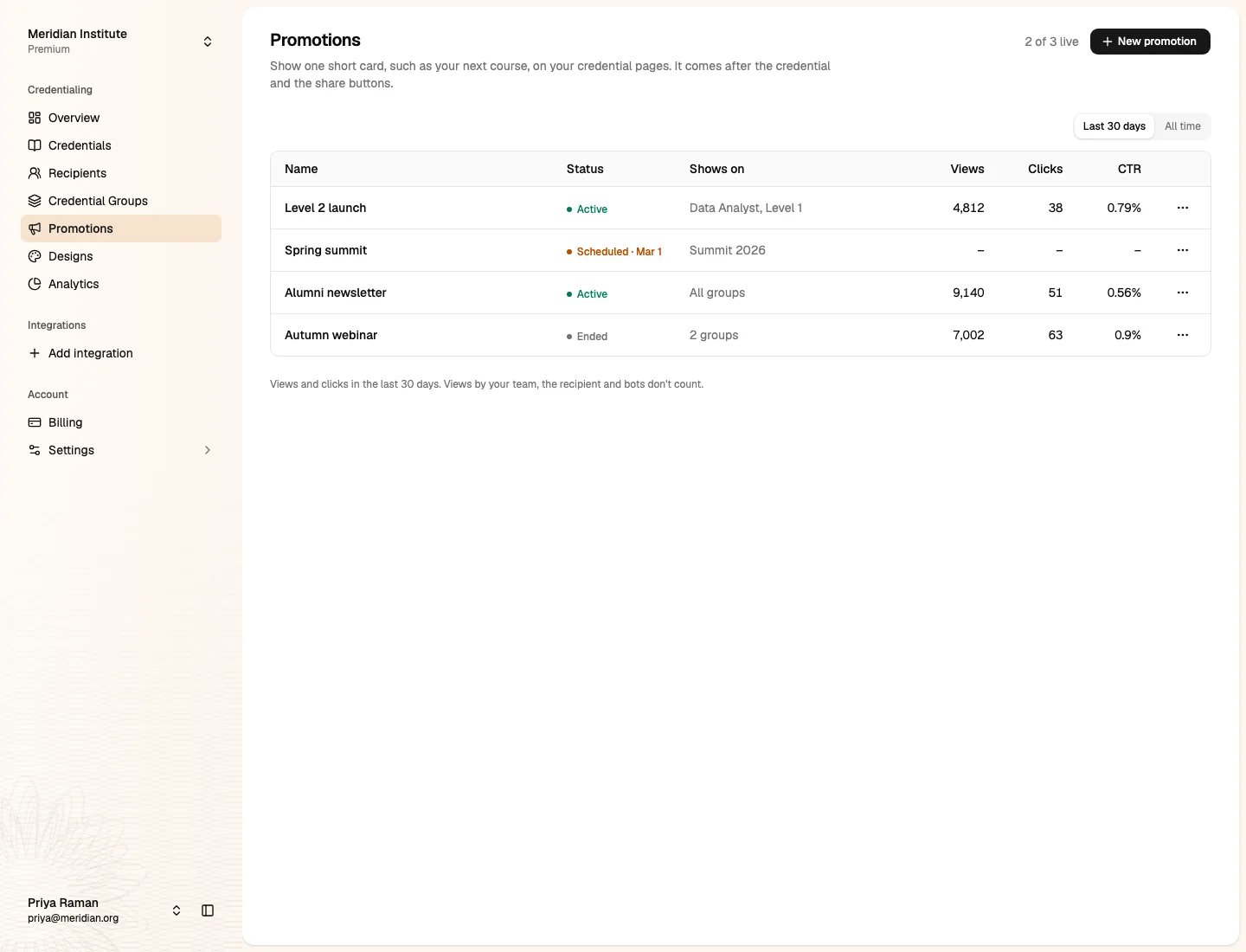
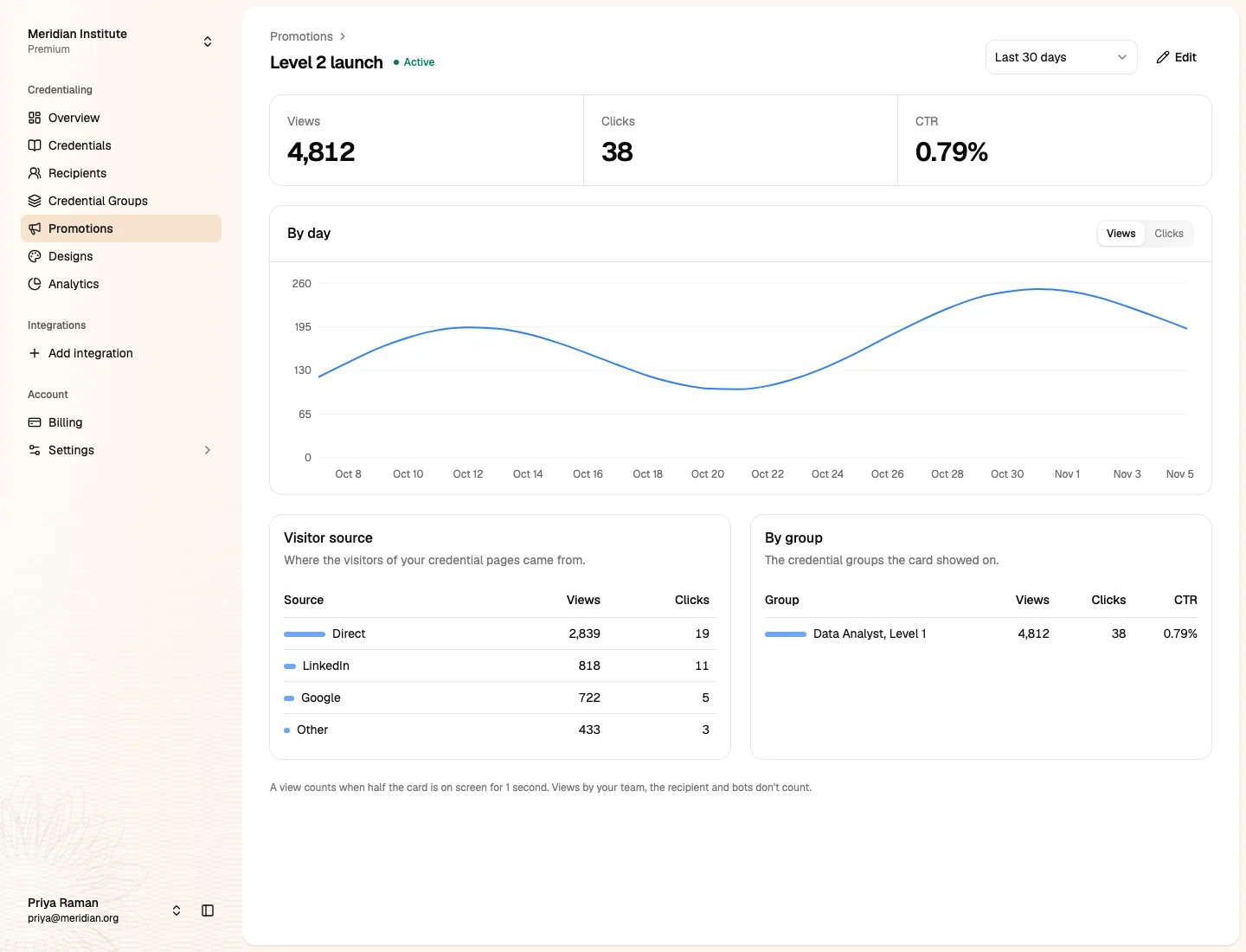
- A view counts when half the card is on the screen for 1 second.
- Views and clicks by your team, the recipient and bots don’t count.
- On a custom domain, nobody is signed in, so every view there counts as a visitor’s.
Pause, change or delete
- Pause stops the card at once. Resume shows it again.
- Change a live promotion and click Publish to update the card.
- Delete a promotion from its row’s menu. This also deletes its views and clicks.