This guide is for recipients: the people who receive certificates and badges. Issuers can send them this page.
Every credential you receive is kept in your free Hyperstack wallet at hyperstack.id. Credentials sent to your email arrive in it on their own.
Open your credential
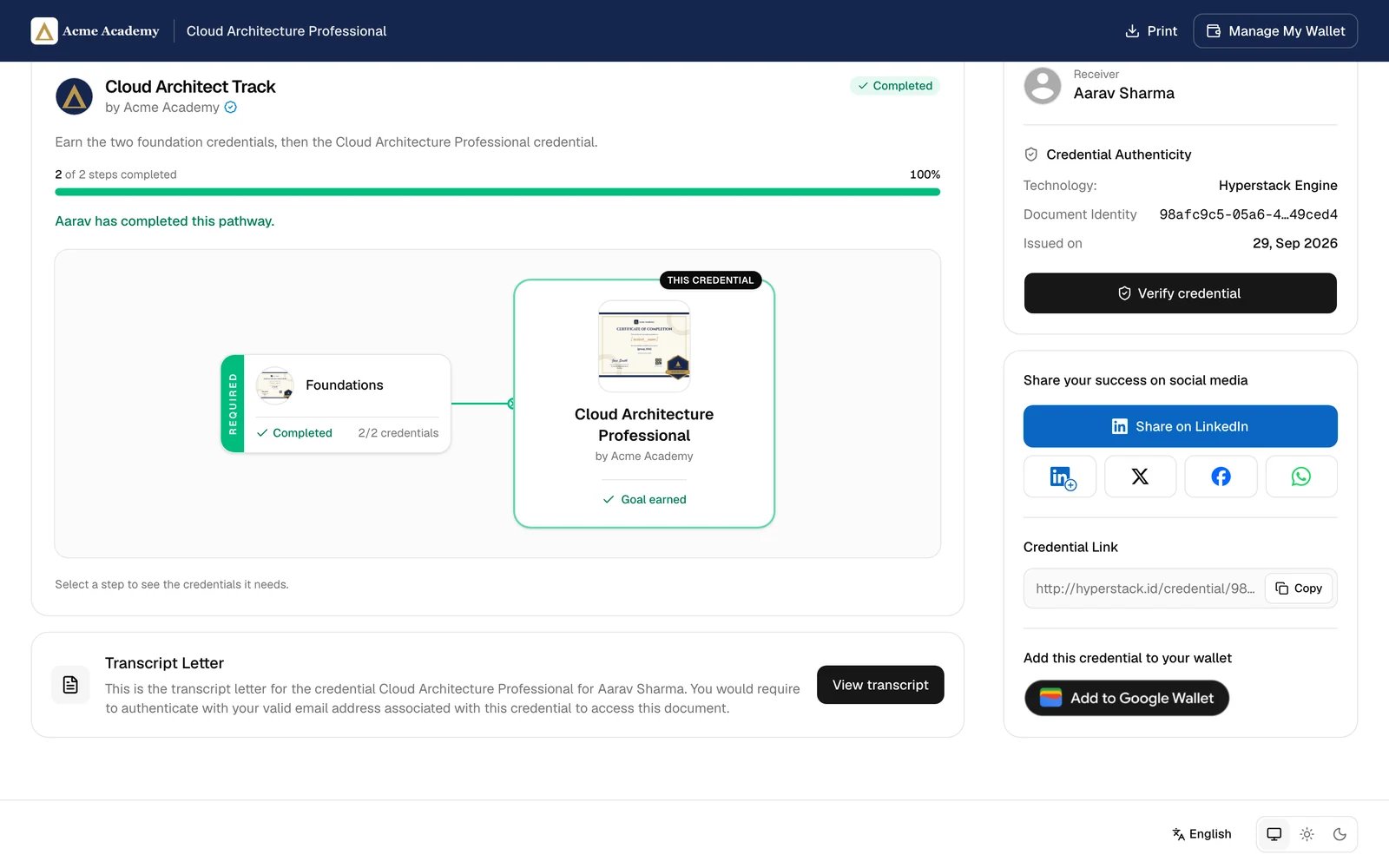
When an organization issues you a credential, you get an email with a link to it. The credential page shows your certificate and badge, who issued it, and when.
On the credential page you can:
- Print or download the certificate.
- Switch between the Certificate and the Badge.
- Verify credential: check that it is genuine and still valid.
- Share on LinkedIn, or share on X, Facebook and WhatsApp.
- Add to LinkedIn Profile: the LinkedIn icon adds the credential to the Licenses & certifications part of your profile.
- Copy the credential link to send it to anyone, for example an employer.
Some credentials also have a Transcript Letter, the progress on a learning pathway, or an Add to Google Wallet button.
Sign in to your wallet
Go to hyperstack.id and click Sign in, or Create account if you are new. Use the email address your credentials were sent to. You can also click Manage My Wallet on any credential page.
You can sign in with your email and password, with Google, or with a passkey.
Your credentials
Credentials lists everything you have earned.
- Issued to you: verified credentials from the organizations you learned with.
- Added by you: certificates or badges you earned elsewhere, which you keep here yourself.
- Your pathways: your progress on learning pathways.
Choose what others can see
Open the menu on a credential and click Make private or Make public.
- Public: anyone with the link can see it, and it shows on your public profile.
- Private: only you, and the organization that issued it, can see it.
Add a credential you earned elsewhere
Click Add credential. Enter the title, the credential ID or serial number, who issued it and when. Then upload the file (PDF, PNG or JPEG, up to 25 MB) or add a link to it.
Claim a credential
If an organization issued you a credential without your email, they give you a claim link. Open it, click Claim credential, and sign in. The credential is added to your wallet.
Your public profile
Profile shows the certificates and badges you made public, and your contact details. Click Copy link to share your profile, or View as visitor to see it as others do.
Your profile’s address is hyperstack.id/ followed by your username. To change your name, username, tagline, picture, contact links or profile visibility, go to Settings.
Pathways
Pathways shows the learning pathways your credentials are part of, and what is left to earn on each. When you complete a pathway, you may get its goal credential automatically.
Reviews
Your credential email can have a link to review the course. Reviews lists the reviews you wrote, so you can edit them. Issuers may show them on their public pages.
Transcripts
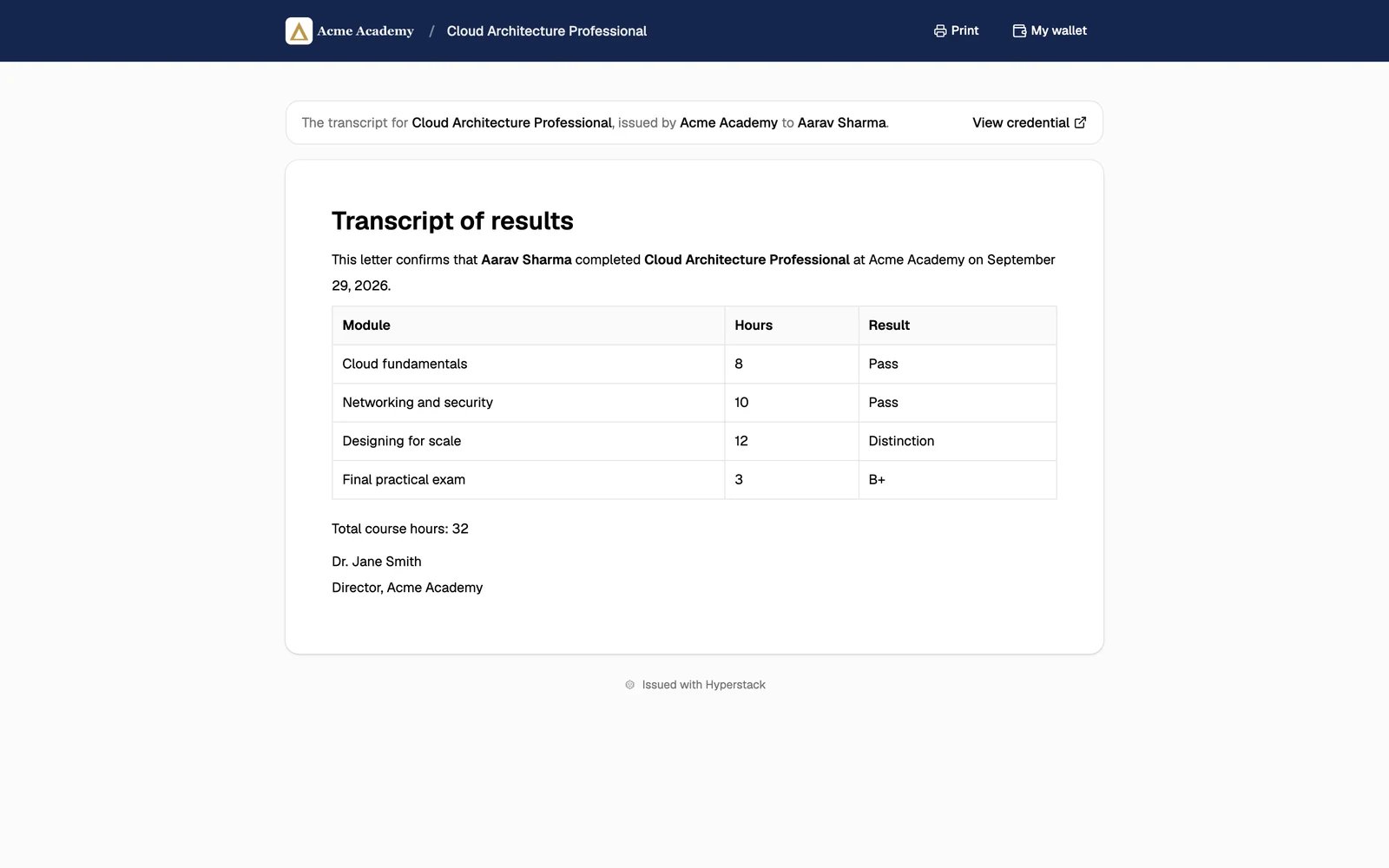
If the issuer added a transcript, the credential page has a Transcript Letter card. Click View transcript and sign in with the email the credential was sent to. Only you and the issuer can open it.
Need help?
If you can’t find your credential email, ask the organization that issued it to resend it. For questions about your wallet, contact Hyperstack support. Last modified on October 20, 2026