

Evidence is on the Premium and Enterprise plans. You need the Credential issuer or Administrator role to add, change or hide evidence.
What an item of evidence is
Each item has a title and one of these:- Link: a web page, such as a GitHub repository, a portfolio or a video. Hyperstack never opens the link. Viewers see its site name, such as
github.com, next to the title. - File: a PDF, PNG, JPEG or WebP file, up to 10 MB.
- Text: a short note, such as an assessor’s comment, up to 2,000 characters.
Add evidence to one credential
1
Open the credential
Go to Credentials and click the credential. Its page opens.
2
Click Add evidence
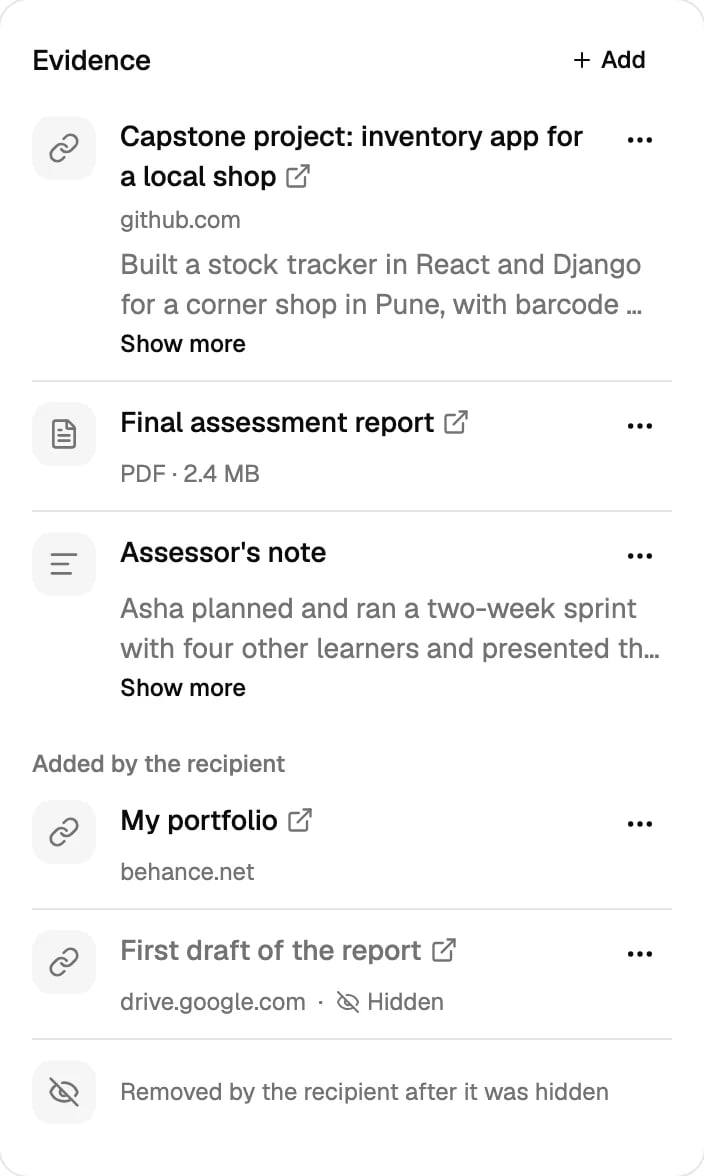
The Evidence panel is under Details. When the credential already has evidence, click Add at the top of the panel.
3
Choose Link, File or Text
Type a Title. Then add the link, choose the file, or type the text. A file’s name fills the title if you leave it empty.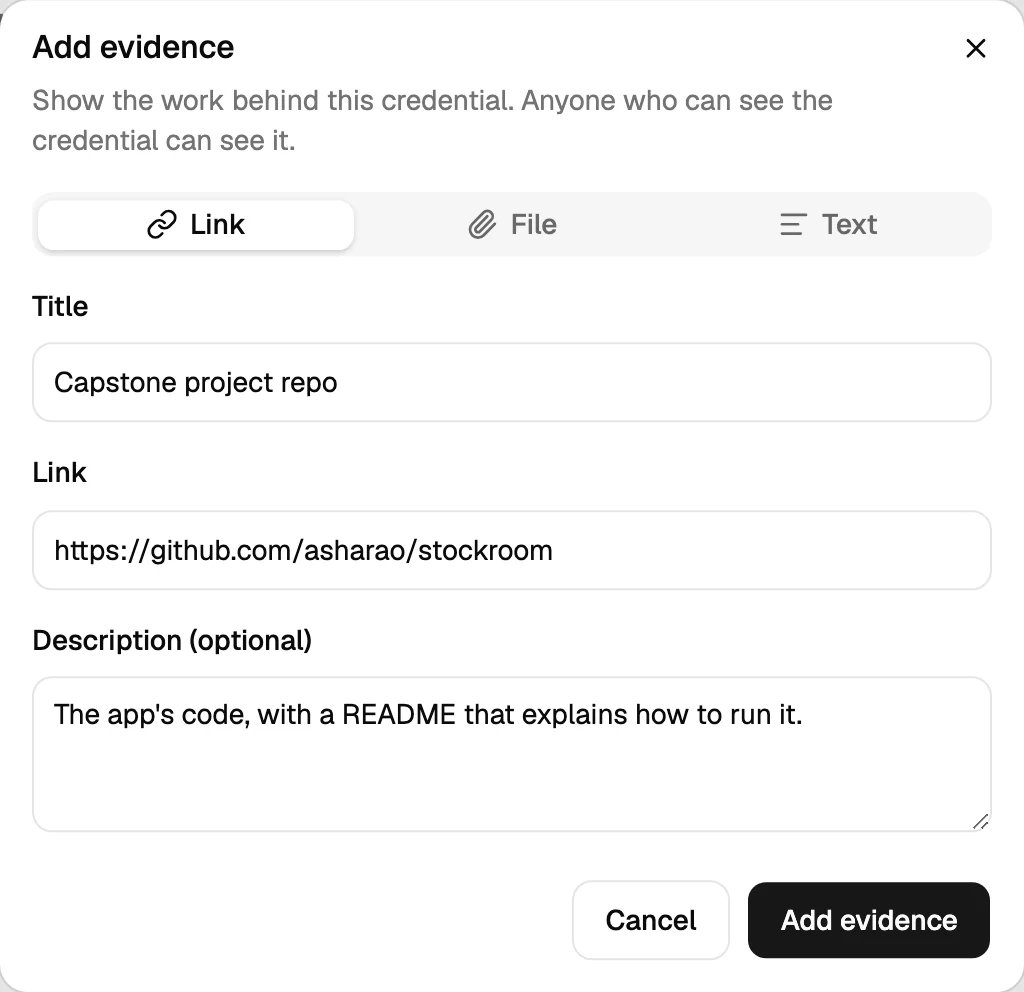
4
Click Add evidence
The item shows in the panel at once.
Edit or delete an item
Click ⋯ on the item.- Edit: change the title, the link, the text or the description. To change a file, delete the item and add a new one.
- Delete: removes the item from the credential and its page, file included. This can’t be undone.
Add evidence when you issue
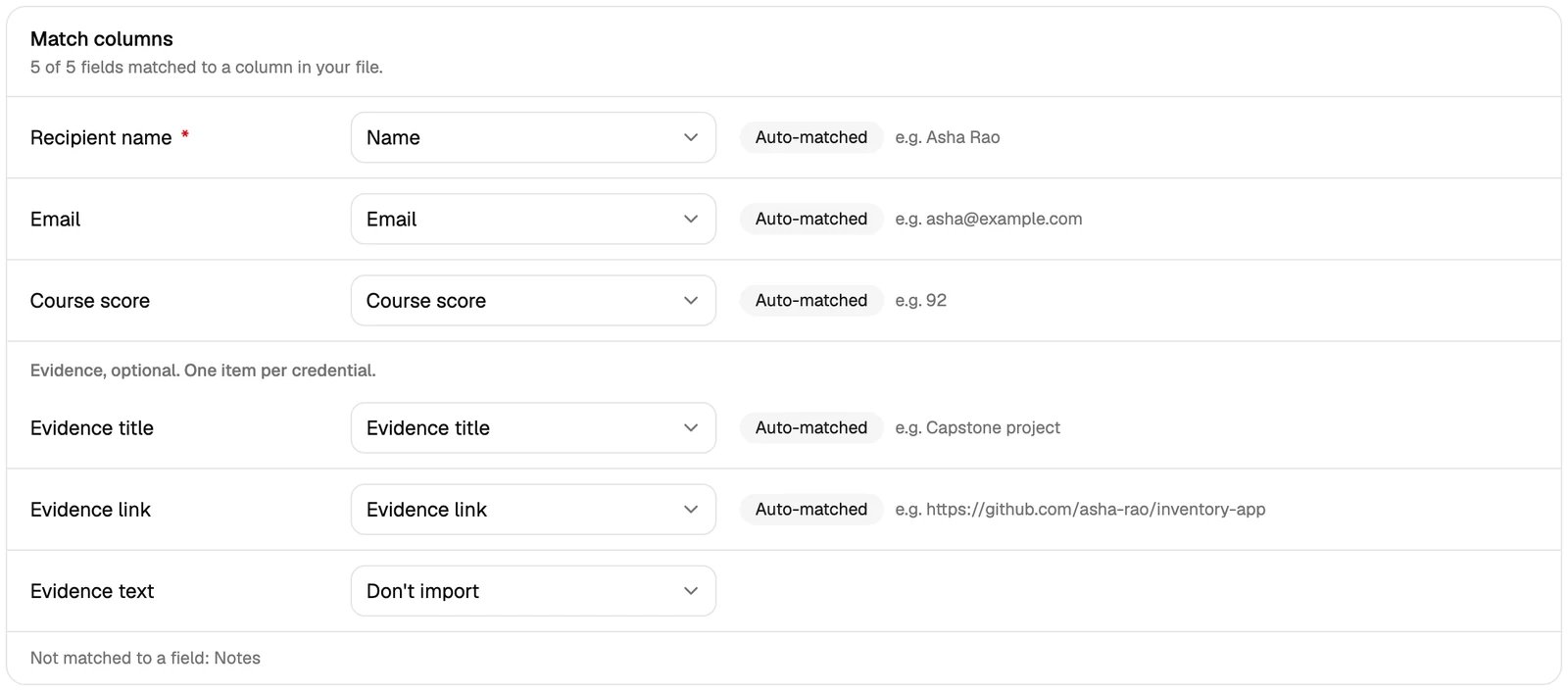
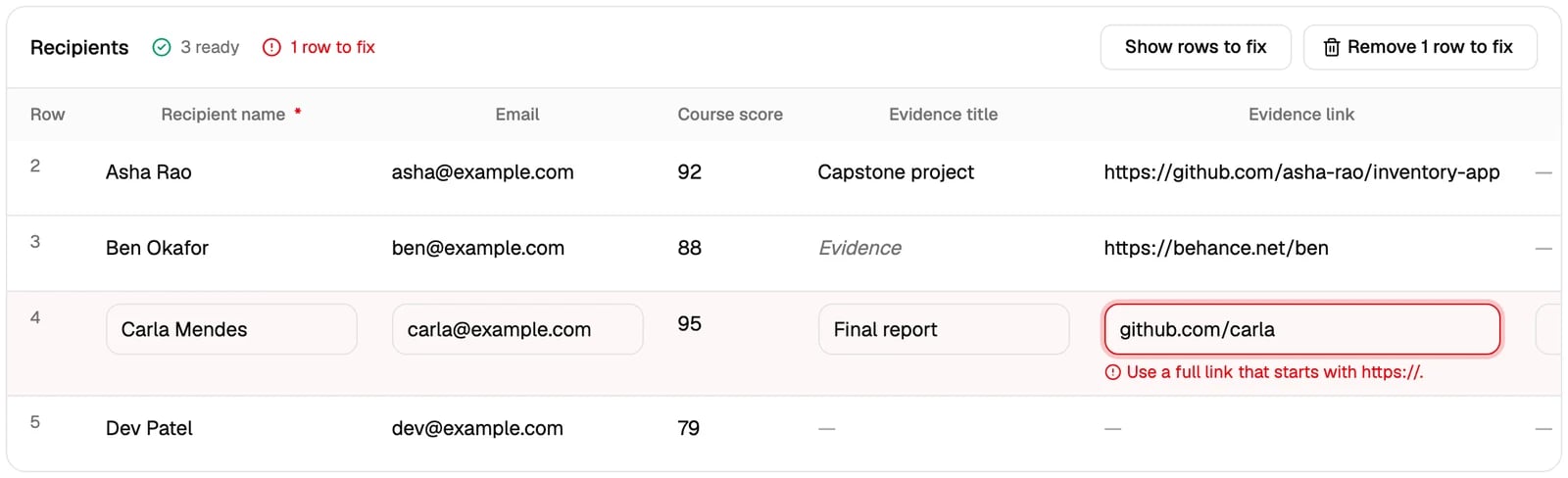
When you issue credentials, you can give each credential one item of evidence. Use three optional columns in your spreadsheet, or in the table when you add recipients by hand:
A row needs a link or a text to get evidence. A row with neither gets no evidence.
The CSV and Excel templates have these columns at the end, named
evidence_title, evidence_url and evidence_text. The Studio also matches columns named Evidence title, Evidence link and Evidence text by itself. Check them under Match columns.
https://. Fix the row, or remove it, before you continue.
Let recipients add their own work
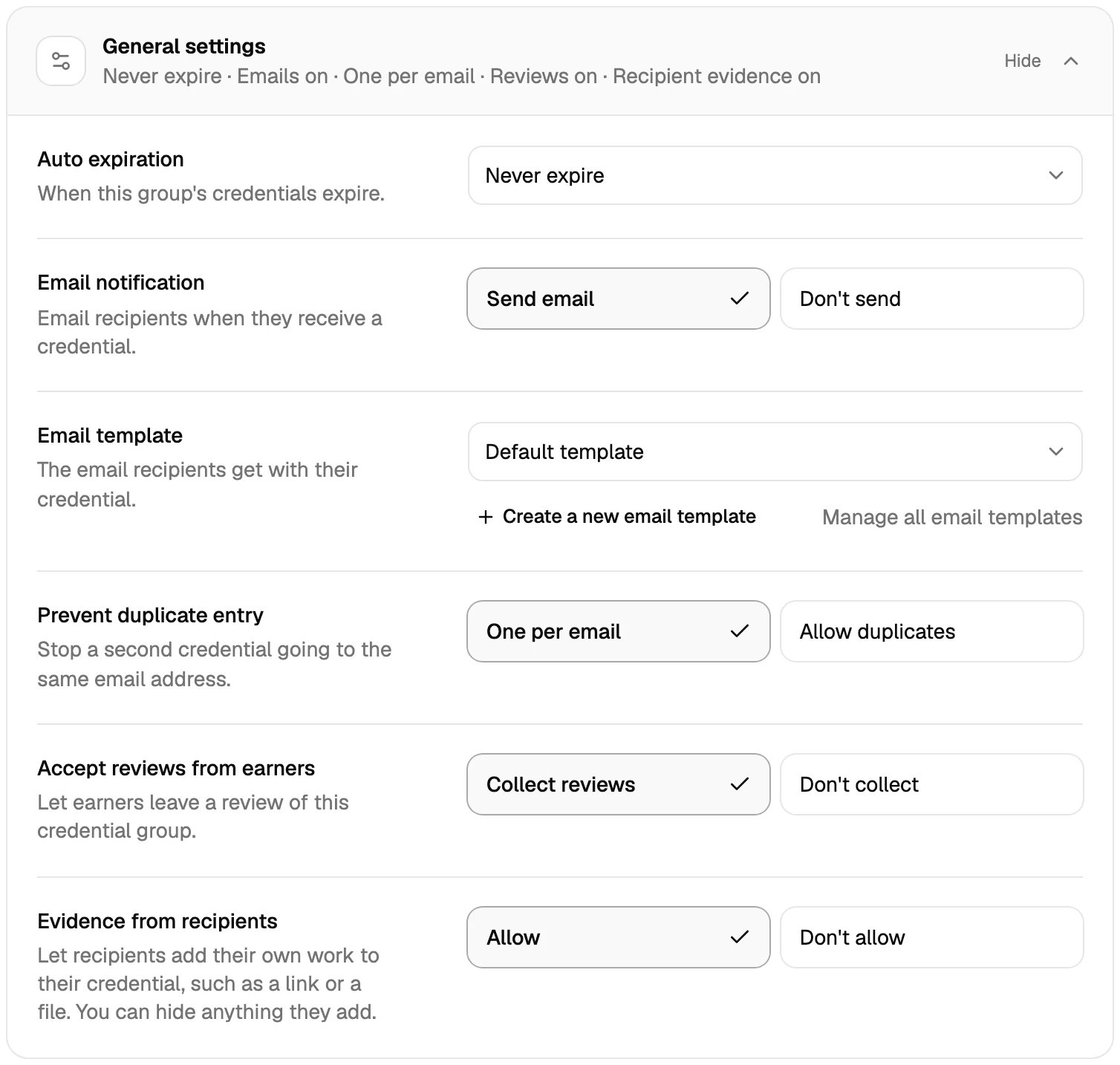
Recipients can add their own work to their credential, such as a link to their portfolio or a file. This is a credential group setting, and it is off for new groups.1
Open the group
Go to Credential Groups and click the group.
2
Open General settings
Under More settings, click General settings.
3
Set Evidence from recipients to Allow
4
Save the group
Click Update group.
- Add up to 5 items to each credential: links, files or text, with the same limits as yours.
- Add them from their wallet, or from the credential page when they are signed in.
- Edit and delete their own items. They can’t change your items.
Hide an item a recipient added
In the Evidence panel, recipients’ items are under Added by the recipient.- Click ⋯ on the item.
- Click Hide from page.
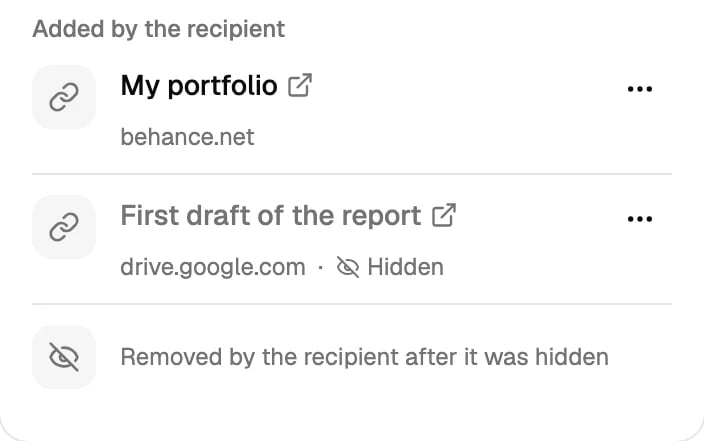
Removed by the recipient after it was hidden
A recipient can delete an item that you hid. Its title, link, text and file are then deleted. The panel keeps one grey row, Removed by the recipient after it was hidden, with no menu. This row still counts as one of the recipient’s 5 items on that credential, for good. So deleting a hidden item and adding it again can’t bring it back. Nobody can show it again, and it shows nowhere outside the Studio.What viewers see
The credential page shows an Evidence card after the dates.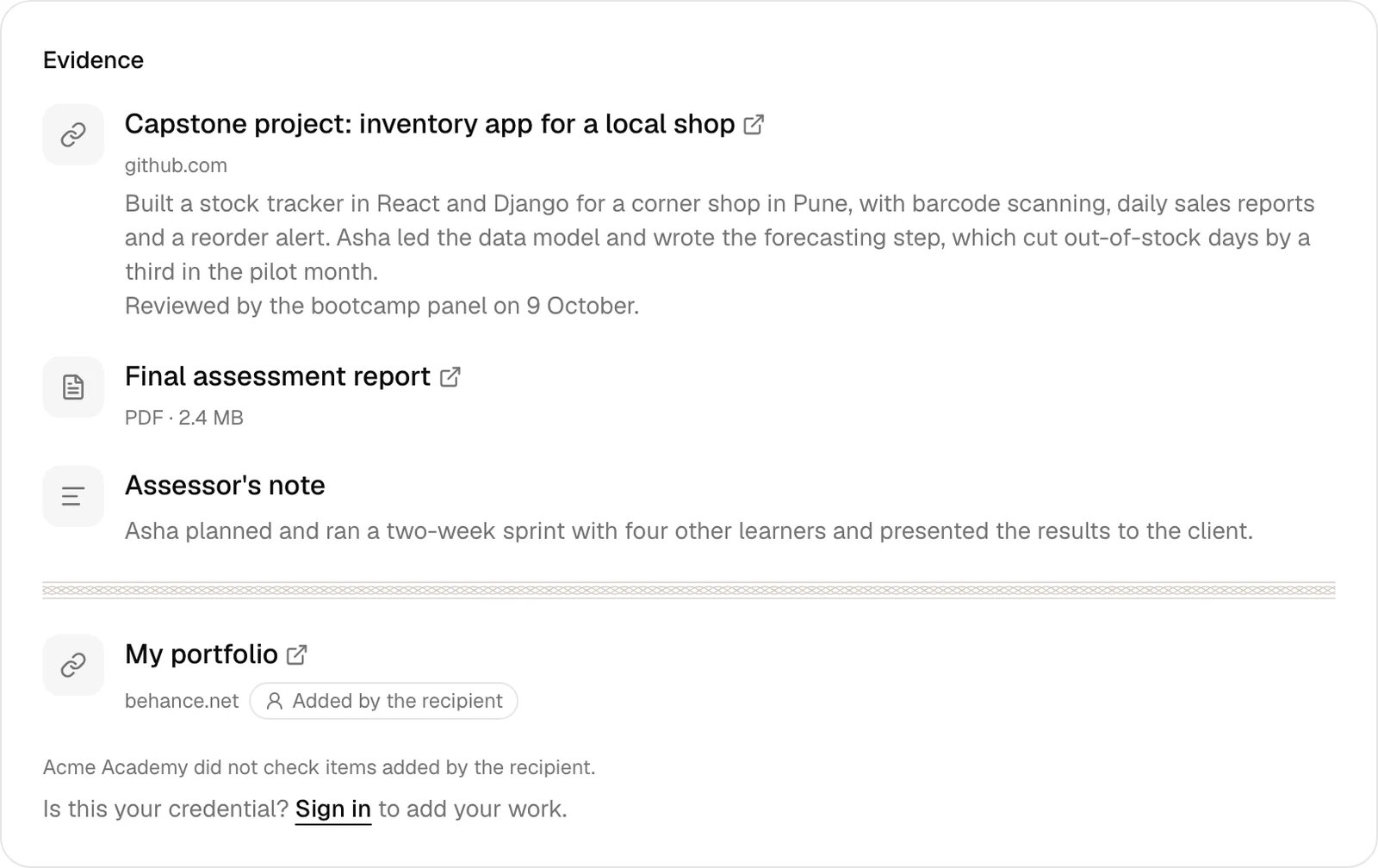
- Your items come first, then the recipient’s, each in the order they were added.
- A line separates your items from the recipient’s. Each recipient item has the label Added by the recipient, and the card says that your organization did not check them.
- A link opens in a new tab. A file opens in the browser.
- A long text shows four lines, then Show more.
- When recipients can add, a visitor who is not signed in sees Is this your credential? Sign in to add your work. On your own domain, the line links to the wallet instead.
- Private credential: only the recipient and your team can see the evidence and open its files.
- Suspended: the evidence is hidden from the page and the Open Badges downloads, and its files don’t open for others. It comes back when you lift the suspension. You can still add and edit evidence meanwhile.
- Revoked: the evidence is hidden in the same way. The Studio keeps it, read only.
- Expired: the evidence still shows.
Open Badges
The Open Badges 2.0 and 3.0 downloads carry your items in anevidence list. A file item points to its address on the credential page.
- Items that recipients add are never in the downloads. Your organization signs the Open Badges 3.0 credential, so only your own items go in.
- A credential with no items from you has no
evidencefield. - A change shows in the next download. A badge image downloaded before keeps what it had.
Plans
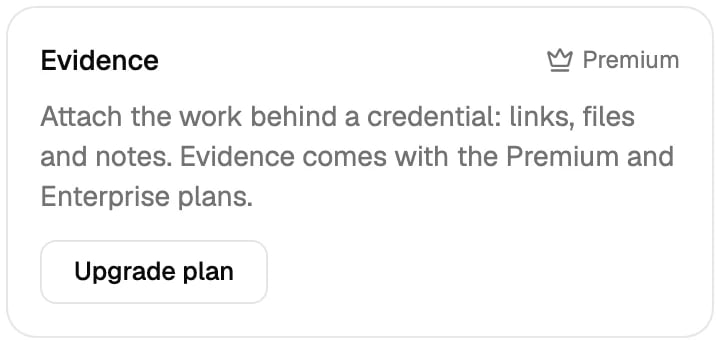
Evidence is on the Premium and Enterprise plans. On the Standard plan, during a trial, or when your plan has ended:- The Evidence panel shows an Upgrade plan button. Members without billing access see Ask an admin to upgrade your plan.
- The spreadsheet has no evidence columns, and the group setting Evidence from recipients does not show.
Limits
The panel shows how much storage is used when it is 90% full. When it is full, you can still add links and text.
Use the API or an AI assistant
- The REST API lists, adds and deletes evidence, and Issue Credential takes evidence when you issue.
- The MCP server has tools to list, add, change, hide and delete evidence. An assistant can add links and text, not files.